Free Shipping on Domestic Orders $75+

Samsung Galaxy Attain 4G Front Camera Replacement

What you need

  1. Samsung Galaxy Attain 4G Front Camera Replacement, Placement: step 1, image 1 of 1
    • Begin by turn the device over to it's back, with the screen facing down.

    Ask FixBot

    Add Comment

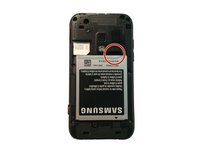
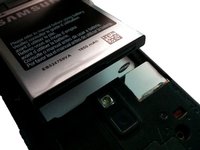
  2. Samsung Galaxy Attain 4G Front Camera Replacement, Battery Door Removal: step 2, image 1 of 2 Samsung Galaxy Attain 4G Front Camera Replacement, Battery Door Removal: step 2, image 2 of 2
    • At the top of the device there is a small notch that is used to remove the battery door.

    • Using a pry tool or your fingernail, pry off the battery door from the main housing.

    Ask FixBot

    Add Comment

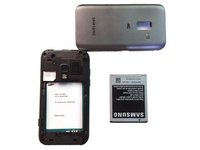
  3. Samsung Galaxy Attain 4G Front Camera Replacement, Battery Removal: step 3, image 1 of 3 Samsung Galaxy Attain 4G Front Camera Replacement, Battery Removal: step 3, image 2 of 3 Samsung Galaxy Attain 4G Front Camera Replacement, Battery Removal: step 3, image 3 of 3
    • Place the battery door to the side.

    • Using a pry tool or your fingernail, pry the battery up towards you.

    • You have now removed the battery!

    Ask FixBot

    Add Comment

  4. Samsung Galaxy Attain 4G Front Camera Replacement, Heads Up!: step 4, image 1 of 1
    • Make sure when replacing the battery that the arrow on the bottom is facing down.

    Ask FixBot

    Add Comment

  5. Samsung Galaxy Attain 4G Front Camera Replacement, Screw Removal: step 5, image 1 of 1
    • Remove the 6 Phillips head screws that hold the rear housing in place.

    Ask FixBot

    Add Comment

  6. Samsung Galaxy Attain 4G Front Camera Replacement, Prying: step 6, image 1 of 1
    • Using a spudger or plastic pry tool, slowly go around the phone between the display & rear housing to release the clips.

    Ask FixBot

    Add Comment

  7. Samsung Galaxy Attain 4G Front Camera Replacement, Remove Housing: step 7, image 1 of 1
    • Lift the rear housing from the display assembly.

    Ask FixBot

    Add Comment

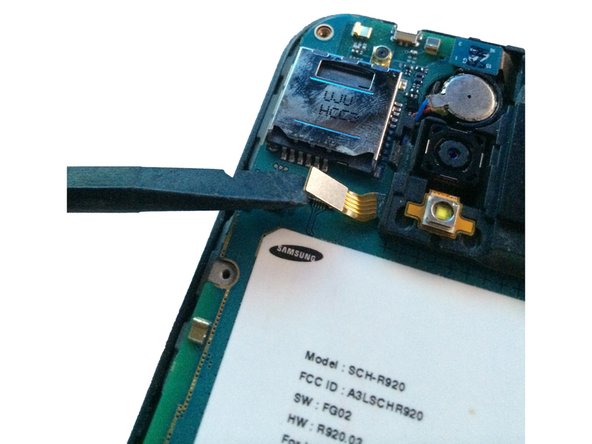
  8. Samsung Galaxy Attain 4G Front Camera Replacement, Logic Board: step 8, image 1 of 2 Samsung Galaxy Attain 4G Front Camera Replacement, Logic Board: step 8, image 2 of 2
    • Using your spudger/plastic pry tool, disconnect the headphone jack flex cable.

    Ask FixBot

    Add Comment

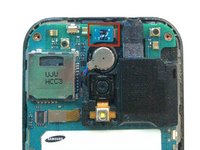
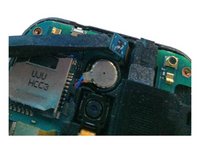
  9. Samsung Galaxy Attain 4G Front Camera Replacement: step 9, image 1 of 2 Samsung Galaxy Attain 4G Front Camera Replacement: step 9, image 2 of 2
    • Using your spudger/plastic pry tool, disconnect the rear speaker flex cable.

    Ask FixBot

    Add Comment

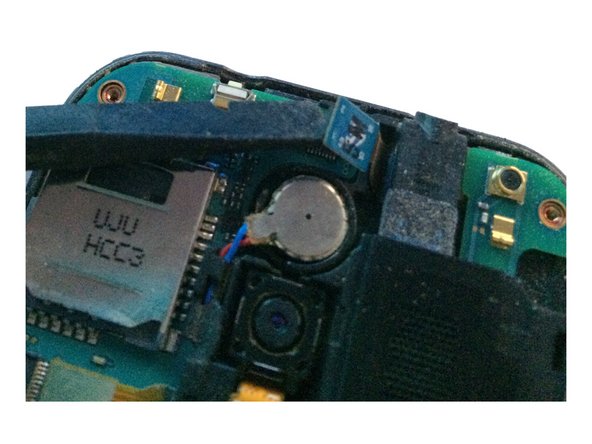
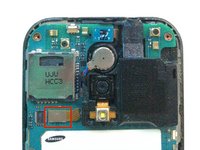
  10. Samsung Galaxy Attain 4G Front Camera Replacement: step 10, image 1 of 1
    • Using a spudger/pry tool, carefully remove the vibration motor from its housing. This has a mild adhesive on the bottom.

    Ask FixBot

    Add Comment

  11. Samsung Galaxy Attain 4G Front Camera Replacement: step 11, image 1 of 2 Samsung Galaxy Attain 4G Front Camera Replacement: step 11, image 2 of 2
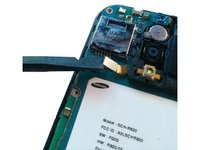
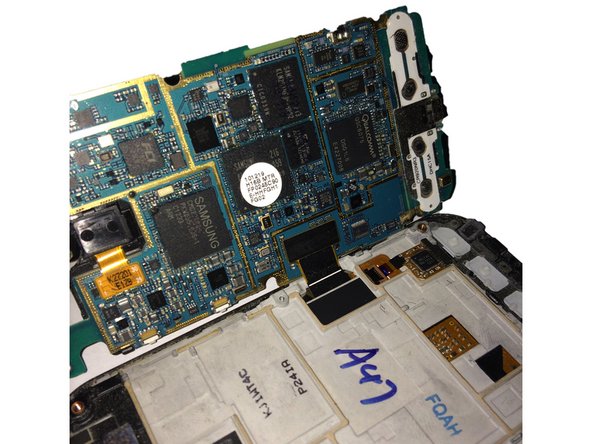
    • After removing both flex cables, slowly move the logic board to the left of the screen assembly.

    • Do not try and remove the logic board all the way, as you still have to remove the display assembly flex cable!

    Ask FixBot

    Add Comment

  12. Samsung Galaxy Attain 4G Front Camera Replacement: step 12, image 1 of 1
    • Using your spudger/plastic pry tool, disconnect the LCD/Digitizer flex cable.

    Ask FixBot

    Add Comment

  13. Samsung Galaxy Attain 4G Front Camera Replacement: step 13, image 1 of 2 Samsung Galaxy Attain 4G Front Camera Replacement: step 13, image 2 of 2
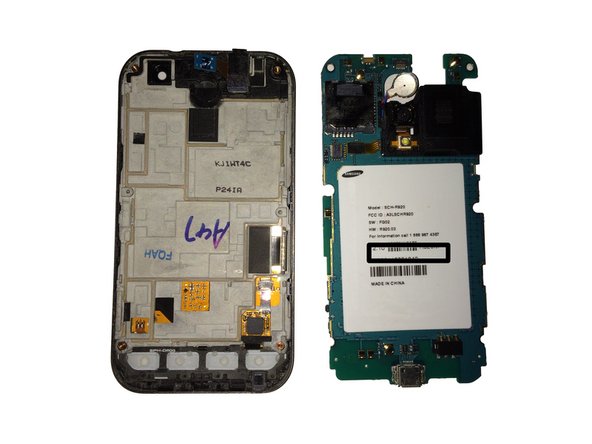
    • You have now removed the logic board from the display assembly.

    Ask FixBot

    Add Comment

  14. Samsung Galaxy Attain 4G Front Camera Replacement, Front Camera: step 14, image 1 of 1
    • Using a spudger/plastic pry tool lift the brown ZIF tab on the front-facing camera connector.

    • Do not pry at the black part, as this will damage the connector on the board.

    Ask FixBot

    Add Comment

  15. Samsung Galaxy Attain 4G Front Camera Replacement: step 15, image 1 of 1
    • Carefully pull the camera out of it's connector and set to the side.

    Ask FixBot

    Add Comment

Conclusion

To reassemble your device, follow these instructions in reverse order.

Cancel: I did not complete this guide.

3 other people completed this guide.

Josh Forester

Member since: 11/28/10

2,629 Reputation

10 Guides authored

0 Guide Comments

Add Comment

View Statistics:

Past 24 Hours: 0

Past 7 Days: 5

Past 30 Days: 25

All Time: 637