Free Shipping on Domestic Orders $75+

Samsung Galaxy A72 Screen with Frame Replacement

What you need

Video Overview

  1. Samsung Galaxy A72 Screen with Frame Replacement, Back cover removal: step 1, image 1 of 3 Samsung Galaxy A72 Screen with Frame Replacement, Back cover removal: step 1, image 2 of 3 Samsung Galaxy A72 Screen with Frame Replacement, Back cover removal: step 1, image 3 of 3
    • Heat the device to soften the adhesive. Take care not to apply too much heat or in one area overlong to avoid damage to the battery or other components

    • To separate the back cover, use plastic tools; a spudger, pick or playing card as shown here. A suction cup and a little high alcohol content ethanol or isopropyl alcohol (Not Rubbing Alcohol) to help soften the adhesive may be helpful. (shown in the video)

  2. Samsung Galaxy A72 Screen with Frame Replacement: step 2, image 1 of 3 Samsung Galaxy A72 Screen with Frame Replacement: step 2, image 2 of 3 Samsung Galaxy A72 Screen with Frame Replacement: step 2, image 3 of 3
    • Remove the SIM Tray.

    • Remove the ten silver Phillips screws securing the plastic mother board cover.

    • Pry off the cover and remove it.

  3. Samsung Galaxy A72 Screen with Frame Replacement, Motherboard removal: step 3, image 1 of 3 Samsung Galaxy A72 Screen with Frame Replacement, Motherboard removal: step 3, image 2 of 3 Samsung Galaxy A72 Screen with Frame Replacement, Motherboard removal: step 3, image 3 of 3
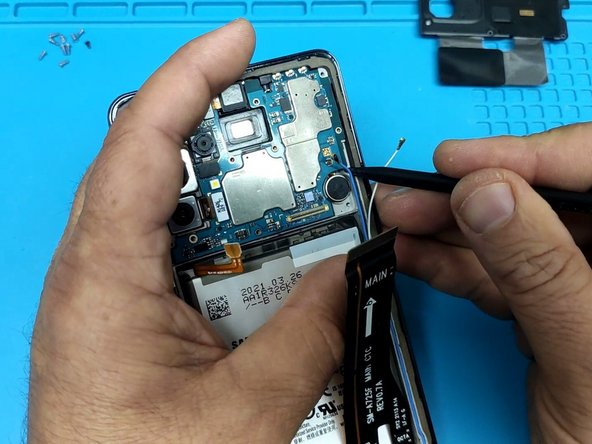
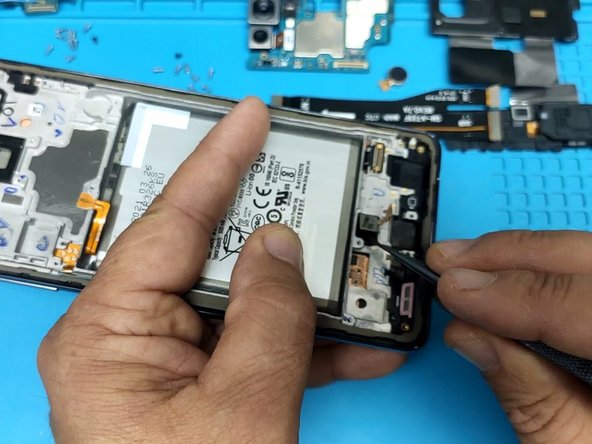
    • Disconnect the battery by prying gently.

    • Unplug the main flex cable.

    • Pry gently upward to disconnect the coaxial antenna cables connectors.

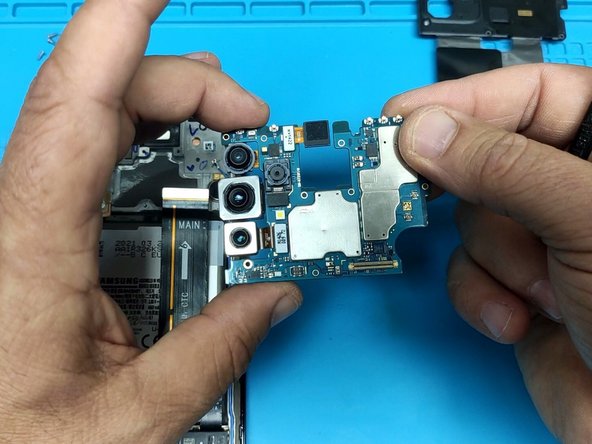
    • Remove the black Philips screw securing the motherboard to the display frame. set it aside.

    • Keep in mind this screw is different from the others, it is shorter than most of the other screws, as is one other. Be sure to keep track and put them in the correct location on reassembly to avoid damage.

    • Use a plastic tool to pry up and remove the Motherboard.

  4. Samsung Galaxy A72 Screen with Frame Replacement, Daughter board part 1: step 4, image 1 of 3 Samsung Galaxy A72 Screen with Frame Replacement, Daughter board part 1: step 4, image 2 of 3 Samsung Galaxy A72 Screen with Frame Replacement, Daughter board part 1: step 4, image 3 of 3
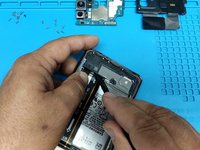
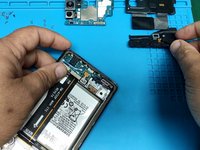
    • Remove the silver Phillips screws and with a plastic tool pry up the plastic cover. Set it aside.

  5. Samsung Galaxy A72 Screen with Frame Replacement, Daughter board part 2: step 5, image 1 of 3 Samsung Galaxy A72 Screen with Frame Replacement, Daughter board part 2: step 5, image 2 of 3 Samsung Galaxy A72 Screen with Frame Replacement, Daughter board part 2: step 5, image 3 of 3
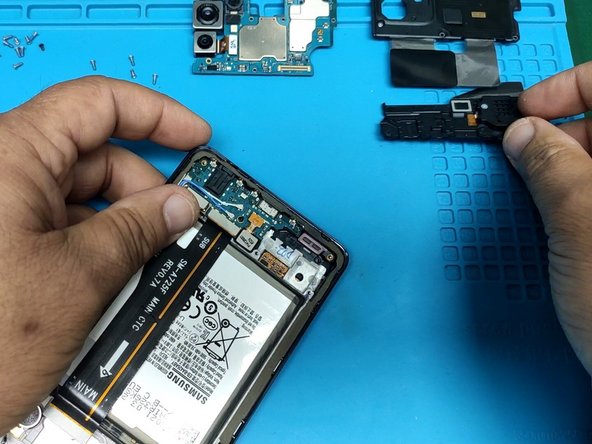
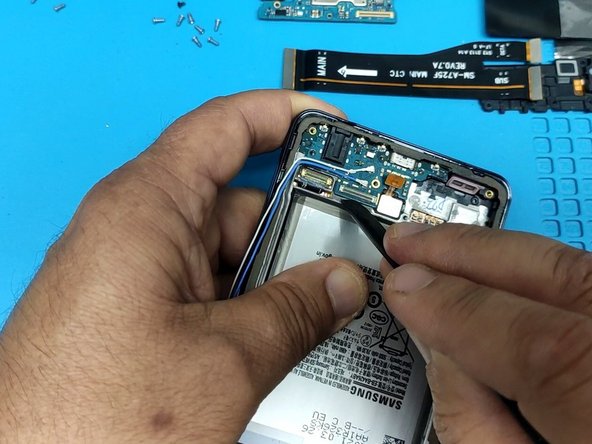
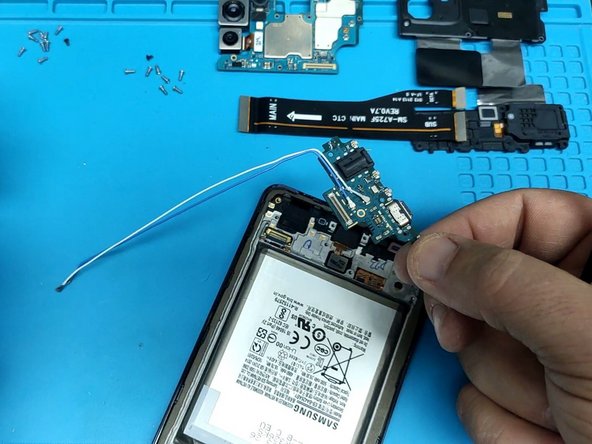
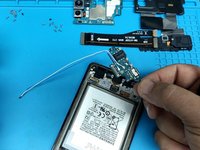
    • Pry up the connector and disconnect the fingerprint sensor.

    • Unplug the Main flex cable.

    • Remove the black screw securing the Charging board.

    • Keep in mind that this is the other screw that is different from the others.

    • Use a plastic tool to gently pry up and then pick up the charging board and set it to the side. (photos two and three)

    • Be careful of the Fingerprint sensor's flex cable, it is delicate.

  6. Samsung Galaxy A72 Screen with Frame Replacement: step 6, image 1 of 3 Samsung Galaxy A72 Screen with Frame Replacement: step 6, image 2 of 3 Samsung Galaxy A72 Screen with Frame Replacement: step 6, image 3 of 3
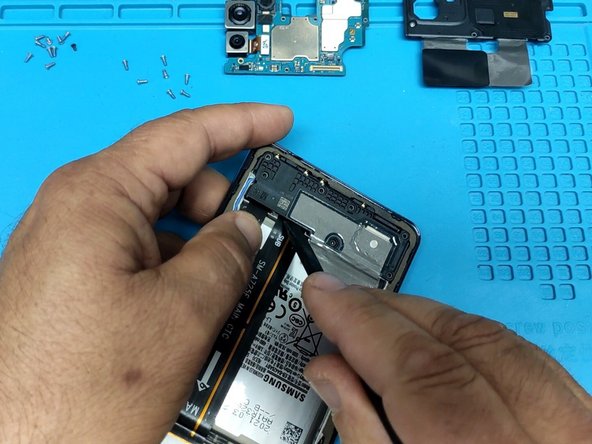
    • Carefully pry up and remove the vibrator motor.

    • Remove the Fingerprint sensor.

    • Do this slowly, careful not to damage it or the cable.

    • Not pictured: Apply heat again, being careful not to overheat the battery to soften the adhesive securing the battery, alcohol may help. Being very careful not to dent the battery using a broad plastic pry tool like a pick pry lift the battery work one side then the other, slowly and cautiously. DON'T DAMAGE THE BATTERY!

    • After all components are removed, follow the steps in reverse to install them in the new frame. If necessary, watch the video to clarify any misunderstanding.

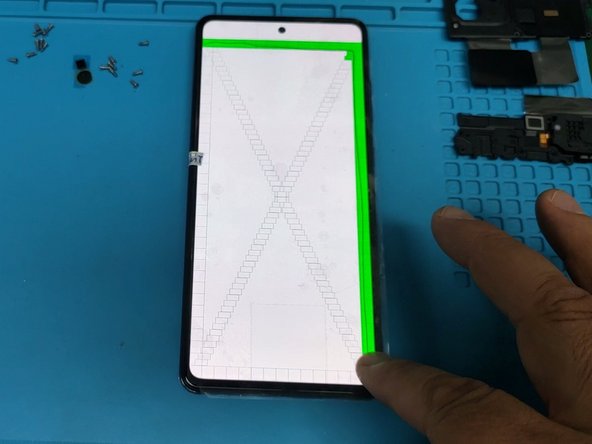
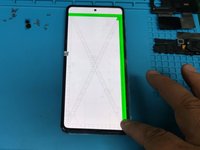
    • Before assembling the phone, test the new display by entering this code: *#0*# one the phone number pad. This tests the display in various ways, look for unresponsive areas, dead pixels and the like. Congratulations!

Conclusion

To reassemble your device, follow these instructions in reverse order.

5 other people completed this guide.

ZFix

Member since: 12/09/13

197,015 Reputation

330 Guides authored

Team

Master Techs Member of Master Techs

Community

333 Members

1,477 Guides authored

0 Guide Comments

Add Comment

View Statistics:

Past 24 Hours: 3

Past 7 Days: 29

Past 30 Days: 117

All Time: 7,012