Free Shipping on Domestic Orders $75+

Samsung Eternity Camera Replacement

Views: 2.2K

View statistics:

Past 24 Hours:
2
Past 7 Days:
19
Past 30 Days:
95
All Time:
2,245
Comments: 0

No one has left comments on this guide. Will you be first?

Go to guide comments
Completed: 0

No one has marked this guide "completed." Will you be the first?

Favorites: 0

No one has favorited (and subscribed to) this guide. Will you be the first?

Time Required: 15 - 20 minutes
Difficulty: Moderate
Incorrect Tools

Help make this guide better by using the correct tools in images and/or text.

Samsung Eternity Camera Replacement

Introduction

Go to step 1 ↓

You will need to find a clean area to work in and have the necessary tools. Follow this guide to gain access to your cellphone's camera module.

What you need

Tools

      • Remove the back battery cover.

      Ask FixBot

      Add Comment

    1. Samsung Eternity Camera Replacement: step 2, image 1 of 1
      • Using a nylon spudger, remove the phone's battery.

      Ask FixBot

      Add Comment

    2. Samsung Eternity Camera Replacement: step 3, image 1 of 1
      • Remove six (4.28 x 1.25)mm screws using the Phillips #00 screwdriver.

      Ask FixBot

      Add Comment

    3. Samsung Eternity Camera Replacement: step 4, image 1 of 2 Samsung Eternity Camera Replacement: step 4, image 2 of 2
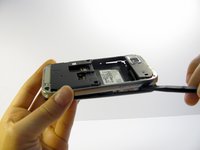
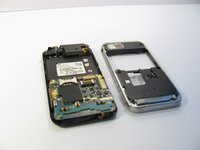
      • Use a nylon spudger to gently pry the silver plastic back plate from the body of the phone.

      Ask FixBot

      Add Comment

    1. Samsung Eternity Camera Replacement, Camera: step 5, image 1 of 1
      • Peel off the Identification sticker.

      Ask FixBot

      Add Comment

    2. Samsung Eternity Camera Replacement: step 6, image 1 of 1
      • Peel the button sensor on the side of the motherboard off of the case.

      Ask FixBot

      Add Comment

    3. Samsung Eternity Camera Replacement: step 7, image 1 of 1
      • Pop the black hinged-release lever toward its ribbon, then slide the ribbon out.

      Ask FixBot

      Add Comment

    4. Samsung Eternity Camera Replacement: step 8, image 1 of 1
      • Peel up the camera attachment.

      Ask FixBot

      Add Comment

    5. Samsung Eternity Camera Replacement: step 9, image 1 of 1
      • You will now be able to replace the Camera component with a new part.

      Ask FixBot

      Add Comment

Conclusion

To reassemble your device, follow these instructions in reverse order.

Cancel: I did not complete this guide.

Michelle Haddock

Member since: 04/20/11

51 Reputation

3 Guides authored

Team

Cal Poly, Team 15-11, Regan Spring 2011 Member of Cal Poly, Team 15-11, Regan Spring 2011

CPSU-REGAN-S11S15G11

5 Members

84 Guides authored

0 Guide Comments

Add Comment

View Statistics:

Past 24 Hours: 2

Past 7 Days: 19

Past 30 Days: 95

All Time: 2,245