Free Shipping on Domestic Orders $75+

Samsung Chromebook XE550C22 RAM Replacement

What you need

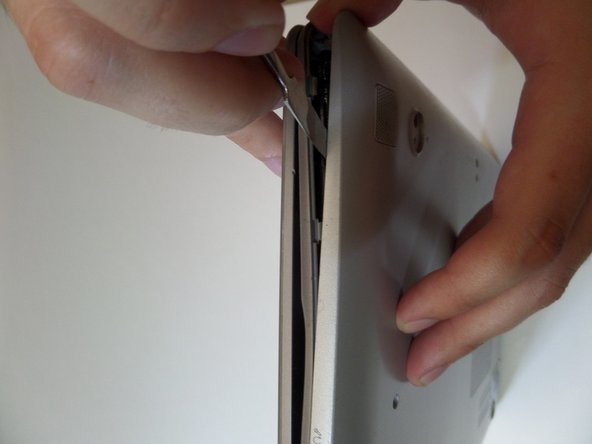
    1. Samsung Chromebook XE550C22 RAM Replacement, Back Panel: step 1, image 1 of 3 Samsung Chromebook XE550C22 RAM Replacement, Back Panel: step 1, image 2 of 3 Samsung Chromebook XE550C22 RAM Replacement, Back Panel: step 1, image 3 of 3
      • Turn the power off before beginning this step.

      • Using the spudger, remove the four 1/2 inch skid pads from the back of the laptop.

      Ask FixBot

      Add Comment

    2. Samsung Chromebook XE550C22 RAM Replacement: step 2, image 1 of 2 Samsung Chromebook XE550C22 RAM Replacement: step 2, image 2 of 2
      • Remove the eight 7mm screws using the J0 Screwdriver.

      Ask FixBot

      Add Comment

    3. Samsung Chromebook XE550C22 RAM Replacement: step 3, image 1 of 3 Samsung Chromebook XE550C22 RAM Replacement: step 3, image 2 of 3 Samsung Chromebook XE550C22 RAM Replacement: step 3, image 3 of 3
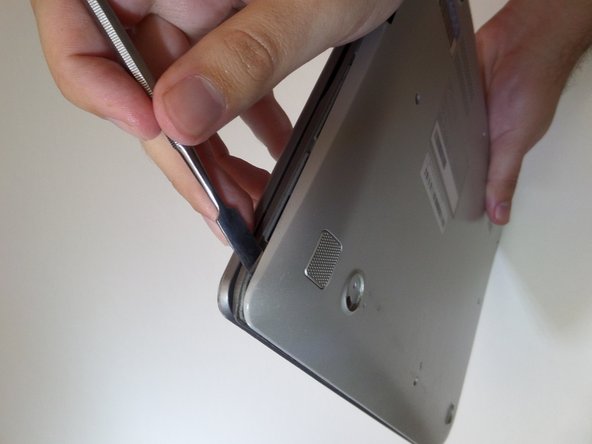
      • Starting at the center front of the laptop, insert the metal spudger between the keyboard panel and the bottom panel, separating the bottom panel from the laptop.

      • Continue prying around the sides to release more brackets.

      Ask FixBot

      Add Comment

    4. Samsung Chromebook XE550C22 RAM Replacement: step 4, image 1 of 2 Samsung Chromebook XE550C22 RAM Replacement: step 4, image 2 of 2
      • After deconnecting all the brackets, pull the back panel away from the laptop.

      • Note: The back panel has some flex to it, don't be afraid to use some force.

      Ask FixBot

      Add Comment

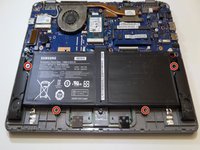
    1. Samsung Chromebook XE550C22 RAM Replacement, Battery: step 5, image 1 of 2 Samsung Chromebook XE550C22 RAM Replacement, Battery: step 5, image 2 of 2
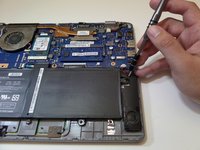
      • Remove the four 3mm screws holding the battery with the J0 screwdriver.

      Ask FixBot

      Add Comment

    2. Samsung Chromebook XE550C22 RAM Replacement: step 6, image 1 of 2 Samsung Chromebook XE550C22 RAM Replacement: step 6, image 2 of 2
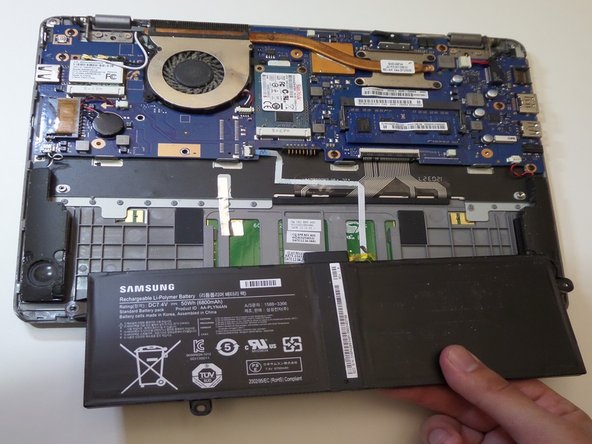
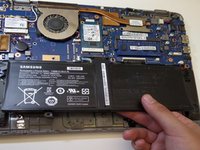
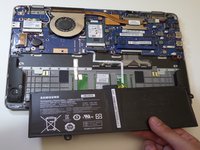
      • Lift the battery up at an angle to disconnect the battery from the motherboard, then pull it away from the laptop.

      • Do not lift the battery straight up. This will damage the battery's connectors.

      Ask FixBot

      Add Comment

    1. Samsung Chromebook XE550C22 RAM Replacement, RAM: step 7, image 1 of 1
      • Locate the RAM on the middle right side of the Chromebook.

      Ask FixBot

      Add Comment

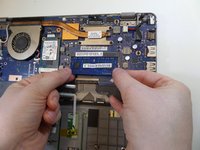
    2. Samsung Chromebook XE550C22 RAM Replacement: step 8, image 1 of 2 Samsung Chromebook XE550C22 RAM Replacement: step 8, image 2 of 2
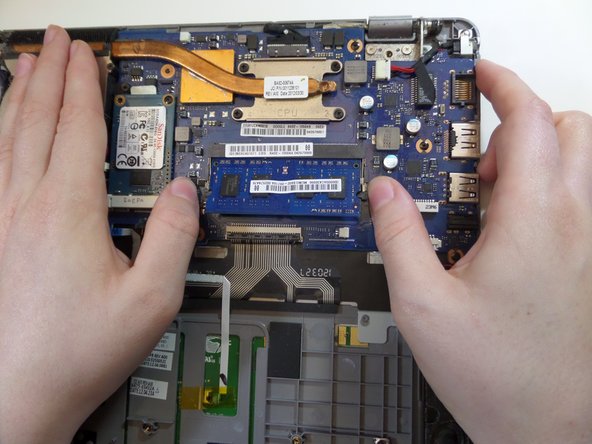
      • Using your fingers, separate the silver clips that are holding the RAM in place on each side.

      • The RAM will "pop-up" on its own after separating clips.

      Ask FixBot

      Add Comment

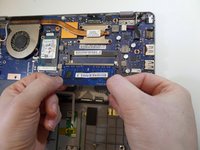
    3. Samsung Chromebook XE550C22 RAM Replacement: step 9, image 1 of 2 Samsung Chromebook XE550C22 RAM Replacement: step 9, image 2 of 2
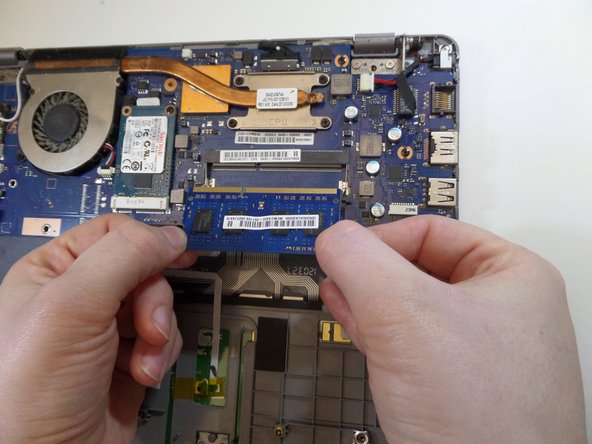
      • Pull the RAM away from the Chromebook.

      Ask FixBot

      Add Comment

Conclusion

To reassemble your device, follow these instructions in reverse order.

Cancel: I did not complete this guide.

2 other people completed this guide.

Abel Osorio

Member since: 09/11/17

330 Reputation

2 Guides authored

Team

CSU Fullerton, Team S2-G7, Bruce Fall 2017 Member of CSU Fullerton, Team S2-G7, Bruce Fall 2017

CSUF-BRUCE-F17S2G7

3 Members

84 Guides authored

0 Guide Comments

Add Comment

View Statistics:

Past 24 Hours: 1

Past 7 Days: 9

Past 30 Days: 35

All Time: 1,114