Free Shipping on Domestic Orders $75+

Samsung Chromebook 3 Trackpad Replacement

What you need

  1. Samsung Chromebook 3 Trackpad Replacement, Bottom Case: step 1, image 1 of 2 Samsung Chromebook 3 Trackpad Replacement, Bottom Case: step 1, image 2 of 2
    • Place the Chromebook face down so that the bottom case is exposed.

    • Using a Phillips #00 screwdriver, remove nine 4.6mm screws from the back casing.

    Ask FixBot

    Add Comment

  2. Samsung Chromebook 3 Trackpad Replacement: step 2, image 1 of 3 Samsung Chromebook 3 Trackpad Replacement: step 2, image 2 of 3 Samsung Chromebook 3 Trackpad Replacement: step 2, image 3 of 3
    • Use a iFixit opening tool to gently pry the case up from the vent on the hinge side of the Chromebook.

    • You should hear a popping sound as the connectors disengage inside the case.

    Ask FixBot

    Add Comment

  3. Samsung Chromebook 3 Trackpad Replacement: step 3, image 1 of 1
    • Lift the case up and off the device

    Ask FixBot

    Add Comment

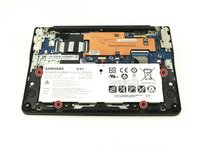
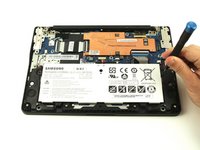
  4. Samsung Chromebook 3 Trackpad Replacement, Battery: step 4, image 1 of 2 Samsung Chromebook 3 Trackpad Replacement, Battery: step 4, image 2 of 2
    • Locate the battery and remove the four 4.6mm screws at the corners which attach it to case using a Phillips #00 screwdriver.

    Ask FixBot

    Add Comment

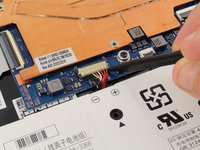
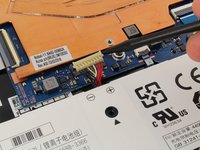
  5. Samsung Chromebook 3 Trackpad Replacement: step 5, image 1 of 2 Samsung Chromebook 3 Trackpad Replacement: step 5, image 2 of 2
    • Use a spudger to gently pry the power cable cord upwards from the motherboard.

    Ask FixBot

    Add Comment

  6. Samsung Chromebook 3 Trackpad Replacement: step 6, image 1 of 1
    • Lift the battery up and out from the case.

    Ask FixBot

    Add Comment

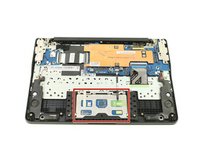
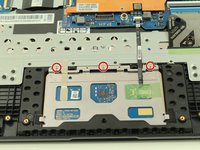
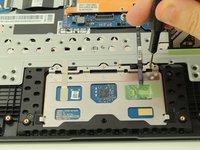
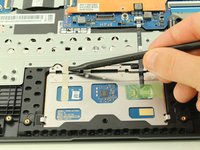
  7. Samsung Chromebook 3 Trackpad Replacement, Trackpad: step 7, image 1 of 3 Samsung Chromebook 3 Trackpad Replacement, Trackpad: step 7, image 2 of 3 Samsung Chromebook 3 Trackpad Replacement, Trackpad: step 7, image 3 of 3
    • Remove the three 2.3mm screws along the top of the trackpad using a Phillips #00 screwdriver.

    Ask FixBot

    Add Comment

  8. Samsung Chromebook 3 Trackpad Replacement: step 8, image 1 of 2 Samsung Chromebook 3 Trackpad Replacement: step 8, image 2 of 2
    • Use a spudger to gently remove the adhesive tape on the upper left side of the trackpad.

    Ask FixBot

    Add Comment

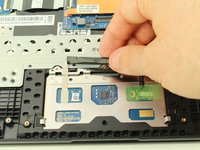
  9. Samsung Chromebook 3 Trackpad Replacement: step 9, image 1 of 2 Samsung Chromebook 3 Trackpad Replacement: step 9, image 2 of 2
    • There's more adhesive on the cable ribbon on the upper left side that connects the trackpad to the motherboard. Use your spudger to lift the cable ribbon up from the adhesive.

    Ask FixBot

    Add Comment

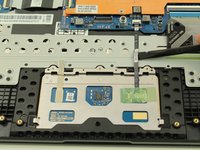
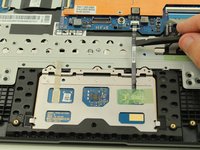
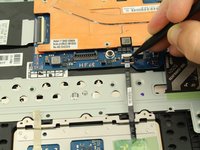
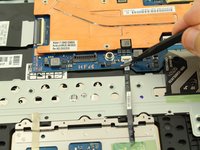
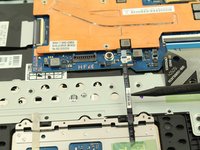
  10. Samsung Chromebook 3 Trackpad Replacement: step 10, image 1 of 3 Samsung Chromebook 3 Trackpad Replacement: step 10, image 2 of 3 Samsung Chromebook 3 Trackpad Replacement: step 10, image 3 of 3
    • Use a spudger to lift the grey plastic piece locking the cable ribbon in place to its connection on the motherboard.

    • The grey piece is on a hinge and should be able to be flipped up rather than removed completely. Removal doesn't damage anything, just makes putting everything back together a bit harder, so try not to remove if possible.

    • Take the end of the cable ribbon out from the connector.

    Ask FixBot

    Add Comment

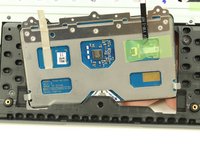
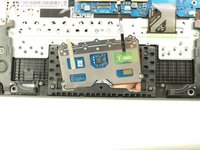
  11. Samsung Chromebook 3 Trackpad Replacement: step 11, image 1 of 2 Samsung Chromebook 3 Trackpad Replacement: step 11, image 2 of 2
    • From the keyboard side, nudge the trackpad down and around the lip on the upper edge and finally pull your trackpad out to freedom!

    Ask FixBot

    Add Comment

Conclusion

To reassemble your device, follow these instructions in reverse order.

Cancel: I did not complete this guide.

One other person completed this guide.

Austin Blakely

Member since: 03/11/19

23,014 Reputation

53 Guides authored

0 Guide Comments

Add Comment

View Statistics:

Past 24 Hours: 2

Past 7 Days: 10

Past 30 Days: 59

All Time: 1,529