Free Shipping on Domestic Orders $75+

Samsung Captivate Glide Screen Replacement

What you need

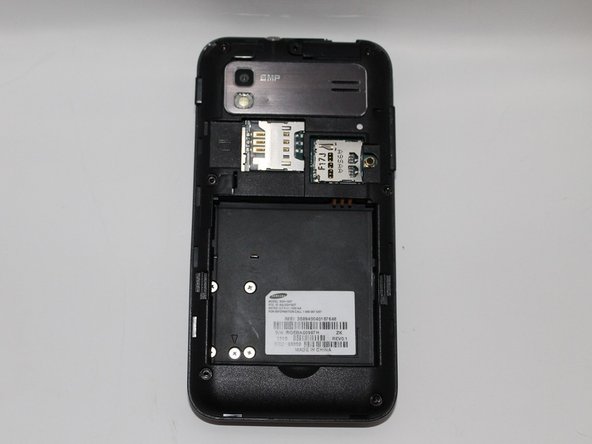
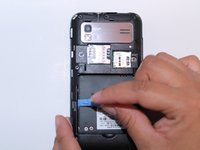
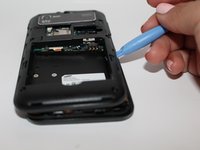
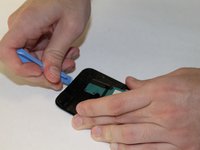
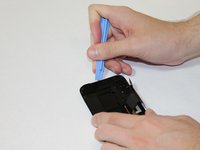
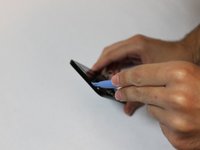
  1. Samsung Captivate Glide Screen Replacement, Motherboard: step 1, image 1 of 3 Samsung Captivate Glide Screen Replacement, Motherboard: step 1, image 2 of 3 Samsung Captivate Glide Screen Replacement, Motherboard: step 1, image 3 of 3
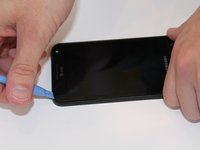
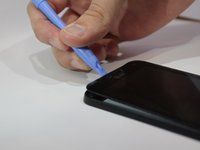
    • Remove back cover using fingernail or plastic opening tool. The cover pulls up and off.

    Ask FixBot

    Add Comment

  2. Samsung Captivate Glide Screen Replacement: step 2, image 1 of 2 Samsung Captivate Glide Screen Replacement: step 2, image 2 of 2
    • Remove battery with plastic opening tool or finger.

    Ask FixBot

    Add Comment

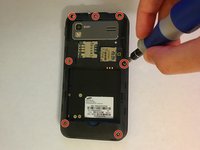
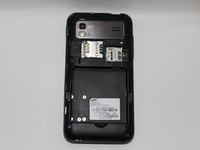
  3. Samsung Captivate Glide Screen Replacement: step 3, image 1 of 2 Samsung Captivate Glide Screen Replacement: step 3, image 2 of 2
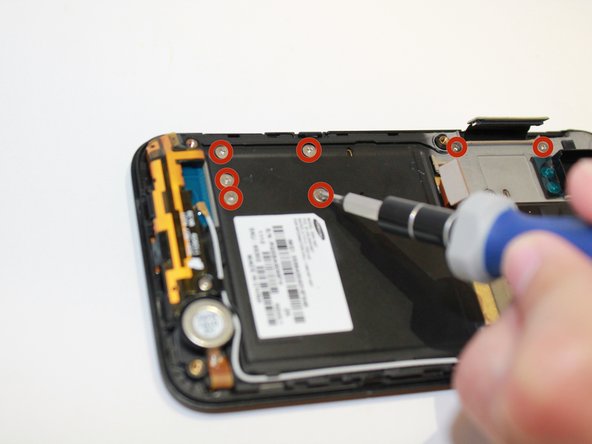
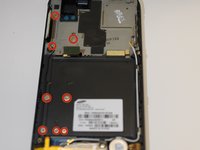
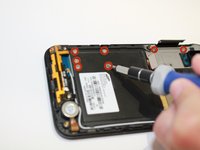
    • Remove the seven screws from backplate using the #00 screwdriver.

    Ask FixBot

    Add Comment

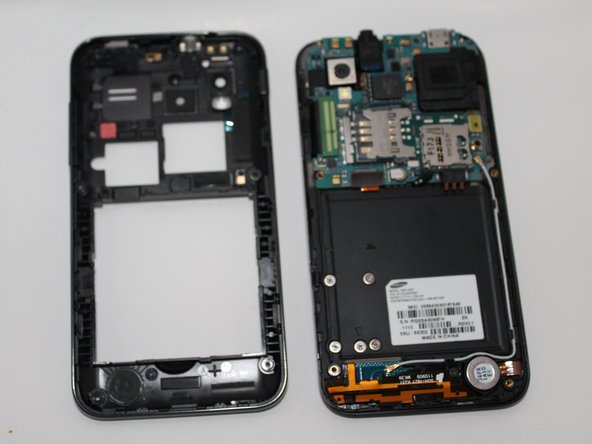
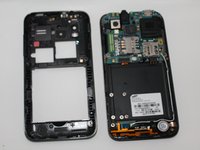
  4. Samsung Captivate Glide Screen Replacement: step 4, image 1 of 3 Samsung Captivate Glide Screen Replacement: step 4, image 2 of 3 Samsung Captivate Glide Screen Replacement: step 4, image 3 of 3
    • Remove the back plate using the plastic opening tool.

    • There is a lip on each side, and both must be pried up.

    • You can work your way around the edges after prying the two sides.

    Ask FixBot

    Add Comment

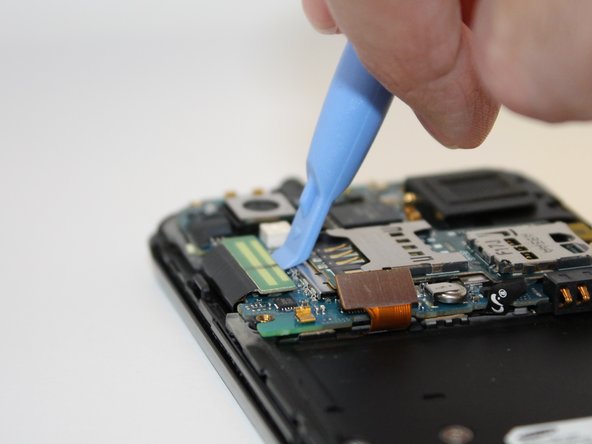
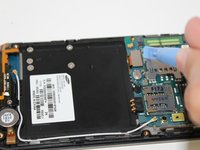
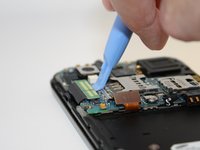
  5. Samsung Captivate Glide Screen Replacement: step 5, image 1 of 2 Samsung Captivate Glide Screen Replacement: step 5, image 2 of 2
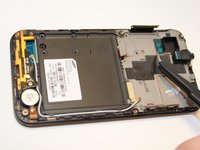
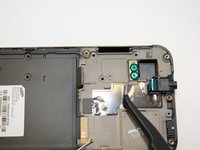
    • Use the plastic opening tool to detach the two tabs connecting the motherboard to the base of the phone.

    Ask FixBot

    Add Comment

  6. Samsung Captivate Glide Screen Replacement: step 6, image 1 of 1
    Tool used on this step:
    Tweezers
    $4.99
    Buy
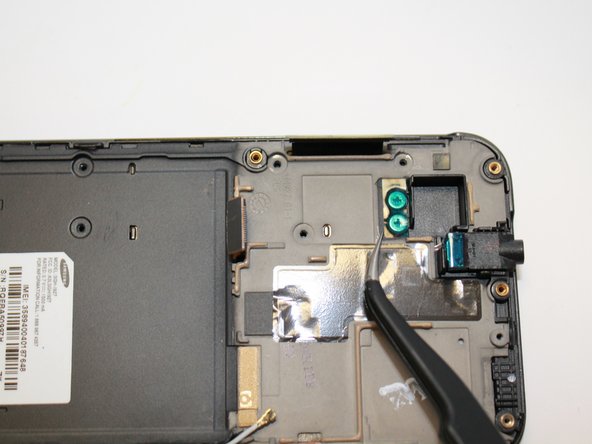
    • Disconnect the antenna cable from the motherboard using tweezers.

    Ask FixBot

    Add Comment

  7. Samsung Captivate Glide Screen Replacement: step 7, image 1 of 1
    • Remove the single screw connecting the motherboard to the base of the phone by using the #00 Phillips screwdriver.

    Ask FixBot

    Add Comment

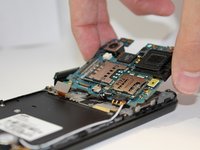
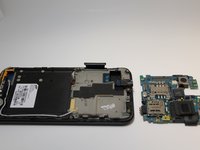
  8. Samsung Captivate Glide Screen Replacement: step 8, image 1 of 2 Samsung Captivate Glide Screen Replacement: step 8, image 2 of 2
    • Lift the motherboard out of the base of the phone.

    Ask FixBot

    Add Comment

  9. Samsung Captivate Glide Screen Replacement, Screen: step 9, image 1 of 2 Samsung Captivate Glide Screen Replacement, Screen: step 9, image 2 of 2
    • Remove the eight screws with the #00 screwdriver.

    Ask FixBot

    Add Comment

  10. Samsung Captivate Glide Screen Replacement: step 10, image 1 of 2 Samsung Captivate Glide Screen Replacement: step 10, image 2 of 2
    Tool used on this step:
    Tweezers
    $4.99
    Buy
    Ask FixBot

    Add Comment

  11. Samsung Captivate Glide Screen Replacement: step 11, image 1 of 1
    • Remove screws with the #00 screwdriver.

    Ask FixBot

    Add Comment

  12. Samsung Captivate Glide Screen Replacement: step 12, image 1 of 1
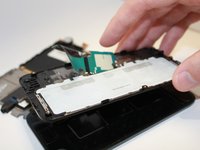
    • Using the plastic opening tool, remove the back plate by prying on the four main points.

    • You may encounter difficultly at certain points. Work the plastic opening tool along the edge to keep back plate from closing again.

    Ask FixBot

    Add Comment

  13. Samsung Captivate Glide Screen Replacement: step 13, image 1 of 1
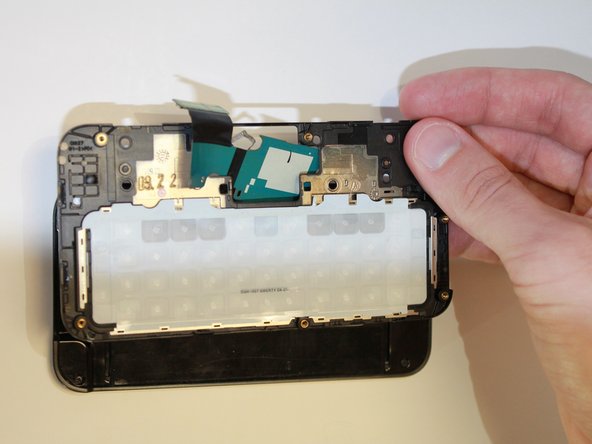
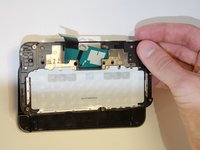
    • Lift the back plate.

    • To remove to slide flex cable, gently peel back from the back plate and remove back plate.

    Ask FixBot

    Add Comment

  14. Samsung Captivate Glide Screen Replacement: step 14, image 1 of 3 Samsung Captivate Glide Screen Replacement: step 14, image 2 of 3 Samsung Captivate Glide Screen Replacement: step 14, image 3 of 3
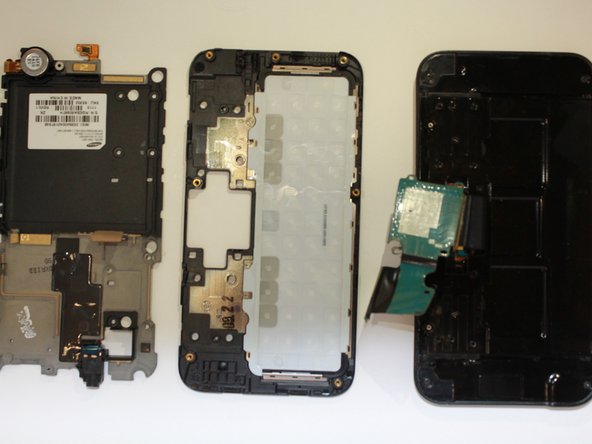
    • Slide the flex cable through the slot. Be careful to not tear the cable.

    • Set the front plate down.

    Ask FixBot

    Add Comment

  15. Samsung Captivate Glide Screen Replacement: step 15, image 1 of 2 Samsung Captivate Glide Screen Replacement: step 15, image 2 of 2
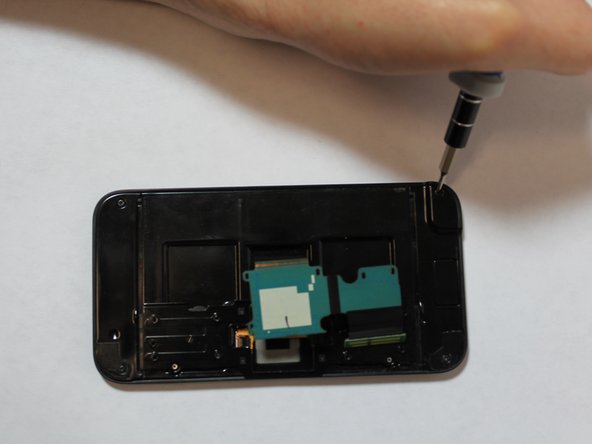
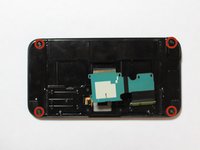
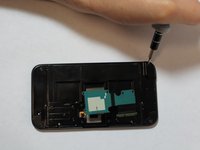
    • Remove the four corner screws using the #00 screwdriver.

    Ask FixBot

    Add Comment

  16. Samsung Captivate Glide Screen Replacement: step 16, image 1 of 3 Samsung Captivate Glide Screen Replacement: step 16, image 2 of 3 Samsung Captivate Glide Screen Replacement: step 16, image 3 of 3
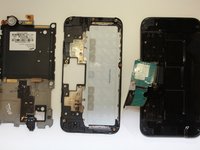
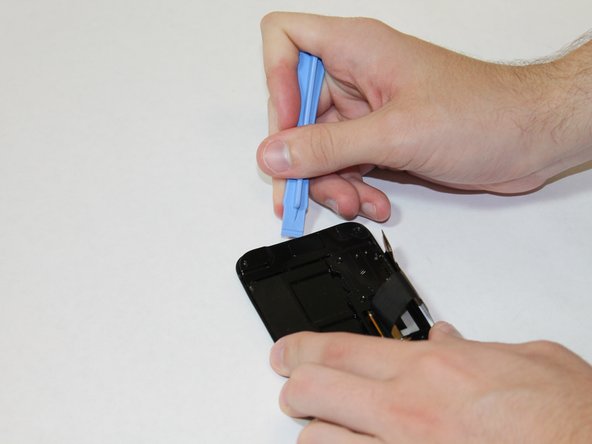
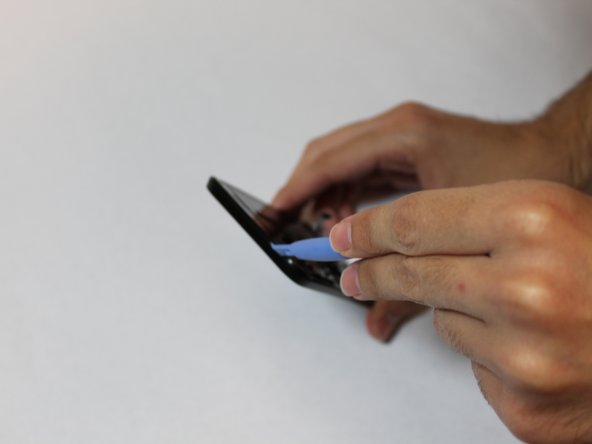
    • Using the plastic opening tool, release all the clips on all four sides holding the screen assembly.

    • You can now remove the back plate by sliding the flex cable through the slot.

    Ask FixBot

    Add Comment

  17. Samsung Captivate Glide Screen Replacement: step 17, image 1 of 3 Samsung Captivate Glide Screen Replacement: step 17, image 2 of 3 Samsung Captivate Glide Screen Replacement: step 17, image 3 of 3
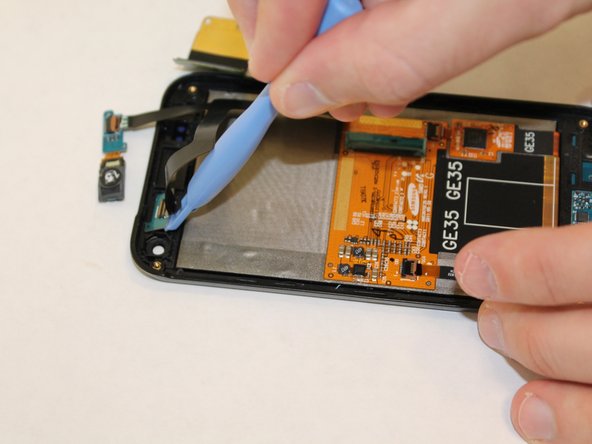
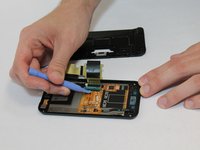
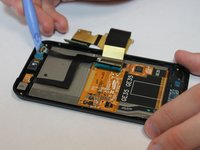
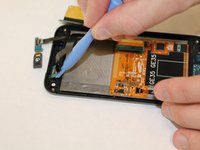
    • Use the plastic opening tool to release the main jaw connector, front speaker and camera.

    Ask FixBot

    Add Comment

  18. Samsung Captivate Glide Screen Replacement: step 18, image 1 of 2 Samsung Captivate Glide Screen Replacement: step 18, image 2 of 2
    • By using the plastic opening tool you can release the keypad flex cable from the jaw connecter clamp.

    Ask FixBot

    Add Comment

  19. Samsung Captivate Glide Screen Replacement: step 19, image 1 of 2 Samsung Captivate Glide Screen Replacement: step 19, image 2 of 2
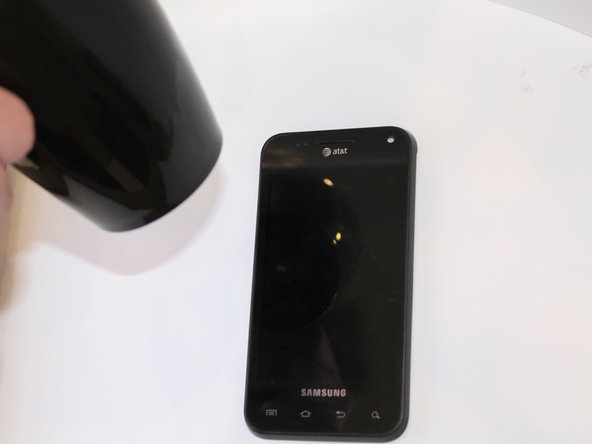
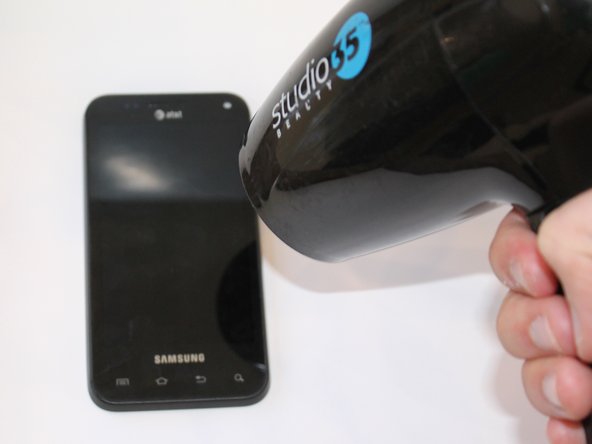
    • Use a heat gun or blow dryer.

    • Heat the outside edges using quick movements for about 45 seconds.

    Ask FixBot

    Add Comment

  20. Samsung Captivate Glide Screen Replacement: step 20, image 1 of 3 Samsung Captivate Glide Screen Replacement: step 20, image 2 of 3 Samsung Captivate Glide Screen Replacement: step 20, image 3 of 3
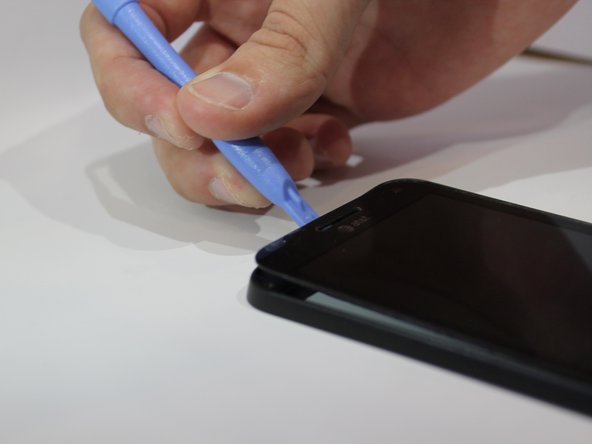
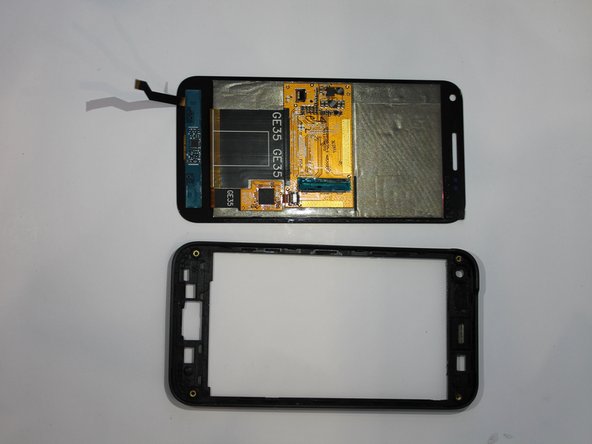
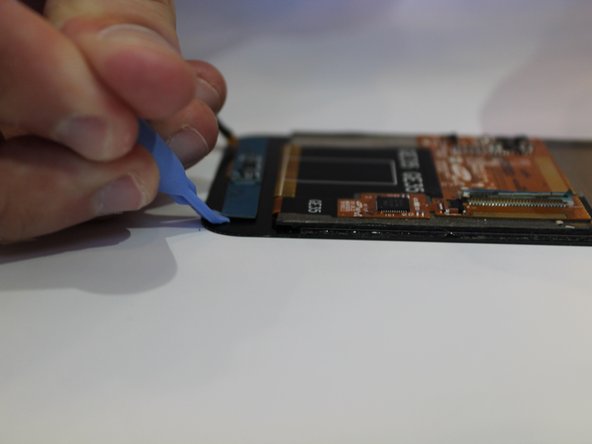
    • Using the plastic opening tool to pry around the edges, release the touch screen from the screen frame.

    Ask FixBot

    Add Comment

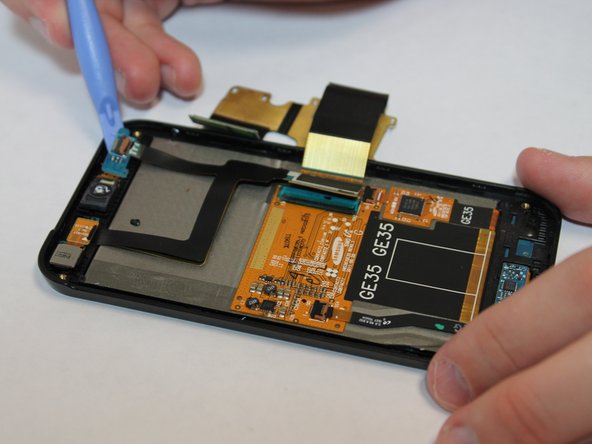
  21. Samsung Captivate Glide Screen Replacement: step 21, image 1 of 3 Samsung Captivate Glide Screen Replacement: step 21, image 2 of 3 Samsung Captivate Glide Screen Replacement: step 21, image 3 of 3
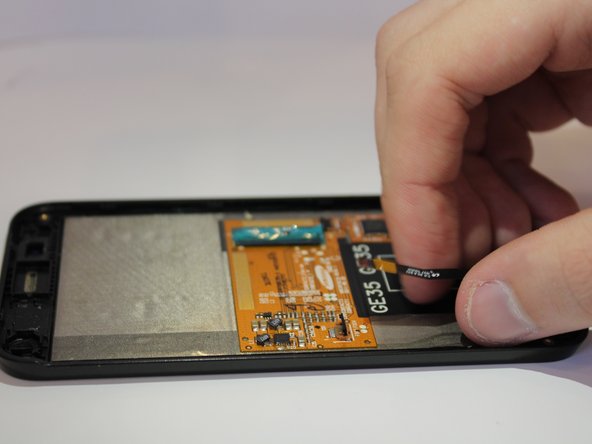
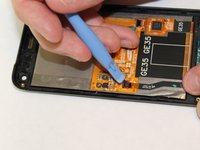
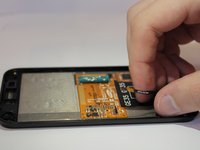
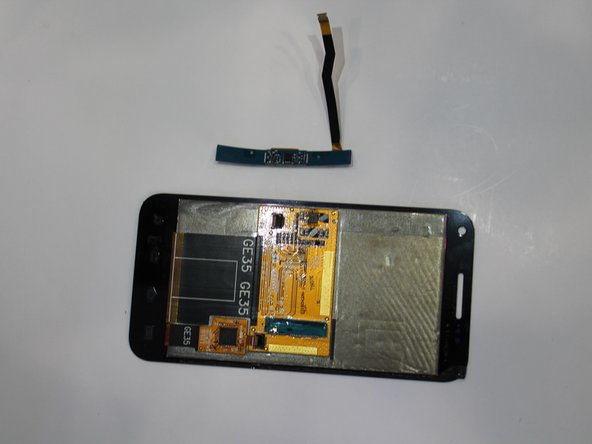
    • While adhesive is still warm, use the plastic opening tool to gently remove the keyboard flex cable from the screen.

    • You can now replace the screen assembly.

    Ask FixBot

    Add Comment

Conclusion

To reassemble your device, follow these instructions in reverse order.

Cancel: I did not complete this guide.

2 other people completed this guide.

Tyler Moore

Member since: 09/23/14

160 Reputation

1 Guide authored

Team

USF Tampa, Team 5-3, Mcgee Fall 2014 Member of USF Tampa, Team 5-3, Mcgee Fall 2014

USFT-MCGEE-F14S5G3

4 Members

5 Guides authored

0 Guide Comments

Add Comment

View Statistics:

Past 24 Hours: 0

Past 7 Days: 4

Past 30 Days: 27

All Time: 1,308