Free Shipping on Domestic Orders $75+

Samsung Captivate Glide QWERTY Keyboard Replacement

What you need

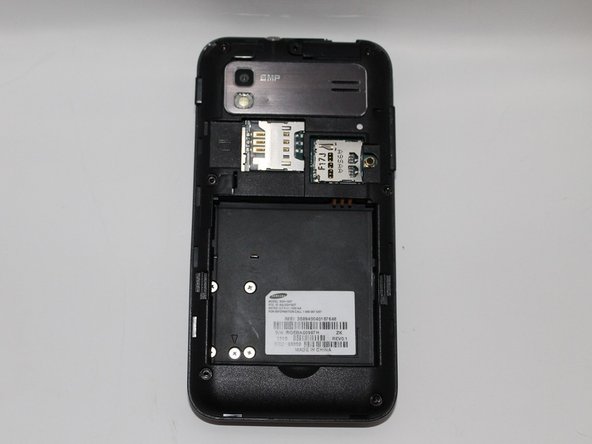
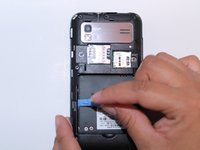
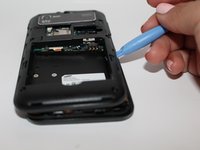
    1. Samsung Captivate Glide QWERTY Keyboard Replacement, Motherboard: step 1, image 1 of 3 Samsung Captivate Glide QWERTY Keyboard Replacement, Motherboard: step 1, image 2 of 3 Samsung Captivate Glide QWERTY Keyboard Replacement, Motherboard: step 1, image 3 of 3
      • Remove back cover using fingernail or plastic opening tool. The cover pulls up and off.

      Ask FixBot

      Add Comment

    2. Samsung Captivate Glide QWERTY Keyboard Replacement: step 2, image 1 of 2 Samsung Captivate Glide QWERTY Keyboard Replacement: step 2, image 2 of 2
      • Remove battery with plastic opening tool or finger.

      Ask FixBot

      Add Comment

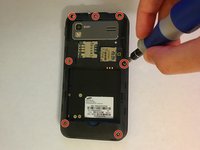
    3. Samsung Captivate Glide QWERTY Keyboard Replacement: step 3, image 1 of 2 Samsung Captivate Glide QWERTY Keyboard Replacement: step 3, image 2 of 2
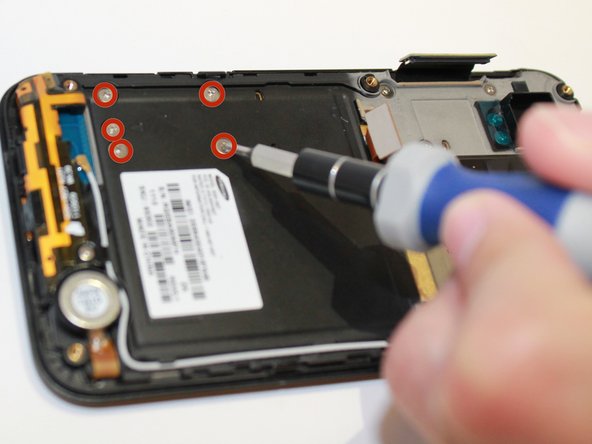
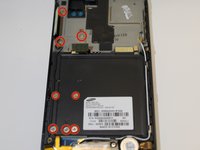
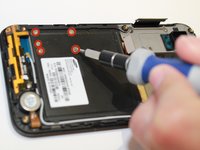
      • Remove the seven screws from backplate using the #00 screwdriver.

      Ask FixBot

      Add Comment

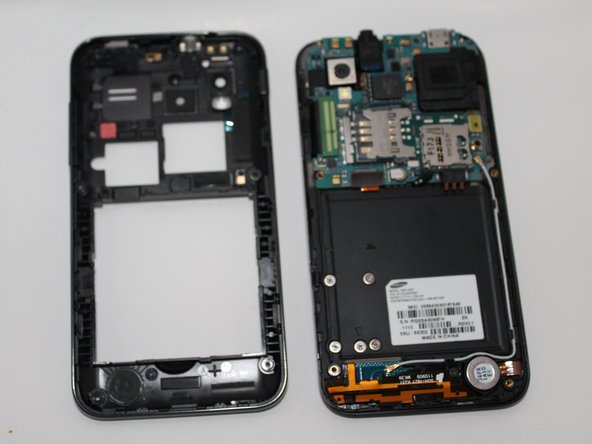
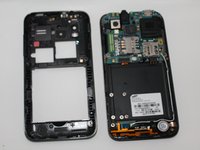
    4. Samsung Captivate Glide QWERTY Keyboard Replacement: step 4, image 1 of 3 Samsung Captivate Glide QWERTY Keyboard Replacement: step 4, image 2 of 3 Samsung Captivate Glide QWERTY Keyboard Replacement: step 4, image 3 of 3
      • Remove the back plate using the plastic opening tool.

      • There is a lip on each side, and both must be pried up.

      • You can work your way around the edges after prying the two sides.

      Ask FixBot

      Add Comment

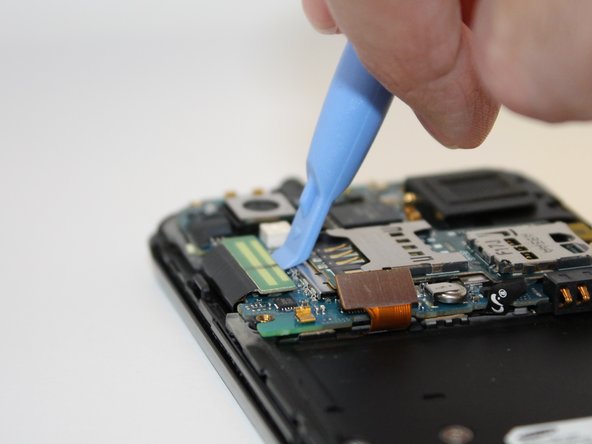
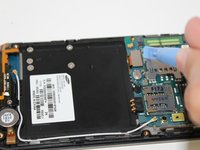
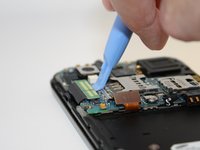
    5. Samsung Captivate Glide QWERTY Keyboard Replacement: step 5, image 1 of 2 Samsung Captivate Glide QWERTY Keyboard Replacement: step 5, image 2 of 2
      • Use the plastic opening tool to detach the two tabs connecting the motherboard to the base of the phone.

      Ask FixBot

      Add Comment

    6. Samsung Captivate Glide QWERTY Keyboard Replacement: step 6, image 1 of 1
      Tool used on this step:
      Tweezers
      $4.99
      Buy
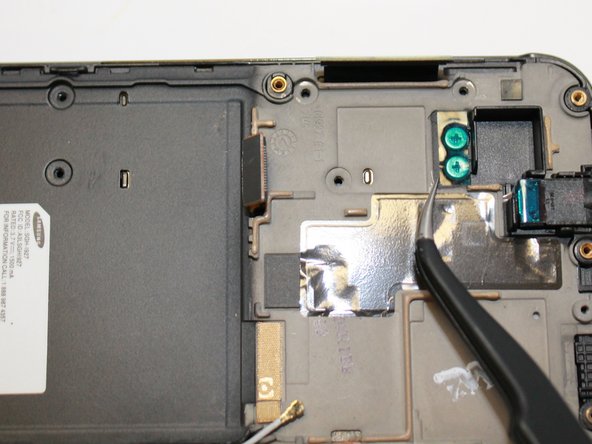
      • Disconnect the antenna cable from the motherboard using tweezers.

      Ask FixBot

      Add Comment

    7. Samsung Captivate Glide QWERTY Keyboard Replacement: step 7, image 1 of 1
      • Remove the single screw connecting the motherboard to the base of the phone by using the #00 Phillips screwdriver.

      Ask FixBot

      Add Comment

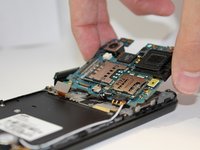
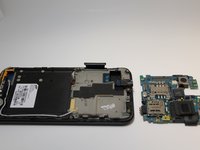
    8. Samsung Captivate Glide QWERTY Keyboard Replacement: step 8, image 1 of 2 Samsung Captivate Glide QWERTY Keyboard Replacement: step 8, image 2 of 2
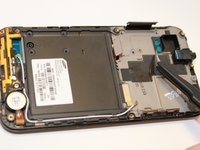
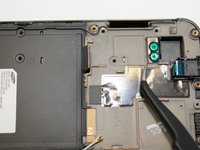
      • Lift the motherboard out of the base of the phone.

      Ask FixBot

      Add Comment

    1. Samsung Captivate Glide QWERTY Keyboard Replacement, QWERTY Keyboard: step 9, image 1 of 2 Samsung Captivate Glide QWERTY Keyboard Replacement, QWERTY Keyboard: step 9, image 2 of 2
      • Remove the eight screws using the #00 screw driver.

      Ask FixBot

      Add Comment

    2. Samsung Captivate Glide QWERTY Keyboard Replacement: step 10, image 1 of 2 Samsung Captivate Glide QWERTY Keyboard Replacement: step 10, image 2 of 2
      Tool used on this step:
      Tweezers
      $4.99
      Buy
      Ask FixBot

      Add Comment

    3. Samsung Captivate Glide QWERTY Keyboard Replacement: step 11, image 1 of 1
      • Remove screws using the #00 screwdriver.

      Ask FixBot

      Add Comment

    4. Samsung Captivate Glide QWERTY Keyboard Replacement: step 12, image 1 of 1
      • Using the plastic opening tool, remove the back plate by prying on the four main points.

      • You may encounter difficultly at certain points. Work the plastic opening tool along the edge to keep back plate from closing again.

      Ask FixBot

      Add Comment

    5. Samsung Captivate Glide QWERTY Keyboard Replacement: step 13, image 1 of 1
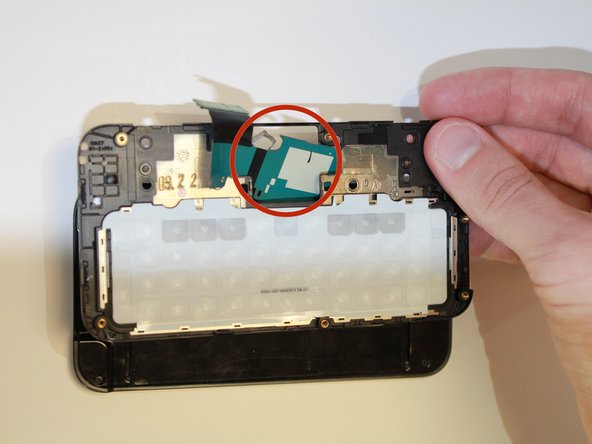
      • Lift the back plate.

      • To remove the attached flex cable, gently peel the flex cable connecting to the back plate.

      • Flex cable is attached to the back plate with an adhesive.

      Ask FixBot

      Add Comment

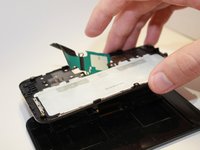
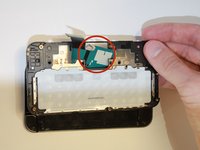
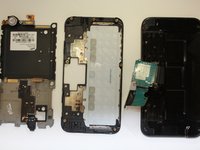
    6. Samsung Captivate Glide QWERTY Keyboard Replacement: step 14, image 1 of 3 Samsung Captivate Glide QWERTY Keyboard Replacement: step 14, image 2 of 3 Samsung Captivate Glide QWERTY Keyboard Replacement: step 14, image 3 of 3
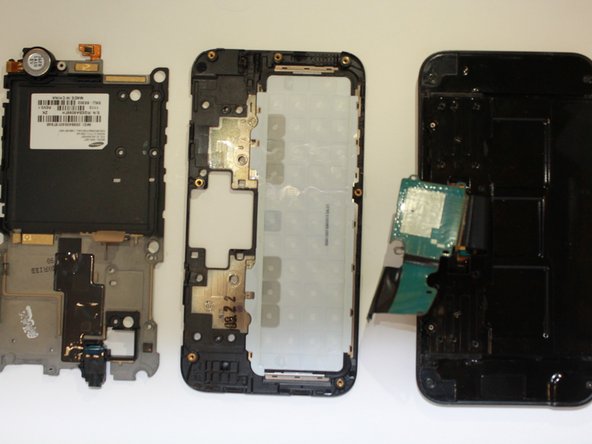
      • Slide the flex cable through the slot.

      • Set the front plate down. Now you have free access to the keyboard.

      Ask FixBot

      Add Comment

    7. Samsung Captivate Glide QWERTY Keyboard Replacement: step 15, image 1 of 1
      • Manually lift the keyboard and replace with new keyboard.

      • Make sure the new keyboard is placed with the keyboard letters facing down, and the white back facing up.

      Ask FixBot

      Add Comment

Conclusion

To reassemble your device, follow these instructions in reverse order.

Cancel: I did not complete this guide.

2 other people completed this guide.

Jessica Martinez

Member since: 09/25/14

260 Reputation

2 Guides authored

Team

USF Tampa, Team 5-3, Mcgee Fall 2014 Member of USF Tampa, Team 5-3, Mcgee Fall 2014

USFT-MCGEE-F14S5G3

4 Members

60 Guides authored

0 Guide Comments

Add Comment

View Statistics:

Past 24 Hours: 1

Past 7 Days: 1

Past 30 Days: 22

All Time: 788