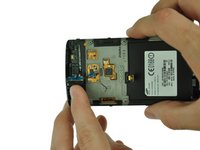
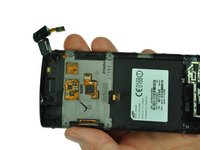
Free Shipping on Domestic Orders $75+

Samsung Captivate Earpiece Replacement

What you need

  1. Samsung Captivate Earpiece Replacement, Battery: step 1, image 1 of 1
    • Remove the back cover by pressing on the bottom section of the phone and sliding the bottom piece downward.

    • Lift up the back cover.

    Ask FixBot

    Add Comment

  2. Samsung Captivate Earpiece Replacement: step 2, image 1 of 1
    • Place your finger on the bottom of the battery and lift to remove.

    Ask FixBot

    Add Comment

  3. Samsung Captivate Earpiece Replacement: step 3, image 1 of 1
    • Replace the old battery with the new one.

    Ask FixBot

    Add Comment

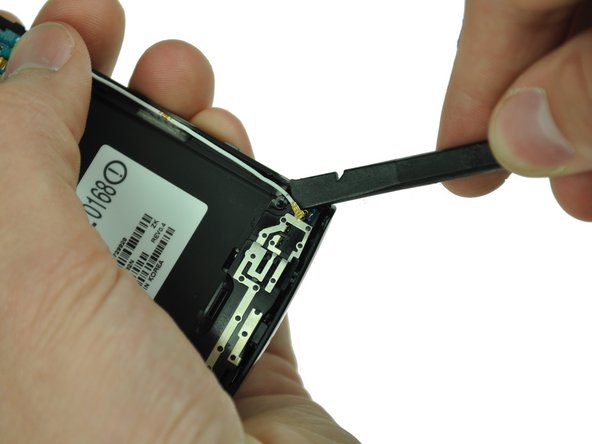
  4. Samsung Captivate Earpiece Replacement, Rear Case: step 4, image 1 of 1
    • Insert the spudger underneath the bottom section of the phone.

    • Gently lift and push the spudger to slide the bottom section down to reveal two hidden screws.

    Ask FixBot

    Add Comment

  5. Samsung Captivate Earpiece Replacement: step 5, image 1 of 1
    • Remove the six 4.5mm #000 Phillips screws.

    Ask FixBot

    Add Comment

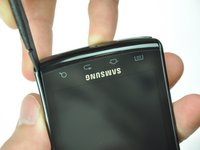
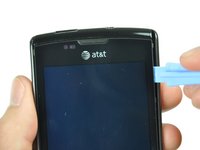
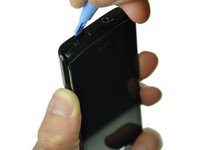
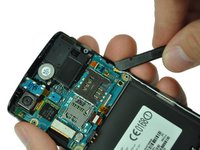
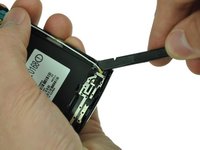
  6. Samsung Captivate Earpiece Replacement: step 6, image 1 of 3 Samsung Captivate Earpiece Replacement: step 6, image 2 of 3 Samsung Captivate Earpiece Replacement: step 6, image 3 of 3
    • Starting at a bottom corner, use the spudger to separate the rear case from the front display.

    • Move the spudger towards the top on both sides. The plastic opening tool is easier to use for this step.

    • Be careful when detaching the top. Free each side, stopping short of the center of the cover. Apply backward pressure on both corners with a finger applying pressure on the center, and slide the whole back cover toward the bottom of the device. Note: forcing the cover can result in cracked plastic.

    Ask FixBot

    Add Comment

  7. Samsung Captivate Earpiece Replacement: step 7, image 1 of 1
    • Separate the rear case from the phone.

    Ask FixBot

    Add Comment

  8. Samsung Captivate Earpiece Replacement, Antenna Cable: step 8, image 1 of 2 Samsung Captivate Earpiece Replacement, Antenna Cable: step 8, image 2 of 2
    • Use a spudger tool to pry up the antenna cable from the connector on the motherboard.

    • Pry up the other end of the cable from the connector on the antenna array.

    Ask FixBot

    Add Comment

  9. Samsung Captivate Earpiece Replacement, Camera Assembly: step 9, image 1 of 1
    • Use the spudger tool to pry up the chip labeled "NEC." This releases the chip.

    Ask FixBot

    Add Comment

  10. Samsung Captivate Earpiece Replacement: step 10, image 1 of 1
    • Gently lift the camera assembly out of the plastic housing.

    Ask FixBot

    Add Comment

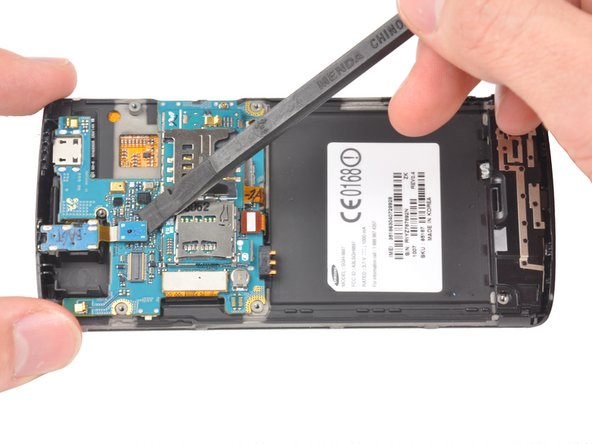
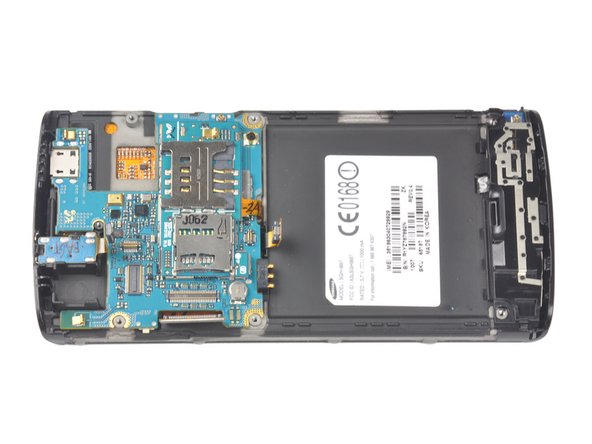
  11. Samsung Captivate Earpiece Replacement, Motherboard: step 11, image 1 of 3 Samsung Captivate Earpiece Replacement, Motherboard: step 11, image 2 of 3 Samsung Captivate Earpiece Replacement, Motherboard: step 11, image 3 of 3
    • Using the spudger slide the tool under the three highlighted connectors to begin disconnection

    • Excluding the motherboard socket, pry straight from up under the connectors, Therefore ending disconnection.

    • Be careful to not pry against the connector. Prying against could further damage to the device.

    Ask FixBot

    Add Comment

  12. Samsung Captivate Earpiece Replacement: step 12, image 1 of 1
    • Use your fingers to carefully lift up the Samsung Capivate's Motherboard from the assembly.

    Ask FixBot

    Add Comment

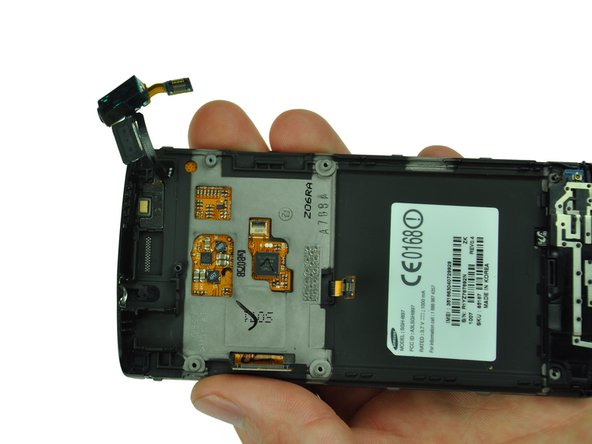
  13. Samsung Captivate Earpiece Replacement, 3.5mm Headphone Jack: step 13, image 1 of 2 Samsung Captivate Earpiece Replacement, 3.5mm Headphone Jack: step 13, image 2 of 2
    • Gently pull up on the audio jack, taking the attached ribbon cable with it.

    • There is a small amount of glue holding the ribbon cable that attaches the audio jack to the earpiece.

    Ask FixBot

    Add Comment

  14. Samsung Captivate Earpiece Replacement, Earpiece: step 14, image 1 of 1
    • The earpiece is attached to the 3.5mm audio jack. You will need to replace the entire assembly.

    Ask FixBot

    Add Comment

Conclusion

To reassemble your device, follow these instructions in reverse order.

Cancel: I did not complete this guide.

2 other people completed this guide.

Drew Bentz

Member since: 09/22/11

565 Reputation

5 Guides authored

Team

Cal Poly, Team 20-25, Maness Fall 2011 Member of Cal Poly, Team 20-25, Maness Fall 2011

CPSU-MANESS-F11S20G25

3 Members

9 Guides authored

0 Guide Comments

Add Comment

View Statistics:

Past 24 Hours: 0

Past 7 Days: 6

Past 30 Days: 42

All Time: 2,798