Free Shipping on Domestic Orders $75+

Samsung Blast Keyboard Replacement

Views: 722

View statistics:

Past 24 Hours:
2
Past 7 Days:
8
Past 30 Days:
40
All Time:
722
Comments: 0

No one has left comments on this guide. Will you be first?

Go to guide comments
Completed: 0

No one has marked this guide "completed." Will you be the first?

Favorites: 0

No one has favorited (and subscribed to) this guide. Will you be the first?

Time Required: 15 - 30 minutes
Difficulty: Easy
Needs Better Images

Better photos will improve this guide. Help out by taking, editing, or uploading new ones!

Needs More Images

A few more images would make this guide's procedures crystal clear.

Missing Prerequisites

This guide is missing information on how to start the process. Make a prerequisite guide!

Slice and Dice

The steps in this guide should be split up and made into a series of prerequisite guides.

Samsung Blast Keyboard Replacement

What you need

Parts

Tools

    1. Samsung Blast Keyboard Replacement, At a Glance: step 1, image 1 of 2 Samsung Blast Keyboard Replacement, At a Glance: step 1, image 2 of 2
      • Your phone should look like this before disassembly.

      Ask FixBot

      Add Comment

    2. Samsung Blast Keyboard Replacement, Battery Case Removal: step 2, image 1 of 2 Samsung Blast Keyboard Replacement, Battery Case Removal: step 2, image 2 of 2
      • Remove the battery cover by sliding the back panel up. This will expose the battery.

      Ask FixBot

      Add Comment

    3. Samsung Blast Keyboard Replacement, Remove Battery/Sim card: step 3, image 1 of 1
      • Lift up the top portion of the battery and pull it out.

      • Next, slide the sim card out of its socket and set it aside.

      Ask FixBot

      Add Comment

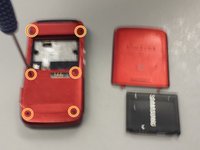
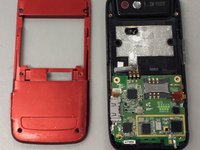
    4. Samsung Blast Keyboard Replacement, Back Case Removal: step 4, image 1 of 2 Samsung Blast Keyboard Replacement, Back Case Removal: step 4, image 2 of 2
      • Use a Phillips #00 Screwdriver to unscrew the six small screws that secure the back of the case.

      • The top two screws are connected to the back cover. They will not come off once unscrewed.

      • Remove the case by prying around the edges.

      • Note the positions of button pads for reassembly.

      Ask FixBot

      Add Comment

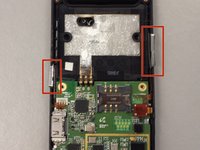
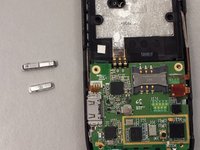
    5. Samsung Blast Keyboard Replacement, Button Pads: step 5, image 1 of 2 Samsung Blast Keyboard Replacement, Button Pads: step 5, image 2 of 2
      • Remove the buttons for the camera and volume.

      Ask FixBot

      Add Comment

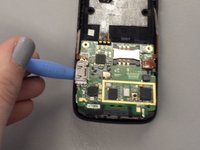
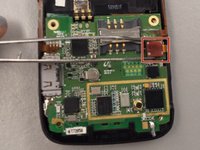
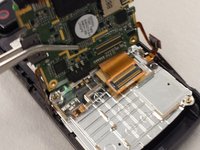
    6. Samsung Blast Keyboard Replacement, Motherboard Removal: step 6, image 1 of 3 Samsung Blast Keyboard Replacement, Motherboard Removal: step 6, image 2 of 3 Samsung Blast Keyboard Replacement, Motherboard Removal: step 6, image 3 of 3
      • Use a prying tool to detach the motherboard from main body.

      • Carefully detach the motherboard from the two connectors.

      • You could also use a pry tool for the second step.

      • Be careful with the motherboard as not to scrape or damage its components.

      Ask FixBot

      Add Comment

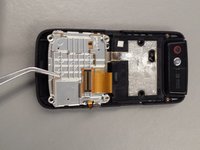
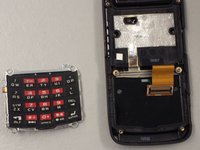
    7. Samsung Blast Keyboard Replacement, Keyboard Pad Replacement: step 7, image 1 of 2 Samsung Blast Keyboard Replacement, Keyboard Pad Replacement: step 7, image 2 of 2
      • Slide the keyboard straight up to free it from its alignment pins.

      • Swap the broken keyboard with a replacement here, and follow the repair steps in reverse order for reassembly.

      Ask FixBot

      Add Comment

Conclusion

To reassemble your device, follow these instructions in reverse order.

Cancel: I did not complete this guide.

Jordan Taylor

Member since: 02/11/14

10 Reputation

1 Guide authored

Team

Ohio State, Team 1-5, Buehl Spring 2014 Member of Ohio State, Team 1-5, Buehl Spring 2014

OSU-BUEHL-S14S1G5

4 Members

24 Guides authored

0 Guide Comments

Add Comment

View Statistics:

Past 24 Hours: 2

Past 7 Days: 8

Past 30 Days: 40

All Time: 722