
Samsung BD-D5500 Disc Drive Replacement

Kenya Wilson and 2 other contributors
Last updated on Jun 6, 2018
Views: 1.5K
View statistics:
- Past 24 Hours:
- 0
- Past 7 Days:
- 9
- Past 30 Days:
- 73
- All Time:
- 1,482
Comments: 0
No one has left comments on this guide. Will you be first?
Go to guide commentsCompleted: 0 1
No one has marked this guide "completed." Will you be the first?
1 person has marked this guide "completed." It's you — great job!
Favorites: 0 1
No one has favorited (and subscribed to) this guide. Will you be the first?
1 person has favorited (and subscribed to) this guide — and that's you!
Action Shots
Be an action hero! This guide needs images that better demonstrate how to perform specific actions.
Better Introduction
Improve this guide by completing or revising its introduction.
Introduction
Go to step 1 ↓Before you begin this guide you will need to refer to the guide on how to take the top off of the device. Once you have completed that you can begin removing your disc drive.
What you need
Tools
-
Spudger4.9
-


-
-
-
To begin, turn the device over so that the bottom is facing up. There are 9 black clips that attach the plastic body to the case. Remove these clips from the case.
 Ask FixBot
-
-
-
Use a Phillips #2 screwdriver to remove the screw that attaches the top cover to the rear of the device. This will allow you to remove the cover.
-
-
-
-
-
Please locate your disc drive
-
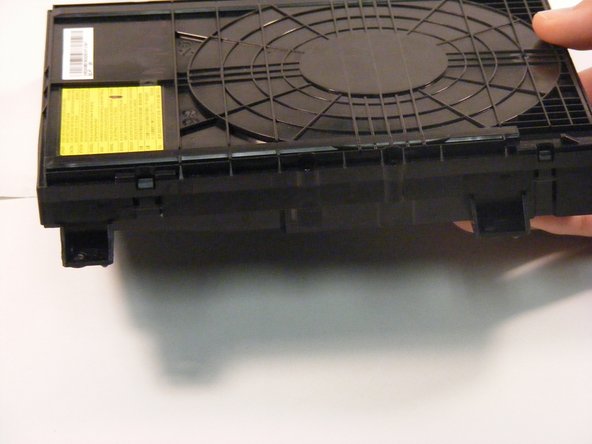
Your disc drive should look like the one pictured. If your disc drive does not look as follows please confirm that you are looking at the right guide.
-
-
-
Once you have located your disc drive it is time to remove the drive
-
You will see four silver 1.1mm Phillips #2 screws located on each corner of the disc drive.
-
-
-
-
Once you have removed the four screws using a Phillips #2 screwdriver you are now able to take out the disc drive
-
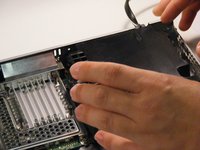
Carefully remove the disc drive being sure not to disrupt anything else in the Blu-Ray player.
-
This is how your disc drive should look if you have removed it from the player correctly.
-
-


To reassemble your device, follow these instructions in reverse order.

Team

University of Alabama, Team S2-G5, Bedsole Spring 2018 Member of University of Alabama, Team S2-G5, Bedsole Spring 2018
UA-BEDSOLE-S18S2G5
4 Members
72 Guides authored
