
SGIN X15S Battery Replacement

Andrew Boyd and 3 other contributors
Last updated on May 27, 2025
Views: 820
View statistics:
- Past 24 Hours:
- 2
- Past 7 Days:
- 15
- Past 30 Days:
- 91
- All Time:
- 820
Comments: 0
No one has left comments on this guide. Will you be first?
Go to guide commentsCompleted: 1 2
1 person has marked this guide "completed." Will you be next?
2 people have marked this guide "completed." Including you — great job!
Favorites: 0 1
No one has favorited (and subscribed to) this guide. Will you be the first?
1 person has favorited (and subscribed to) this guide — and that's you!
Featured Student Guide
This guide has been the hard work of our awesome students and is found to be exceptionally cool by the iFixit staff.
Introduction
Go to step 1 ↓This is how you can easily replace the battery of your SGIN X15S. If the battery is old and no longer holds a charge, this guide is a good solution. While working on your device, if you notice that the battery is swollen, stop your replacement and follow the swollen battery disposal guide. Before working on your device, ensure that it is turned off and completely unplugged from any power sources.
What you need
Tools
-
Spudger4.9
-


-
-
-
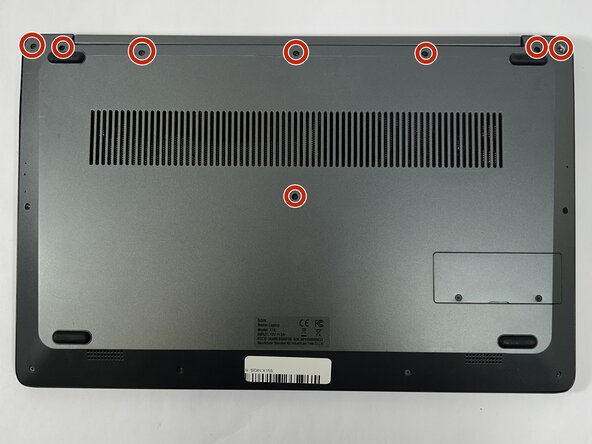
Remove the eight top and middle 7.3 mm screws using the Phillips #0 screwdriver.
-
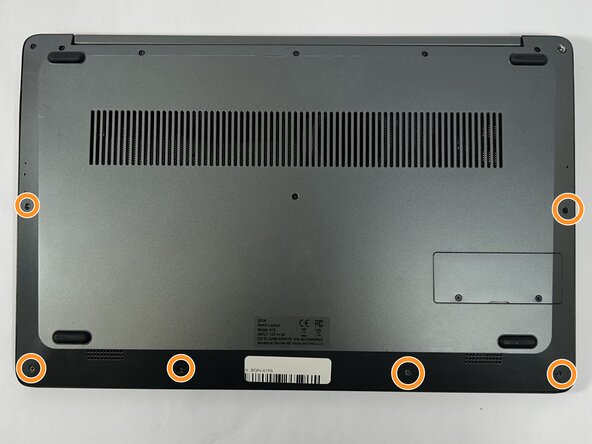
Remove the six bottom and side 4.4 mm screws using the Phillips #0 screwdriver.
 Ask FixBot
-
-
-
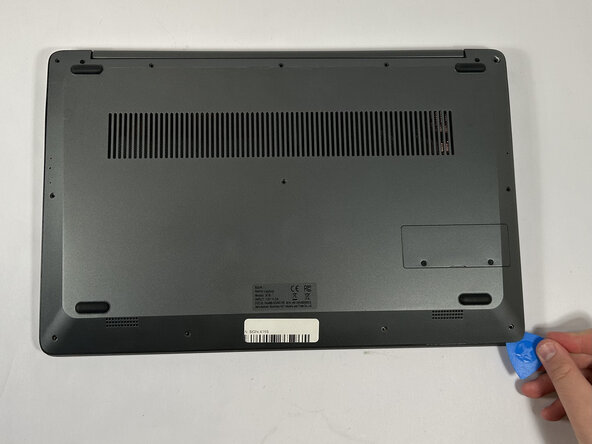
Use the nylon spudger to gently pry a bit of the back panel open. With the opening pick, go all the way around until the back panel is loose.
-
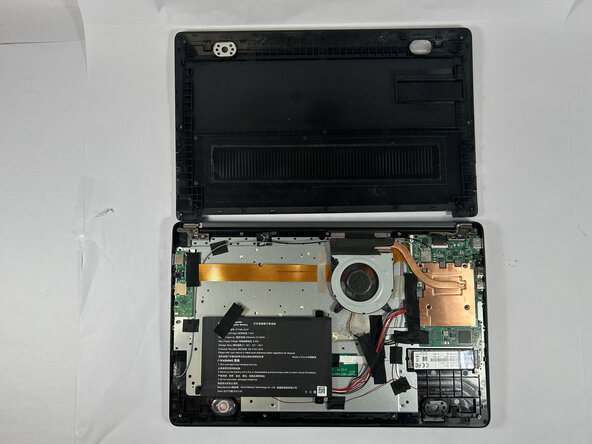
Pull the back panel off the laptop.
-
-
-
-
-
-
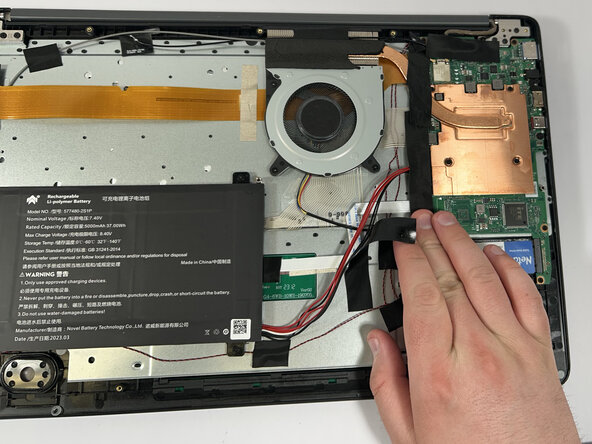
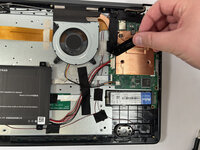
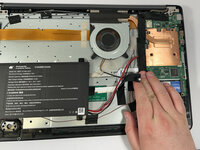
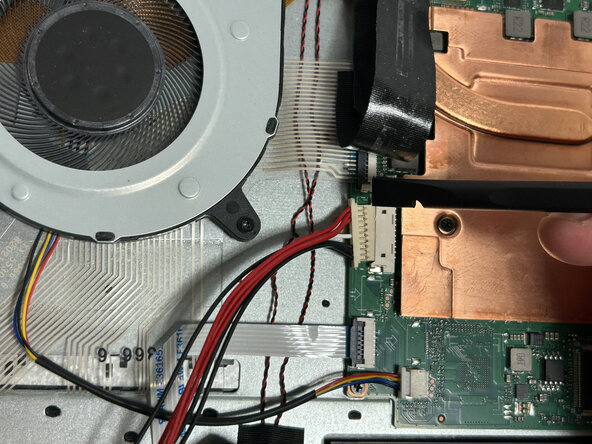
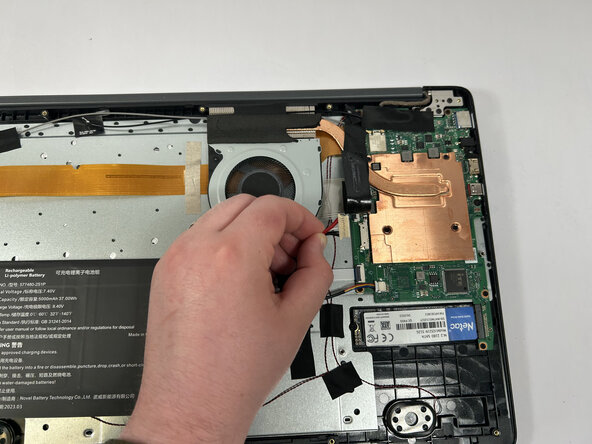
Gently remove the tape holding the battery's cord to the motherboard, followed by the tape in the middle of the cord.
-
-
-
-
-
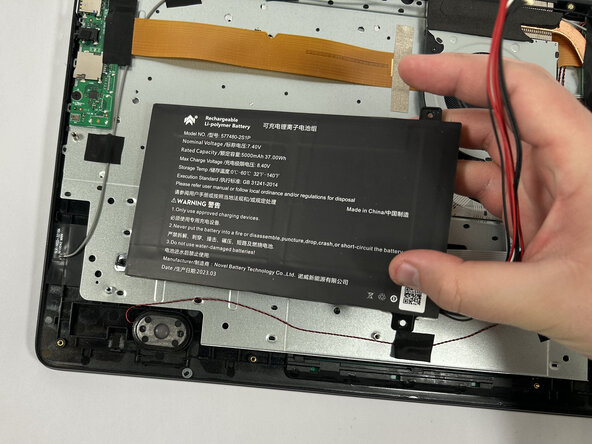
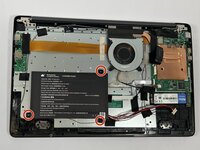
Using the Phillips #0 screwdriver, remove the three 4.4 mm screws attached to the battery.
-
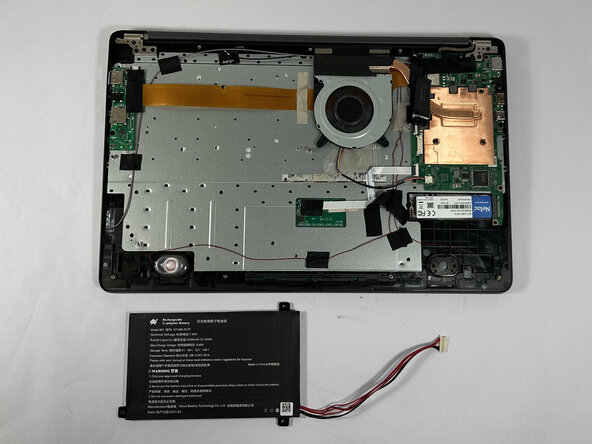
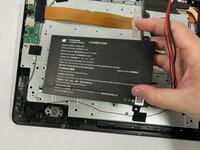
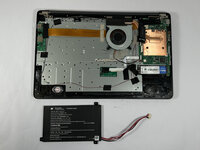
Remove the battery.
-
-









To reassemble your device, follow these instructions in reverse order.
Cancel: I did not complete this guide.
One other person completed this guide.

Team

Idaho State University, Team 1-1, Watkins Spring 2025 Member of Idaho State University, Team 1-1, Watkins Spring 2025
ISU-WATKINS-S25S1G1
3 Members
108 Guides authored
