Free Shipping on Domestic Orders $75+

S7 MaxV Ultra dock: Suction fan replacement

What you need

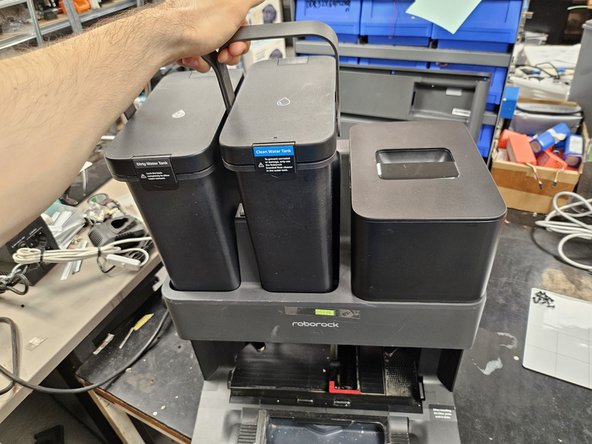
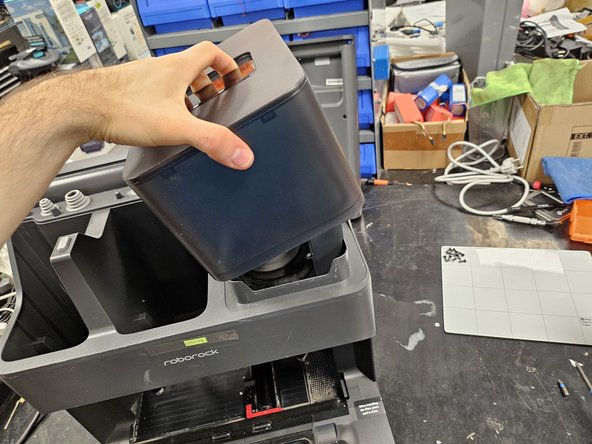
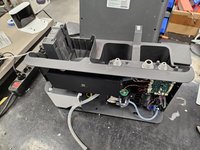
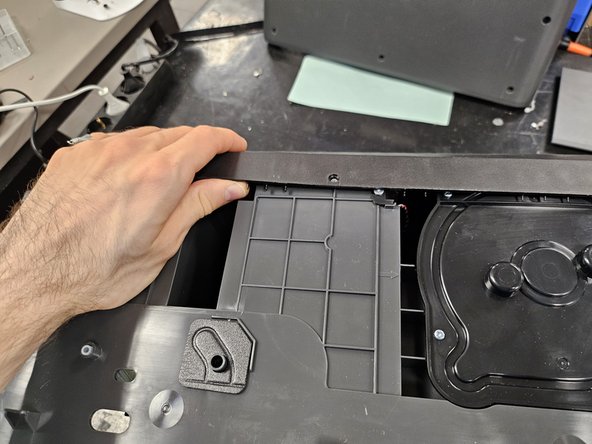
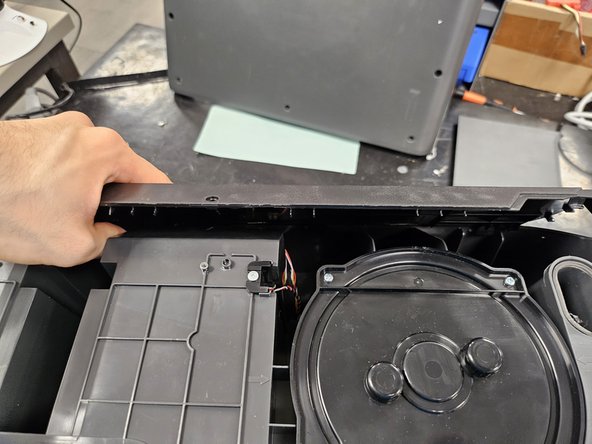
  1. S7 MaxV Ultra dock: Suction fan replacement, Remove the water tanks and dustbin cover.: step 1, image 1 of 3 S7 MaxV Ultra dock: Suction fan replacement, Remove the water tanks and dustbin cover.: step 1, image 2 of 3 S7 MaxV Ultra dock: Suction fan replacement, Remove the water tanks and dustbin cover.: step 1, image 3 of 3
    • Remove the water tanks and the dustbin cover.

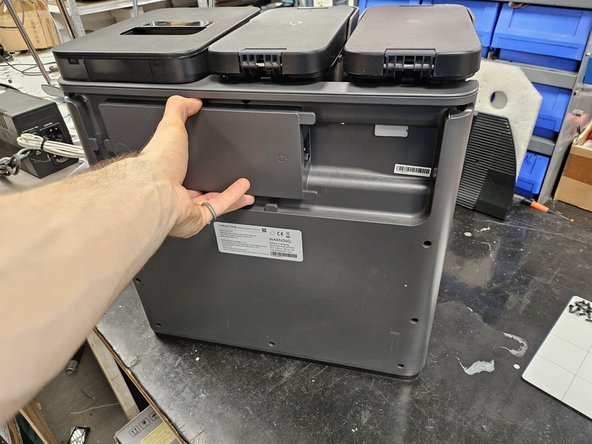
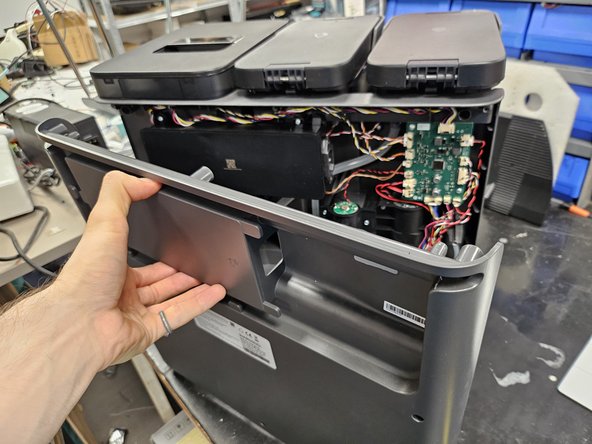
  2. S7 MaxV Ultra dock: Suction fan replacement, Remove the back cover.: step 2, image 1 of 3 S7 MaxV Ultra dock: Suction fan replacement, Remove the back cover.: step 2, image 2 of 3 S7 MaxV Ultra dock: Suction fan replacement, Remove the back cover.: step 2, image 3 of 3
    • Remove the screws using a PH2 screwdriver.

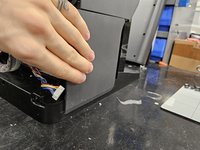
    • Pull the back cover off.

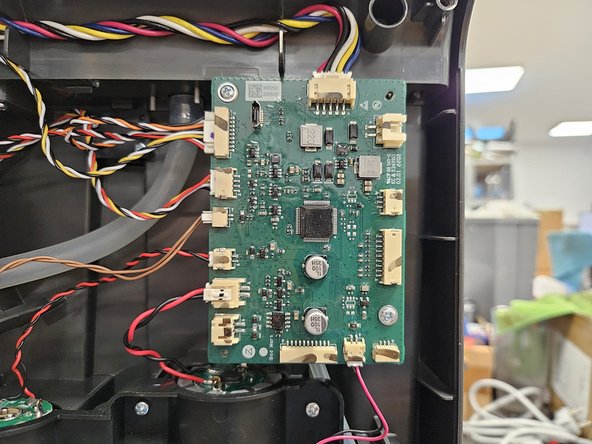
  3. S7 MaxV Ultra dock: Suction fan replacement, Disconnect connectors from motherboard.: step 3, image 1 of 2 S7 MaxV Ultra dock: Suction fan replacement, Disconnect connectors from motherboard.: step 3, image 2 of 2
    • Disconnect marked connectors from the motherboard.

    • You can disconnect all of them, but it's not necessary.

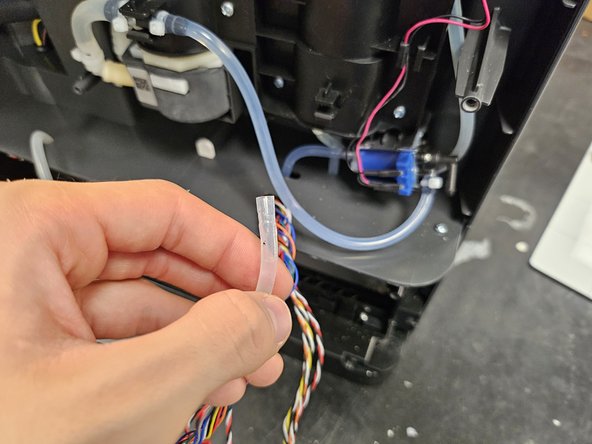
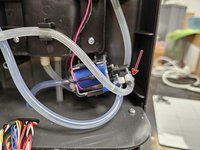
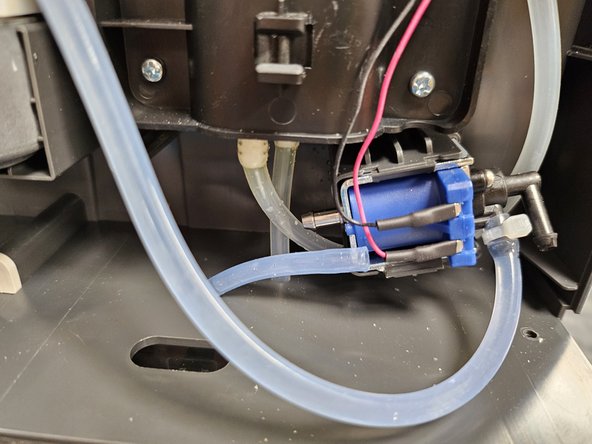
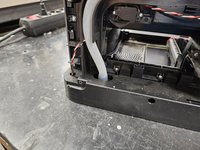
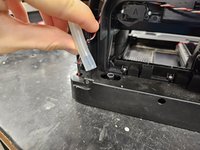
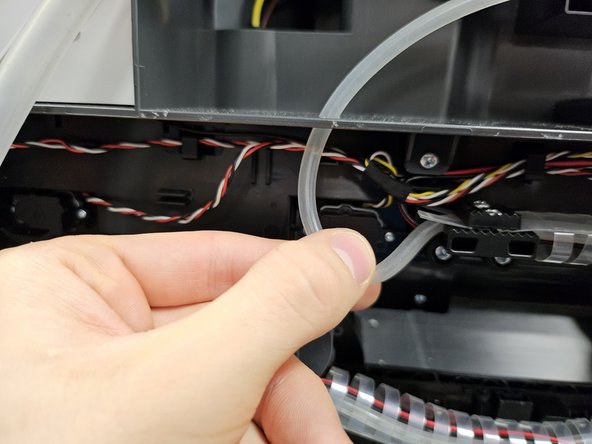
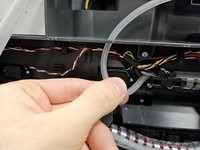
  4. S7 MaxV Ultra dock: Suction fan replacement, Remove the maintenance brush water output tube.: step 4, image 1 of 3 S7 MaxV Ultra dock: Suction fan replacement, Remove the maintenance brush water output tube.: step 4, image 2 of 3 S7 MaxV Ultra dock: Suction fan replacement, Remove the maintenance brush water output tube.: step 4, image 3 of 3
    • Remove the zip-tie.

    • Disconnect the maintenance brush water output tube.

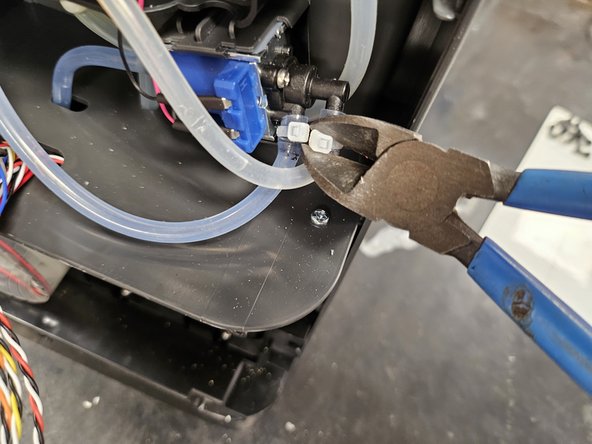
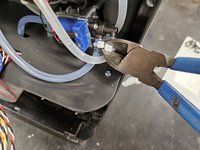
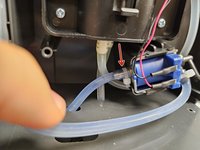
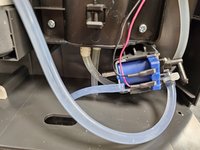
  5. S7 MaxV Ultra dock: Suction fan replacement, Disconnect the water intake tube.: step 5, image 1 of 2 S7 MaxV Ultra dock: Suction fan replacement, Disconnect the water intake tube.: step 5, image 2 of 2
    • Cut off the ziptie.

    • Disconnect the tube from the valve.

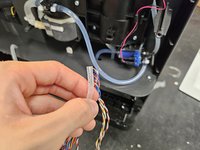
  6. S7 MaxV Ultra dock: Suction fan replacement, Disconnect the dirty water tube.: step 6, image 1 of 2 S7 MaxV Ultra dock: Suction fan replacement, Disconnect the dirty water tube.: step 6, image 2 of 2
    • Disconnect the dirty water tube.

    • It is only necessary to disconnect it from the bottom and not also from the top.

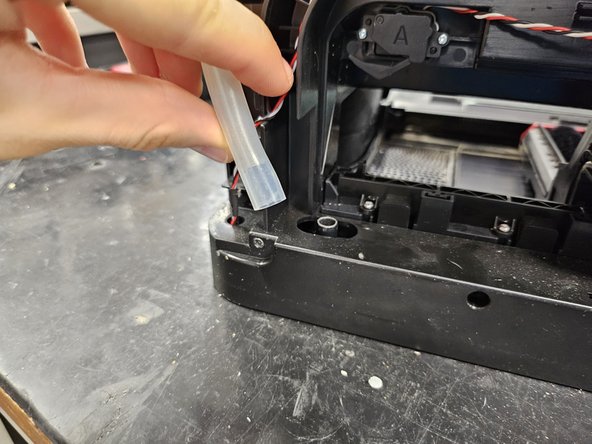
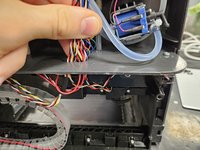
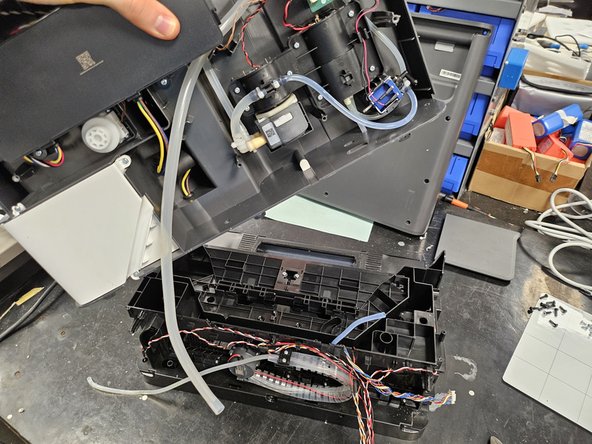
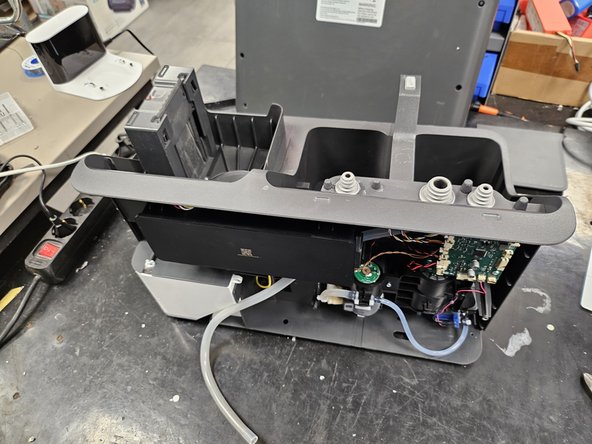
  7. S7 MaxV Ultra dock: Suction fan replacement: step 7, image 1 of 2 S7 MaxV Ultra dock: Suction fan replacement: step 7, image 2 of 2
    • Push the wires and tube through the holes into the bottom half of the dock.

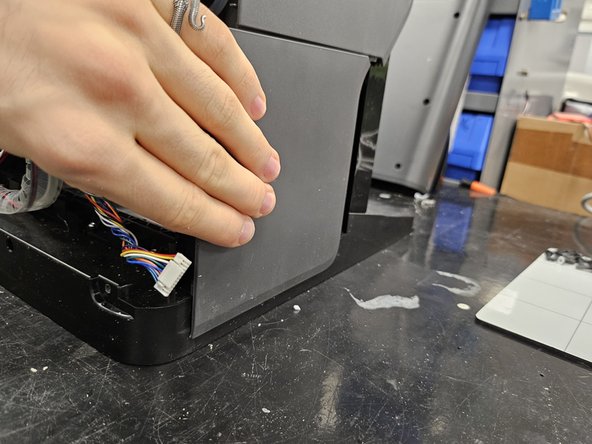
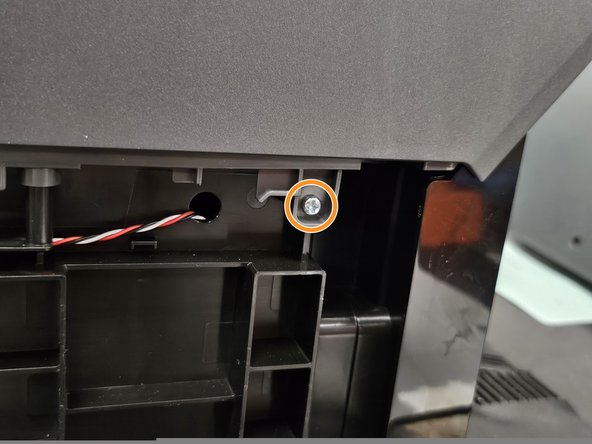
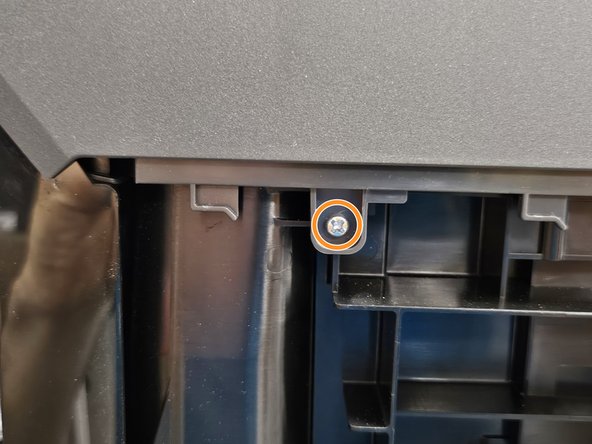
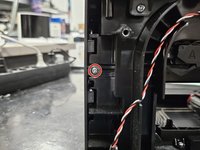
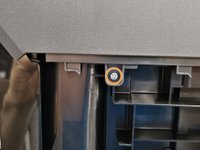
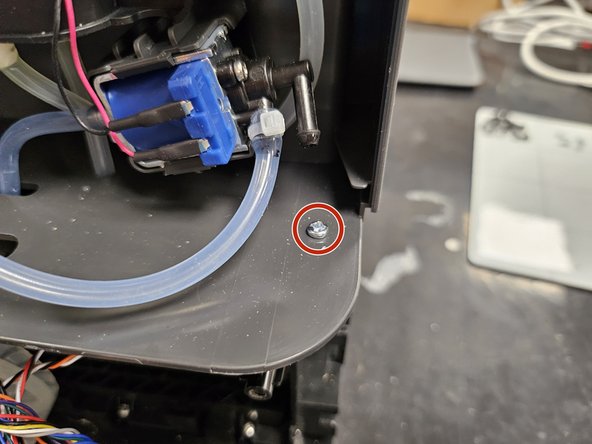
  8. S7 MaxV Ultra dock: Suction fan replacement, Remove the right side panel.: step 8, image 1 of 3 S7 MaxV Ultra dock: Suction fan replacement, Remove the right side panel.: step 8, image 2 of 3 S7 MaxV Ultra dock: Suction fan replacement, Remove the right side panel.: step 8, image 3 of 3
    • Remove the marked screw using a PH2 screwdriver.

    • Push the side panel towards yourself.

    • Remove the screw using a PH2 screwdriver.

  9. S7 MaxV Ultra dock: Suction fan replacement, Remove the left side panel.: step 9, image 1 of 2 S7 MaxV Ultra dock: Suction fan replacement, Remove the left side panel.: step 9, image 2 of 2
    • Remove the screw using a PH2 screwdriver, then slide the panel off.

    • Remove the screw using a PH2 screwdriver.

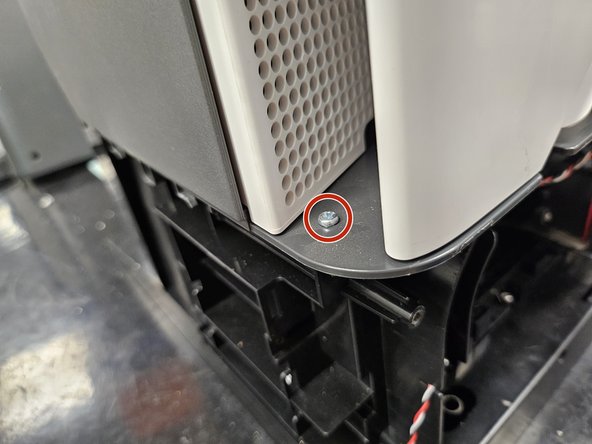
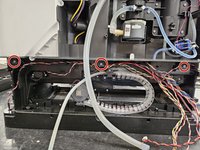
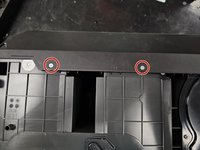
  10. S7 MaxV Ultra dock: Suction fan replacement, Remove the screws.: step 10, image 1 of 3 S7 MaxV Ultra dock: Suction fan replacement, Remove the screws.: step 10, image 2 of 3 S7 MaxV Ultra dock: Suction fan replacement, Remove the screws.: step 10, image 3 of 3
    • Remove the marked screws using a PH2 screwdriver.

  11. S7 MaxV Ultra dock: Suction fan replacement: step 11, image 1 of 3 S7 MaxV Ultra dock: Suction fan replacement: step 11, image 2 of 3 S7 MaxV Ultra dock: Suction fan replacement: step 11, image 3 of 3
    • Grab the top half firmly.

    • Pull it apart.

    • Set the bottom half somewhere else, as we will be focusing on the top in this guide.

  12. S7 MaxV Ultra dock: Suction fan replacement, Flip it over.: step 12, image 1 of 1
    • Flip it over.

  13. S7 MaxV Ultra dock: Suction fan replacement, Remove the front cover of the dock.: step 13, image 1 of 3 S7 MaxV Ultra dock: Suction fan replacement, Remove the front cover of the dock.: step 13, image 2 of 3 S7 MaxV Ultra dock: Suction fan replacement, Remove the front cover of the dock.: step 13, image 3 of 3
    • Remove the marked screws using a PH1 screwdriver.

    • Pull the front cover off. It is still held in place by a couple latches.

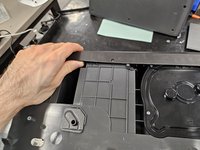
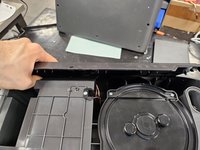
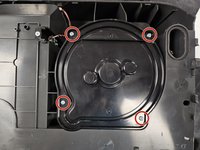
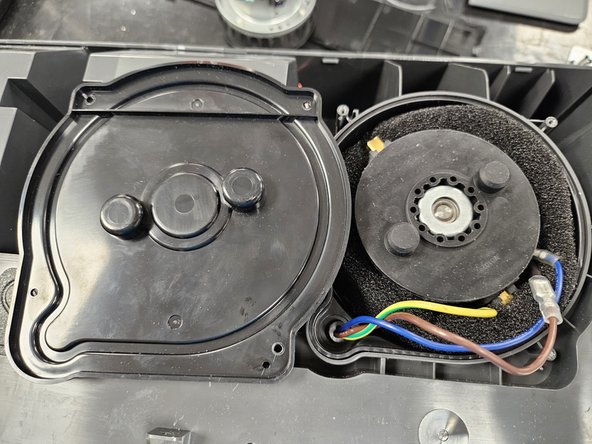
  14. S7 MaxV Ultra dock: Suction fan replacement, Suction fan cover: step 14, image 1 of 2 S7 MaxV Ultra dock: Suction fan replacement, Suction fan cover: step 14, image 2 of 2
    • Remove the marked screws using a PH2 screwdriver.

    • Remove the plastic cover.

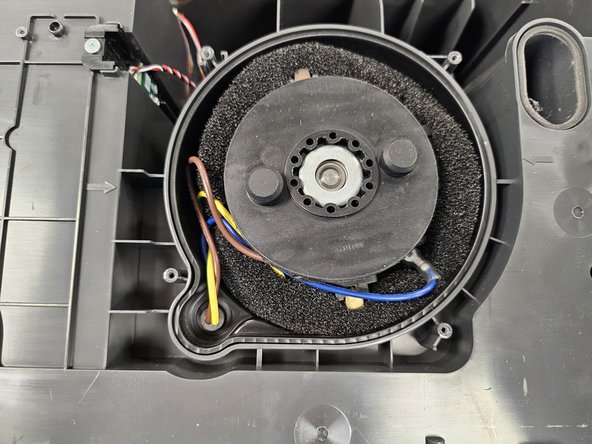
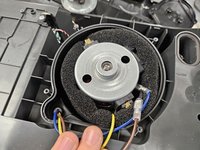
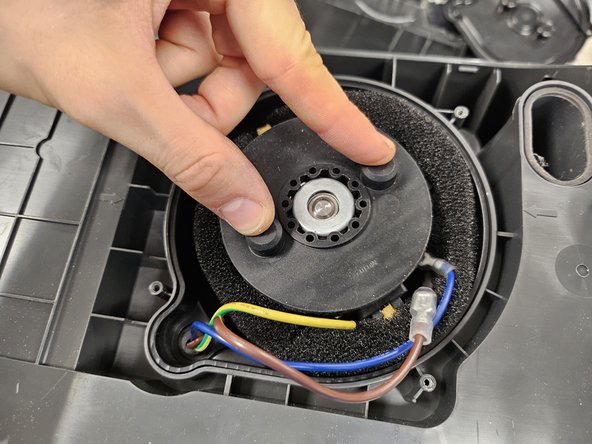
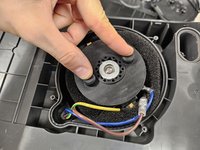
  15. S7 MaxV Ultra dock: Suction fan replacement, Remove the suction fan.: step 15, image 1 of 3 S7 MaxV Ultra dock: Suction fan replacement, Remove the suction fan.: step 15, image 2 of 3 S7 MaxV Ultra dock: Suction fan replacement, Remove the suction fan.: step 15, image 3 of 3
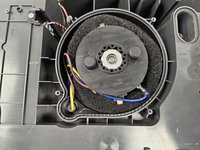
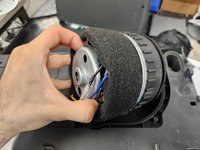
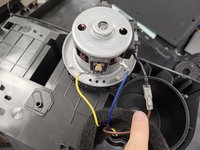
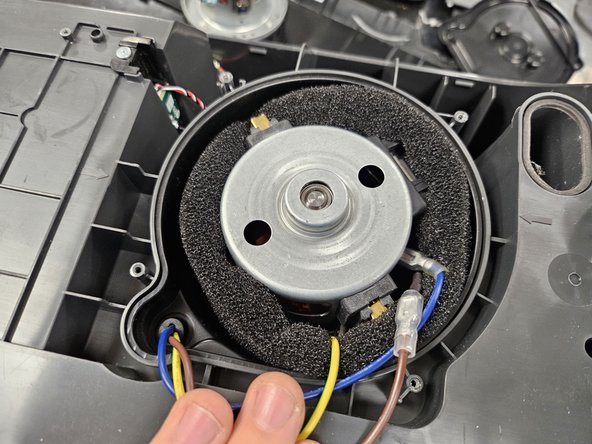
    • Remove the rubber cap.

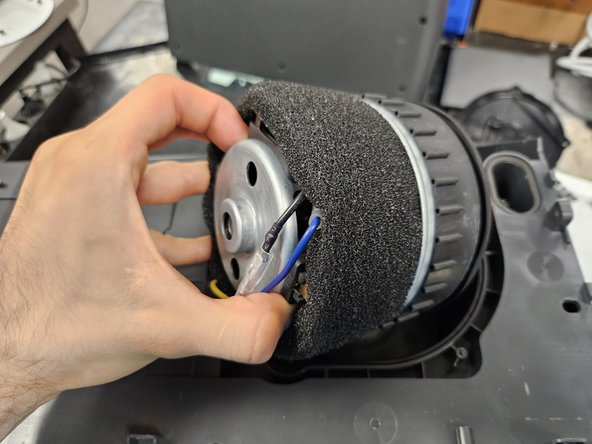
    • Take the suction fan out.

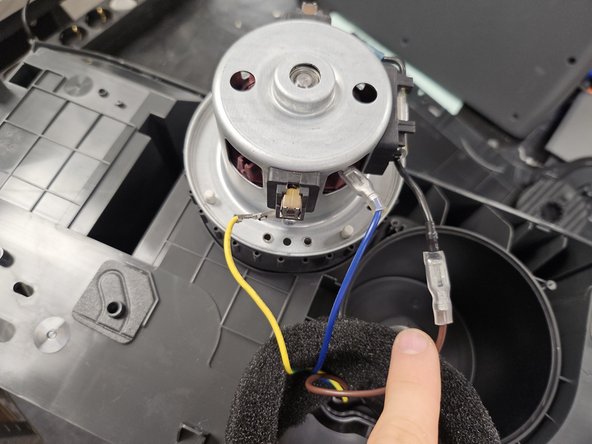
    • Pull the foam further down the wires to expose all the connectors, then disconnect those.

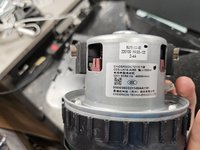
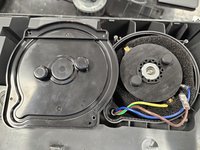
  16. S7 MaxV Ultra dock: Suction fan replacement, Replace the suction fan.: step 16, image 1 of 2 S7 MaxV Ultra dock: Suction fan replacement, Replace the suction fan.: step 16, image 2 of 2
    • Connect the connectors on the new suction fan, then fit the foam over it.

    • Place it back inside.

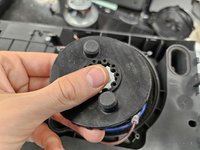
  17. S7 MaxV Ultra dock: Suction fan replacement, Rubber cap: step 17, image 1 of 3 S7 MaxV Ultra dock: Suction fan replacement, Rubber cap: step 17, image 2 of 3 S7 MaxV Ultra dock: Suction fan replacement, Rubber cap: step 17, image 3 of 3
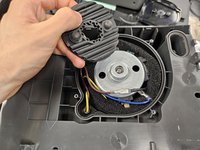
    • When fitting the rubber cap back on, ensure that the suction fan is properly positioned, so that the plastic cover will fit over it.

    • Once you've done that, reassemble your device.

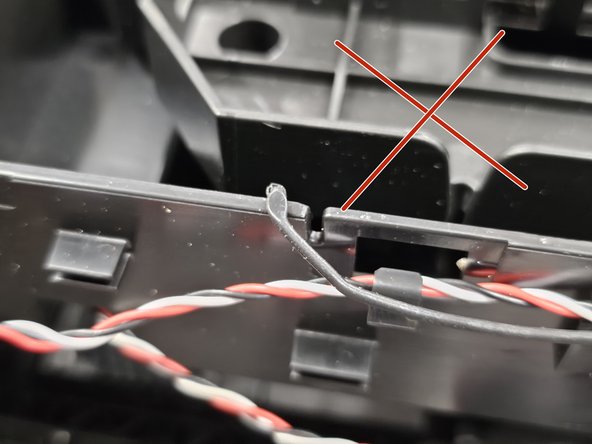
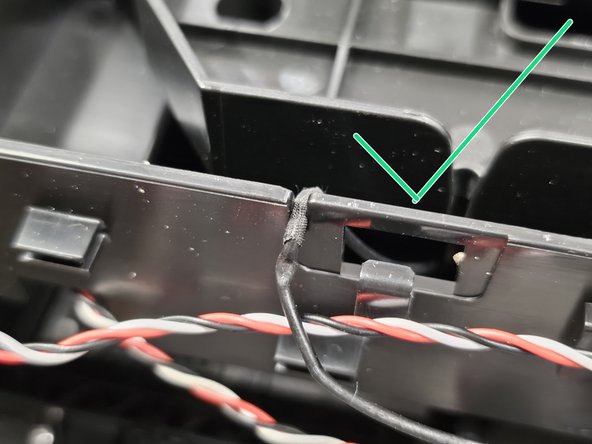
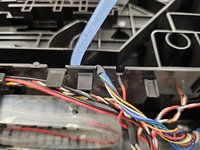
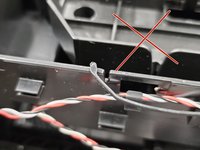
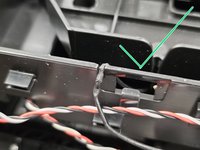
  18. S7 MaxV Ultra dock: Suction fan replacement, Ensure the cables are in proper grooves.: step 18, image 1 of 3 S7 MaxV Ultra dock: Suction fan replacement, Ensure the cables are in proper grooves.: step 18, image 2 of 3 S7 MaxV Ultra dock: Suction fan replacement, Ensure the cables are in proper grooves.: step 18, image 3 of 3
    • When putting the halves together, make sure the cables are in their correct grooves.

Conclusion

To reassemble your device, follow these instructions in reverse order.

3 other people completed this guide.

DegenFixer

Member since: 09/18/24

5,491 Reputation

24 Guides authored

2 Guide Comments

Thank you for this comprehensive guidance

Jana Gardill Fedele - Reply Share
Hvor kan jeg købe en ny motor til min Roborock S7 docking station

Henrik Annfeldt - Reply Share
Add Comment

View Statistics:

Past 24 Hours: 9

Past 7 Days: 49

Past 30 Days: 228

All Time: 3,381