Free Shipping on Domestic Orders $75+

Ring Video Doorbell 3 Camera Sensor Replacement

What you need

    1. Ring Video Doorbell 3 Camera Sensor Replacement, Faceplate: step 1, image 1 of 2 Ring Video Doorbell 3 Camera Sensor Replacement, Faceplate: step 1, image 2 of 2
      • Look at the bottom of the device and locate the arrow.

      • Use your fingers to push the silver faceplate in the direction of the arrow.

      Ask FixBot

      Add Comment

    2. Ring Video Doorbell 3 Camera Sensor Replacement: step 2, image 1 of 1
      • Push up to take the face plate off.

      Ask FixBot

      Add Comment

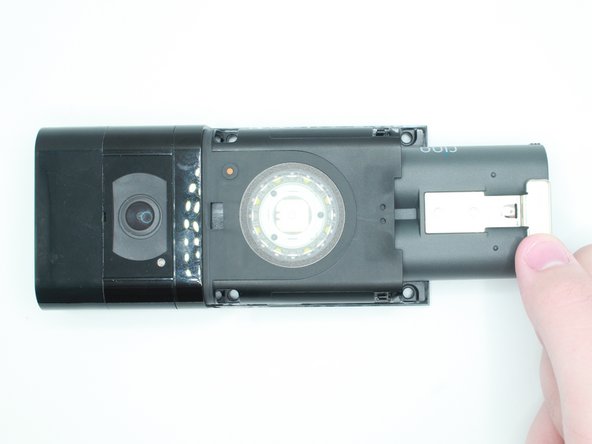
    1. Ring Video Doorbell 3 Camera Sensor Replacement, Battery: step 3, image 1 of 2 Ring Video Doorbell 3 Camera Sensor Replacement, Battery: step 3, image 2 of 2
      • Push in the silver tab and slide the battery out.

      Ask FixBot

      Add Comment

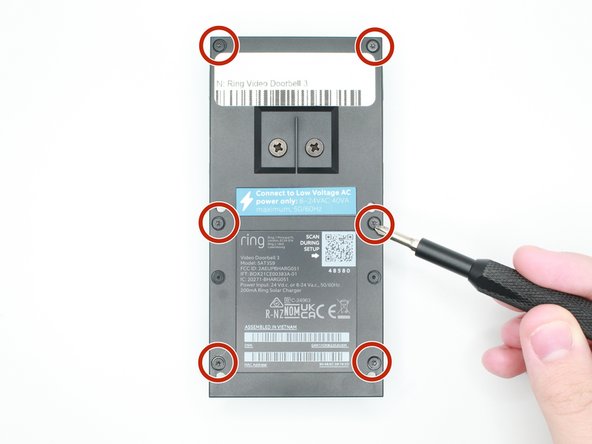
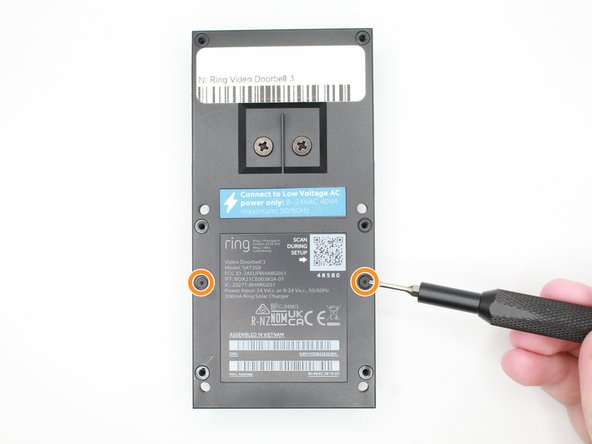
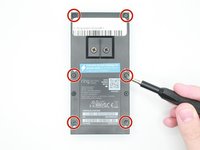
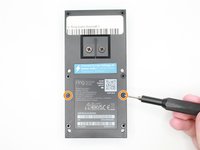
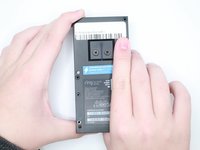
    1. Ring Video Doorbell 3 Camera Sensor Replacement, Motherboard: step 4, image 1 of 3 Ring Video Doorbell 3 Camera Sensor Replacement, Motherboard: step 4, image 2 of 3 Ring Video Doorbell 3 Camera Sensor Replacement, Motherboard: step 4, image 3 of 3
      • Remove the 6 screws with a Torx T6 screwdriver.

      • Remove the 2 screws with a Torx T5 screwdriver.

      Ask FixBot

      Add Comment

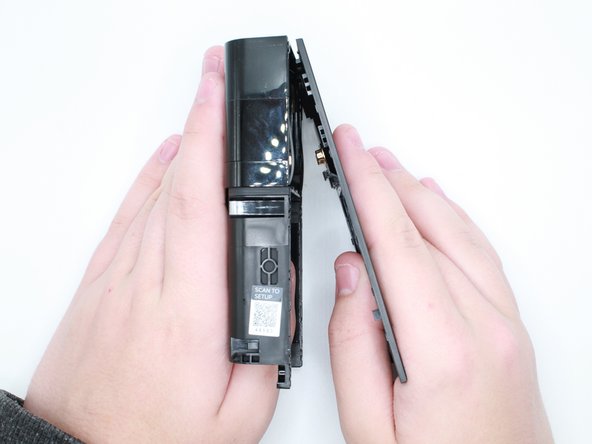
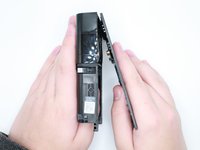
    2. Ring Video Doorbell 3 Camera Sensor Replacement: step 5, image 1 of 2 Ring Video Doorbell 3 Camera Sensor Replacement: step 5, image 2 of 2
      • Put your thumb where the battery was and push outwards to remove the back case.

      Ask FixBot

      Add Comment

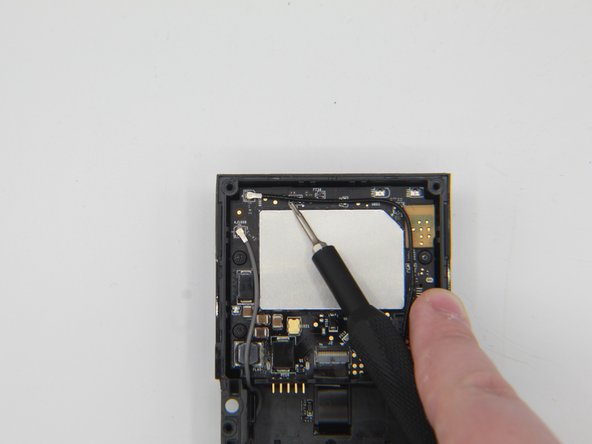
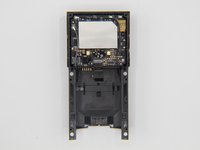
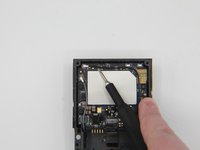
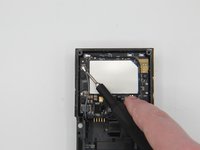
    3. Ring Video Doorbell 3 Camera Sensor Replacement: step 6, image 1 of 3 Ring Video Doorbell 3 Camera Sensor Replacement: step 6, image 2 of 3 Ring Video Doorbell 3 Camera Sensor Replacement: step 6, image 3 of 3
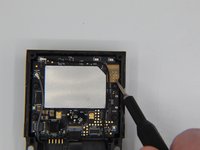
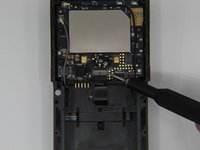
      • Get a tweezer, and remove the black and grey antenna wires.

      Ask FixBot

      Add Comment

    4. Ring Video Doorbell 3 Camera Sensor Replacement: step 7, image 1 of 2 Ring Video Doorbell 3 Camera Sensor Replacement: step 7, image 2 of 2
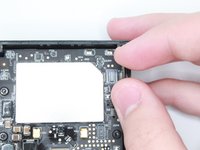
      • Disconnect the camera sensor.

      Ask FixBot

      Add Comment

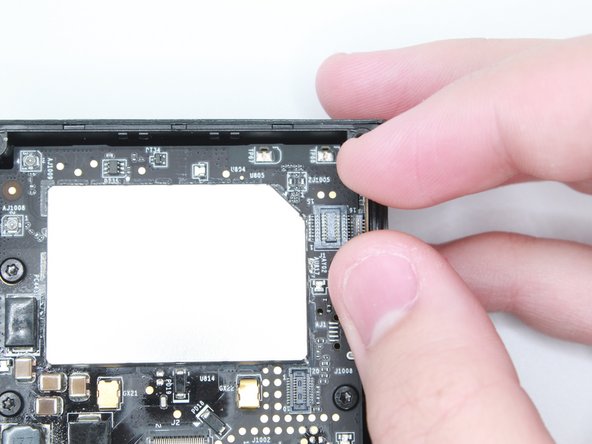
    5. Ring Video Doorbell 3 Camera Sensor Replacement: step 8, image 1 of 2 Ring Video Doorbell 3 Camera Sensor Replacement: step 8, image 2 of 2
      Tool used on this step:
      Tweezers
      $4.99
      Buy
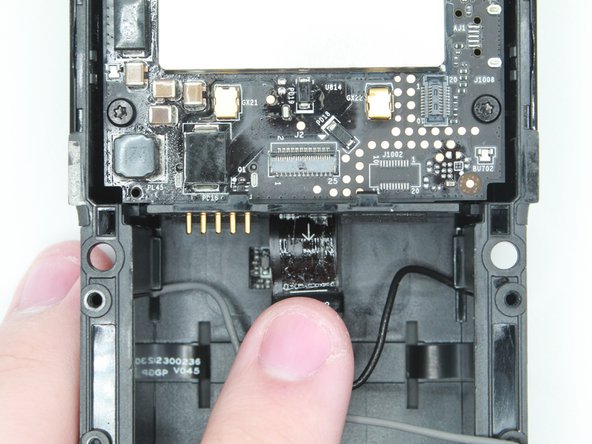
      • Be cautious to not rip the ribbon cable.

      • Lift the black tab above the ribbon to unlock it.

      • Use the tweezers to pull out the ribbon.

      Ask FixBot

      Add Comment

    6. Ring Video Doorbell 3 Camera Sensor Replacement: step 9, image 1 of 2 Ring Video Doorbell 3 Camera Sensor Replacement: step 9, image 2 of 2
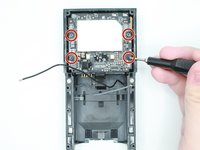
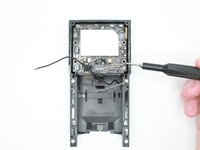
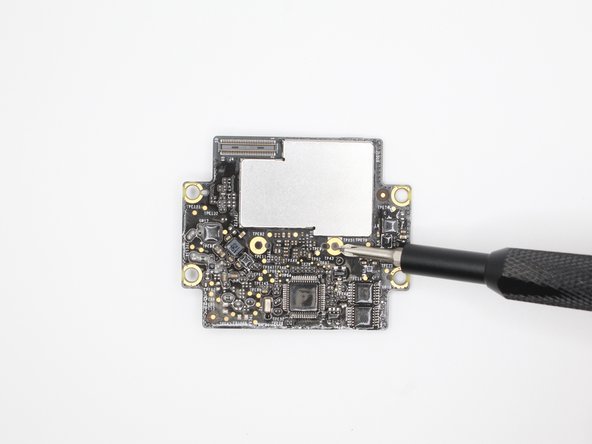
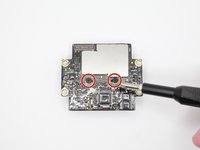
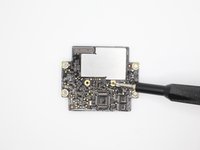
      • Use a Torx T6 but to take out the four screws on the first motherboard.

      Ask FixBot

      Add Comment

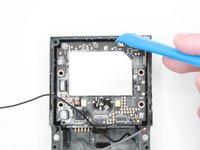
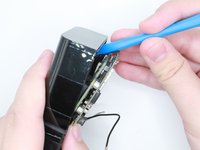
    7. Ring Video Doorbell 3 Camera Sensor Replacement: step 10, image 1 of 2 Ring Video Doorbell 3 Camera Sensor Replacement: step 10, image 2 of 2
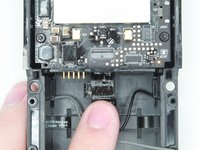
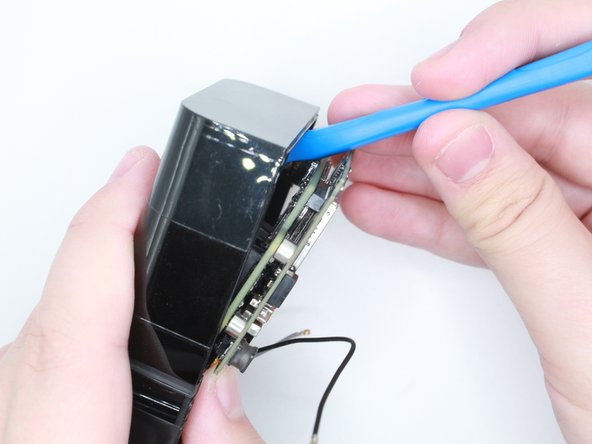
      • Use an opening tool to take out the motherboard.

      • Make sure to push in the 5 pins while taking out the motherboards to ensure that they do not break.

      Ask FixBot

      Add Comment

    8. Ring Video Doorbell 3 Camera Sensor Replacement: step 11, image 1 of 1
      • The motherboard has been taken out, and now it is free to be replaced or worked on.

      Ask FixBot

      Add Comment

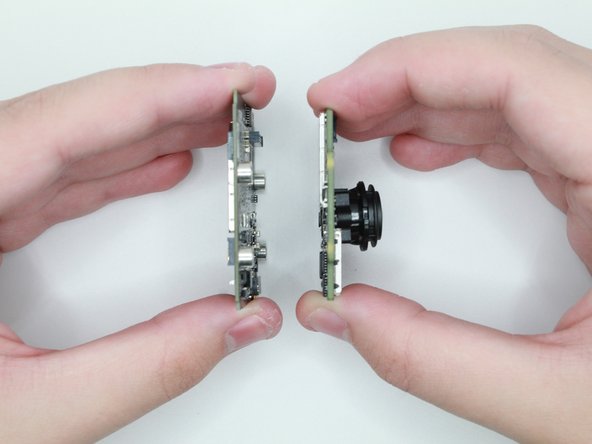
    9. Ring Video Doorbell 3 Camera Sensor Replacement: step 12, image 1 of 2 Ring Video Doorbell 3 Camera Sensor Replacement: step 12, image 2 of 2
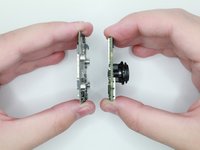
      • Flip the two boards on the side.

      • Gently pull the motherboard and the camera board apart.

      Ask FixBot

      Add Comment

    10. Ring Video Doorbell 3 Camera Sensor Replacement: step 13, image 1 of 2 Ring Video Doorbell 3 Camera Sensor Replacement: step 13, image 2 of 2
      • Use the Phillips #00 screwdriver to remove the two screws.

      Ask FixBot

      Add Comment

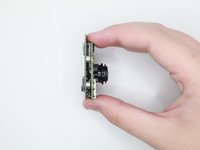
    11. Ring Video Doorbell 3 Camera Sensor Replacement: step 14, image 1 of 2 Ring Video Doorbell 3 Camera Sensor Replacement: step 14, image 2 of 2
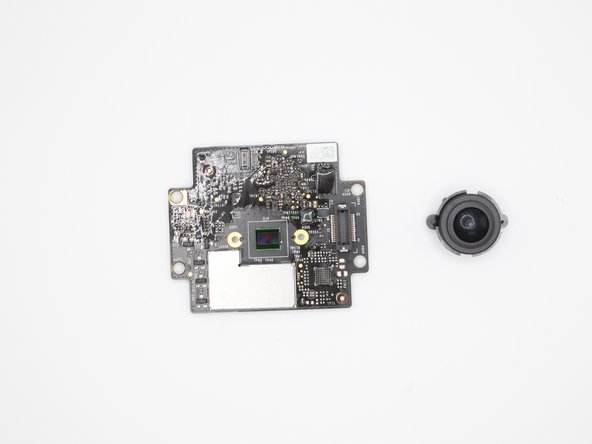
      • Carefully remove the camera lens from the board.

      • Replace Motherboard(s) if needed.

      • Replace Camera if needed.

      Ask FixBot

      Add Comment

    1. Ring Video Doorbell 3 Camera Sensor Replacement, Camera Sensor: step 15, image 1 of 1
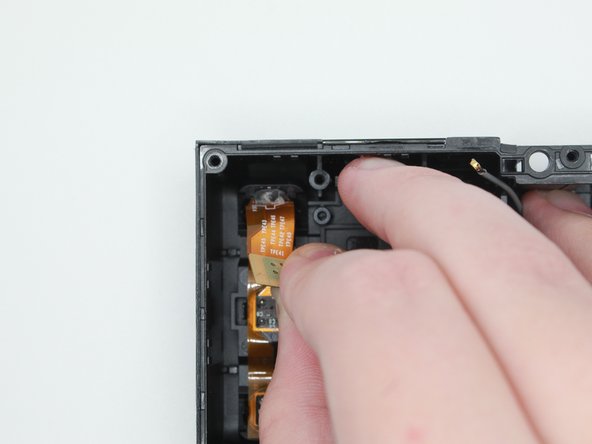
      • After setting the motherboard aside, grab the case.

      Ask FixBot

      Add Comment

    2. Ring Video Doorbell 3 Camera Sensor Replacement: step 16, image 1 of 2 Ring Video Doorbell 3 Camera Sensor Replacement: step 16, image 2 of 2
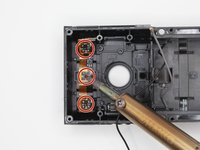
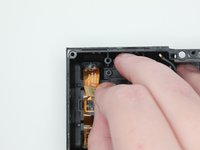
      • Desolder these three spots with 4 points and remove the solder.

      • Carefully peel off the camera sensor to remove it

      Ask FixBot

      Add Comment

Conclusion

To reassemble your device, follow these instructions in reverse order.

Cancel: I did not complete this guide.

0 Guide Comments

Add Comment

View Statistics:

Past 24 Hours: 3

Past 7 Days: 6

Past 30 Days: 28

All Time: 832