Free Shipping on Domestic Orders $75+

Replacing VTech MobiGo Touch Learning System Speaker

What you need

    1. Replacing VTech MobiGo Touch Learning System Speaker, Case: step 1, image 1 of 1
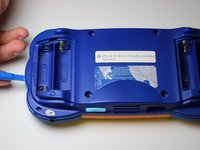
      • Remove the battery covers and the four batteries.

      Ask FixBot

      Add Comment

    2. Replacing VTech MobiGo Touch Learning System Speaker: step 2, image 1 of 2 Replacing VTech MobiGo Touch Learning System Speaker: step 2, image 2 of 2
      • Remove the four plastic caps with a metal spudger to expose the 6.0 mm Philips JIS #0 case screws.

      • Remove the eight 6.0 mm JIS #0 case screws.

      Ask FixBot

      Add Comment

    3. Replacing VTech MobiGo Touch Learning System Speaker: step 3, image 1 of 2 Replacing VTech MobiGo Touch Learning System Speaker: step 3, image 2 of 2
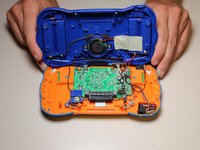
      • Using a plastic opening tool, separate the two pieces of the case carefully.

      Ask FixBot

      Add Comment

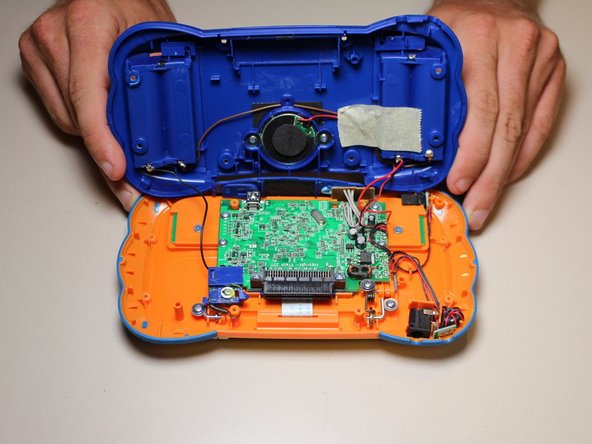
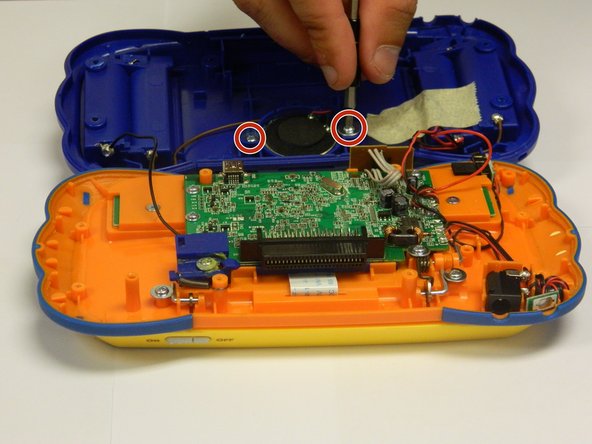
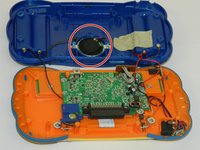
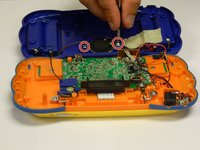
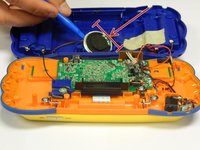
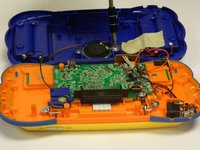
    1. Replacing VTech MobiGo Touch Learning System Speaker, Speaker: step 4, image 1 of 2 Replacing VTech MobiGo Touch Learning System Speaker, Speaker: step 4, image 2 of 2
      • The speaker will be attached to the back of the case.

      • Unscrew the two 6.0 mm Philips J0 screws.

      • Careful! The wires are still attached to the back of the case and to the speakers.

      Ask FixBot

      Add Comment

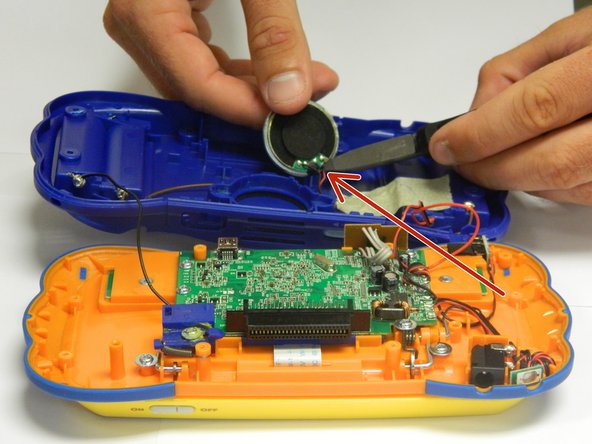
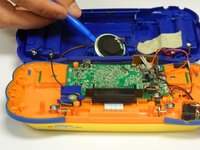
    2. Replacing VTech MobiGo Touch Learning System Speaker: step 5, image 1 of 2 Replacing VTech MobiGo Touch Learning System Speaker: step 5, image 2 of 2
      • Lift the round speaker with a plastic opening tool.

      • Remove the two wires connected to the speaker.

      • You can use wire cutters or regular needle nose pliers to disconnect the wires from the speaker.

      • Once the wires are disconnected, remove the speaker from the back of the case.

      Ask FixBot

      Add Comment

    3. Replacing VTech MobiGo Touch Learning System Speaker: step 6, image 1 of 2 Replacing VTech MobiGo Touch Learning System Speaker: step 6, image 2 of 2
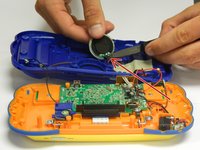
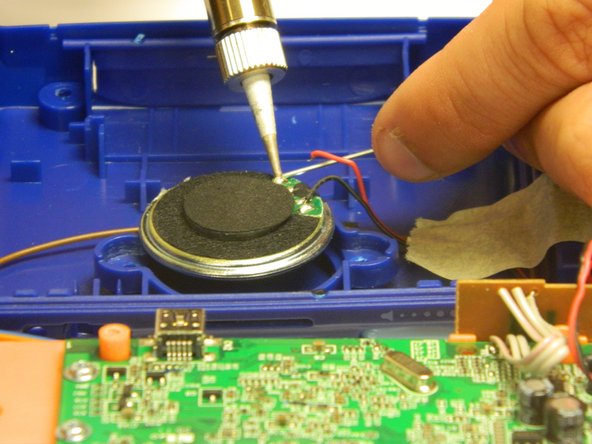
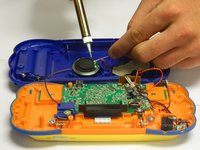
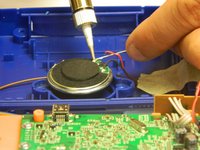
      • Solder the wires to the appropriate spots on the new speaker, making sure that both wires are properly connected.

      • The wires may be hot.

      Ask FixBot

      Add Comment

    4. Replacing VTech MobiGo Touch Learning System Speaker: step 7, image 1 of 2 Replacing VTech MobiGo Touch Learning System Speaker: step 7, image 2 of 2
      • Insert the new speaker into the hatch located in the middle part of the panel using a plastic spudger.

      • Make sure the speaker is the right size for the panel.

      • Once the speaker is properly placed, screw in the two 6.0 mm Philips J0 screws.

      • Do not over tighten the screws or the panel will break.

      Ask FixBot

      Add Comment

Conclusion

To reassemble your case, follow the case instructions in reverse order.

Cancel: I did not complete this guide.

RBansil

Member since: 08/27/15

221 Reputation

2 Guides authored

Team

USF Tampa, Team 8-3, Eyestone Fall 2015 Member of USF Tampa, Team 8-3, Eyestone Fall 2015

USFT-EYESTONE-F15S8G3

3 Members

72 Guides authored

0 Guide Comments

Add Comment

View Statistics:

Past 24 Hours: 1

Past 7 Days: 5

Past 30 Days: 35

All Time: 2,234