Free Shipping on Domestic Orders $75+

Replacing IBM ThinkPad 560z Speaker

What you need

  1. Replacing IBM ThinkPad 560z Speaker, Battery Removal: step 1, image 1 of 1
    • Slide the battery release latch to the right.

    • Pull out the battery out towards the front of the device.

    Ask FixBot

    Add Comment

  2. Replacing IBM ThinkPad 560z Speaker, Upper Case: step 2, image 1 of 1
    • Remove the 7 mm Phillips #0 screws.

    • Remove the 10 mm Phillips #0 screws.

    • Remove the 14 mm Phillips #0 screw.

    Ask FixBot

    Add Comment

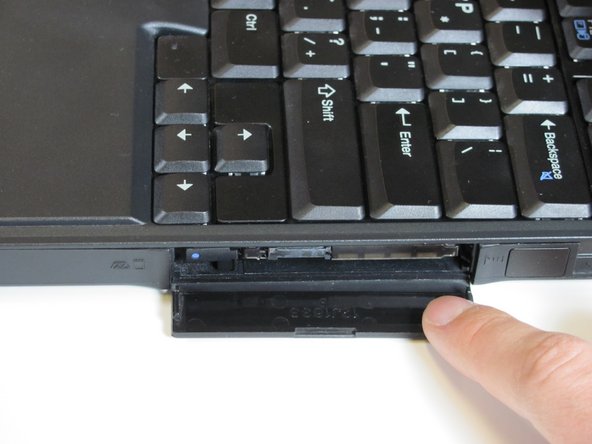
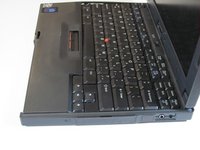
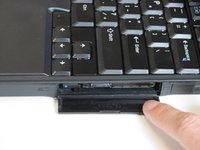
  3. Replacing IBM ThinkPad 560z Speaker: step 3, image 1 of 2 Replacing IBM ThinkPad 560z Speaker: step 3, image 2 of 2
    • Open the flap on the left hand side.

    Ask FixBot

    Add Comment

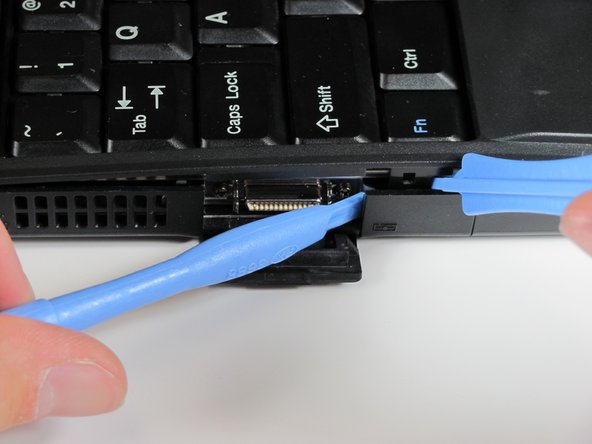
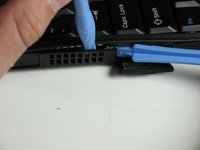
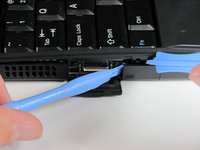
  4. Replacing IBM ThinkPad 560z Speaker: step 4, image 1 of 2 Replacing IBM ThinkPad 560z Speaker: step 4, image 2 of 2
    • Insert the plastic opening tools between the right and left sides of the latch.

    • Pry the right side of the latch, and then pry the left side to detach the laptop's cover.

    Ask FixBot

    Add Comment

  5. Replacing IBM ThinkPad 560z Speaker: step 5, image 1 of 2 Replacing IBM ThinkPad 560z Speaker: step 5, image 2 of 2
    • Open the flap on the right side.

    Ask FixBot

    Add Comment

  6. Replacing IBM ThinkPad 560z Speaker: step 6, image 1 of 1
    • Insert the plastic opening tools towards the right side of the latch.

    • Gently pry the right side out to release the top cover.

    Ask FixBot

    Add Comment

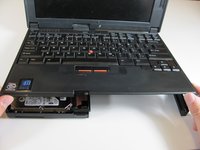
  7. Replacing IBM ThinkPad 560z Speaker: step 7, image 1 of 2 Replacing IBM ThinkPad 560z Speaker: step 7, image 2 of 2
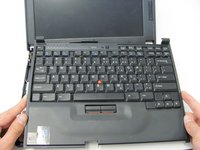
    • Lift the keyboard slowly.

    • A cable connects the keyboard to the motherboard. If you are not careful, you will damage the cable.

    Ask FixBot

    Add Comment

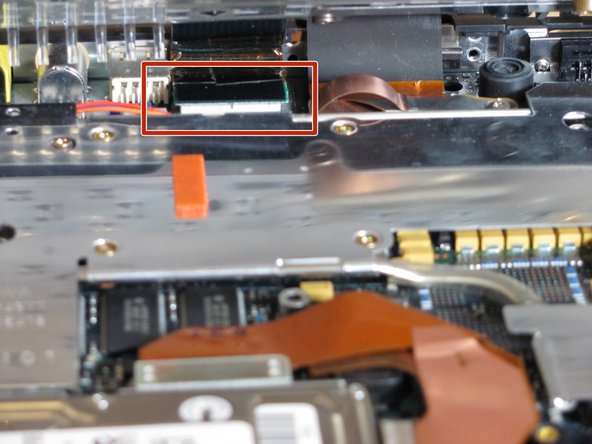
  8. Replacing IBM ThinkPad 560z Speaker: step 8, image 1 of 1
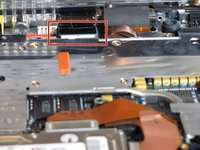
    • Use your fingers or a spudger to detach the connector.

    Ask FixBot

    Add Comment

  9. Replacing IBM ThinkPad 560z Speaker: step 9, image 1 of 2 Replacing IBM ThinkPad 560z Speaker: step 9, image 2 of 2
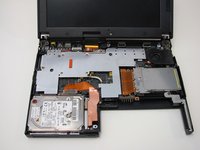
    • Carefully lift and remove the keyboard.

    Ask FixBot

    Add Comment

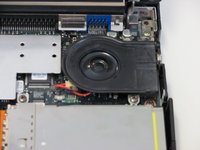
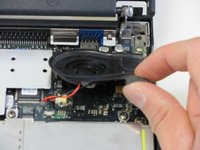
  10. Replacing IBM ThinkPad 560z Speaker, Speaker: step 10, image 1 of 2 Replacing IBM ThinkPad 560z Speaker, Speaker: step 10, image 2 of 2
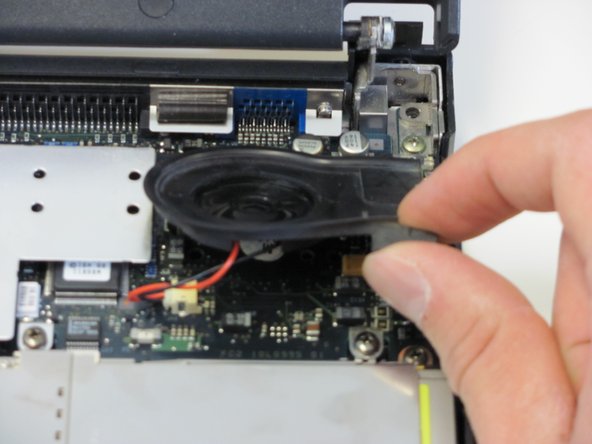
    • Slowly and carefully lift the speaker with your fingers.

    • The port that the speaker plugs into can be easily removed from the motherboard if not careful! Unplug the speaker with extreme caution!

    Ask FixBot

    Add Comment

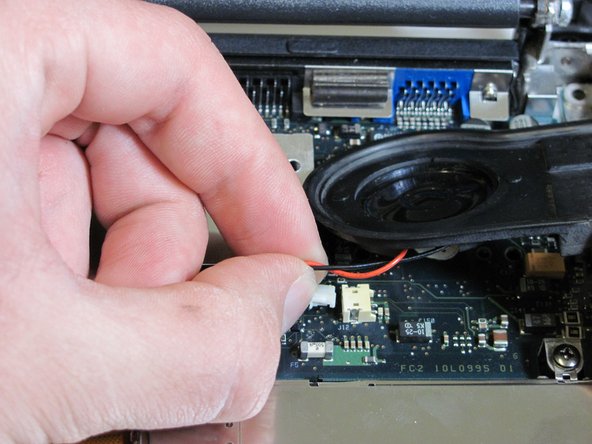
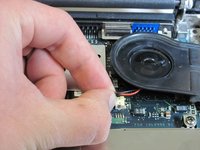
  11. Replacing IBM ThinkPad 560z Speaker: step 11, image 1 of 2 Replacing IBM ThinkPad 560z Speaker: step 11, image 2 of 2
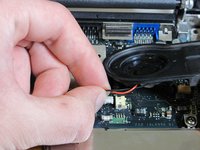
    • Use your fingers to unplug the wires from the connector.

    Ask FixBot

    Add Comment

Conclusion

To reassemble your device, follow these instructions in reverse order.

Cancel: I did not complete this guide.

One other person completed this guide.

Derek Driscoll

Member since: 04/15/10

119 Reputation

8 Guides authored

Team

Cal Poly, Team 26-27, Regan Spring 2010 Member of Cal Poly, Team 26-27, Regan Spring 2010

CPSU-REGAN-S10S26G27

3 Members

18 Guides authored

0 Guide Comments

Add Comment

View Statistics:

Past 24 Hours: 0

Past 7 Days: 9

Past 30 Days: 39

All Time: 2,109