Free Shipping on Domestic Orders $75+

Replacement of Graphics Processing Unit (GPU) in a HP Pavilion 690

Views: 1.6K

View statistics:

Past 24 Hours:
1
Past 7 Days:
29
Past 30 Days:
125
All Time:
1,558
Comments: 0

No one has left comments on this guide. Will you be first?

Go to guide comments
Completed: 0

No one has marked this guide "completed." Will you be the first?

Favorites: 0

No one has favorited (and subscribed to) this guide. Will you be the first?

Time Required: 20 minutes
Difficulty: Moderate
Replacement of Graphics Processing Unit (GPU) in a HP Pavilion 690

Introduction

Go to step 1 ↓

This guide will demonstrate a replacement of Graphics Processing Unit (GPU) in a HP Pavilion 690. The graphics processing unit is an important part in any computer and allow them to render images, video, and animations. If they become damaged a computers capability can become severely limited or they may even become unusable. By replacing the GPU instead of the entire computer, you are helping to reduce toxic e-waste in our landfills.

For this fix you will need a 4mm flathead screwdriver, a replacement GPU, and a small bowl or other container to hold screws. To restore the computer to original functionality you will need a NVIDIA GeForce GTX 1660 Ti Graphics Card. However, you may upgrade the graphics card if you wish. Be mindful that more powerful graphics cards will require more power and may also require an upgraded Power Supply Unit.

Then the guide will detail the steps you will follow to replace your GPU.

Computers are electronic by nature, so it is important to ensure that they are properly powered off and unplugged before beginning the repair.

What you need

Parts

Tools

    1. Replacement of Graphics Processing Unit (GPU) in a HP Pavilion 690, Graphics processing unit in a HP Pavilion 690.: step 1, image 1 of 1
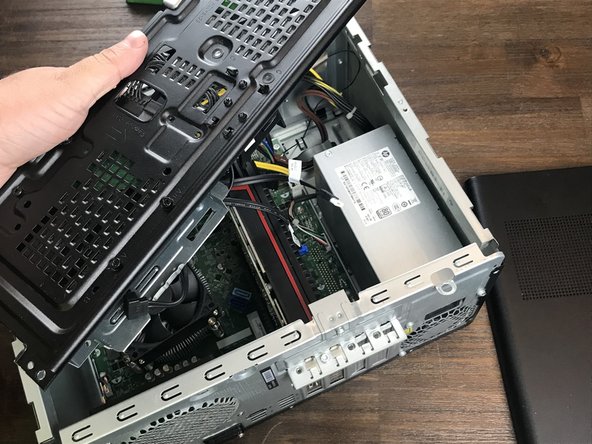
      • Power off the desktop and unplug the power cable.

      • Hold power button for 5 seconds to discharge the capacitors.

      • Remove the side panel from the computer.

      Ask FixBot

      Add Comment

    2. Replacement of Graphics Processing Unit (GPU) in a HP Pavilion 690: step 2, image 1 of 1
      • Remove screws and place screws in bowl for safe storage.

      • Place the screws in a small bowl or on a magnetic mat so they don't get lost.

      Ask FixBot

      Add Comment

    3. Replacement of Graphics Processing Unit (GPU) in a HP Pavilion 690: step 3, image 1 of 2 Replacement of Graphics Processing Unit (GPU) in a HP Pavilion 690: step 3, image 2 of 2
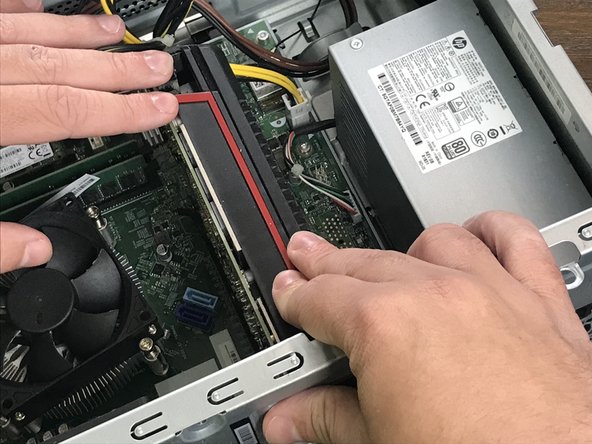
      • Disconnect CD-ROM drive from the computer.

      • Caution: Ensure that you are properly grounded before touching any electrical components. Computer equipment is highly susceptible to damage through electric shock.

      Ask FixBot

      Add Comment

    4. Replacement of Graphics Processing Unit (GPU) in a HP Pavilion 690: step 4, image 1 of 1
      • Press in the small black lever on the back of the CD-ROM drive.

      Ask FixBot

      Add Comment

    5. Replacement of Graphics Processing Unit (GPU) in a HP Pavilion 690: step 5, image 1 of 1
      • Remove the CD-ROM drive from the computer.

      Ask FixBot

      Add Comment

    6. Replacement of Graphics Processing Unit (GPU) in a HP Pavilion 690: step 6, image 1 of 2 Replacement of Graphics Processing Unit (GPU) in a HP Pavilion 690: step 6, image 2 of 2
      • Disconnect the wires connecting the storage housing to the motherboard.

      Ask FixBot

      Add Comment

    7. Replacement of Graphics Processing Unit (GPU) in a HP Pavilion 690: step 7, image 1 of 1
      • Remove the storage housing from the computer.

      Ask FixBot

      Add Comment

    8. Replacement of Graphics Processing Unit (GPU) in a HP Pavilion 690: step 8, image 1 of 2 Replacement of Graphics Processing Unit (GPU) in a HP Pavilion 690: step 8, image 2 of 2
      • Unscrew the screws on the latch on the back of the computer.

      Ask FixBot

      Add Comment

    9. Replacement of Graphics Processing Unit (GPU) in a HP Pavilion 690: step 9, image 1 of 2 Replacement of Graphics Processing Unit (GPU) in a HP Pavilion 690: step 9, image 2 of 2
      • Flip the open the latch on the back of the computer.

      Ask FixBot

      Add Comment

    10. Replacement of Graphics Processing Unit (GPU) in a HP Pavilion 690: step 10, image 1 of 1
      • Disconnect the power cable from the GPU.

      Ask FixBot

      Add Comment

    11. Replacement of Graphics Processing Unit (GPU) in a HP Pavilion 690: step 11, image 1 of 1
      • Press down on the small lever at the base of the GPU to release the component.

      • Caution: When reassembling do not press this lever. It can lead to an improperly seated GPU and may damage the slot or the GPU.

      Ask FixBot

      Add Comment

    12. Replacement of Graphics Processing Unit (GPU) in a HP Pavilion 690: step 12, image 1 of 2 Replacement of Graphics Processing Unit (GPU) in a HP Pavilion 690: step 12, image 2 of 2
      • Pull the GPU gently out of the computer.

      Ask FixBot

      Add Comment

    13. Replacement of Graphics Processing Unit (GPU) in a HP Pavilion 690: step 13, image 1 of 2 Replacement of Graphics Processing Unit (GPU) in a HP Pavilion 690: step 13, image 2 of 2
      • Slide the replacement GPU into the slot.

      Ask FixBot

      Add Comment

    14. Replacement of Graphics Processing Unit (GPU) in a HP Pavilion 690: step 14, image 1 of 1
      • Plug the power cable into the replacement GPU.

      Ask FixBot

      Add Comment

Conclusion

To reassemble your device, follow these instructions in reverse order.

Cancel: I did not complete this guide.

Yousif Al hamadani

Member since: 10/06/22

229 Reputation

1 Guide authored

0 Guide Comments

Add Comment

View Statistics:

Past 24 Hours: 1

Past 7 Days: 29

Past 30 Days: 125

All Time: 1,558