
Replace the Apple Mouse battery

Lasse.gra and one other contributor
Last updated on Jul 11, 2023
Views: 16K
View statistics:
- Past 24 Hours:
- 16
- Past 7 Days:
- 86
- Past 30 Days:
- 363
- All Time:
- 16,175
Comments: 0
No one has left comments on this guide. Will you be first?
Go to guide commentsCompleted: 4 5
4 people have marked this guide "completed." Will you be next?
5 people have marked this guide "completed." Including you — great job!
Favorites: 0 1
No one has favorited (and subscribed to) this guide. Will you be the first?
1 person has favorited (and subscribed to) this guide — and that's you!
Community-Contributed Guide
An awesome member of our community made this guide. It was not created by iFixit staff.
Video Overview
-
-
-
-
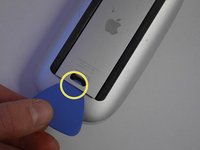
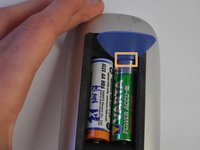
Move a selection on the gap between the box and the fin.
-
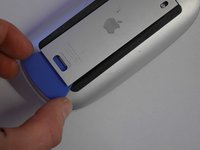
Remove the flap from the housing.
-
-
-
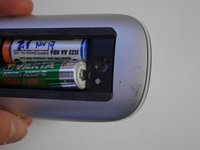
Place a selection between the battery and the interior ramen of the mouse.
-
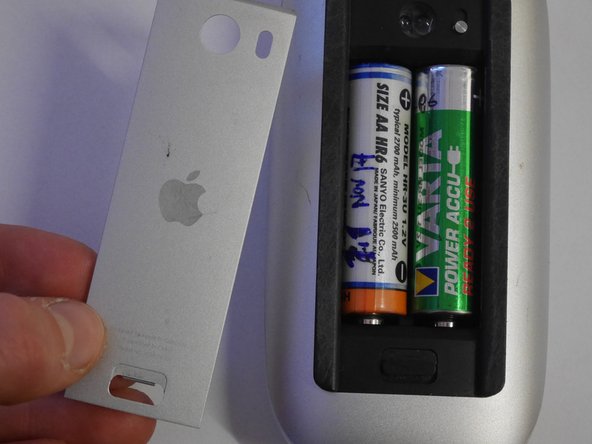
Make the battery lever from the battery compartment.
-
-
-
Make it lever to the other battery with the same technique of the battery compartment.
-


 Ask FixBot






Repeat the steps in reverse order to reassemble the device.
Cancel: I did not complete this guide.
4 other people completed this guide.
Special thanks to these translators:
100%


These translators are helping us fix the world! Want to contribute?
Start translating ›

