Free Shipping on Domestic Orders $75+

Replace or add RAM

What you need

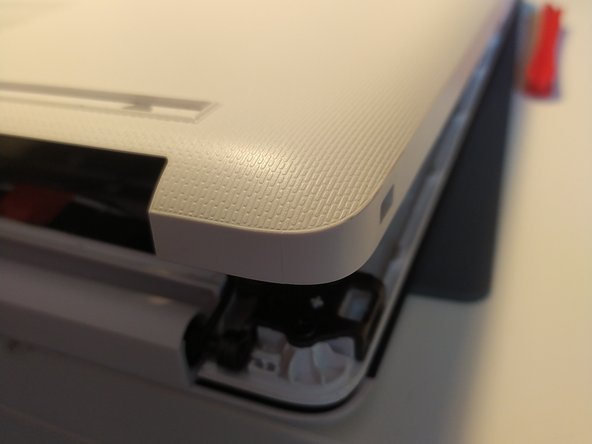
  1. Replace or add RAM, removal of bottom case: step 1, image 1 of 2 Replace or add RAM, removal of bottom case: step 1, image 2 of 2
    • remove the feet with a spudger

    Ask FixBot

    Add Comment

  2. Replace or add RAM: step 2, image 1 of 2 Replace or add RAM: step 2, image 2 of 2
    • Remove the 11 screw with a PH0 screwdriver.

    • The screws are identical

    Ask FixBot

    Add Comment

  3. Replace or add RAM: step 3, image 1 of 2 Replace or add RAM: step 3, image 2 of 2
    • Insert a spudger between the bottom cover and the keyboard module, then go around the whole cover to uncip everything.

    • Remove the bottom cover from the computer.

    Ask FixBot

    Add Comment

  4. Replace or add RAM: step 4, image 1 of 1
    • You now have acces to the inside of the machine.

    Ask FixBot

    Add Comment

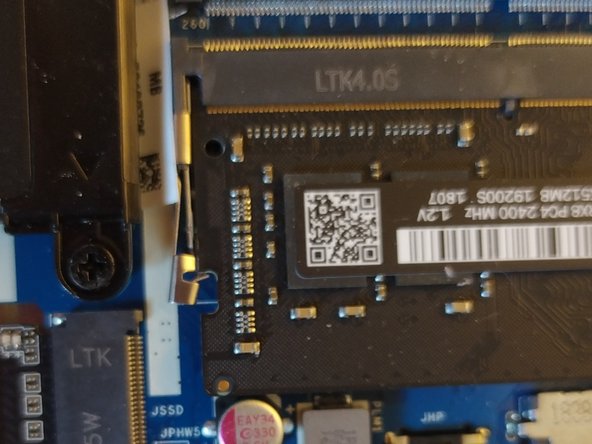
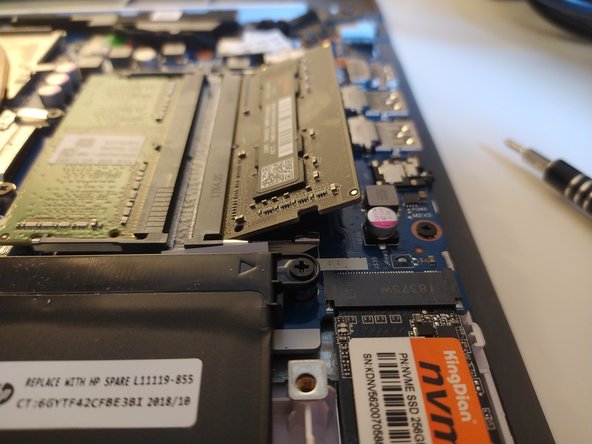
  5. Replace or add RAM, RAM: step 5, image 1 of 3 Replace or add RAM, RAM: step 5, image 2 of 3 Replace or add RAM, RAM: step 5, image 3 of 3
    • Flex the metal retaining clips on the side of the RAM away from one another.

    • If done correctly, the RAM will pop out of its lock.

    • To insert a module, angle it as shown in the third picture, then insert it and push it down until it locks.

    Ask FixBot

    Add Comment

Conclusion

To reassemble your device, follow the steps in reverse order.

Cancel: I did not complete this guide.

4 other people completed this guide.

Special thanks to these translators:

fr en

100%

Léo FRAYSSE is helping us fix the world! Want to contribute?
Start translating ›

Léo FRAYSSE

Member since: 09/03/18

1,426 Reputation

6 Guides authored

0 Guide Comments

Add Comment

View Statistics:

Past 24 Hours: 1

Past 7 Days: 6

Past 30 Days: 30

All Time: 1,354