Free Shipping on Domestic Orders $75+

Repairing HP OfficeJet 3833 Paper Jam

Views: 4.9K

View statistics:

Past 24 Hours:
2
Past 7 Days:
37
Past 30 Days:
143
All Time:
4,921
Comments: 0

No one has left comments on this guide. Will you be first?

Go to guide comments
Completed: 0

No one has marked this guide "completed." Will you be the first?

Favorites: 0

No one has favorited (and subscribed to) this guide. Will you be the first?

Time Required: 30 - 45 minutes
Difficulty: Moderate
Repairing HP OfficeJet 3833 Paper Jam

Introduction

Go to step 1 ↓

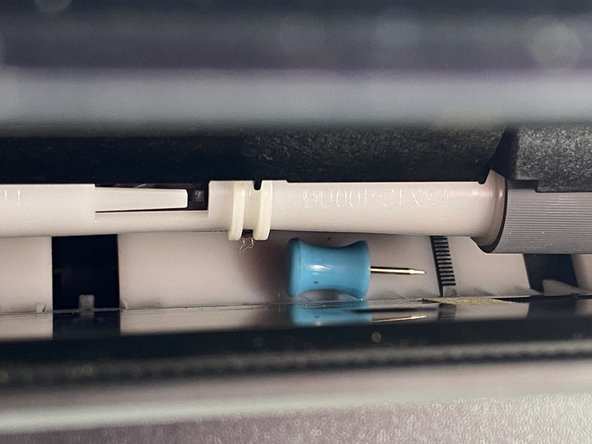
This guide will show you how to clear out a paper jam in an HP OfficeJet 3833 series (HP OfficeJet 3830 series) printer. Occasionally, the paper will not feed into a printer or will feed incorrectly due to a paper jam. Foreign objects, such as thumbtacks and push pins, can get stuck inside the paper feeder and cause a paper jam. This guide will also show you how to locate unwanted blockages from the printer.

It is imperative to follow steps 5-6 to make sure to power is turned off correctly and disconnected from any external power source.

What you need

Tools

    1. Repairing HP OfficeJet 3833 Paper Jam, Repairing HP OfficeJet 3833 Paper Jam: step 1, image 1 of 2 Repairing HP OfficeJet 3833 Paper Jam, Repairing HP OfficeJet 3833 Paper Jam: step 1, image 2 of 2
      • Remove all paper from the printer.

      Ask FixBot

      Add Comment

    2. Repairing HP OfficeJet 3833 Paper Jam: step 2, image 1 of 2 Repairing HP OfficeJet 3833 Paper Jam: step 2, image 2 of 2
      • Check the input tray, located in the back of the printer, for any paper remains and remove them.

      Ask FixBot

      Add Comment

    3. Repairing HP OfficeJet 3833 Paper Jam: step 3, image 1 of 2 Repairing HP OfficeJet 3833 Paper Jam: step 3, image 2 of 2
      Tool used on this step:
      Tweezers
      $4.99
      Buy
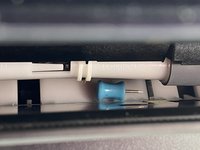
      • Check the input tray for any foreign objects.

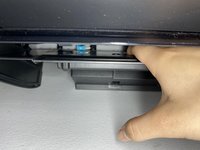
      • You may need to hold down the input tray and shine a flashlight inside to have a better look.

      • Long tweezers are recommended to remove objects such as thumbnails and tacks.

      Ask FixBot
      Add Comment

    4. Repairing HP OfficeJet 3833 Paper Jam: step 4, image 1 of 2 Repairing HP OfficeJet 3833 Paper Jam: step 4, image 2 of 2
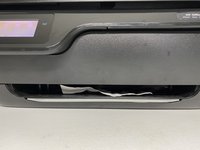
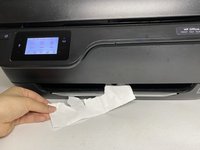
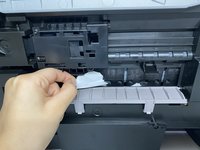
      • Check the output tray, located in the front of the printer, for paper remains and remove them.

      Ask FixBot
      Add Comment

    5. Repairing HP OfficeJet 3833 Paper Jam: step 5, image 1 of 3 Repairing HP OfficeJet 3833 Paper Jam: step 5, image 2 of 3 Repairing HP OfficeJet 3833 Paper Jam: step 5, image 3 of 3
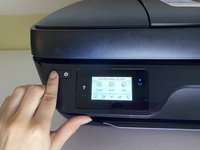
      • Shut down the printer.

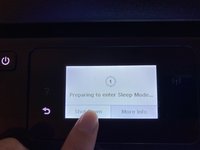
      • Hold down the power button until a message appears.

      • Select the Shut Down option.

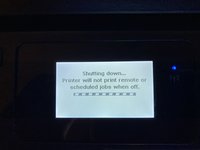
      • A message will appear and the printer will turn off.

      Ask FixBot

      Add Comment

    6. Repairing HP OfficeJet 3833 Paper Jam: step 6, image 1 of 2 Repairing HP OfficeJet 3833 Paper Jam: step 6, image 2 of 2
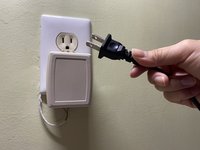
      • Unplug the printer power cable from the wall outlet.

      • Remove the power cable from the back of the printer.

      Ask FixBot

      Add Comment

    7. Repairing HP OfficeJet 3833 Paper Jam: step 7, image 1 of 3 Repairing HP OfficeJet 3833 Paper Jam: step 7, image 2 of 3 Repairing HP OfficeJet 3833 Paper Jam: step 7, image 3 of 3
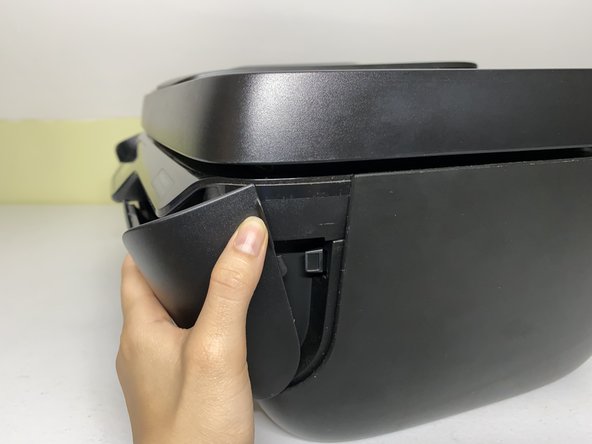
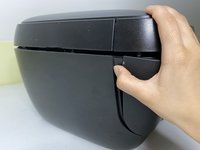
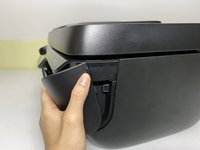
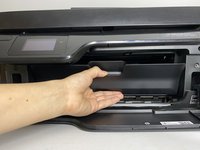
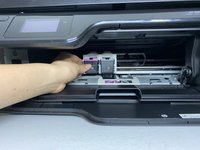
      • Pull back on the front sides of the printer to remove the front panel.

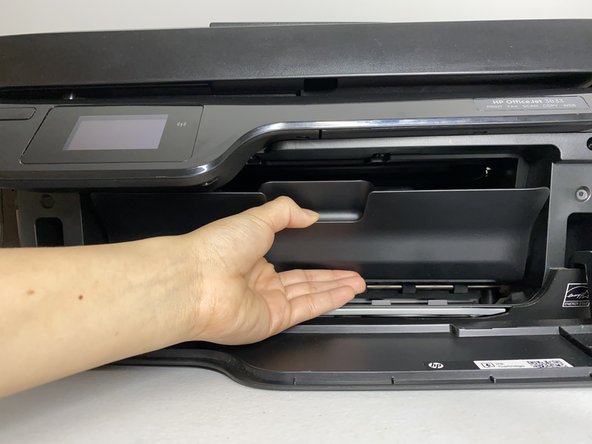
      • Then pull the handle inside to remove the ink cartridge panel.

      Ask FixBot
      Add Comment

    8. Repairing HP OfficeJet 3833 Paper Jam: step 8, image 1 of 2 Repairing HP OfficeJet 3833 Paper Jam: step 8, image 2 of 2
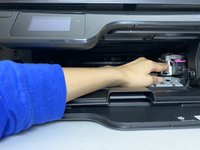
      • Slide the ink cartridge to the side.

      • This step must be done carefully to prevent damage to the printer.

      Ask FixBot
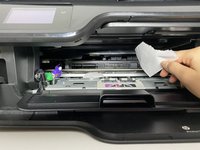
      Add Comment

    9. Repairing HP OfficeJet 3833 Paper Jam: step 9, image 1 of 2 Repairing HP OfficeJet 3833 Paper Jam: step 9, image 2 of 2
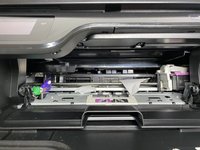
      • Search for and remove any debris.

      Ask FixBot

      Add Comment

    10. Repairing HP OfficeJet 3833 Paper Jam: step 10, image 1 of 1
      • Put the printer on its side.

      • You may need to open the top half and lay it down to prevent the printer from falling.

      Ask FixBot

      Add Comment

    11. Repairing HP OfficeJet 3833 Paper Jam: step 11, image 1 of 2 Repairing HP OfficeJet 3833 Paper Jam: step 11, image 2 of 2
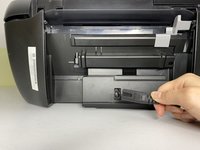
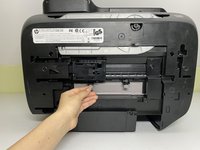
      • Locate the cleanout door on the bottom half of the printer.

      • Open the cleanout door to remove unwanted debris.

      Ask FixBot

      Add Comment

Finish Line

Cancel: I did not complete this guide.

Ivory S. Mayorga

Member since: 09/16/20

193 Reputation

1 Guide authored

0 Guide Comments

Add Comment

View Statistics:

Past 24 Hours: 2

Past 7 Days: 37

Past 30 Days: 143

All Time: 4,921