Free Shipping on Domestic Orders $75+

Repairing Buttons on Casio fx-300ES Calculator

What you need

  1. Repairing Buttons on Casio fx-300ES Calculator, Repairing Buttons on Casio fx-300ES Calculator: step 1, image 1 of 2 Repairing Buttons on Casio fx-300ES Calculator, Repairing Buttons on Casio fx-300ES Calculator: step 1, image 2 of 2
    • Remove the six 5 mm screws on the back of the calculator.

    Ask FixBot

    Add Comment

  2. Repairing Buttons on Casio fx-300ES Calculator: step 2, image 1 of 2 Repairing Buttons on Casio fx-300ES Calculator: step 2, image 2 of 2
    • Carefully remove the back plate to reveal the circuit board and the battery.

    Ask FixBot

    Add Comment

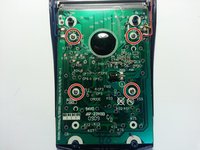
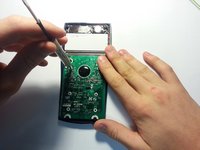
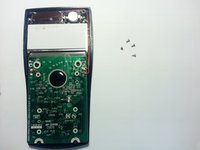
  3. Repairing Buttons on Casio fx-300ES Calculator: step 3, image 1 of 3 Repairing Buttons on Casio fx-300ES Calculator: step 3, image 2 of 3 Repairing Buttons on Casio fx-300ES Calculator: step 3, image 3 of 3
    • Remove the four 4 mm screws from the circuit board.

    Ask FixBot

    Add Comment

  4. Repairing Buttons on Casio fx-300ES Calculator: step 4, image 1 of 1
    • Be aware of the placement of the blue, black, red, and yellow wires because they will fall out when the next step is taken.

    Ask FixBot

    Add Comment

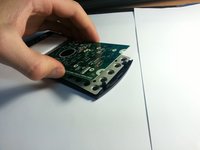
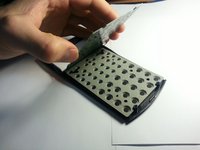
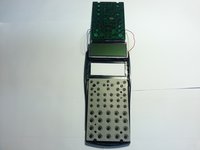
  5. Repairing Buttons on Casio fx-300ES Calculator: step 5, image 1 of 3 Repairing Buttons on Casio fx-300ES Calculator: step 5, image 2 of 3 Repairing Buttons on Casio fx-300ES Calculator: step 5, image 3 of 3
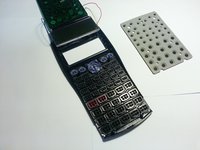
    • Carefully lift the circuit board while leaving the grey rubber piece face down.

    • Simply flip the circuit board and the screen over but do not remove them fully.

    • Make sure the calculator is face down.

    • Buttons are loose do not flip calculator over.

    Ask FixBot

    Add Comment

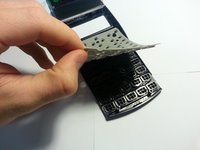
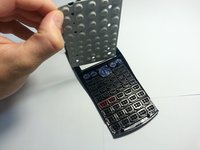
  6. Repairing Buttons on Casio fx-300ES Calculator: step 6, image 1 of 3 Repairing Buttons on Casio fx-300ES Calculator: step 6, image 2 of 3 Repairing Buttons on Casio fx-300ES Calculator: step 6, image 3 of 3
    • Now lift the grey rubber piece off to reveal the individual buttons.

    • Buttons are loose make sure they do not come off with the rubber piece.

    Ask FixBot

    Add Comment

  7. Repairing Buttons on Casio fx-300ES Calculator: step 7, image 1 of 3 Repairing Buttons on Casio fx-300ES Calculator: step 7, image 2 of 3 Repairing Buttons on Casio fx-300ES Calculator: step 7, image 3 of 3
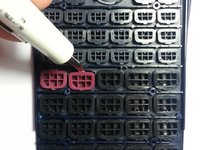
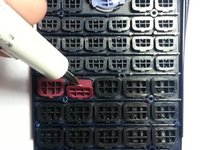
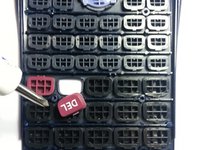
    • To remove the buttons you can use your screwdriver and lightly flip them out of their individual spaces.

    • You can now access all the buttons and make any alterations needed.

    Ask FixBot

    Add Comment

  8. Repairing Buttons on Casio fx-300ES Calculator: step 8, image 1 of 1
    • Refer to this picture if any buttons get misplaced or fall out.

    Ask FixBot

    Add Comment

Conclusion

To reassemble your device, follow these instructions in reverse order.

Cancel: I did not complete this guide.

4 other people completed this guide.

Daniel Riedeman

Member since: 04/09/15

219 Reputation

1 Guide authored

Team

Cal Poly, Team 28-2, Green Spring 2015 Member of Cal Poly, Team 28-2, Green Spring 2015

CPSU-GREEN-S15S28G2

4 Members

2 Guides authored

5 Guide Comments

Great photos make sure to replace the stock photos with those you take. Maybe retake photos with white background.

Kathryn Webb - Reply Share

my answer key button not working. when i press button it shows the X10 so what can i do plzz give tips for repairing

ayush shukla - Reply Share

Halp my board is stuck to the front plate sith super glue from previous owner.

[deleted] - Reply Share

I repaired my Casio fx-300w, a similar calculator with similar buttons. My mother, who gave it to me, spilled coffee once when using it in her office. I got rid of the sticky coffee gunk formed nearly 12 years ago.

Matthew Yang - Reply Share

وقعت حاسبتي من نوع كازيو على الارض فلم تشتغل بالرغم من انها لم تنكسر وقد اشتريتها قبل شهرين من فضلكم ساعدوني ماذا افعل؟

abir abir - Reply Share

Add Comment

View Statistics:

Past 24 Hours: 0

Past 7 Days: 17

Past 30 Days: 58

All Time: 26,677