Free Shipping on Domestic Orders $75+

Repair Redragon S107 Unresponsive Keys

What you need

  1. Repair Redragon S107 Unresponsive Keys, Repair Redragon S107 Unresponsive Keys: step 1, image 1 of 1
    • Unplug the USB cable to prevent issues during the repair.

    Ask FixBot

    Add Comment

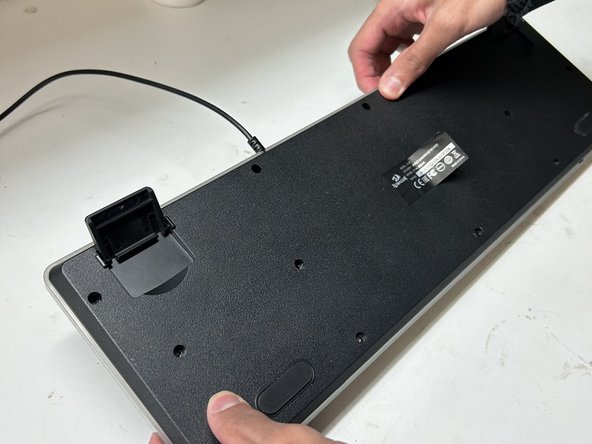
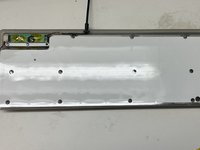
  2. Repair Redragon S107 Unresponsive Keys: step 2, image 1 of 2 Repair Redragon S107 Unresponsive Keys: step 2, image 2 of 2
    • Remove all 13 Phillips screws located on the underside of the keyboard and gently remove the casing.

    Ask FixBot

    Add Comment

  3. Repair Redragon S107 Unresponsive Keys: step 3, image 1 of 1
    • Lay the RGB LED panel flat on the desk.

    • Make sure that you do not damage the black wire on the left corner of the keyboard connected to the LED panel.

    Ask FixBot

    Add Comment

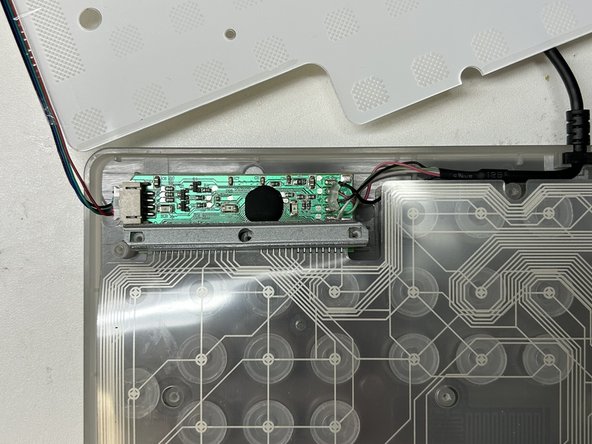
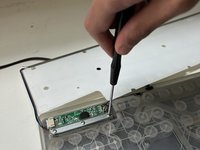
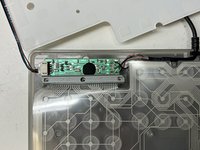
  4. Repair Redragon S107 Unresponsive Keys: step 4, image 1 of 2 Repair Redragon S107 Unresponsive Keys: step 4, image 2 of 2
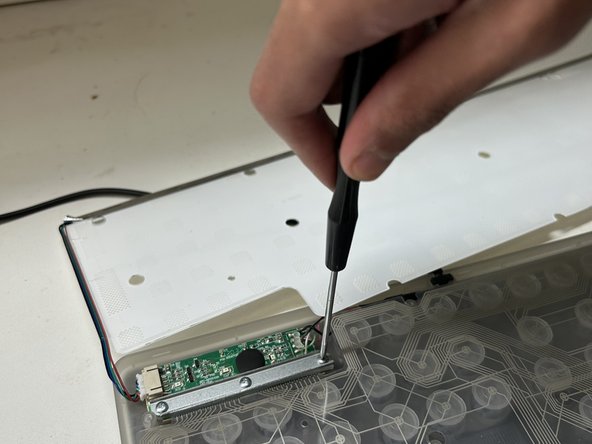
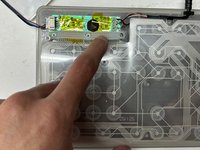
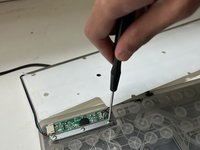
    • Remove the three screws on the metal bracket located towards the top left on the keyboard.

    • Remove the rubber underneath the metal bar.

    Ask FixBot

    Add Comment

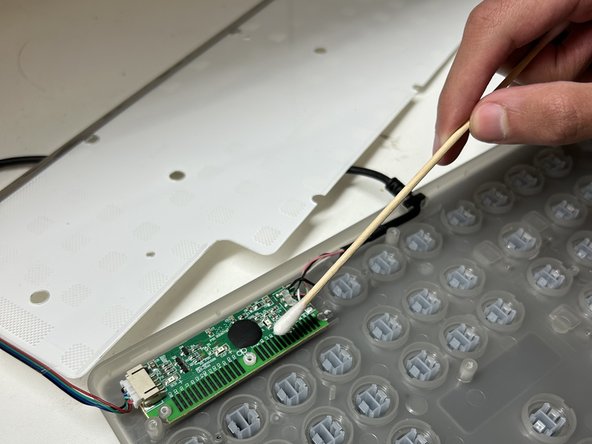
  5. Repair Redragon S107 Unresponsive Keys: step 5, image 1 of 2 Repair Redragon S107 Unresponsive Keys: step 5, image 2 of 2
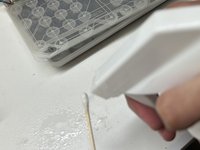
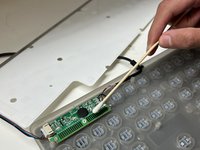
    • Use a cotton swab and add isopropyl alcohol to thoroughly clean the green membrane sheet and place the green membrane back onto the key switches.

    Ask FixBot

    Add Comment

  6. Repair Redragon S107 Unresponsive Keys: step 6, image 1 of 3 Repair Redragon S107 Unresponsive Keys: step 6, image 2 of 3 Repair Redragon S107 Unresponsive Keys: step 6, image 3 of 3
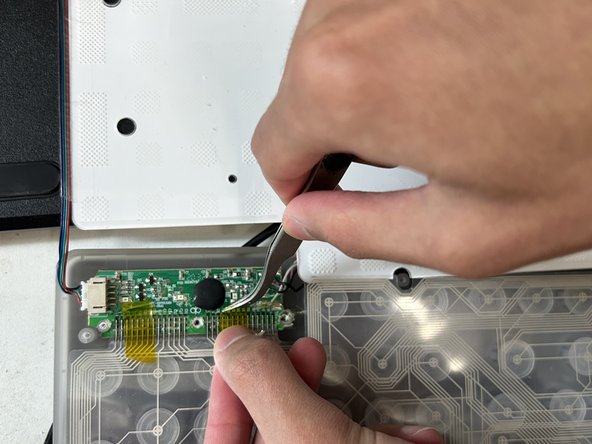
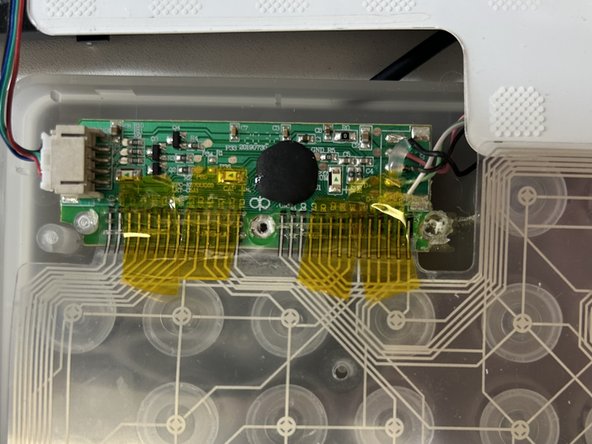
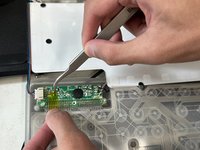
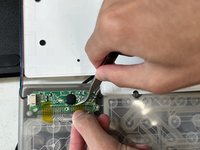
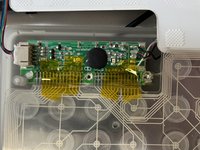
    • Use electrical tape to fix each contact strip that connects the green membrane to the motherboard into place.

    • Align the contact strips in place with the black lined traces provided on the motherboard.

    Ask FixBot

    Add Comment

  7. Repair Redragon S107 Unresponsive Keys: step 7, image 1 of 3 Repair Redragon S107 Unresponsive Keys: step 7, image 2 of 3 Repair Redragon S107 Unresponsive Keys: step 7, image 3 of 3
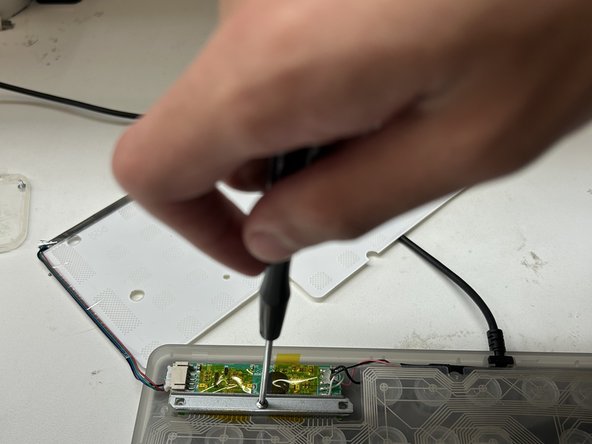
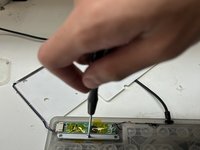
    • Place the rubber and metal bar back into place. Reinstall the three screws tightly as this will ensure no complications with the alignment of contact strips.

    Ask FixBot

    Add Comment

  8. Repair Redragon S107 Unresponsive Keys: step 8, image 1 of 2 Repair Redragon S107 Unresponsive Keys: step 8, image 2 of 2
    • Place the RGB LED panel back onto the green membrane sheet. Reinstall the casing.

    Ask FixBot

    Add Comment

Conclusion

To reassemble your device, follow these instructions in reverse order.

Cancel: I did not complete this guide.

One other person completed this guide.

Usman Khan

Member since: 01/18/23

478 Reputation

2 Guides authored

0 Guide Comments

Add Comment

View Statistics:

Past 24 Hours: 2

Past 7 Days: 15

Past 30 Days: 56

All Time: 1,999