Introduction
There are 2 RAM slots in the 6930p Laptop. One is the expansion slot and accessible from the underside of the device, the other is the default location for factory installed RAM and is located under the keyboard. This guide focuses on the RAM slot under the keyboard.
What you need
-
-
-
Flip laptop over and locate the battery release button
-
Push release button to the left to release battery and gently pull battery from the laptop
 Ask FixBot
-
-
-
-
-
Loosen the three Phillips 2.5×9.0 captive screws that secure the keyboard to the laptop
-
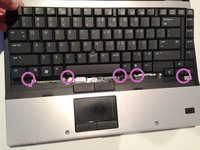
Turn the laptop so the keyboard is facing up and locate the 4 retention tabs along the back edge of the keyboard
-
Slide the retention clips toward the keyboard to release the keyboard
-
-
-
-
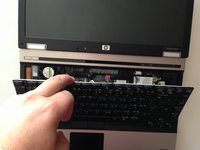
Use a plastic pry tool to lift the rear edge of the keyboard.
-
Pull the keyboard slightly towards the display to disengage the tabs along the front of the keyboard from the laptop palm rest.
-
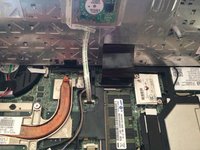
Lift the keyboard up to reveal the ribbon connectors
-
-
-
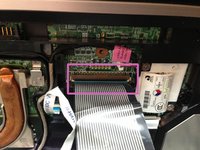
Release the larger ribbon cable by flipping the brown retainer up so it is parallel with the ribbon cable
-
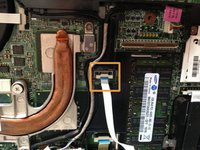
Release the smaller ribbon cable by lifting up the white retainer
-
-
-
-
-
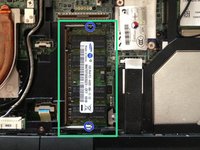
Locate RAM module
-
Push metal tabs outwards away from the RAM module to release it.
-
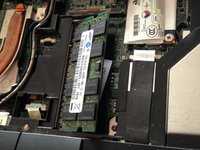
The RAM module will spring up and can be removed from the RAM slot.
-
-







To reassemble your device, follow these instructions in reverse order.
Cancel: I did not complete this guide.
22 other people completed this guide.

Team

7 Guide Comments
HP Elitebook 6930p. Huh !!!!
Desingn constructor is the largest manufacturer idiot. Put one memory slot inside, located under the keyboard denotes an unparalleled stupidity.
Thanks for your splendid guide. I don't have a plastic pry tool. A bass guitar plectrum works just as well though. The whole job took under 10 mins to complete. I now have X2, 2GB memory cards installed. This is plenty to run Manjaro JWM 16,04.1. It boots up only using 180 MB of RAM - perfect.
Great guide. Trying to part out computer and couldn't figure out where other memory slot located. Agree dumb place for it.
the ram is acessible through the door in the middle, need to unscrew 2 screws LOL
