Free Shipping on Domestic Orders $75+

Removing HP Compaq dx2000MT Case Fan

What you need

  1. Removing HP Compaq dx2000MT Case Fan, Removing the HP Compaq dx2000MT Case Doors: step 1, image 1 of 1
    • Turn off your computer and remove the power cable by pulling it straight out of its socket.

    Ask FixBot

    Add Comment

  2. Removing HP Compaq dx2000MT Case Fan: step 2, image 1 of 2 Removing HP Compaq dx2000MT Case Fan: step 2, image 2 of 2
    • Remove the two Phillips #2 screws that secure the case door to the device.

    Ask FixBot

    Add Comment

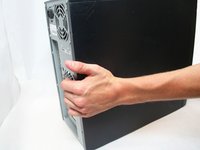
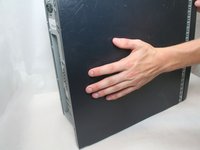
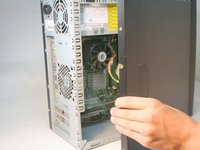
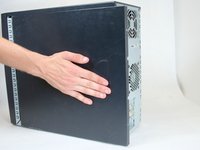
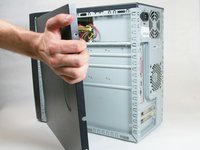
  3. Removing HP Compaq dx2000MT Case Fan: step 3, image 1 of 3 Removing HP Compaq dx2000MT Case Fan: step 3, image 2 of 3 Removing HP Compaq dx2000MT Case Fan: step 3, image 3 of 3
    • Remove the side case door by pushing towards the rear of the device with your hand.

    • This may take considerable force so keep pushing!

    • Once you slide the door back, remove it by pulling it outwards from the device.

    Ask FixBot

    Add Comment

  4. Removing HP Compaq dx2000MT Case Fan: step 4, image 1 of 1
    • Remove the two Torx T15 screws that secure the case door to the device.

    Ask FixBot

    Add Comment

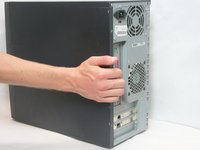
  5. Removing HP Compaq dx2000MT Case Fan: step 5, image 1 of 3 Removing HP Compaq dx2000MT Case Fan: step 5, image 2 of 3 Removing HP Compaq dx2000MT Case Fan: step 5, image 3 of 3
    • Remove the side case door by pushing towards the rear of the device with your hand.

    • Once again, this may take considerable force.

    • Once you slide the door back, remove it by pulling it outwards from the device.

    Ask FixBot

    Add Comment

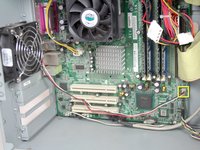
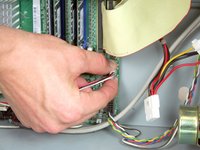
  6. Removing HP Compaq dx2000MT Case Fan, Case Fan: step 6, image 1 of 3 Removing HP Compaq dx2000MT Case Fan, Case Fan: step 6, image 2 of 3 Removing HP Compaq dx2000MT Case Fan, Case Fan: step 6, image 3 of 3
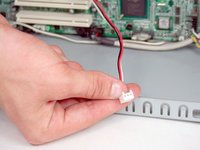
    • Remove the 3 prong power connector from the motherboard by pulling it outwards toward the side of the device.

    Ask FixBot

    Add Comment

  7. Removing HP Compaq dx2000MT Case Fan: step 7, image 1 of 3 Removing HP Compaq dx2000MT Case Fan: step 7, image 2 of 3 Removing HP Compaq dx2000MT Case Fan: step 7, image 3 of 3
    Tool used on this step:
    Tweezers
    $4.99
    Buy
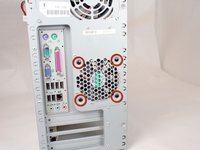
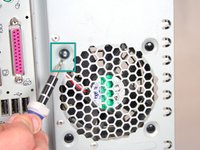
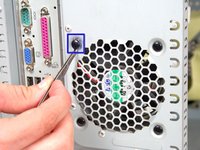
    • Remove the 4 push fasteners from the case by:

    • Prying them outwards with a small flathead screwdriver and

    • Pulling them out with tweezers or plyers.

    Ask FixBot

    Add Comment

  8. Removing HP Compaq dx2000MT Case Fan: step 8, image 1 of 3 Removing HP Compaq dx2000MT Case Fan: step 8, image 2 of 3 Removing HP Compaq dx2000MT Case Fan: step 8, image 3 of 3
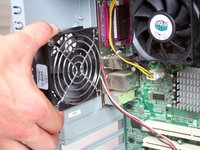
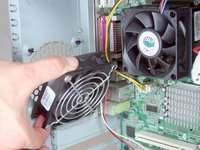
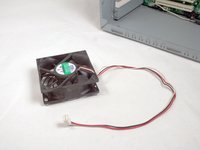
    • Remove the fan from the case by pulling it towards the front of the device.

    Ask FixBot

    Add Comment

Conclusion

To reassemble your device, follow these instructions in reverse order.

Cancel: I did not complete this guide.

3 other people completed this guide.

Logan Pace

Member since: 10/12/11

2,414 Reputation

9 Guides authored

Team

Cal Poly, Team 17-16, Regan Fall 2011 Member of Cal Poly, Team 17-16, Regan Fall 2011

CPSU-REGAN-F11S17G16

4 Members

17 Guides authored

0 Guide Comments

Add Comment

View Statistics:

Past 24 Hours: 2

Past 7 Days: 8

Past 30 Days: 51

All Time: 3,388