
Reformat SD Card

John Webb and 3 other contributors
Last updated on Jun 8, 2018
Views: 1.6K
View statistics:
- Past 24 Hours:
- 3
- Past 7 Days:
- 20
- Past 30 Days:
- 92
- All Time:
- 1,580
Comments: 0
No one has left comments on this guide. Will you be first?
Go to guide commentsCompleted: 0 1
No one has marked this guide "completed." Will you be the first?
1 person has marked this guide "completed." It's you — great job!
Favorites: 0 1
No one has favorited (and subscribed to) this guide. Will you be the first?
1 person has favorited (and subscribed to) this guide — and that's you!
Introduction
Go to step 1 ↓The SD Card is required to save each photo before taking the next photo. This guide will show the proper steps to reformat the SD Card.
-
-
-
Turn the camera on by sliding the switch from the "Off" position to the "On" position. The switch is located above the touchscreen and to the left.
-
The screen will say "Sensor cleaning" once the switch is moved to "On".
 Ask FixBot
-
-
-
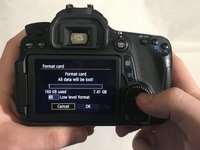
Scroll down the list using the thumb pad and select, "Format card" by pressing the center of the thumb pad labeled, "SET".
-
-
-
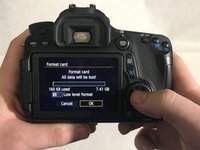
Press the right side of the thumb pad to move over the "Ok" button.
-
Once "OK" is highlighted, press the middle of thumb pad to initiate the formatting of the card.
-
-
-




To reassemble your device, follow these instructions in reverse order.

Team

University of Memphis, Team S2-G5, Kim Spring 2018 Member of University of Memphis, Team S2-G5, Kim Spring 2018
UM-KIM-S18S2G5
3 Members
60 Guides authored
