
Redragon K552 Key Switch Replacement

Lyxander Blanco and 2 other contributors
Last updated on Apr 26, 2023
Views: 9.2K
View statistics:
- Past 24 Hours:
- 11
- Past 7 Days:
- 43
- Past 30 Days:
- 153
- All Time:
- 9,209
Comments: 0
No one has left comments on this guide. Will you be first?
Go to guide commentsCompleted: 1 2
1 person has marked this guide "completed." Will you be next?
2 people have marked this guide "completed." Including you — great job!
Favorites: 0 1
No one has favorited (and subscribed to) this guide. Will you be the first?
1 person has favorited (and subscribed to) this guide — and that's you!
Introduction
Go to step 1 ↓Replace defective key switches on a Redragon K552 keyboard using this guide.
If a specific key does not work properly when using the keyboard, it might be a malfunctioning key switch, or dust may have built up. After replacing the faulty key switches and cleaning the keyboard, the keyboard will operate properly again.
No special skills are required.
Use appropriate replacement switches with the keyboard. Any Outemu-brand key switch will work for this keyboard.
What you need


-
-
-
Align the keycap puller to the keycap.
-
Use the keycap puller to pull out all the keycaps from the keyboard.
-
-
-
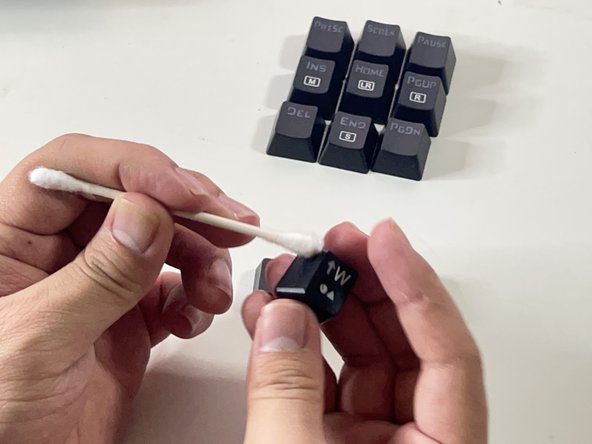
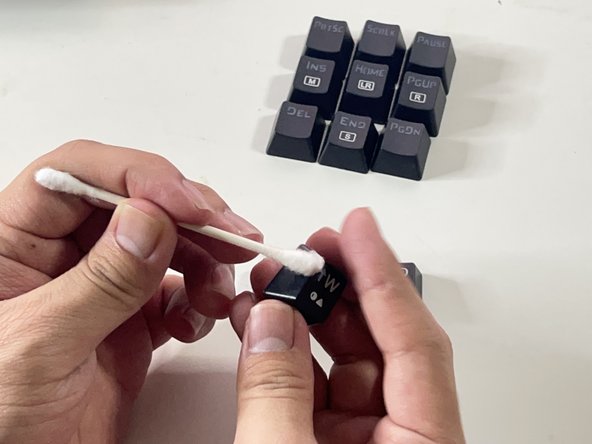
Dip cotton swabs into a bottle of rubbing alcohol solution.
-
Clean the keycaps using the cotton swabs.
-
-
-
Dip another cotton swab into the rubbing alcohol solution.
-
Carefully use the cotton swab to clean the surface and crevices of the keyboard.
-
-
-
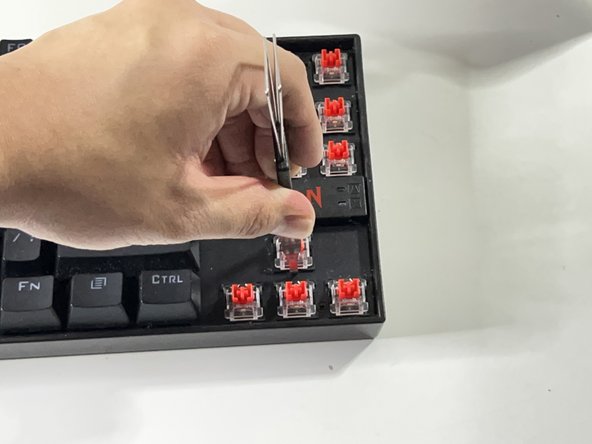
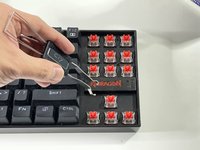
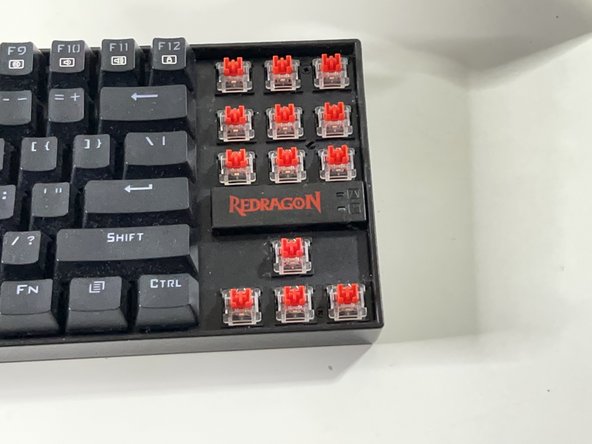
Align the switch puller with the faulty key switch.
-
Pull the faulty key switch straight up from the keyboard.
-
-
-
Align the pins of the new switch to the keyboard.
-
Press the key switch on the keyboard until it clicks into place.
-
-


 Ask FixBot












Cancel: I did not complete this guide.
One other person completed this guide.

Team

CSU Los Angeles, Team 6-2, Briggs Spring 2022 Member of CSU Los Angeles, Team 6-2, Briggs Spring 2022
CSULA-BRIGGS-S22S6G2
1 Member
12 Guides authored
