
Free Shipping on Domestic Orders $75+

Redmi Note 4 Global Display Replacement

What you need

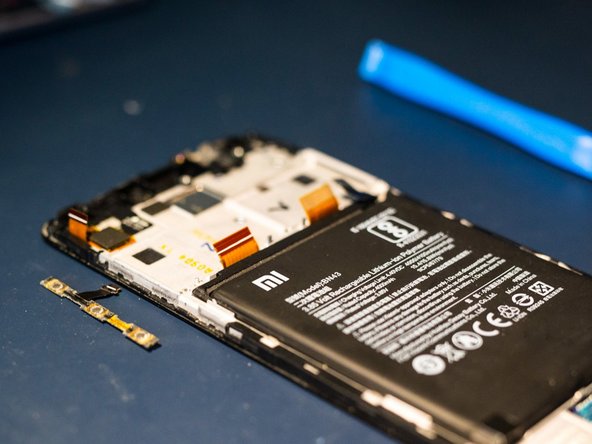
  1. Redmi Note 4 Global Display Replacement, Display: step 1, image 1 of 2 Redmi Note 4 Global Display Replacement, Display: step 1, image 2 of 2
    • Use a pin to remove the SIM & SD card

    Ask FixBot
    Add Comment

  2. Redmi Note 4 Global Display Replacement: step 2, image 1 of 3 Redmi Note 4 Global Display Replacement: step 2, image 2 of 3 Redmi Note 4 Global Display Replacement: step 2, image 3 of 3
    • With the help of a silicone spatula or similar opening tool, press gently into the separation between housing and screen

    • Gently pry the frame away from the screen .

    Ask FixBot

    Add Comment

  3. Redmi Note 4 Global Display Replacement: step 3, image 1 of 1
    • Disconnect the rest of all the connectors. (Image shows fingerprint scanner connector already removed)

    Ask FixBot

    Add Comment

  4. Redmi Note 4 Global Display Replacement: step 4, image 1 of 3 Redmi Note 4 Global Display Replacement: step 4, image 2 of 3 Redmi Note 4 Global Display Replacement: step 4, image 3 of 3
    • First disconnect the connector for the fingerprint scanner

    • Then carefully pry the scanner (it is adhered to the board )

    • Preheating the scanner area with a hair dryer can help

    Ask FixBot

    Add Comment

  5. Redmi Note 4 Global Display Replacement: step 5, image 1 of 1
    • Remove all Phillips screws screws eg with a #00 Phillips driver

    Ask FixBot

    Add Comment

  6. Redmi Note 4 Global Display Replacement: step 6, image 1 of 1
    • Remove the rest of the screws

    • Gently pry off the plastic covers

    Ask FixBot

    Add Comment

  7. Redmi Note 4 Global Display Replacement: step 7, image 1 of 2 Redmi Note 4 Global Display Replacement: step 7, image 2 of 2
    • Remove the plastic cover from the top of the phone

    • Gentle prying may be help to loosen it.

    • Remove the screw hidden under the cover.

    Ask FixBot

    Add Comment

  8. Redmi Note 4 Global Display Replacement: step 8, image 1 of 2 Redmi Note 4 Global Display Replacement: step 8, image 2 of 2
    • Move the plastic tab to the side to remove the main board

    Ask FixBot

    Add Comment

  9. Redmi Note 4 Global Display Replacement: step 9, image 1 of 2 Redmi Note 4 Global Display Replacement: step 9, image 2 of 2
    • Disconnect the ribbon cable

    • Remove the screw.

    • Carefully remove the circuit board

    Ask FixBot
    Add Comment

  10. Redmi Note 4 Global Display Replacement: step 10, image 1 of 2 Redmi Note 4 Global Display Replacement: step 10, image 2 of 2
    • Gently separate the side button bar from the frame

    Ask FixBot

    Add Comment

  11. Redmi Note 4 Global Display Replacement: step 11, image 1 of 2 Redmi Note 4 Global Display Replacement: step 11, image 2 of 2
    • Remove the upper speaker

    • Caution: When removing the speaker, the two parts of the speaker can separate from each other. They are only held together by two very thin copper cables!

    • The best way to get to the bottom of the speaker and pry it out carefully is by using the direction of the red arrow.

    Ask FixBot

    Add Comment

  12. Redmi Note 4 Global Display Replacement: step 12, image 1 of 2 Redmi Note 4 Global Display Replacement: step 12, image 2 of 2
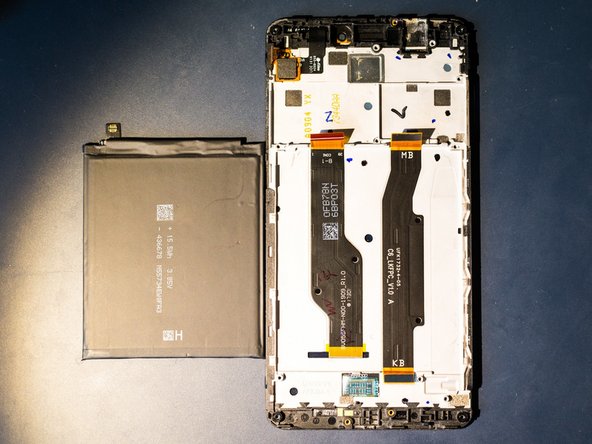
    • Peel off the two battery adhesive strips to remove the battery

    • Pull as flat as possible and rather slowly. Heating the display with a hair dryer makes the whole thing a little easier.

    Ask FixBot

    Add Comment

  13. Redmi Note 4 Global Display Replacement: step 13, image 1 of 1
    • Disconnect the ribbon cable for the charging board. Keep it safe for later reuse.

    Ask FixBot

    Add Comment

  14. Redmi Note 4 Global Display Replacement: step 14, image 1 of 2 Redmi Note 4 Global Display Replacement: step 14, image 2 of 2
    • Depending on the completeness of the replacement part, the LED lighting may also be removed

    • T o remove it, gently pry with some pointed tweezers or similar tool

    Ask FixBot

    Add Comment

  15. Redmi Note 4 Global Display Replacement, First Test: step 15, image 1 of 2 Redmi Note 4 Global Display Replacement, First Test: step 15, image 2 of 2
    • For testing purposes, the button bar, the screen and the battery can be connected.

    • Attention! When doing so, there is an increased risk of damaging the connections or the battery. Be very careful!

    • A long press on the bottom button should start the phone

    Ask FixBot

    Add Comment

  16. Redmi Note 4 Global Display Replacement: step 16, image 1 of 1
    • Insert the upper speaker and press it into the end position

    Ask FixBot

    Add Comment

  17. Redmi Note 4 Global Display Replacement: step 17, image 1 of 1
    • If previously removed, insert the LED bar (red circle)

    • Insert the charging board into proper position and tighten (blue circle)

    Ask FixBot

    Add Comment

  18. Redmi Note 4 Global Display Replacement: step 18, image 1 of 1
    • Remove the blue protective strip from the corresponding adhesive surface. Insert the ribbon cable into the power supply

    • Press the cable flat onto the adhesive area

    • Ensure everything is properly aligned

    Ask FixBot

    Add Comment

  19. Redmi Note 4 Global Display Replacement: step 19, image 1 of 1
    • Install the lower plastic cover and screw it in place

    Ask FixBot

    Add Comment

  20. Redmi Note 4 Global Display Replacement: step 20, image 1 of 3 Redmi Note 4 Global Display Replacement: step 20, image 2 of 3 Redmi Note 4 Global Display Replacement: step 20, image 3 of 3
    • Insert the motherboard

    • Use the metal pin and the plastic hook to check proper alignment.

    Ask FixBot

    Add Comment

  21. Redmi Note 4 Global Display Replacement: step 21, image 1 of 1
    • Reconnect all connectors

    Ask FixBot

    Add Comment

  22. Redmi Note 4 Global Display Replacement, Replacing the battery: step 22, image 1 of 2 Redmi Note 4 Global Display Replacement, Replacing the battery: step 22, image 2 of 2
    • Remove the cover from the two adhesive strips for the battery

    • Insert the battery and reconnect it.

    Ask FixBot

    Add Comment

  23. Redmi Note 4 Global Display Replacement: step 23, image 1 of 1
    • Press the fingerprint scanner back into its position.

    • Press the display back into the housing. Done!

    Ask FixBot

    Add Comment

Conclusion

Repeat the steps in reverse order to reassemble your device.

Cancel: I did not complete this guide.

4 other people completed this guide.

Special thanks to these translators:

de en

100%

These translators are helping us fix the world! Want to contribute?
Start translating ›

Frederic

Member since: 10/23/18

457 Reputation

1 Guide authored

3 Guide Comments

There are major steps missing between step 14 and step 15. This is not a complete guide on screen replacement.

Don - Reply Share

Hi Don, which steps are you missing between 14 and 15 ? Once all parts are removed from the old display one can try the test fit on the new display.

Frederic - Reply Share

Watch and pray ,global warming.

Jerry Scott - Reply Share

Add Comment

View Statistics:

Past 24 Hours: 1

Past 7 Days: 20

Past 30 Days: 100

All Time: 8,346