Free Shipping on Domestic Orders $75+

RedOctane X-Plorer Rubber Button Strip Replacement

Views: 671

View statistics:

Past 24 Hours:
4
Past 7 Days:
11
Past 30 Days:
54
All Time:
671
Comments: 0

No one has left comments on this guide. Will you be first?

Go to guide comments
Completed: 0

No one has marked this guide "completed." Will you be the first?

Favorites: 0

No one has favorited (and subscribed to) this guide. Will you be the first?

Time Required: 10 - 20 minutes
Difficulty: Easy
Better Introduction

Improve this guide by completing or revising its introduction.

RedOctane X-Plorer Rubber Button Strip Replacement

Introduction

Go to step 1 ↓

Over years of use, the rubber button strip in your controller can wear down and become less responsive. Replacing this strip can increase your controller’s lifespan. This guide will demonstrate the process of replacing the rubber button strip underneath the plastic buttons. As long as you follow these instructions precisely, you can replace the rubber button strip without any risk of damage to the controller.

What you need

Tools

    1. RedOctane X-Plorer Rubber Button Strip Replacement, Rubber Button Strip: step 1, image 1 of 2 RedOctane X-Plorer Rubber Button Strip Replacement, Rubber Button Strip: step 1, image 2 of 2
      • Remove the controller's strap, which will be attached at the points in the red circles.

      • If your controller does not have a strap, move to the next step.

      Ask FixBot

      Add Comment

    2. RedOctane X-Plorer Rubber Button Strip Replacement: step 2, image 1 of 1
      • Remove all nine 12mm screws around the perimeter of the body of the controller, using the Phillips #2 screwdriver.

      • Remove the two 15mm screws near the neck of the controller, using the Phillips #2 screwdriver.

      Ask FixBot

      Add Comment

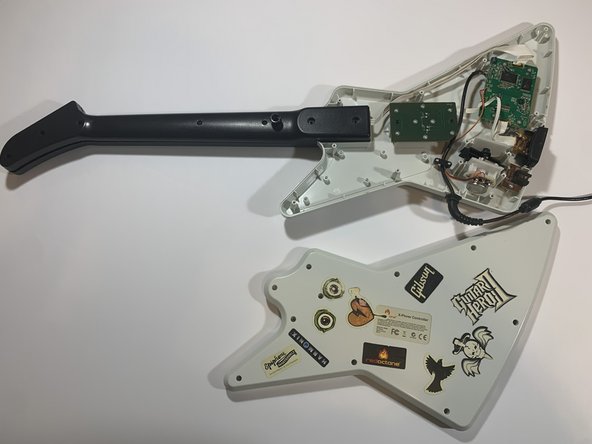
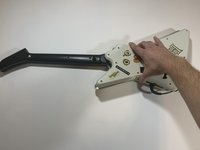
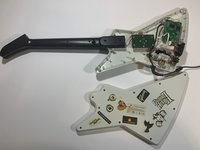
    3. RedOctane X-Plorer Rubber Button Strip Replacement: step 3, image 1 of 2 RedOctane X-Plorer Rubber Button Strip Replacement: step 3, image 2 of 2
      • Using your hands, remove the body shell.

      Ask FixBot

      Add Comment

    4. RedOctane X-Plorer Rubber Button Strip Replacement: step 4, image 1 of 1
      • Remove all seven 12mm screws on the neck of the controller using the Phillips #2 screwdriver.

      Ask FixBot

      Add Comment

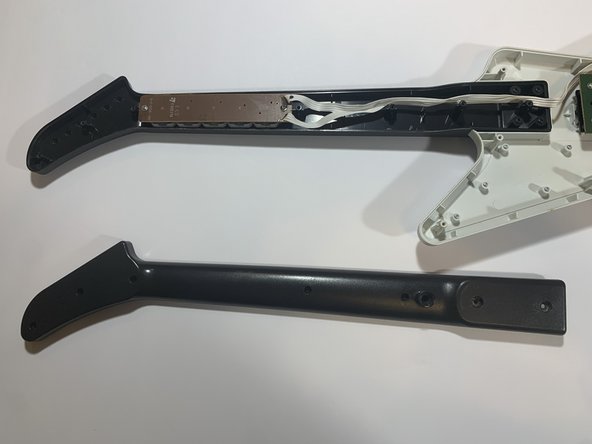
    5. RedOctane X-Plorer Rubber Button Strip Replacement: step 5, image 1 of 2 RedOctane X-Plorer Rubber Button Strip Replacement: step 5, image 2 of 2
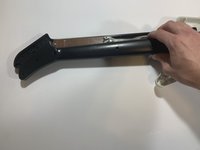
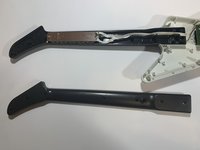
      • Using your hands, remove the top shell of neck.

      Ask FixBot

      Add Comment

    6. RedOctane X-Plorer Rubber Button Strip Replacement: step 6, image 1 of 1
      Tool used on this step:
      Flathead 1.5 mm Screwdriver
      $1.99
      Buy
      • Remove the left 1.5mm mm screw (as shown) on the key sensor board, using the 1.5mm flathead screwdriver.

      • Do not remove the other (right-side) screw on key sensor board, as this can cause damage to the circuitry.

      Ask FixBot

      Add Comment

    7. RedOctane X-Plorer Rubber Button Strip Replacement: step 7, image 1 of 2 RedOctane X-Plorer Rubber Button Strip Replacement: step 7, image 2 of 2
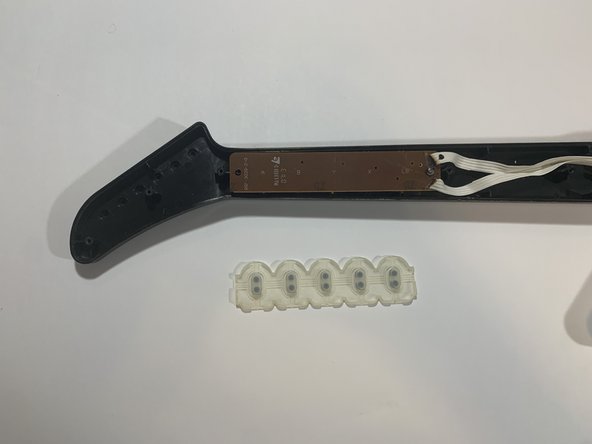
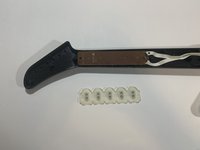
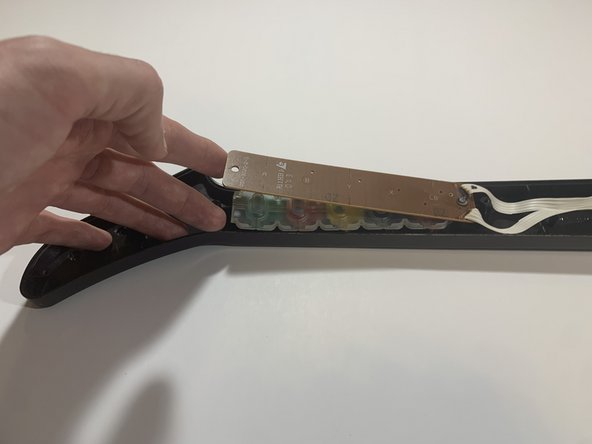
      • Using your hands, remove the rubber button strip.

      Ask FixBot

      Add Comment

    8. RedOctane X-Plorer Rubber Button Strip Replacement: step 8, image 1 of 2 RedOctane X-Plorer Rubber Button Strip Replacement: step 8, image 2 of 2
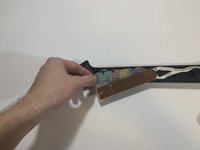
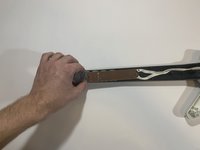
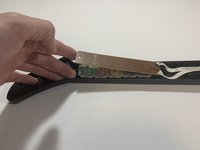
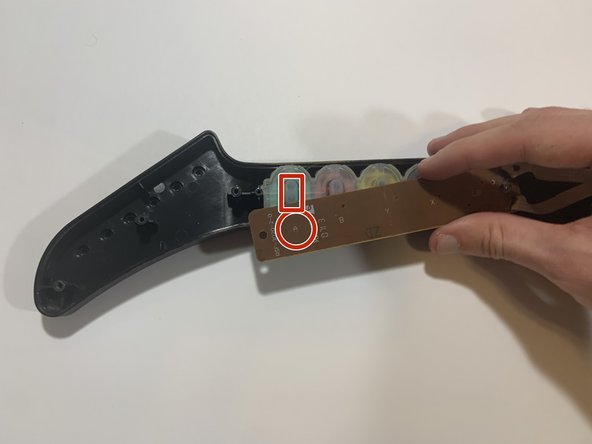
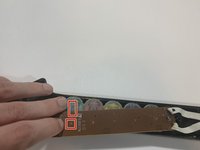
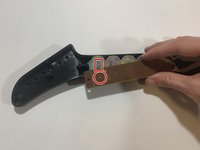
      • Using your hands, insert the replacement strip underneath the key sensor board.

      Ask FixBot

      Add Comment

    9. RedOctane X-Plorer Rubber Button Strip Replacement: step 9, image 1 of 2 RedOctane X-Plorer Rubber Button Strip Replacement: step 9, image 2 of 2
      • Align the black dots on the rubber strip with the corresponding button indicator before rescrewing key sensor board.

      • The first button will be "A" on Xbox and Wii, and "X" on Playstation.

      Ask FixBot

      Add Comment

Conclusion

To reassemble your device, follow these instructions in reverse order.

Cancel: I did not complete this guide.

Stephen Haning

Member since: 09/30/21

169 Reputation

1 Guide authored

0 Guide Comments

Add Comment

View Statistics:

Past 24 Hours: 4

Past 7 Days: 11

Past 30 Days: 54

All Time: 671