Free Shipping on Domestic Orders $75+

RedOctane X-Plorer Motherboard Replacement

Views: 3.6K

View statistics:

Past 24 Hours:
3
Past 7 Days:
21
Past 30 Days:
83
All Time:
3,577
Comments: 1

1 guide comment.

Go to guide comments
Completed: 2

2 people have marked this guide "completed." Will you be next?

Favorites: 0

No one has favorited (and subscribed to) this guide. Will you be the first?

Time Required: 30 minutes
Difficulty: Moderate
RedOctane X-Plorer Motherboard Replacement

Introduction

Go to step 1 ↓

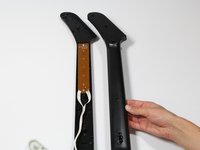
If the motherboard becomes damaged, all other electronics must be removed first before you can access it. This guide will show you the steps necessary to access the motherboard.

What you need

Tools

    1. RedOctane X-Plorer Motherboard Replacement, Rear Case: step 1, image 1 of 2 RedOctane X-Plorer Motherboard Replacement, Rear Case: step 1, image 2 of 2
      • Remove the strap by pulling it off of the mounts located on the body and neck.

      Ask FixBot

      Add Comment

    2. RedOctane X-Plorer Motherboard Replacement: step 2, image 1 of 3 RedOctane X-Plorer Motherboard Replacement: step 2, image 2 of 3 RedOctane X-Plorer Motherboard Replacement: step 2, image 3 of 3
      • Remove the nine 12mm Phillips #1 screws around the perimeter of the case with a screwdriver.

      • Remove the two 15mm Phillips #1 screws connecting the body panel to the neck panel with a screwdriver.

      • These screws can also be Torx on some models.

      • Pull off the rear case.

      Ask FixBot

      Add Comment

    3. RedOctane X-Plorer Motherboard Replacement: step 3, image 1 of 3 RedOctane X-Plorer Motherboard Replacement: step 3, image 2 of 3 RedOctane X-Plorer Motherboard Replacement: step 3, image 3 of 3
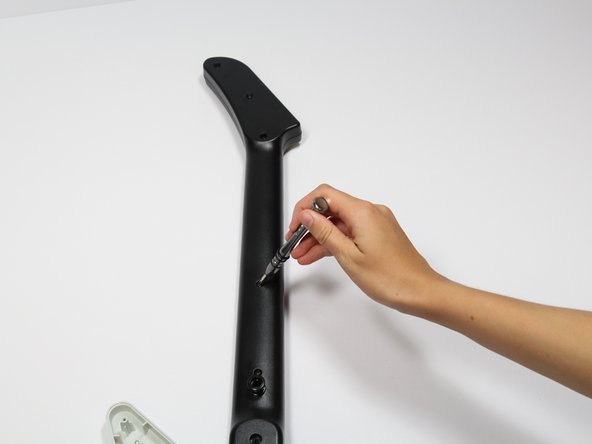
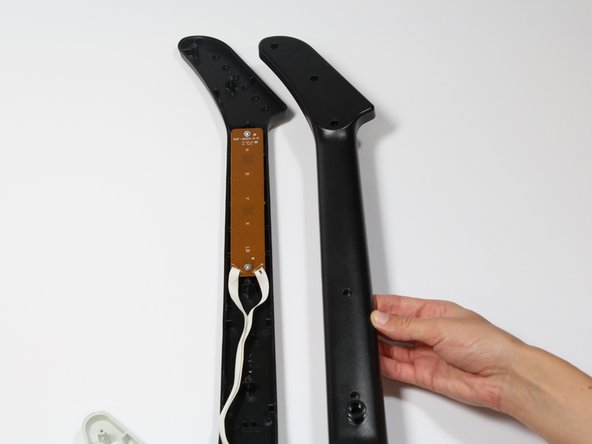
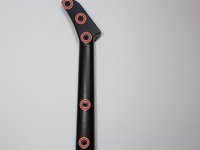
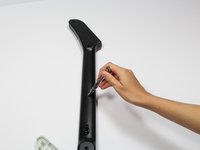
      • Remove the five 12mm Phillips #1 screws along the neck with a screwdriver.

      • Pull off the top shell of the neck to expose the internal features.

      Ask FixBot

      Add Comment

    1. RedOctane X-Plorer Motherboard Replacement, Auxiliary Port: step 4, image 1 of 3 RedOctane X-Plorer Motherboard Replacement, Auxiliary Port: step 4, image 2 of 3 RedOctane X-Plorer Motherboard Replacement, Auxiliary Port: step 4, image 3 of 3
      • Remove the two 10mm Phillips #1 screws from the auxiliary port board using a screwdriver.

      • Gently lift up on the auxiliary port to remove it from the case.

      Ask FixBot

      Add Comment

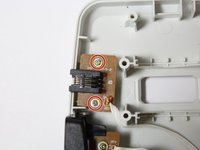
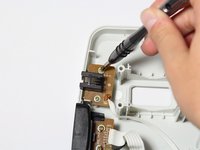
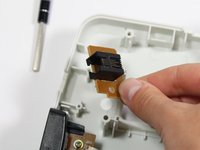
    1. RedOctane X-Plorer Motherboard Replacement, RJ-14 Connector: step 5, image 1 of 3 RedOctane X-Plorer Motherboard Replacement, RJ-14 Connector: step 5, image 2 of 3 RedOctane X-Plorer Motherboard Replacement, RJ-14 Connector: step 5, image 3 of 3
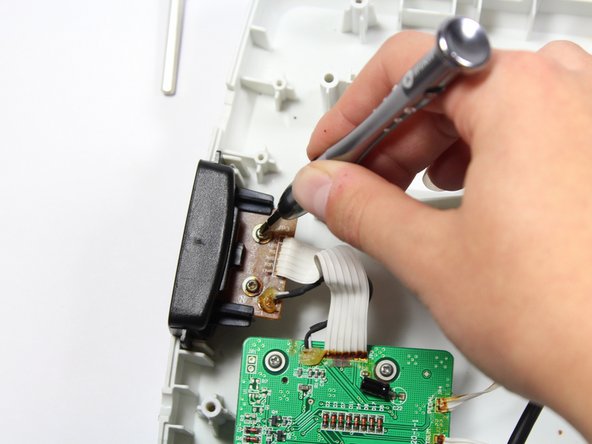
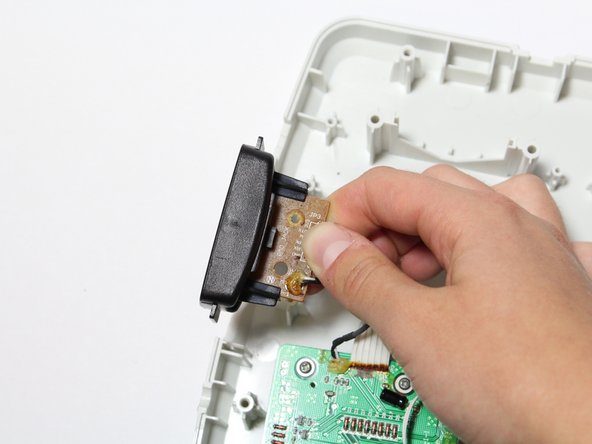
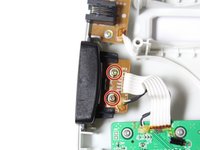
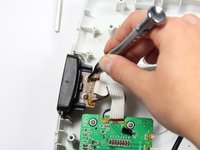
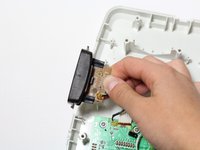
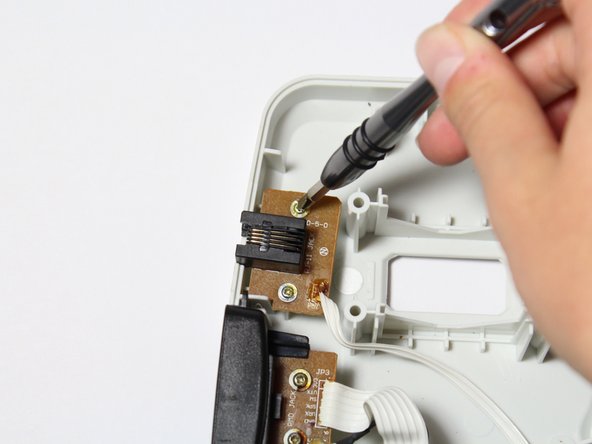
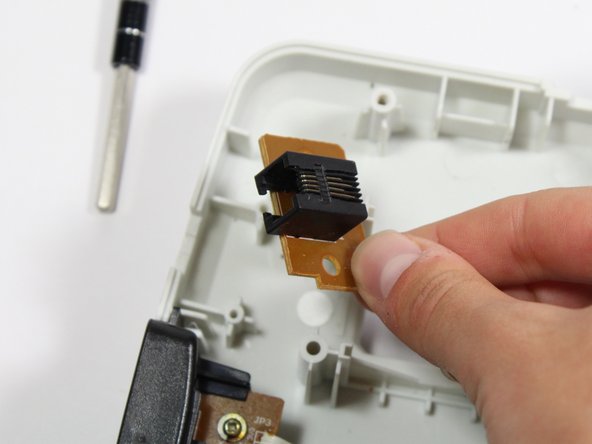
      • Remove the two 10mm Phillips #1 screws from the RJ-14 connector board.

      • Lift the RJ-14 connector to remove it from the case.

      Ask FixBot

      Add Comment

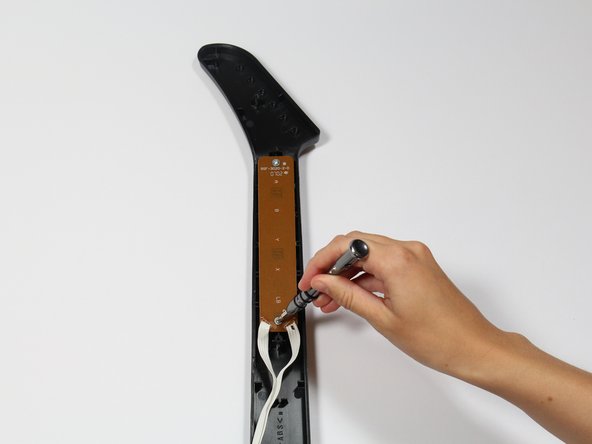
    1. RedOctane X-Plorer Motherboard Replacement, Keys: step 6, image 1 of 3 RedOctane X-Plorer Motherboard Replacement, Keys: step 6, image 2 of 3 RedOctane X-Plorer Motherboard Replacement, Keys: step 6, image 3 of 3
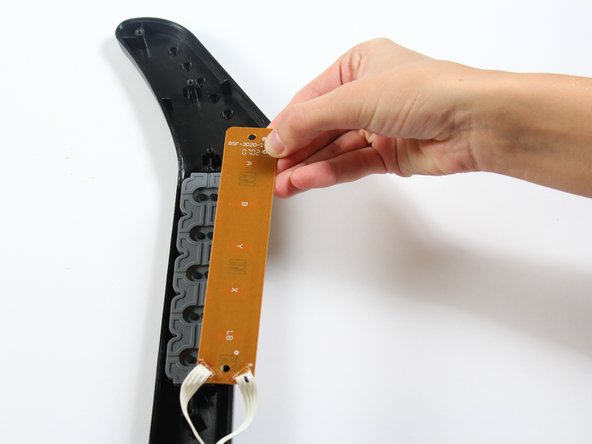
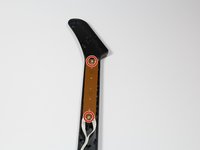
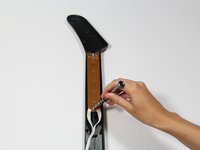
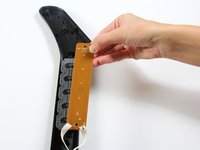
      • Use a screwdriver to remove the 10 mm Phillips #1 screws from the key sensor board.

      • Lift up on the key sensor board to remove it from the guitar neck.

      • When using the screwdriver, make sure to avoid puncturing the wires.

      Ask FixBot

      Add Comment

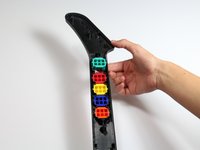
    2. RedOctane X-Plorer Motherboard Replacement: step 7, image 1 of 1
      • Using your fingers, remove the rubber pad to expose the colored keys.

      Ask FixBot

      Add Comment

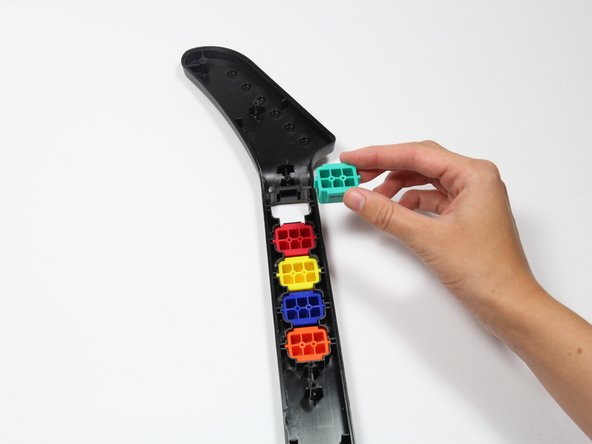
    3. RedOctane X-Plorer Motherboard Replacement: step 8, image 1 of 2 RedOctane X-Plorer Motherboard Replacement: step 8, image 2 of 2
      • Reach one finger under the guitar to push the key out of the casing.

      • Repeat this step for the four remaining keys.

      Ask FixBot

      Add Comment

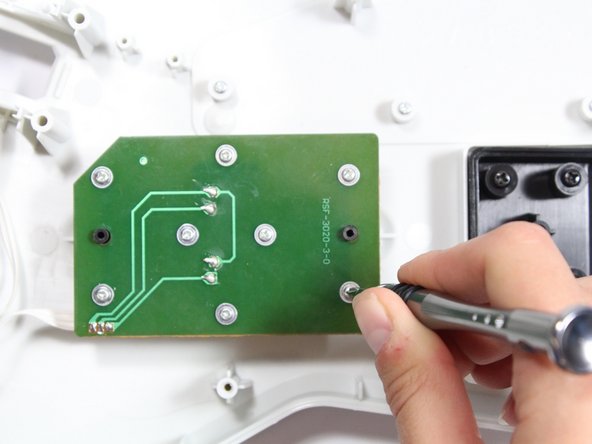
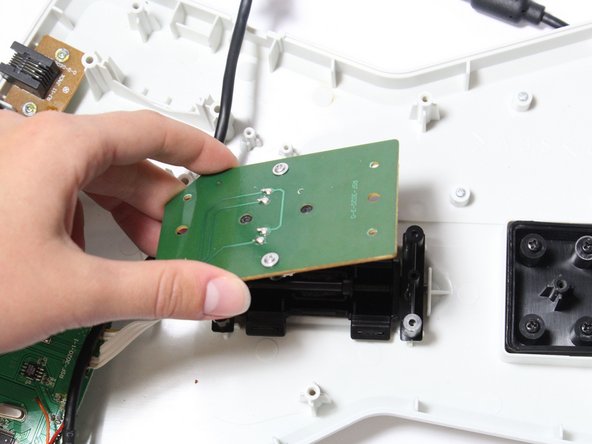
    1. RedOctane X-Plorer Motherboard Replacement, Strum Bar Sensor Board: step 9, image 1 of 3 RedOctane X-Plorer Motherboard Replacement, Strum Bar Sensor Board: step 9, image 2 of 3 RedOctane X-Plorer Motherboard Replacement, Strum Bar Sensor Board: step 9, image 3 of 3
      • Use a screwdriver to remove the four 14mm Phillips #1 screws around the perimeter of the strum bar sensor board.

      • Lift up on the strum bar sensor board to remove it from the case.

      Ask FixBot

      Add Comment

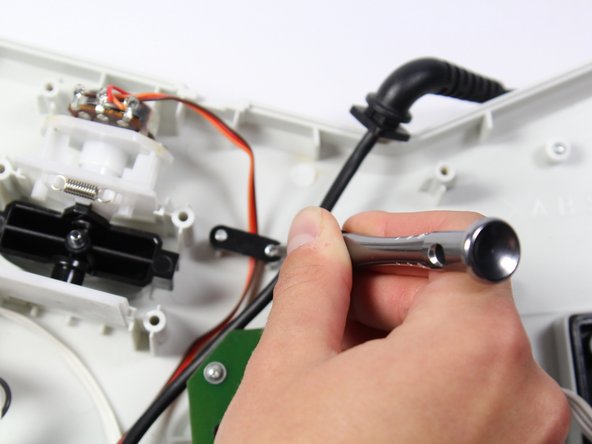
    1. RedOctane X-Plorer Motherboard Replacement, Whammy Bar Sensor: step 10, image 1 of 3 RedOctane X-Plorer Motherboard Replacement, Whammy Bar Sensor: step 10, image 2 of 3 RedOctane X-Plorer Motherboard Replacement, Whammy Bar Sensor: step 10, image 3 of 3
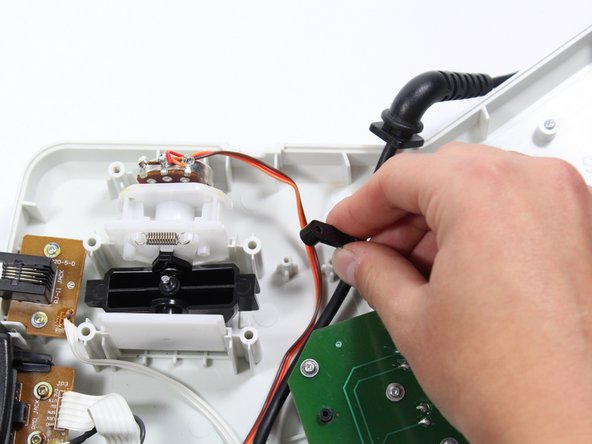
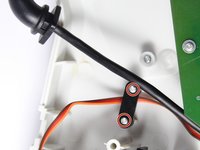
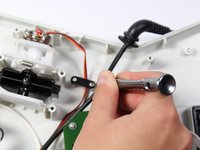
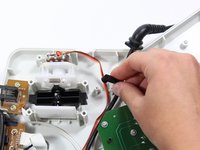
      • Remove the two 7mm Phillips #0 screws.

      • Using your fingers, remove the black wire retainer.

      Ask FixBot

      Add Comment

    2. RedOctane X-Plorer Motherboard Replacement: step 11, image 1 of 2 RedOctane X-Plorer Motherboard Replacement: step 11, image 2 of 2
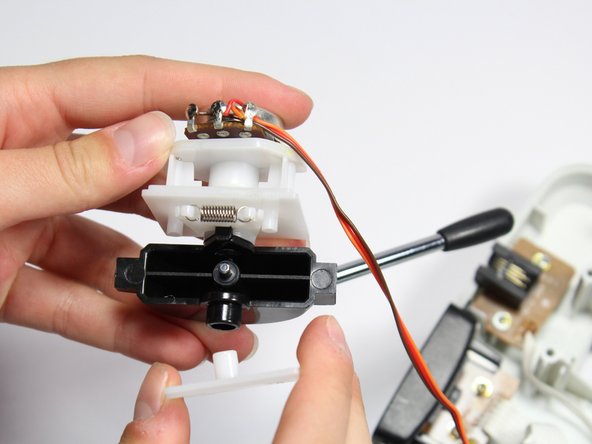
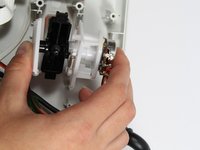
      • Using one hand, remove the whammy bar and its attached components from the case.

      Ask FixBot

      Add Comment

    3. RedOctane X-Plorer Motherboard Replacement: step 12, image 1 of 1
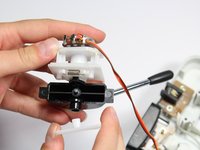
      • Using two hands, remove the whammy bar sensor.

      Ask FixBot

      Add Comment

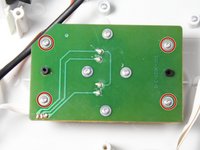
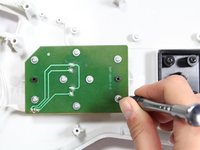
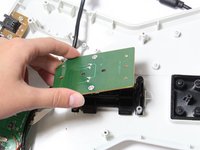
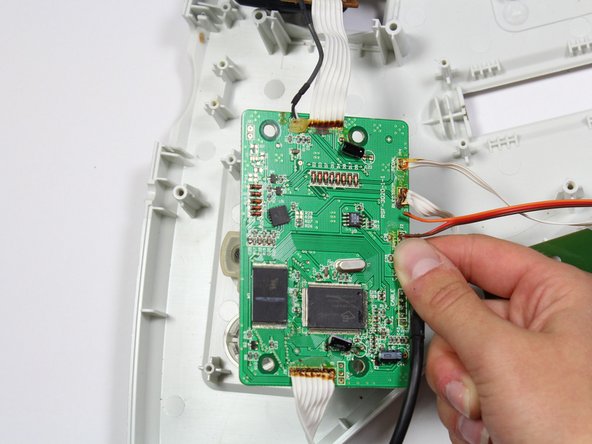
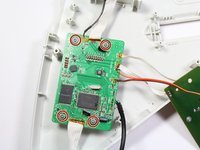
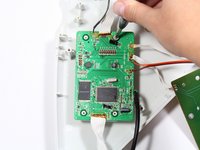
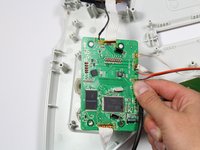
    1. RedOctane X-Plorer Motherboard Replacement, Motherboard: step 13, image 1 of 3 RedOctane X-Plorer Motherboard Replacement, Motherboard: step 13, image 2 of 3 RedOctane X-Plorer Motherboard Replacement, Motherboard: step 13, image 3 of 3
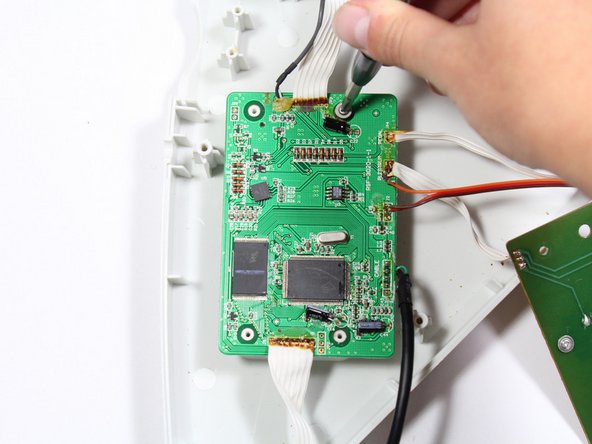
      • Remove the four 10mm Phillips #1 screws around the perimeter of the motherboard with a screwdriver.

      • Lift the motherboard to remove it from the case.

      Ask FixBot

      Add Comment

Conclusion

To reassemble your device, follow these instructions in reverse order.

Cancel: I did not complete this guide.

2 other people completed this guide.

Riley

Member since: 04/18/18

703 Reputation

7 Guides authored

Team

Cal Poly, Team S17-G1, Livingston Spring 2018 Member of Cal Poly, Team S17-G1, Livingston Spring 2018

CPSU-LIVINGSTON-S18S17G1

3 Members

108 Guides authored

1 Guide Comment

Where can I but a replacement board?

Matthew - Reply Share
Add Comment

View Statistics:

Past 24 Hours: 3

Past 7 Days: 21

Past 30 Days: 83

All Time: 3,577