
Razer Viper Mini Motherboard Replacement

Addison and one other contributor
Last updated on Mar 3, 2022
Views: 4K
View statistics:
- Past 24 Hours:
- 2
- Past 7 Days:
- 21
- Past 30 Days:
- 94
- All Time:
- 3,954
Comments: 0
No one has left comments on this guide. Will you be first?
Go to guide commentsCompleted: 1 2
1 person has marked this guide "completed." Will you be next?
2 people have marked this guide "completed." Including you — great job!
Favorites: 0 1
No one has favorited (and subscribed to) this guide. Will you be the first?
1 person has favorited (and subscribed to) this guide — and that's you!
Community-Contributed Guide
An awesome member of our community made this guide. It was not created by iFixit staff.
Introduction
Go to step 1 ↓The Razer Viper Mini may experience critical issues related to the device’s Motherboard. To resolve them, it might be necessary to fix components on the motherboard.
What you need


-
-
-
Turn the Mouse Over so the bottom is facing up.
-
Take off the information sticker and the plastic cover from the bottom of the mouse.
 Ask FixBot
-
-
-
Use the Phillips #0 screwdriver to remove the three 2 mm screws from the bottom of the mouse.
-
-
-
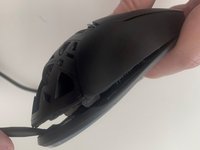
Use the plastic spudger to gently lift the backplate from the mouse shell.
-
Insert the spudger into the bottom back of the mouse and slowly move it around the mouse to release the backplate.
-
-
-
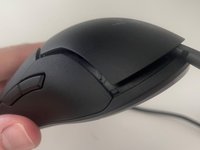
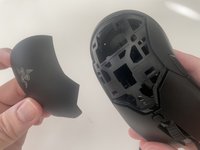
Use the plastic spudger once again to remove the top shell of the mouse.
-
It is similar to the previous step, as you have to pry the plastic spudger gently into the bottom of the mouse and move it slowly inwards and upwards to release the shell.
-
-
-
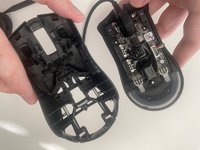
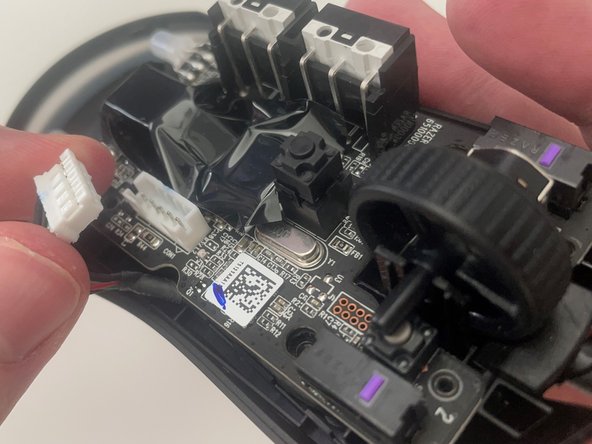
Disconnect the ribbon connector between the motherboard and the USB cable by squeezing the connector and pulling up.
-
-
-
-
Use a Phillips #0 screwdriver to remove 2 5.5 and 3 2.5 mm screws.
-
-
-
Remove the motherboard by grasping the sides and gently pulling upward.
-
-








To reassemble your device, follow these instructions in reverse order.
Cancel: I did not complete this guide.
One other person completed this guide.

Team

University of North Texas, Team S1-G3, Friess Fall 2019 Member of University of North Texas, Team S1-G3, Friess Fall 2019
UNT-FRIESS-F19S1G3
3 Members
240 Guides authored
