Free Shipping on Domestic Orders $75+

Razer Phone Motherboard Replacement

What you need

  1. Razer Phone Motherboard Replacement, Display Assembly: step 1, image 1 of 3 Razer Phone Motherboard Replacement, Display Assembly: step 1, image 2 of 3 Razer Phone Motherboard Replacement, Display Assembly: step 1, image 3 of 3
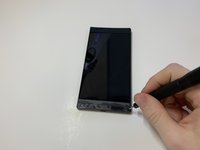
    • Remove the plastic speaker grills by using the metal spudger to pry underneath the strips.

    • Peel off the plastic speaker grill to reveal the screws.

    • Heating up the plastic grills make them easier to remove.

    • Peeling off the plastic speaker grill will ruin the adhesive used to keep it in place. A new adhesive must be used to put the grill back on the device.

    Ask FixBot

    Add Comment

  2. Razer Phone Motherboard Replacement: step 2, image 1 of 2 Razer Phone Motherboard Replacement: step 2, image 2 of 2
    • Pry the top plastic grill off with the metal spudger and reveal the screws.

    Ask FixBot

    Add Comment

  3. Razer Phone Motherboard Replacement: step 3, image 1 of 3 Razer Phone Motherboard Replacement: step 3, image 2 of 3 Razer Phone Motherboard Replacement: step 3, image 3 of 3
    • Remove five (two bottom, three top) 2.5 mm screws with the Phillips #000 screwdriver.

    • Remove five (four bottom, one top) 5.5 mm screws with the Torx Head T5 screwdriver.

    Ask FixBot

    Add Comment

  4. Razer Phone Motherboard Replacement: step 4, image 1 of 2 Razer Phone Motherboard Replacement: step 4, image 2 of 2
    • Remove the display assembly by using the Jimmy to separate the assembly from the phone's frame.

    • Lift the display assembly away from the other half of the phone.

    Ask FixBot

    Add Comment

  5. Razer Phone Motherboard Replacement: step 5, image 1 of 3 Razer Phone Motherboard Replacement: step 5, image 2 of 3 Razer Phone Motherboard Replacement: step 5, image 3 of 3
    Tool used on this step:
    Tweezers
    $4.99
    Buy
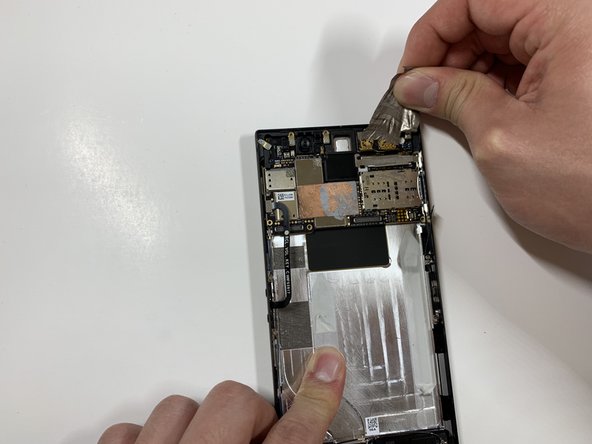
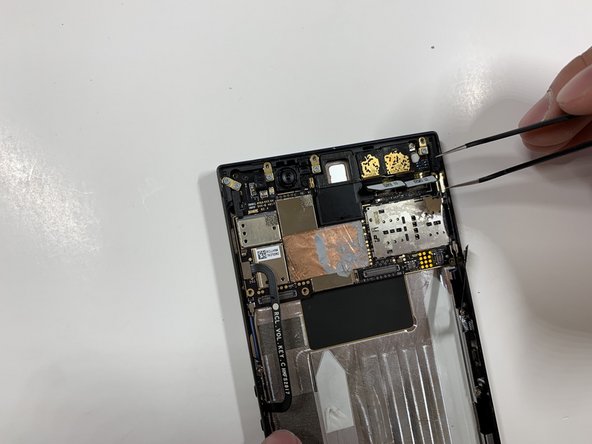
    • Remove one 2.5 mm screw holding down the metal bracket connector using the Phillips #000 screwdriver.

    • Peel back the metallic shielding over the connector using tweezers.

    • Remove the metal bracket connector.

    Ask FixBot

    Add Comment

  6. Razer Phone Motherboard Replacement: step 6, image 1 of 2 Razer Phone Motherboard Replacement: step 6, image 2 of 2
    • Grab hold of the the screen ribbon with the tweezers and remove it from the rest of the phone to free the assembly display.

    Ask FixBot

    Add Comment

  7. Razer Phone Motherboard Replacement, Battery: step 7, image 1 of 3 Razer Phone Motherboard Replacement, Battery: step 7, image 2 of 3 Razer Phone Motherboard Replacement, Battery: step 7, image 3 of 3
    Tool used on this step:
    Tweezers
    $4.99
    Buy
    • Grab hold of the connector on the right side of the phone (just above the battery) using the tweezers.

    • Remove the connector.

    Ask FixBot

    Add Comment

  8. Razer Phone Motherboard Replacement: step 8, image 1 of 2 Razer Phone Motherboard Replacement: step 8, image 2 of 2
    • Remove the 2.5 mm screw holding down the bracket with a Phillips #000 screwdriver.

    • Grab the bracket with the tweezers and remove it.

    Ask FixBot

    Add Comment

  9. Razer Phone Motherboard Replacement: step 9, image 1 of 3 Razer Phone Motherboard Replacement: step 9, image 2 of 3 Razer Phone Motherboard Replacement: step 9, image 3 of 3
    • Peel off and pull out the elastic tabs at the bottom of the battery.

    Ask FixBot

    Add Comment

  10. Razer Phone Motherboard Replacement: step 10, image 1 of 2 Razer Phone Motherboard Replacement: step 10, image 2 of 2
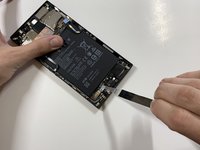
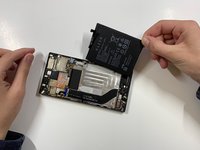
    • Carefully use the Jimmy to wedge the battery out of the phone.

    Ask FixBot

    Add Comment

  11. Razer Phone Motherboard Replacement, Rear Camera: step 11, image 1 of 2 Razer Phone Motherboard Replacement, Rear Camera: step 11, image 2 of 2
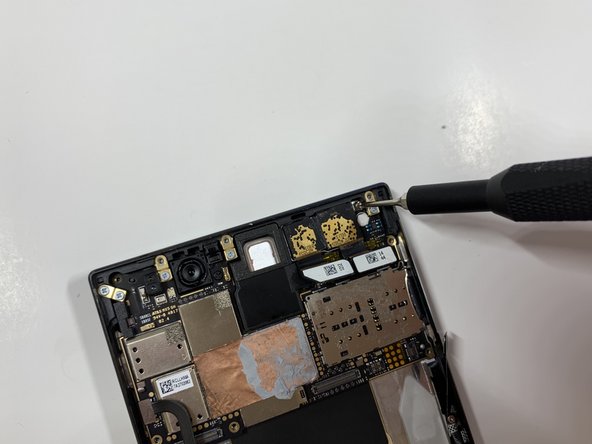
    • Remove the one 2.5 mm screw with the Phillips #000 screwdriver.

    Ask FixBot

    Add Comment

  12. Razer Phone Motherboard Replacement: step 12, image 1 of 3 Razer Phone Motherboard Replacement: step 12, image 2 of 3 Razer Phone Motherboard Replacement: step 12, image 3 of 3
    • Remove the protective peel covering the rear cameras using your hands.

    Ask FixBot

    Add Comment

  13. Razer Phone Motherboard Replacement: step 13, image 1 of 1
    Tool used on this step:
    Tweezers
    $4.99
    Buy
    • Use the tweezers to remove the white tab connector.

    Ask FixBot

    Add Comment

  14. Razer Phone Motherboard Replacement: step 14, image 1 of 1
    • Grab and remove the metal tab with the tweezers.

    Ask FixBot

    Add Comment

  15. Razer Phone Motherboard Replacement: step 15, image 1 of 3 Razer Phone Motherboard Replacement: step 15, image 2 of 3 Razer Phone Motherboard Replacement: step 15, image 3 of 3
    • Grab the connectors with the tweezers and gently lift the connectors loose.

    Ask FixBot

    Add Comment

  16. Razer Phone Motherboard Replacement: step 16, image 1 of 2 Razer Phone Motherboard Replacement: step 16, image 2 of 2
    • Remove the one 2.5 mm screw with the Phillips #000 screwdriver.

    Ask FixBot

    Add Comment

  17. Razer Phone Motherboard Replacement: step 17, image 1 of 1
    • Remove the one 2.5 mm screw underneath the connectors with the Phillips #000 screwdriver.

    Ask FixBot

    Add Comment

  18. Razer Phone Motherboard Replacement: step 18, image 1 of 3 Razer Phone Motherboard Replacement: step 18, image 2 of 3 Razer Phone Motherboard Replacement: step 18, image 3 of 3
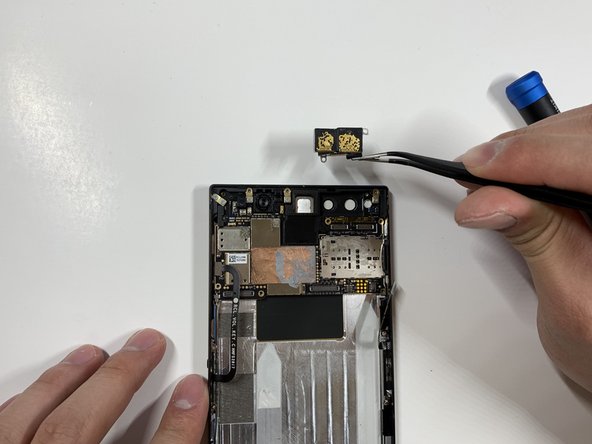
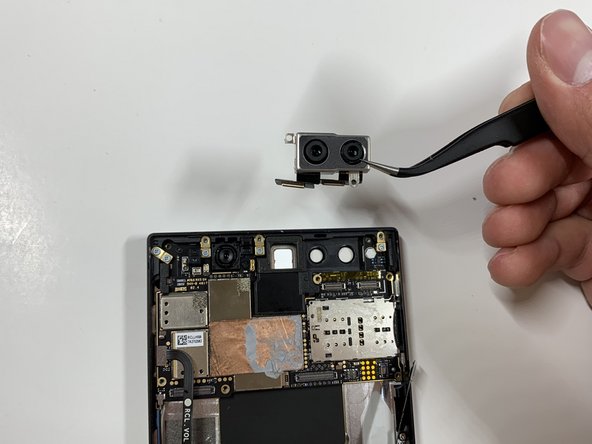
    • Grab the loose connectors with a tweezer and gently remove the rear camera unit from the phone.

    Ask FixBot

    Add Comment

  19. Razer Phone Motherboard Replacement, Motherboard: step 19, image 1 of 1
    Tool used on this step:
    Tweezers
    $4.99
    Buy
    • Grab and remove the blue connector with the tweezers.

    Ask FixBot

    Add Comment

  20. Razer Phone Motherboard Replacement: step 20, image 1 of 2 Razer Phone Motherboard Replacement: step 20, image 2 of 2
    • Remove the five 1 mm screws holding down the gold antenna line brackets to the motherboard using the Phillips #000 screwdriver.

    Ask FixBot

    Add Comment

  21. Razer Phone Motherboard Replacement: step 21, image 1 of 2 Razer Phone Motherboard Replacement: step 21, image 2 of 2
    • Remove the 2.5 mm screw next to the front-facing camera with the Phillips #000 screwdriver.

    Ask FixBot

    Add Comment

  22. Razer Phone Motherboard Replacement: step 22, image 1 of 2 Razer Phone Motherboard Replacement: step 22, image 2 of 2
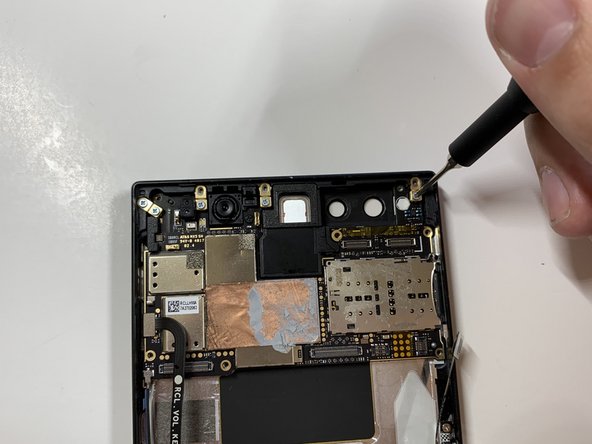
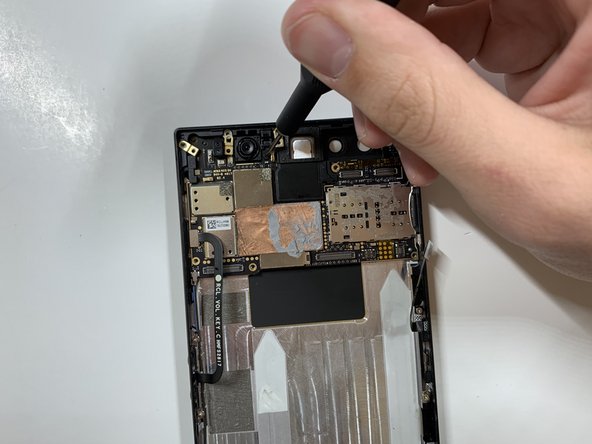
    • Remove the four gold antenna line brackets with the tweezers.

    Ask FixBot

    Add Comment

  23. Razer Phone Motherboard Replacement: step 23, image 1 of 1
    • Using the tweezers remove the SIM card tray from the body of the phone.

    Ask FixBot

    Add Comment

  24. Razer Phone Motherboard Replacement: step 24, image 1 of 1
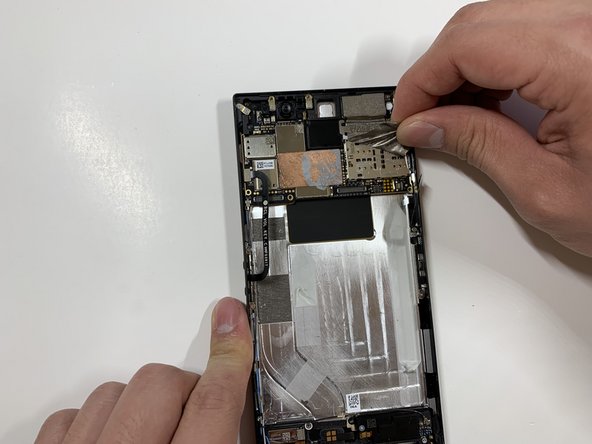
    • Carefully lift up the motherboard away from the device.

    Ask FixBot

    Add Comment

Conclusion

To reassemble your device, follow these instructions in reverse order.

Cancel: I did not complete this guide.

One other person completed this guide.

David Todd

Member since: 01/25/19

188 Reputation

1 Guide authored

Team

Cal Poly, Team S19-G6, White Winter 2019 Member of Cal Poly, Team S19-G6, White Winter 2019

CPSU-WHITE-W19S19G6

4 Members

10 Guides authored

0 Guide Comments

Add Comment

View Statistics:

Past 24 Hours: 0

Past 7 Days: 7

Past 30 Days: 53

All Time: 2,080