Free Shipping on Domestic Orders $75+

Razer DeathAdder Chroma USB Cable Replacement

What you need

  1. Razer DeathAdder Chroma USB Cable Replacement, Outer Casing: step 1, image 1 of 1
    • Opening the mouse casing will void any warranty that exists for the mouse.

    • Turn the mouse over so the bottom is facing up.

    Ask FixBot
    Add Comment

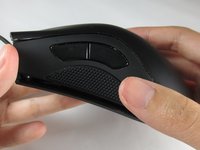
  2. Razer DeathAdder Chroma USB Cable Replacement: step 2, image 1 of 2 Razer DeathAdder Chroma USB Cable Replacement: step 2, image 2 of 2
    • Use the blunt end of the spudger to pry the adhesive rubber pads from the top left and right edges.

    Ask FixBot

    Add Comment

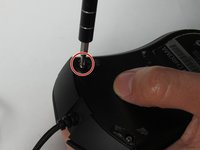
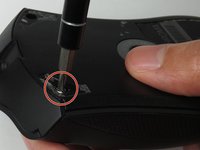
  3. Razer DeathAdder Chroma USB Cable Replacement: step 3, image 1 of 2 Razer DeathAdder Chroma USB Cable Replacement: step 3, image 2 of 2
    • Use a Phillips #0 screwdriver to remove two 6.7 mm screws.

    Ask FixBot

    Add Comment

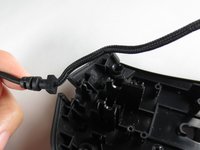
  4. Razer DeathAdder Chroma USB Cable Replacement: step 4, image 1 of 1
    • Use your fingers to identify the location of the screw under the bottom label.

    Ask FixBot

    Add Comment

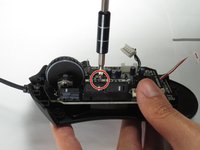
  5. Razer DeathAdder Chroma USB Cable Replacement: step 5, image 1 of 1
    • Use a Phillips #0 screwdriver to remove one 6.7 mm screw.

    • Clear the label away from around the screw for easier removal.

    Ask FixBot
    Add Comment

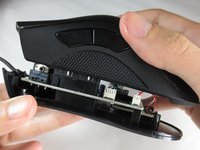
  6. Razer DeathAdder Chroma USB Cable Replacement: step 6, image 1 of 3 Razer DeathAdder Chroma USB Cable Replacement: step 6, image 2 of 3 Razer DeathAdder Chroma USB Cable Replacement: step 6, image 3 of 3
    • Turn the mouse over so the bottom is facing down.

    • Separate the top casing from the bottom base by pulling the top casing upwards.

    • Separating the casing too quickly could damage the ribbon connector between the motherboard and the LED lights.

    Ask FixBot
    Add Comment

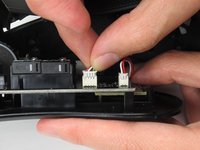
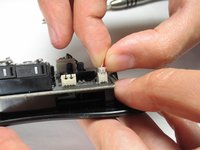
  7. Razer DeathAdder Chroma USB Cable Replacement: step 7, image 1 of 2 Razer DeathAdder Chroma USB Cable Replacement: step 7, image 2 of 2
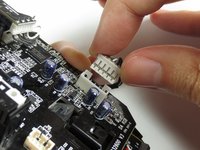
    • Disconnect the ribbon connector between the motherboard and the LED lights by pulling upward.

    • Pulling too hard could damage the wire connections.

    Ask FixBot

    Add Comment

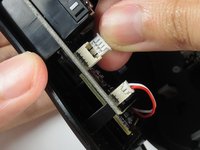
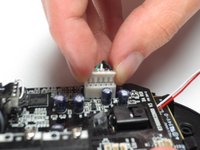
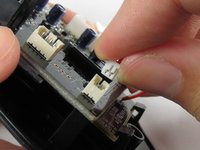
  8. Razer DeathAdder Chroma USB Cable Replacement, Motherboard: step 8, image 1 of 2 Razer DeathAdder Chroma USB Cable Replacement, Motherboard: step 8, image 2 of 2
    • Disconnect the ribbon connector between the motherboard and the USB cable by pulling upward.

    Ask FixBot

    Add Comment

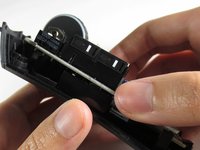
  9. Razer DeathAdder Chroma USB Cable Replacement: step 9, image 1 of 1
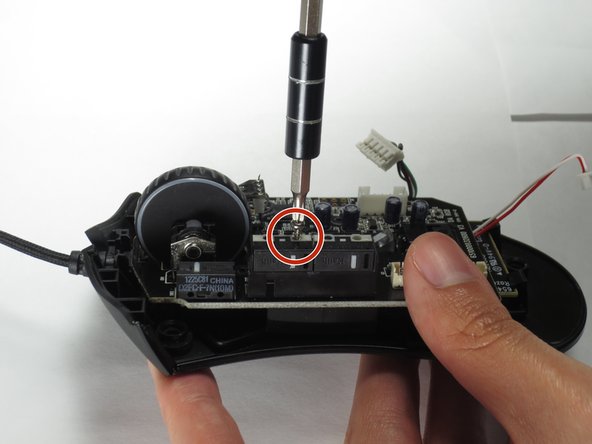
    • Use a Phillips #0 screwdriver to remove three 5.5 mm screws.

    Ask FixBot
    Add Comment

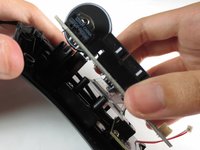
  10. Razer DeathAdder Chroma USB Cable Replacement: step 10, image 1 of 2 Razer DeathAdder Chroma USB Cable Replacement: step 10, image 2 of 2
    • Use a Phillips #0 screwdriver to remove two 11.5 mm screws on the side buttons.

    Ask FixBot
    Add Comment

  11. Razer DeathAdder Chroma USB Cable Replacement: step 11, image 1 of 1
    • Use a Phillips #000 screwdriver to remove one 5.0 mm screw.

    Ask FixBot

    Add Comment

  12. Razer DeathAdder Chroma USB Cable Replacement: step 12, image 1 of 2 Razer DeathAdder Chroma USB Cable Replacement: step 12, image 2 of 2
    • Disconnect the ribbon connector between the motherboard and the optical sensor.

    Ask FixBot

    Add Comment

  13. Razer DeathAdder Chroma USB Cable Replacement: step 13, image 1 of 2 Razer DeathAdder Chroma USB Cable Replacement: step 13, image 2 of 2
    • Remove the motherboard by grasping the sides and gently pulling upward.

    Ask FixBot

    Add Comment

  14. Razer DeathAdder Chroma USB Cable Replacement, USB Cable: step 14, image 1 of 1
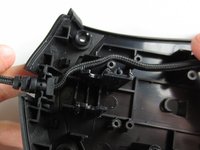
    • Locate the USB cable.

    Ask FixBot

    Add Comment

  15. Razer DeathAdder Chroma USB Cable Replacement: step 15, image 1 of 2 Razer DeathAdder Chroma USB Cable Replacement: step 15, image 2 of 2
    • Remove the USB cable by pulling it up and out.

    Ask FixBot

    Add Comment

Conclusion

To reassemble your device, follow these instructions in reverse order.

Cancel: I did not complete this guide.

8 other people completed this guide.

Henry Shi

Member since: 03/26/17

236 Reputation

1 Guide authored

Team

Baylor, Team S5-G2, Williams Spring 2017 Member of Baylor, Team S5-G2, Williams Spring 2017

BU-WILLIAMS-S17S5G2

3 Members

6 Guides authored

5 Guide Comments

Thank you! It realy worked. Btw: The cable for the Deathadder 2013 is working for the Chroma and Elite as well. I Just tried it :)

Pokefreeks - Reply Share

Thanks for the advice

João Costa Santos - Reply Share

Great and easy guide thanx alot, saved me a new mouse :)

jesperkb - Reply Share

Is there a reliable website where I can get a replacement cable with low delivery time?

Bubbles EXE - Reply Share

where can i get the cable from?

Mourya Singham - Reply Share

Add Comment

View Statistics:

Past 24 Hours: 3

Past 7 Days: 13

Past 30 Days: 55

All Time: 15,473