Free Shipping on Domestic Orders $75+

Razer Blade Stealth 2017 WiFi Card Replacement

What you need

    1. Razer Blade Stealth 2017 WiFi Card Replacement, Battery: step 1, image 1 of 2 Razer Blade Stealth 2017 WiFi Card Replacement, Battery: step 1, image 2 of 2
      • Before you begin, be sure to turn off your laptop and discharge the battery down to 25%.

      • Use a Torx T5 screwdriver to remove the eight, 3mm screws on the bottom cover of the laptop.

      • Whenever you remove screws from the device, remember to save and label them.

      Ask FixBot

      Add Comment

    2. Razer Blade Stealth 2017 WiFi Card Replacement: step 2, image 1 of 1
      • Remove the bottom cover of the laptop by sliding it away from the hinge.

      • Do not force the cover up!

      Ask FixBot

      Add Comment

    3. Razer Blade Stealth 2017 WiFi Card Replacement: step 3, image 1 of 2 Razer Blade Stealth 2017 WiFi Card Replacement: step 3, image 2 of 2
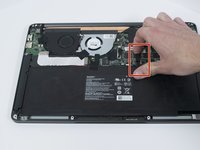
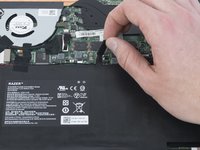
      • Use your fingernail to pry up and disconnect the battery from the motherboard.

      Ask FixBot

      Add Comment

    4. Razer Blade Stealth 2017 WiFi Card Replacement: step 4, image 1 of 1
      • Use a Phillips #00 screwdriver to remove the six, 5mm screws securing the battery.

      Ask FixBot

      Add Comment

    5. Razer Blade Stealth 2017 WiFi Card Replacement: step 5, image 1 of 2 Razer Blade Stealth 2017 WiFi Card Replacement: step 5, image 2 of 2
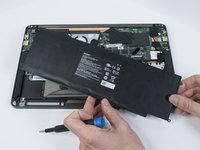
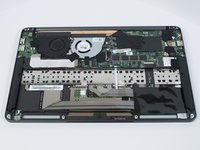
      • Remove any tape attached to the battery.

      • Use the plastic spudger to pry out the battery.

      Ask FixBot

      Add Comment

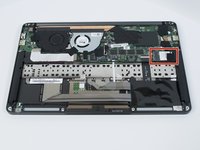
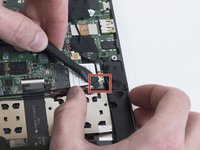
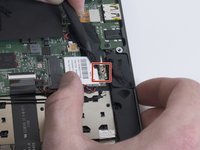
    1. Razer Blade Stealth 2017 WiFi Card Replacement, WiFi Card: step 6, image 1 of 3 Razer Blade Stealth 2017 WiFi Card Replacement, WiFi Card: step 6, image 2 of 3 Razer Blade Stealth 2017 WiFi Card Replacement, WiFi Card: step 6, image 3 of 3
      • Remove any tape attached to the Wifi card.

      • Use a plastic spudger to disconnect the two coaxial antennae connectors and expose the WiFi card.

      Ask FixBot

      Add Comment

    2. Razer Blade Stealth 2017 WiFi Card Replacement: step 7, image 1 of 1
      • Use a Phillips #00 screwdriver to remove the single, 2 mm screw from the WiFi card.

      Ask FixBot

      Add Comment

    3. Razer Blade Stealth 2017 WiFi Card Replacement: step 8, image 1 of 1
      • Remove the WiFi card from the motherboard by sliding it out at an angle.

      Ask FixBot

      Add Comment

Conclusion

To reassemble your device, follow these instructions in reverse order.

Cancel: I did not complete this guide.

One other person completed this guide.

Helene Willits

Member since: 10/10/19

779 Reputation

6 Guides authored

Team

Cal Poly, Team S11-G3, Regan Fall 2019 Member of Cal Poly, Team S11-G3, Regan Fall 2019

CPSU-REGAN-F19S11G3

4 Members

84 Guides authored

1 Guide Comment

It was unnecessary for me to remove the battery. Replaced the original Killer card with a WiFi 6E Wireless Card Intel AX210 NGW Bluetooth 5.3.

James Pulido - Reply Share

Add Comment

View Statistics:

Past 24 Hours: 0

Past 7 Days: 10

Past 30 Days: 51

All Time: 4,040