Free Shipping on Domestic Orders $75+

Razer Blade RZ09-0102 Motherboard Replacement

What you need

    1. Razer Blade RZ09-0102 Motherboard Replacement, Rear Panel: step 1, image 1 of 1
      • Before you begin, be sure to turn off your laptop.

      • Using a Torx T5 screwdriver, remove the ten 1/8 inch screws securing the back cover.

      • Remove the back cover.

      Ask FixBot

      Add Comment

    1. Razer Blade RZ09-0102 Motherboard Replacement, Battery: step 2, image 1 of 2 Razer Blade RZ09-0102 Motherboard Replacement, Battery: step 2, image 2 of 2
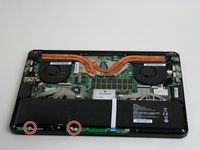
      • Remove the seven screws holding the battery in place using a Phillips #0 screwdriver.

      Ask FixBot

      Add Comment

    2. Razer Blade RZ09-0102 Motherboard Replacement: step 3, image 1 of 1
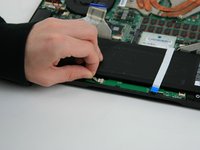
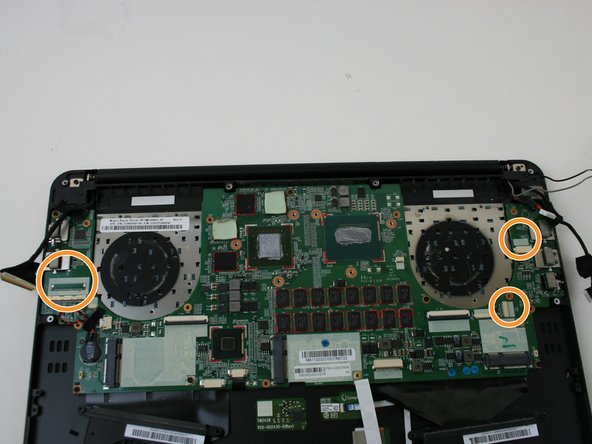
      • Unlock the ZIF connectors securing the right ribbon cable.

      • To unlock a ZIF connector, use an opening tool or your fingernail to flip up the small, hinged locking flap.

      • Carefully pull the two ribbon cables out of their sockets.

      Ask FixBot

      Add Comment

    3. Razer Blade RZ09-0102 Motherboard Replacement: step 4, image 1 of 1
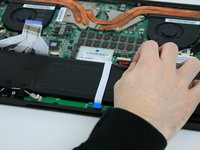
      • Use an opening tool to unlock the ZIF connector securing the white ribbon over the battery.

      Ask FixBot

      Add Comment

    4. Razer Blade RZ09-0102 Motherboard Replacement: step 5, image 1 of 2 Razer Blade RZ09-0102 Motherboard Replacement: step 5, image 2 of 2
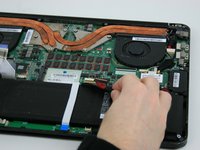
      • Carefully pull out the two connectors out of their sockets.

      • Pull parallel to the motherboard, not straight up.

      Ask FixBot

      Add Comment

    5. Razer Blade RZ09-0102 Motherboard Replacement: step 6, image 1 of 2 Razer Blade RZ09-0102 Motherboard Replacement: step 6, image 2 of 2
      • Pull the wide battery connector towards the battery to disconnect it from the motherboard.

      • Pull parallel to the motherboard, not straight up.

      Ask FixBot

      Add Comment

    6. Razer Blade RZ09-0102 Motherboard Replacement: step 7, image 1 of 2 Razer Blade RZ09-0102 Motherboard Replacement: step 7, image 2 of 2
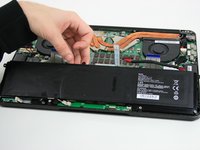
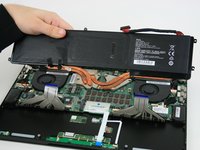
      • Remove the battery from the laptop.

      Ask FixBot

      Add Comment

    1. Razer Blade RZ09-0102 Motherboard Replacement, Speakers: step 8, image 1 of 2 Razer Blade RZ09-0102 Motherboard Replacement, Speakers: step 8, image 2 of 2
      • Using a Phillips #0 screwdriver, remove the two screws holding down the speaker.

      Ask FixBot

      Add Comment

    2. Razer Blade RZ09-0102 Motherboard Replacement: step 9, image 1 of 1
      • Disconnect the wire by pinching with your fingers and pulling up.

      Ask FixBot

      Add Comment

    3. Razer Blade RZ09-0102 Motherboard Replacement: step 10, image 1 of 1
      • Remove the speaker.

      Ask FixBot

      Add Comment

    1. Razer Blade RZ09-0102 Motherboard Replacement, Fan: step 11, image 1 of 1
      • Remove the three black rubber pads that cover the screws holding the fan.

      Ask FixBot

      Add Comment

    2. Razer Blade RZ09-0102 Motherboard Replacement: step 12, image 1 of 1
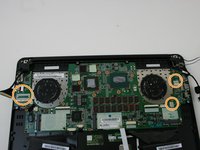
      • Use the Phillips #0 screwdriver to remove the three 1/4 inch screws.

      Ask FixBot

      Add Comment

    3. Razer Blade RZ09-0102 Motherboard Replacement: step 13, image 1 of 1
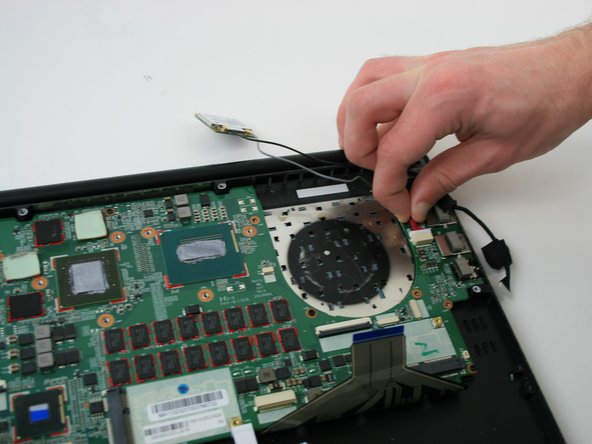
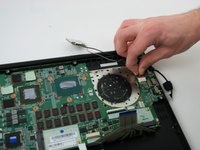
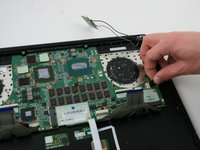
      • Disconnect the wire that goes from the fan into the white connector, but leave the wire attached to the fan.

      Ask FixBot

      Add Comment

    4. Razer Blade RZ09-0102 Motherboard Replacement: step 14, image 1 of 2 Razer Blade RZ09-0102 Motherboard Replacement: step 14, image 2 of 2
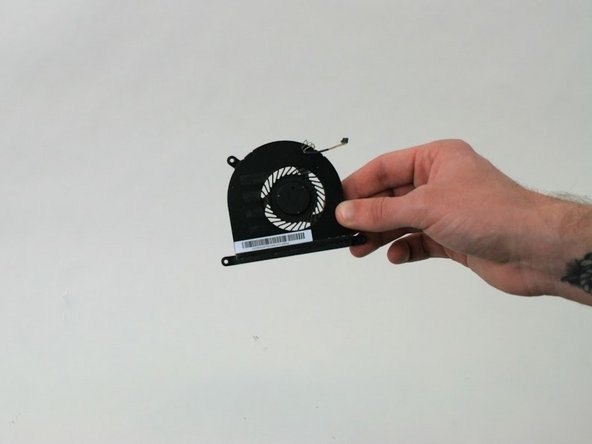
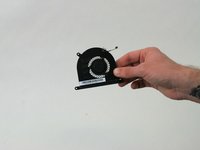
      • Lift the fan out with your hands.

      Ask FixBot

      Add Comment

    1. Razer Blade RZ09-0102 Motherboard Replacement, Motherboard: step 15, image 1 of 1
      • On the left and right sides of the motherboard, remove the black tape holding down the wires.

      Ask FixBot

      Add Comment

    2. Razer Blade RZ09-0102 Motherboard Replacement: step 16, image 1 of 1
      • Using a Phillips #0 screwdriver, remove the single 4.5mm long screw holding down the network card.

      Ask FixBot

      Add Comment

    3. Razer Blade RZ09-0102 Motherboard Replacement: step 17, image 1 of 1
      • Pull out the network card from its connector on the motherboard.

      Ask FixBot

      Add Comment

    4. Razer Blade RZ09-0102 Motherboard Replacement: step 18, image 1 of 3 Razer Blade RZ09-0102 Motherboard Replacement: step 18, image 2 of 3 Razer Blade RZ09-0102 Motherboard Replacement: step 18, image 3 of 3
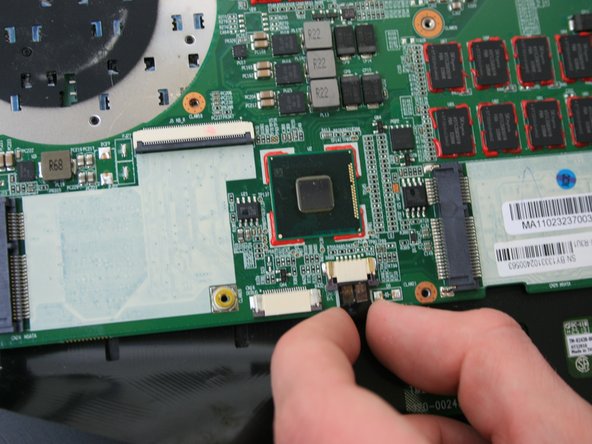
      • Disconnect the 2 wires on right side and the 1 wire on the left that holds the motherboard down. To remove the two right wires pull them straight out of their connectors. To remove the left wire pull up on the metal clamp and pull the wire straight out.

      Ask FixBot

      Add Comment

    5. Razer Blade RZ09-0102 Motherboard Replacement: step 19, image 1 of 2 Razer Blade RZ09-0102 Motherboard Replacement: step 19, image 2 of 2
      • Remove the wire located close to left hand side black ribbon cable. Pull down on both sides of the connector to remove.

      Ask FixBot

      Add Comment

    6. Razer Blade RZ09-0102 Motherboard Replacement: step 20, image 1 of 1
      • Using a Phillips #0 screwdriver, remove the nine 5 mm screws holding down the motherboard to the laptop case.

      Ask FixBot

      Add Comment

    7. Razer Blade RZ09-0102 Motherboard Replacement: step 21, image 1 of 1
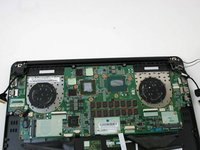
      • Lift the motherboard straight up out of case.

      Ask FixBot

      Add Comment

Conclusion

To reassemble your device, follow these instructions in reverse order.

Cancel: I did not complete this guide.

5 other people completed this guide.

2 Guide Comments

I broke my white ribbon, where do I get a replacement? Anyone please help! Thank you!!!

ksm270 - Reply Share
Where can I purchase the motherboard, I am trying to replace mine and cannot find the part anywhere other than eBay.

rmasesg - Reply Share
Add Comment

View Statistics:

Past 24 Hours: 2

Past 7 Days: 4

Past 30 Days: 29

All Time: 6,180