Introduction
Outline what you are going to teach someone how to do.
What you need
-
-
-
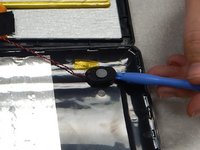
Using a separating tool, look for a seam in the plastic casing that looks most accessible.
-
Use the prying tool to separate the front and back casing, working your way around the perimeter.
-
Utilize a card tool or a pick to assist in keeping the case separated.
 Ask FixBot
-
-
-
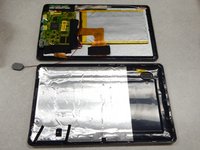
Flip over the back of the device while keeping it close to the front, the speaker is attached to it.
-
Remove the yellow tape securing the speaker to the back casing.
-
-
-
-
Use the separating tool to pry the speaker from its surface.
-
Cut or desolder the wires to replace or repair the speaker.
-
-
-
-
-
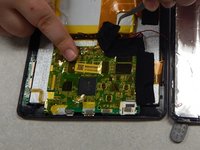
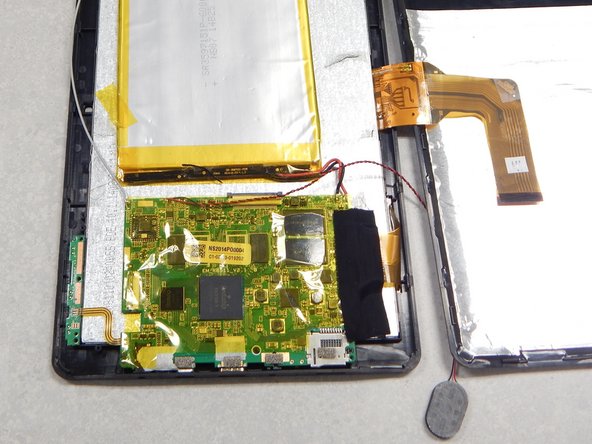
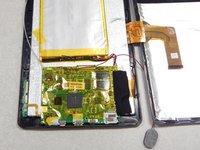
Peel off the black tape on the battery and main-board.
-
Peel off the black tape securing the screen ribbon cable to the back of the screen.
-
-
-
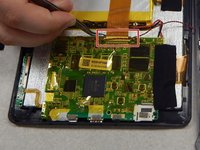
Slide out the ribbon cable lock that is securing the screen ribbon cable.
-
Move the ribbon cable out of the way using tape if necessary.
-
-
Tool used on this step:Plastic Cards$2.99
-
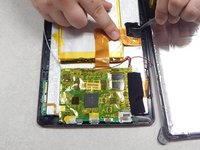
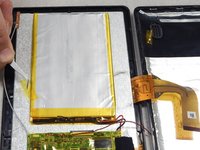
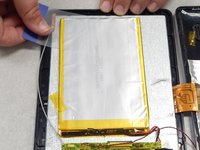
Remove the yellow tape securing the battery to the screen.
-
Use a plastic card or pick to separate the battery from the screen.
-
Cut or desolder the wires on the battery to remove or replace it.
-
-







To reassemble your device, follow these instructions in reverse order.
Cancel: I did not complete this guide.
10 other people completed this guide.

Team

Pasco Hernando, Team 1-1, Prince Winter 2015 Member of Pasco Hernando, Team 1-1, Prince Winter 2015
PHSC-PRINCE-W15S1G1
6 Members
60 Guides authored
