Free Shipping on Domestic Orders $75+

PowerBook G3 Lombard Hard Drive Replacement

What you need

  1. PowerBook G3 Lombard Hard Drive Replacement, Keyboard: step 1, image 1 of 1
    • Turn the computer so that the ports are facing you.

    • If the keyboard is locked, open the port cover and turn the keyboard locking screw until the keyboard is unlocked.

    Ask FixBot
  2. PowerBook G3 Lombard Hard Drive Replacement: step 2, image 1 of 1
    • Pull the keyboard release tabs toward you and lift up on the keyboard until it pops free.

    • Make sure you have removed the laptop battery and CD/DVD module from the expansion bays before proceeding.

    Ask FixBot
  3. PowerBook G3 Lombard Hard Drive Replacement: step 3, image 1 of 1
    • Lift the keyboard out by pulling it up and away from you. Rest the keyboard, face down, on top of the trackpad.

    • In order to replace the keyboard, you must first remove the modem.

    Ask FixBot
  4. PowerBook G3 Lombard Hard Drive Replacement, Heat Shield: step 4, image 1 of 1
    • Remove the three silver Phillips screws that attach the heat shield to the internal metal framework.

    Ask FixBot
  5. PowerBook G3 Lombard Hard Drive Replacement: step 5, image 1 of 1
    • Lift the heat shield up and pull it toward you.

    Ask FixBot
  6. PowerBook G3 Lombard Hard Drive Replacement: step 6, image 1 of 1
    • Your laptop should look approximately like this.

    Ask FixBot
  7. PowerBook G3 Lombard Hard Drive Replacement, Modem: step 7, image 1 of 1
    • Remove the two silver Phillips screws from the modem.

    Ask FixBot
  8. PowerBook G3 Lombard Hard Drive Replacement: step 8, image 1 of 1
    • Use a spudger, the tips of your fingers, or a flat non-metal tool to get under the modem's edge and pry it up from its socket as shown in the picture.

    Ask FixBot
  9. PowerBook G3 Lombard Hard Drive Replacement: step 9, image 1 of 1
    • Disconnect the cable from the right side of the modem.

    Ask FixBot
  10. PowerBook G3 Lombard Hard Drive Replacement: step 10, image 1 of 1
    • Your laptop should look approximately like this.

    Ask FixBot
  11. PowerBook G3 Lombard Hard Drive Replacement, Processor: step 11, image 1 of 1
    • Use a spudger, the tips of your fingers, or a flat non-metal tool to pry up the processor's right side.

    Ask FixBot
  12. PowerBook G3 Lombard Hard Drive Replacement: step 12, image 1 of 1
    • Disconnect the keyboard cable from the logic board by pulling directly up on the clear plastic loop.

    • This step is out of sequence with the keyboard because in order to remove the keyboard you must first remove the modem.

    Ask FixBot
  13. PowerBook G3 Lombard Hard Drive Replacement: step 13, image 1 of 1
    • Your laptop should look approximately like this.

    Ask FixBot
  14. PowerBook G3 Lombard Hard Drive Replacement, Hard Drive: step 14, image 1 of 1
    • Grasp the orange cable at the left end of the hard drive and disconnect it from the logic board.

    • Try to grasp the cable on the plastic connector rather than on the flexible cable section.

    Ask FixBot
  15. PowerBook G3 Lombard Hard Drive Replacement: step 15, image 1 of 1
    • Grasp the plastic tab and pull the hard drive up and to the left, making sure that the metal bracket doesn't catch on the black plastic casing.

    Ask FixBot
  16. PowerBook G3 Lombard Hard Drive Replacement, Hard Drive: step 16, image 1 of 1
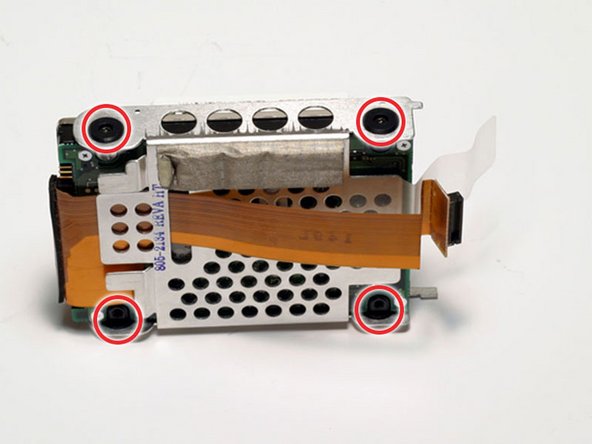
    • Remove the four black Torx screws located at the four corners of the hard drive bracket.

    Ask FixBot
  17. PowerBook G3 Lombard Hard Drive Replacement: step 17, image 1 of 1
    • Pull the connector cable out from the hard drive, applying even pressure while gently rocking up and down.

    • Be very careful to apply even pressure when removing the cable. If you torque too hard to either side, you may damage or destroy the hard drive's connector pins, rendering your data inaccessible.

    Ask FixBot
Conclusion

To reassemble your device, follow these instructions in reverse order.

10 other people completed this guide.

Attached Documents

iRobot

Member since: 09/24/09

1 Reputation

636 Guides authored

0 Guide Comments

Add Comment

View Statistics:

Past 24 Hours: 2

Past 7 Days: 17

Past 30 Days: 119

All Time: 12,890