
Porter-Cable PC60TAG Power Switch Replacement

Mackenzie Fairbanks and one other contributor
Last updated on May 18, 2016
Views: 1.3K
View statistics:
- Past 24 Hours:
- 2
- Past 7 Days:
- 16
- Past 30 Days:
- 94
- All Time:
- 1,283
Comments: 0
No one has left comments on this guide. Will you be first?
Go to guide commentsCompleted: 0 1
No one has marked this guide "completed." Will you be the first?
1 person has marked this guide "completed." It's you — great job!
Favorites: 1 2
1 person has favorited (and subscribed to) this guide. Will you be next?
2 people have favorited (and subscribed to) this guide — including you!
Slice and Dice
The steps in this guide should be split up and made into a series of prerequisite guides.
Introduction
Go to step 1 ↓Often times, a grinder that won't power on is due to a faulty power switch. This mechanical part may fail over time, resulting in the need to replace it. Use this guide to replace the power switch in your Porter-Cable PC60TAG.
What you need
Tools


-
-
-
Using the Phillips #2 screwdriver, remove the 3/4" Phillips screw on the back cover.
 Ask FixBot
-
-
-
Holding the front of the device, carefully slide the back cover over the cord.
-
-
-
Using the Phillips #2 screwdriver, loosen, but do not remove, the two terminal screws securing the black and white wires from the power cord.
-
-
-
-
From the other side of the device, use the spudger to carefully pry out power switch away from the device.
-
-
-
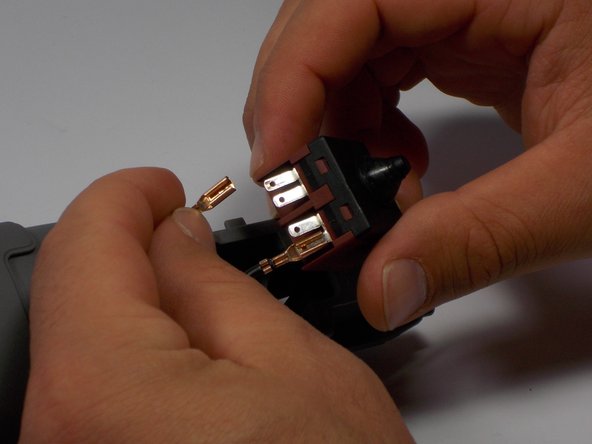
Using your fingers, carefully remove each of the gold terminals from the power switch. You may need to gently wiggle the terminal back and forth in order to remove it.
-
-


To reassemble your device, follow these instructions in reverse order.

Team

UMass Dartmouth, Team 2-2, Isaacson Spring 2016 Member of UMass Dartmouth, Team 2-2, Isaacson Spring 2016
UMASSD-ISAACSON-S16S2G2
3 Members
60 Guides authored
