
Polaroid One-Step 600 Lens Replacement

Doug Jimenez and 4 other contributors
Last updated on Mar 7, 2024
Views: 18K
View statistics:
- Past 24 Hours:
- 2
- Past 7 Days:
- 24
- Past 30 Days:
- 136
- All Time:
- 17,695
Comments: 2
2 guide comments.
Go to guide commentsCompleted: 8 9
8 people have marked this guide "completed." Will you be next?
9 people have marked this guide "completed." Including you — great job!
Favorites: 4 5
4 people have favorited (and subscribed to) this guide. Will you be next?
5 people have favorited (and subscribed to) this guide — including you!
Introduction
Go to step 1 ↓This guide will show you how to replace the lens on your Polaroid camera if it breaks or gets scratched. However, you should be careful with your Polaroid, as the plastic is very fragile.


-
-
-
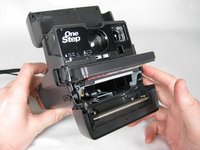
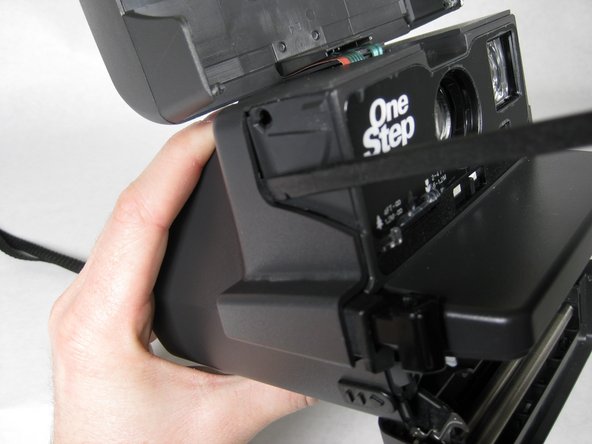
Open the flash compartment of the camera so it makes a 30 degree angle with the horizontal.
 Ask FixBot
-
-
-
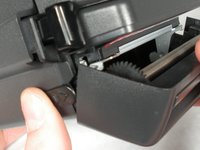
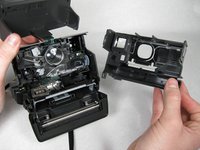
Separate the flash section of the camera from the main body by unhooking the sides with the spudger.
-
-
-
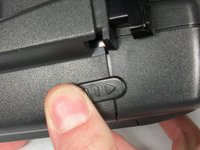
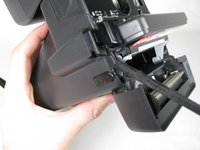
Fully open the battery/ cartridge compartment by sliding the side tab toward you.
-
-
-
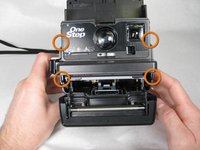
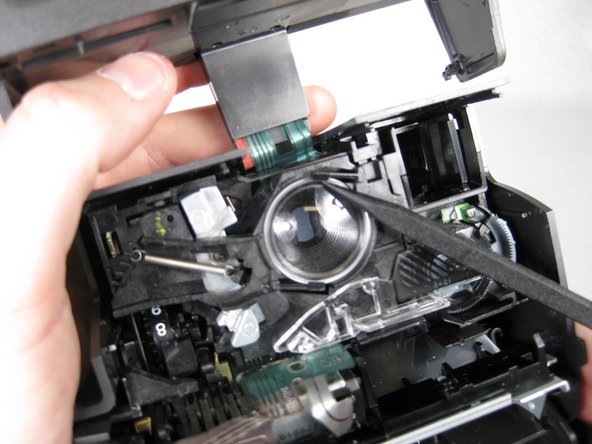
Insert spudger in between face of camera and sides where the four tabs are located.
-
-
-
-
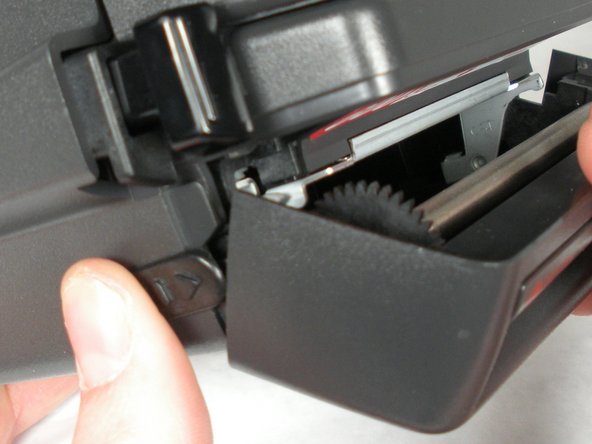
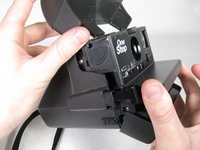
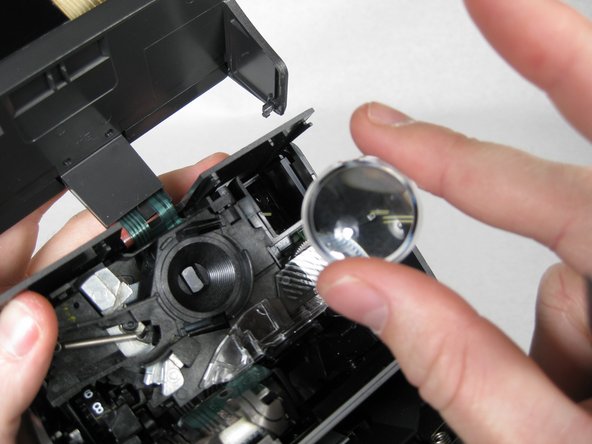
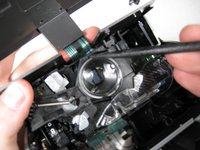
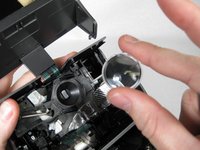
Carefully use spudger to release lens, then lift lens out of camera with fingers.
-
-
Tool used on this step:Microfiber Cleaning Cloths$3.99
-
Clean old lens with a microfiber cloth or get a new lens to put back into the camera.
-
-











To reassemble your device, follow these instructions in reverse order.
Cancel: I did not complete this guide.
8 other people completed this guide.

Team

Cal Poly, Team 16-31, Maness Winter 2010 Member of Cal Poly, Team 16-31, Maness Winter 2010
CPSU-MANESS-W10S16G31
4 Members
48 Guides authored
2 Guide Comments
Hi, since you seem to know stuff about Polaroid cameras, I was wondering if you could help me figure out what is wrong with mine. I have a Polaroid Instant One-Step and whenever I take pictures, they never fully develop. They are a blue-ish hue and are never clear. Is this because of the lens do you think? Or something completely different?
Thanks
Hello, I know this is sort of an old post, but it was updated fairly recently, so I thought I'd try.
Two questions: What is the function of the small striped part shown in picture 2 of step 5 and picture 1 of step 6? It appears to move with the brightness (exposure?) slider below the lens. Moving it towards the lighter side (right) moves the thicker stripes to cover that area more, and moving it to the darker side (left) moves the thinner stripes over the area, eventually leaving no stripes. Is it used for the camera's circuitry to adjust how long the shutter stays open when a photo is taken?
For a second question, what is the hole under the viewfinder for? It looks like it's a very basic "brightness indicator" you can look through to gauge whether the brightness of your photo will be bright enough; then again, that poses more questions, like, how bright is "bright enough." Thought I'd come ask you guys if anyone here knew. From what I've found, there aren't many people inquiring about its function.
