Free Shipping on Domestic Orders $75+

PocketBook Verse PB629 Screen Replacement

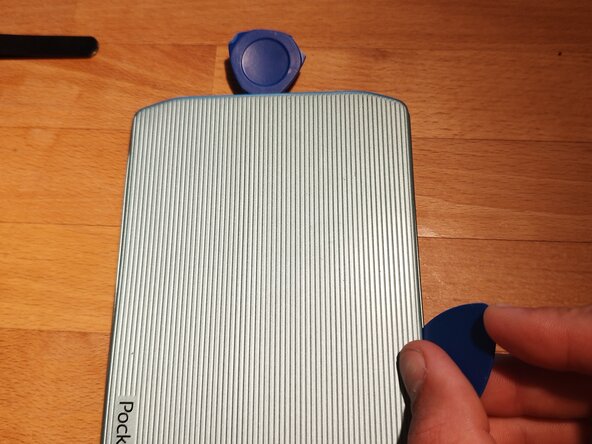
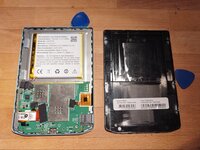
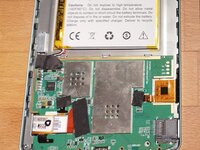
  1. PocketBook Verse PB629 Screen Replacement, Remove back cover: step 1, image 1 of 2 PocketBook Verse PB629 Screen Replacement, Remove back cover: step 1, image 2 of 2
    • Pry open with picks or plastic cards.

    • Some force is need. Try pulling outwards to unleash the hooks. Start on one side and work your way around leaving picks in.

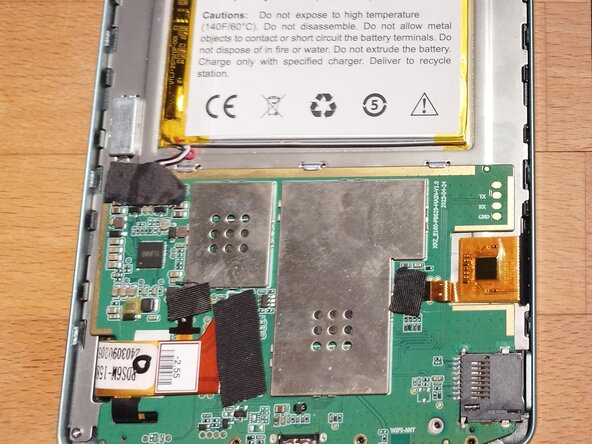
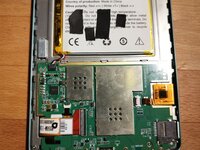
  2. PocketBook Verse PB629 Screen Replacement, Romove connectors covers: step 2, image 1 of 2 PocketBook Verse PB629 Screen Replacement, Romove connectors covers: step 2, image 2 of 2
    • Remove all covers of the connectors.

  3. PocketBook Verse PB629 Screen Replacement, Remove battery connector: step 3, image 1 of 3 PocketBook Verse PB629 Screen Replacement, Remove battery connector: step 3, image 2 of 3 PocketBook Verse PB629 Screen Replacement, Remove battery connector: step 3, image 3 of 3
    • Lift up the connector from the top.

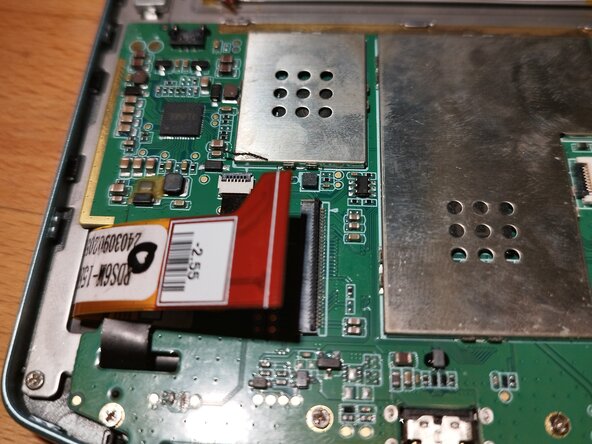
  4. PocketBook Verse PB629 Screen Replacement, Remove Screen connector: step 4, image 1 of 3 PocketBook Verse PB629 Screen Replacement, Remove Screen connector: step 4, image 2 of 3 PocketBook Verse PB629 Screen Replacement, Remove Screen connector: step 4, image 3 of 3
    • Flip up the black switch.

    • Pull out the flexcable.

  5. PocketBook Verse PB629 Screen Replacement, Remove back lighting connector: step 5, image 1 of 3 PocketBook Verse PB629 Screen Replacement, Remove back lighting connector: step 5, image 2 of 3 PocketBook Verse PB629 Screen Replacement, Remove back lighting connector: step 5, image 3 of 3
    • Flip up the black switch.

    • Pull out the flexcable.

  6. PocketBook Verse PB629 Screen Replacement, Remove touch screen connector: step 6, image 1 of 3 PocketBook Verse PB629 Screen Replacement, Remove touch screen connector: step 6, image 2 of 3 PocketBook Verse PB629 Screen Replacement, Remove touch screen connector: step 6, image 3 of 3
    • Flick black switch

    • Pull out the flexcable.

  7. PocketBook Verse PB629 Screen Replacement, Pull out the board: step 7, image 1 of 3 PocketBook Verse PB629 Screen Replacement, Pull out the board: step 7, image 2 of 3 PocketBook Verse PB629 Screen Replacement, Pull out the board: step 7, image 3 of 3
    • Unscrew the screws of the board

    • Pry out the board starting from the bottom.

    • Carefully pull out the flex cables.

  8. PocketBook Verse PB629 Screen Replacement, Unscrew: step 8, image 1 of 1
    • Unscrew

  9. PocketBook Verse PB629 Screen Replacement, Bend Flexcable: step 9, image 1 of 2 PocketBook Verse PB629 Screen Replacement, Bend Flexcable: step 9, image 2 of 2
    • Bend away flex cable, so that we are free for the next step.

  10. PocketBook Verse PB629 Screen Replacement, Remove back cover of screen: step 10, image 1 of 3 PocketBook Verse PB629 Screen Replacement, Remove back cover of screen: step 10, image 2 of 3 PocketBook Verse PB629 Screen Replacement, Remove back cover of screen: step 10, image 3 of 3
    • Pry open the back cover, starting from one side.

    • Use a lot of isopropyl alcohol to soften the glue.

    • Use cotton pads to spread the isoprop under the screen.

  11. PocketBook Verse PB629 Screen Replacement, Remove the screen from the frame: step 11, image 1 of 3 PocketBook Verse PB629 Screen Replacement, Remove the screen from the frame: step 11, image 2 of 3 PocketBook Verse PB629 Screen Replacement, Remove the screen from the frame: step 11, image 3 of 3
    • Use isoprop to loosen the glue between screen and frame.

    • Push from the front to get the screen out.

  12. PocketBook Verse PB629 Screen Replacement, Replacement parts: step 12, image 1 of 1
    • Search for replacement parts with following properties:

    • Suitable for Pocketbook verse PB692

    • Screen ED060XCG,ED060XCH or similar

    • Three flexcables!!! (only two and the touch or the backlight will not work)

    • The small flexcable on the right, for touchscreen has to read FT6336U as other protocols will also not work.

Conclusion

To reassemble your device, follow these instructions in reverse order.

LStrong

Member since: 09/12/25

445 Reputation

3 Guides authored

0 Guide Comments

Add Comment

View Statistics:

Past 24 Hours: 2

Past 7 Days: 17

Past 30 Days: 83

All Time: 540