Free Shipping on Domestic Orders $75+

Panasonic Toughbook CF-29 Wireless Card Replacement

What you need

    1. Panasonic Toughbook CF-29 Wireless Card Replacement, Battery: step 1, image 1 of 1
      • Locate the bay door for the battery on the left side of the laptop.

      Ask FixBot

      Add Comment

    2. Panasonic Toughbook CF-29 Wireless Card Replacement: step 2, image 1 of 2 Panasonic Toughbook CF-29 Wireless Card Replacement: step 2, image 2 of 2
      • Slide the latch to the right and then down to unlock it.

      • Pull out the battery.

      Ask FixBot

      Add Comment

    1. Panasonic Toughbook CF-29 Wireless Card Replacement, Back Cover: step 3, image 1 of 1
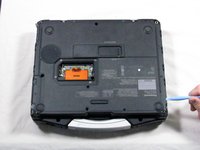
      • Begin by turning the laptop upside down with the handle towards you.

      • Use a Phillips size 0 screwdriver to remove the 4 screws holding down the ram cover.

      Ask FixBot

      Add Comment

    2. Panasonic Toughbook CF-29 Wireless Card Replacement: step 4, image 1 of 1
      • Remove the panel and set it aside.

      • Use a Phillips size 0 screwdriver to remove these 8 small screws.

      Ask FixBot

      Add Comment

    3. Panasonic Toughbook CF-29 Wireless Card Replacement: step 5, image 1 of 1
      • Use a Phillips size 1 screwdriver to remove the remaining 8 screws.

      Ask FixBot

      Add Comment

    4. Panasonic Toughbook CF-29 Wireless Card Replacement: step 6, image 1 of 2 Panasonic Toughbook CF-29 Wireless Card Replacement: step 6, image 2 of 2
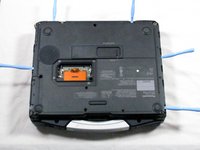
      • Use a plastic opening tool to release, but NOT remove, the back cover because it is sealed with adhesive.

      Ask FixBot

      Add Comment

    5. Panasonic Toughbook CF-29 Wireless Card Replacement: step 7, image 1 of 1
      • Be careful when lifting the cover as you may damage some connections.

      • Slowly lift the cover so that you can disconnect the red and white wires connecting the speaker to the sound card.

      Ask FixBot

      Add Comment

    6. Panasonic Toughbook CF-29 Wireless Card Replacement: step 8, image 1 of 1
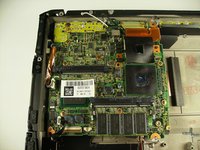
      • Now the back cover should be off and you can access the inside of the casing.

      Ask FixBot

      Add Comment

    1. Panasonic Toughbook CF-29 Wireless Card Replacement, Wireless Card: step 9, image 1 of 1
      • Remove the black and white wires attached to the wireless card by simply pulling up.

      Ask FixBot

      Add Comment

    2. Panasonic Toughbook CF-29 Wireless Card Replacement: step 10, image 1 of 1
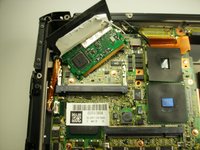
      • Peel back the black cover to expose the clips holding in the wireless card.

      Ask FixBot

      Add Comment

    3. Panasonic Toughbook CF-29 Wireless Card Replacement: step 11, image 1 of 1
      • Using a pair of plastic opening tools, push the two metal tabs away from the card.

      Ask FixBot

      Add Comment

    4. Panasonic Toughbook CF-29 Wireless Card Replacement: step 12, image 1 of 2 Panasonic Toughbook CF-29 Wireless Card Replacement: step 12, image 2 of 2
      • The wireless card should now easily disengage from the motherboard.

      • Pull the card horizontally away from you to remove it from its housing.

      Ask FixBot

      Add Comment

Conclusion

To reassemble your device, follow these instructions in reverse order.

Cancel: I did not complete this guide.

2 other people completed this guide.

Devon Augustus

Member since: 04/12/10

130 Reputation

2 Guides authored

Team

Cal Poly, Team 27-93, Amido Spring 2010 Member of Cal Poly, Team 27-93, Amido Spring 2010

CPSU-AMIDO-S10S27G93

4 Members

144 Guides authored

1 Guide Comment

what about the heatsinks of the processors? You don't fix the contact surface to the cover?

michael - Reply Share

Add Comment

View Statistics:

Past 24 Hours: 0

Past 7 Days: 20

Past 30 Days: 55

All Time: 15,613