Free Shipping on Domestic Orders $75+

Panasonic Toughbook CF-29 Optical Drive Replacement

    1. Panasonic Toughbook CF-29 Optical Drive Replacement, Battery: step 1, image 1 of 1
      • Locate the bay door for the battery on the left side of the laptop.

      Ask FixBot

      Add Comment

    2. Panasonic Toughbook CF-29 Optical Drive Replacement: step 2, image 1 of 2 Panasonic Toughbook CF-29 Optical Drive Replacement: step 2, image 2 of 2
      • Slide the latch to the right and then down to unlock it.

      • Pull out the battery.

      Ask FixBot

      Add Comment

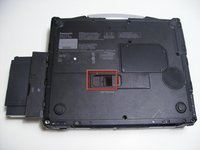
    1. Panasonic Toughbook CF-29 Optical Drive Replacement, Optical Drive: step 3, image 1 of 1
      • Flip the device upside down with the handle facing away from you.

      • Open the optical drive bay by sliding its latch to the right.

      • Locate optical drive release mechanism on the bottom of the laptop.

      Ask FixBot

      Add Comment

    2. Panasonic Toughbook CF-29 Optical Drive Replacement: step 4, image 1 of 1
      • Slide the latch cover to the right.

      Ask FixBot

      Add Comment

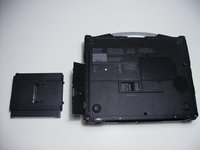
    3. Panasonic Toughbook CF-29 Optical Drive Replacement: step 5, image 1 of 2 Panasonic Toughbook CF-29 Optical Drive Replacement: step 5, image 2 of 2
      • Push the exposed switch to the left to eject the optical drive.

      Ask FixBot

      Add Comment

Conclusion

To reassemble your device, follow these instructions in reverse order.

Cancel: I did not complete this guide.

2 other people completed this guide.

Clint Kirsop

Member since: 04/13/10

109 Reputation

4 Guides authored

Team

Cal Poly, Team 27-93, Amido Spring 2010 Member of Cal Poly, Team 27-93, Amido Spring 2010

CPSU-AMIDO-S10S27G93

4 Members

144 Guides authored

1 Guide Comment

What kind of USB enclosure would this fit in?

Terence Higgins - Reply Share

Add Comment

View Statistics:

Past 24 Hours: 0

Past 7 Days: 7

Past 30 Days: 42

All Time: 7,411