Free Shipping on Domestic Orders $75+

Panasonic Toughbook CF-29 Keyboard Replacement

What you need

    1. Panasonic Toughbook CF-29 Keyboard Replacement, Battery: step 1, image 1 of 1
      • Locate the bay door for the battery on the left side of the laptop.

      Ask FixBot

      Add Comment

    2. Panasonic Toughbook CF-29 Keyboard Replacement: step 2, image 1 of 2 Panasonic Toughbook CF-29 Keyboard Replacement: step 2, image 2 of 2
      • Slide the latch to the right and then down to unlock it.

      • Pull out the battery.

      Ask FixBot

      Add Comment

    1. Panasonic Toughbook CF-29 Keyboard Replacement, Keyboard: step 3, image 1 of 1
      • Remove the four screws above the keyboard using a Phillips #0 screwdriver.

      Ask FixBot

      Add Comment

    2. Panasonic Toughbook CF-29 Keyboard Replacement: step 4, image 1 of 1
      • Pry up the black panel covering the top of the keyboard.

      Ask FixBot

      Add Comment

    3. Panasonic Toughbook CF-29 Keyboard Replacement: step 5, image 1 of 1
      • Remove the five silver screws shown.

      Ask FixBot

      Add Comment

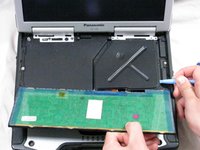
    4. Panasonic Toughbook CF-29 Keyboard Replacement: step 6, image 1 of 1
      • Pull up keyboard and place it face down on the trackpad

      • Be careful not to put tension in the ribbon cables attached to the underside of the keyboard

      Ask FixBot

      Add Comment

    5. Panasonic Toughbook CF-29 Keyboard Replacement: step 7, image 1 of 1
      • Remove screws shown from cover plate

      Ask FixBot

      Add Comment

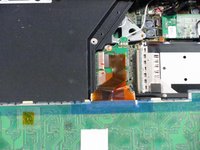
    6. Panasonic Toughbook CF-29 Keyboard Replacement: step 8, image 1 of 2 Panasonic Toughbook CF-29 Keyboard Replacement: step 8, image 2 of 2
      • Pull cover plate out of place revealing the ribbon cable connections to the motherboard

      Ask FixBot

      Add Comment

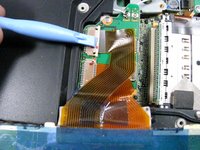
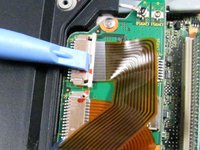
    7. Panasonic Toughbook CF-29 Keyboard Replacement: step 9, image 1 of 2 Panasonic Toughbook CF-29 Keyboard Replacement: step 9, image 2 of 2
      • Remove the ribbon cable farthest from you.

      • Push the white tab (as shown in the second photo) to release the ribbon cable.

      Ask FixBot

      Add Comment

    8. Panasonic Toughbook CF-29 Keyboard Replacement: step 10, image 1 of 1
      • Remove both ribbon cable by pulling 2 white tabs on either side of the cable to the right

      Ask FixBot

      Add Comment

Conclusion

To reassemble your device, follow these instructions in reverse order.

Cancel: I did not complete this guide.

3 other people completed this guide.

Dylan Bloom

Member since: 04/12/10

373 Reputation

4 Guides authored

Team

Cal Poly, Team 27-93, Amido Spring 2010 Member of Cal Poly, Team 27-93, Amido Spring 2010

CPSU-AMIDO-S10S27G93

4 Members

144 Guides authored

1 Guide Comment

When replacing the KB, don'f forget the double sided fiberglass tape. The regular CF-29 KB is a backbone of thin aluminum sheeting, Most likely when you "pop" off the KB, its likely to bend. When you install a bent KB, it bounces when you type. Bend it back and tape it down with new tape. With the CF-30, removing that KB is totally different. Its locked down by brackets, not taped. You need to slide it forward unlocking it before popping it off, otherwise your KB keys start breaking. Be soft and confident, because you bet one chance to do it correctly. Sponsored by Black Hawk Toughbooks.

Black Hawk - Reply Share

Add Comment

View Statistics:

Past 24 Hours: 2

Past 7 Days: 8

Past 30 Days: 53

All Time: 17,888