Free Shipping on Domestic Orders $75+

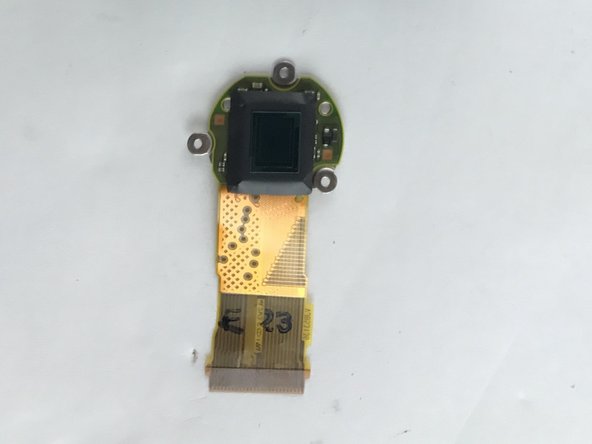
Panasonic Lumix DMC-ZS40 Camera Sensor Replacement

Views: 1.8K

View statistics:

Past 24 Hours:
4
Past 7 Days:
19
Past 30 Days:
96
All Time:
1,755
Comments: 2

1 comment on steps, 1 guide comment.

Go to guide comments
Completed: 1

1 person has marked this guide "completed." Will you be next?

Favorites: 0

No one has favorited (and subscribed to) this guide. Will you be the first?

Time Required: 35 minutes
Difficulty: Moderate
Panasonic Lumix DMC-ZS40 Camera Sensor Replacement

Introduction

Go to step 1 ↓

You may need to replace or clean your Panasonic Lumix DMC-ZS40 Camera Sensor if splotches/dirt are appearing in your photos, or if the LCD screen remains black when attempting to take photos.

What you need

Tools

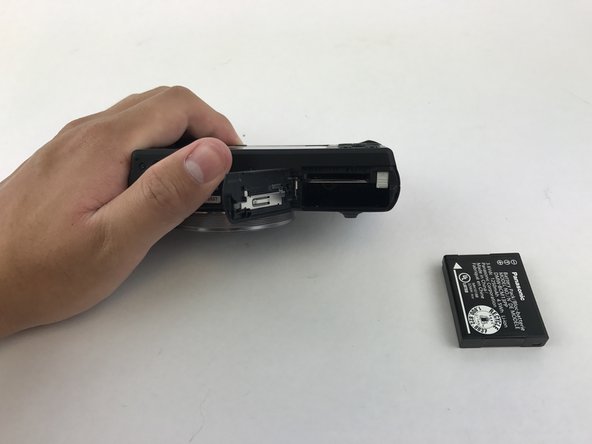
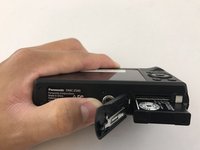
    1. Panasonic Lumix DMC-ZS40 Camera Sensor Replacement, Battery: step 1, image 1 of 2 Panasonic Lumix DMC-ZS40 Camera Sensor Replacement, Battery: step 1, image 2 of 2
      • Find the battery/memory card door on the bottom right of the camera.

      • Use your finger or screw driver to slide the grey latch from the locked position to the open position. This will swing open the door.

      Ask FixBot

      Add Comment

    2. Panasonic Lumix DMC-ZS40 Camera Sensor Replacement: step 2, image 1 of 1
      • Push up on the right-hand-side tab to release the battery.

      Ask FixBot

      Add Comment

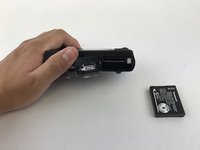
    3. Panasonic Lumix DMC-ZS40 Camera Sensor Replacement: step 3, image 1 of 2 Panasonic Lumix DMC-ZS40 Camera Sensor Replacement: step 3, image 2 of 2
      • Remove battery from camera.

      Ask FixBot

      Add Comment

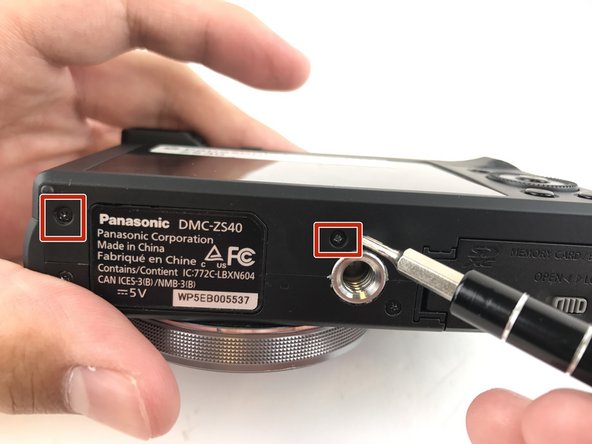
    1. Panasonic Lumix DMC-ZS40 Camera Sensor Replacement, Camera Sensor: step 4, image 1 of 3 Panasonic Lumix DMC-ZS40 Camera Sensor Replacement, Camera Sensor: step 4, image 2 of 3 Panasonic Lumix DMC-ZS40 Camera Sensor Replacement, Camera Sensor: step 4, image 3 of 3
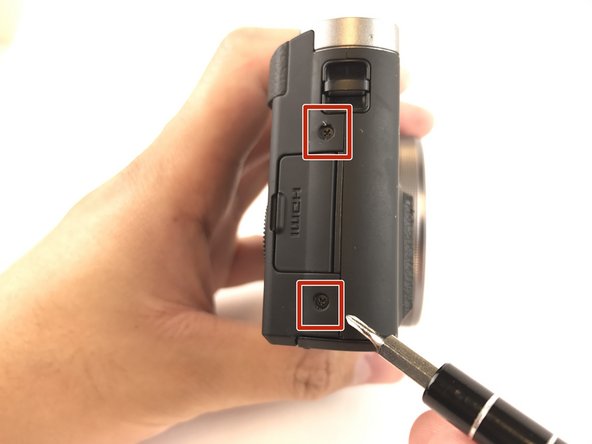
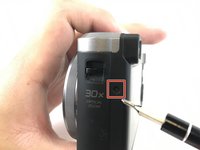
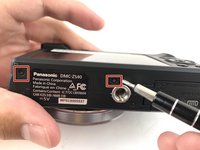
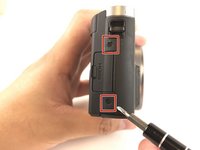
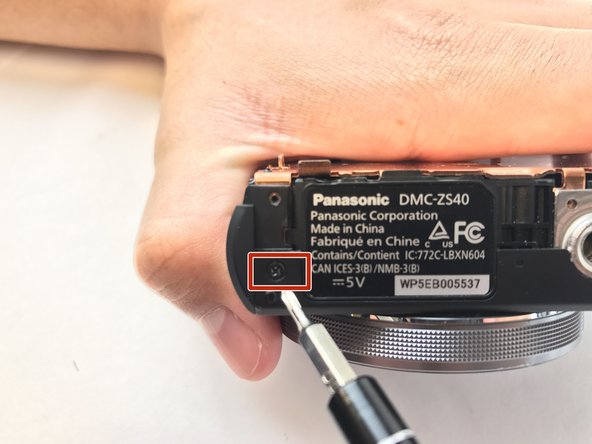
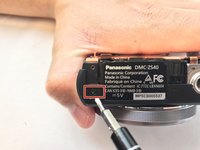
      • Unscrew these five 3mm screws located around the sides of the camera using a screw driver with a PH000 bit head.

      Ask FixBot

      Add Comment

    2. Panasonic Lumix DMC-ZS40 Camera Sensor Replacement: step 5, image 1 of 2 Panasonic Lumix DMC-ZS40 Camera Sensor Replacement: step 5, image 2 of 2
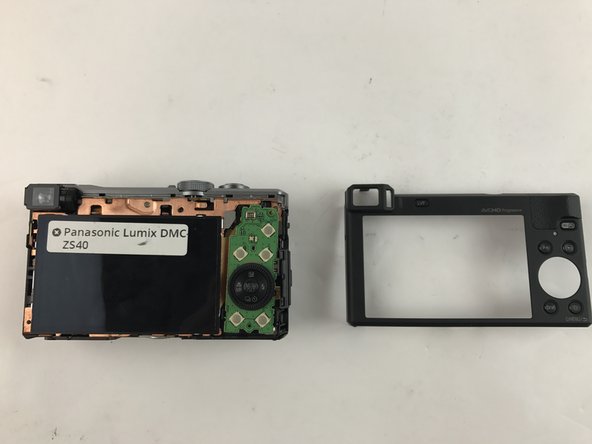
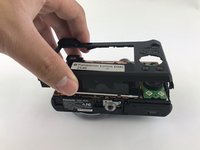
      • Pry off the back casing of the camera and place the camera face down.

      Ask FixBot

      Add Comment

    3. Panasonic Lumix DMC-ZS40 Camera Sensor Replacement: step 6, image 1 of 1
      • Flip the right hand side control dial circuit board up.

      Ask FixBot

      Add Comment

    4. Panasonic Lumix DMC-ZS40 Camera Sensor Replacement: step 7, image 1 of 3 Panasonic Lumix DMC-ZS40 Camera Sensor Replacement: step 7, image 2 of 3 Panasonic Lumix DMC-ZS40 Camera Sensor Replacement: step 7, image 3 of 3
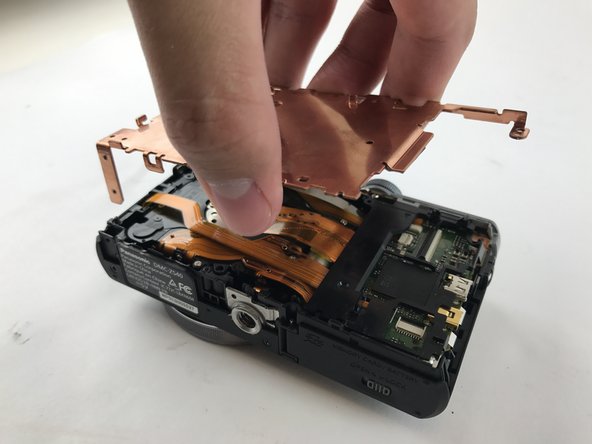
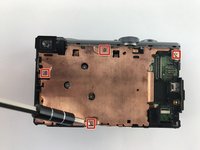
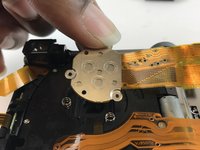
      • Place the LCD screen to the side while you remove the plate cover. The LCD has already been removed in this picture. It is not necessary to remove the LCD screen or the control dial for this guide.

      • Remove these four 4mm screws and the 3mm screw on the top of the plate cover and on the side of the camera using a PH000 bit head. Once the screws are removed, the plate cover should lift right up.

      • Keep track of the different screw lengths and do not mix them up.

      Ask FixBot

      Add Comment

    5. Panasonic Lumix DMC-ZS40 Camera Sensor Replacement: step 8, image 1 of 1
      Tool used on this step:
      Tweezers
      $4.99
      Buy
      • Remove the ribbon cable connecting the sensor to the motherboard. Use tweezers or a screw driver to lift up on the retaining flap of the ZIF connector to remove the cable.

      Ask FixBot

      Add Comment

    6. Panasonic Lumix DMC-ZS40 Camera Sensor Replacement: step 9, image 1 of 1
      • Using the T3 Phillips Screwdriver, unscrew the three Torx T3 2.5mm screws holding the sensor down.

      Ask FixBot

      Add Comment

    7. Panasonic Lumix DMC-ZS40 Camera Sensor Replacement: step 10, image 1 of 2 Panasonic Lumix DMC-ZS40 Camera Sensor Replacement: step 10, image 2 of 2
      • Gently lift the sensor off of the springs.

      Ask FixBot

      Add Comment

Conclusion

To reassemble your device, follow these instructions in reverse order.

Cancel: I did not complete this guide.

One other person completed this guide.

Dean Favetta

Member since: 02/14/17

340 Reputation

3 Guides authored

Team

USF Tampa, Team 20-3, Remmell Spring 2017 Member of USF Tampa, Team 20-3, Remmell Spring 2017

USFT-REMMELL-S17S20G3

3 Members

60 Guides authored

1 Guide Comment

After the CCD is replaced, how do you adjust the 3 torx screws, so the ccd is in alignment? After the replacement the right side of my pictures are out of focus.

resufix888 - Reply Share

Add Comment

View Statistics:

Past 24 Hours: 4

Past 7 Days: 19

Past 30 Days: 96

All Time: 1,755