
Panasonic CF-31 Toughbook Keyboard Replacement

Richard Gill and
Last updated on May 21, 2019
Views: 3.9K
View statistics:
- Past 24 Hours:
- 3
- Past 7 Days:
- 21
- Past 30 Days:
- 100
- All Time:
- 3,859
Comments: 0
No one has left comments on this guide. Will you be first?
Go to guide commentsCompleted: 0 1
No one has marked this guide "completed." Will you be the first?
1 person has marked this guide "completed." It's you — great job!
Favorites: 1 2
1 person has favorited (and subscribed to) this guide. Will you be next?
2 people have favorited (and subscribed to) this guide — including you!
What you need


Introduction
Go to step 1 ↓This is a guide for replacing a keyboard on the Panasonic CF-31 Toughbook laptop. The Panasonic CF-31 laptop is a fully rugged laptop designed to operate in environments not suitable for your normal laptop, such as extreme heat and cold, rain, dust, and a drop from a height of six feet or under. These conditions can cause components like the keyboard to malfunction, causing a need to repair or replace the keyboard. This repair guide will outline the steps to replacing the keyboard on the Panasonic CF-31 Laptop, the tools needed, and a list of parts needed to complete the repair.
-
-
-
Open the battery compartment by pulling the tab forward and then down.
-
Open the compartment door by pushing down.
-
Use the plastic tab to pull the battery out of the compartment.
 Ask FixBot
-
-
-
Use a Phillips #2 screwdriver to remove the three screws from the bezel.
-
Use a nylon spudger to remove the bezel.
-
-
-
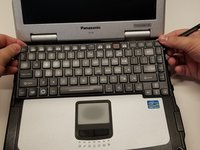
Use a nylon spudger to lift each corner of the keyboard.
-
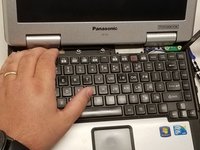
Use your hands and gently pull back to remove the keyboard.
-
-
-
-
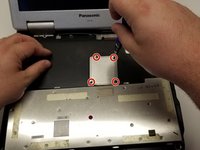
Use a Phillips # 2 screwdriver to remove the four screws securing the keyboard shield.
-
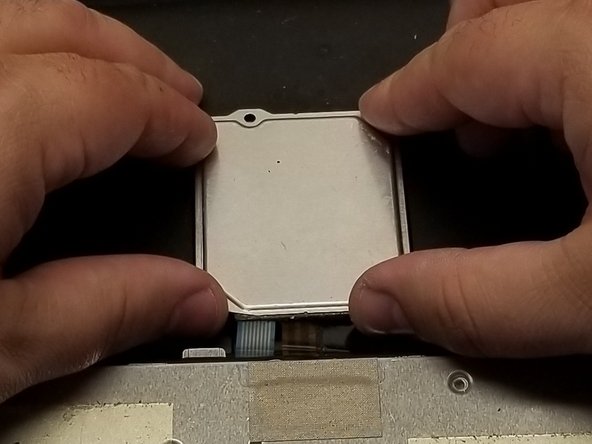
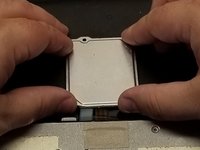
Remove the keyboard shield.
-
-
-
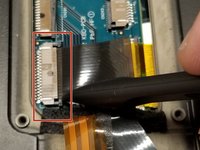
Remove the top left ribbon cable using a nylon spudger to pull the top and bottom tabs right.
-
-
-
Remove the top right ribbon cable using a nylon spudger and push the top and bottom tabs left.
-
-
-
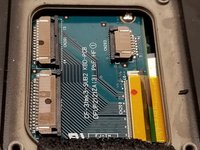
Remove the bottom left ribbon cable using a nylon spudger and push the top and bottom tabs right.
-
-





To reassemble the Panasonic CF-31 Toughbook Laptop, follow these instructions in reverse order.

Team

USF Sarasota-Manatee, Team S1-G1, Stewart Spring 2019 Member of USF Sarasota-Manatee, Team S1-G1, Stewart Spring 2019
USFSM-STEWART-S19S1G1
18 Members
156 Guides authored
