
Palm Treo Pro Keyboard Replacement

Dom Porcincula and 5 other contributors
Last updated on Feb 28, 2018
Views: 702
View statistics:
- Past 24 Hours:
- 2
- Past 7 Days:
- 6
- Past 30 Days:
- 37
- All Time:
- 702
Comments: 0
No one has left comments on this guide. Will you be first?
Go to guide commentsCompleted: 1 2
1 person has marked this guide "completed." Will you be next?
2 people have marked this guide "completed." Including you — great job!
Favorites: 0 1
No one has favorited (and subscribed to) this guide. Will you be the first?
1 person has favorited (and subscribed to) this guide — and that's you!
Needs Better Images
Better photos will improve this guide. Help out by taking, editing, or uploading new ones!
Step Trimmer
This guide has unnecessary steps. Trim them to be more concise!
Introduction
Go to step 1 ↓How to replace the keyboard on your Palm Treo Pro
What you need
Tools


-
-
-
-
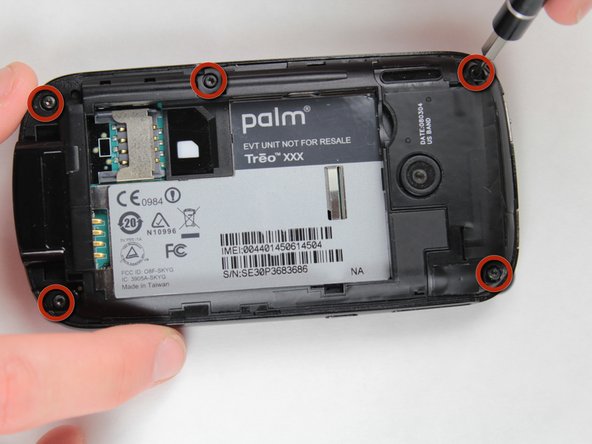
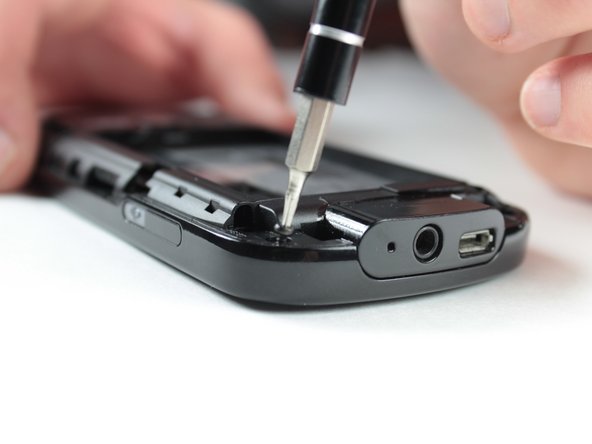
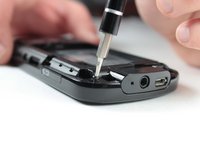
Use the Torx T5 screwdriver to remove the 5 visible 6mm screws on the back of the phone.
-
-
-
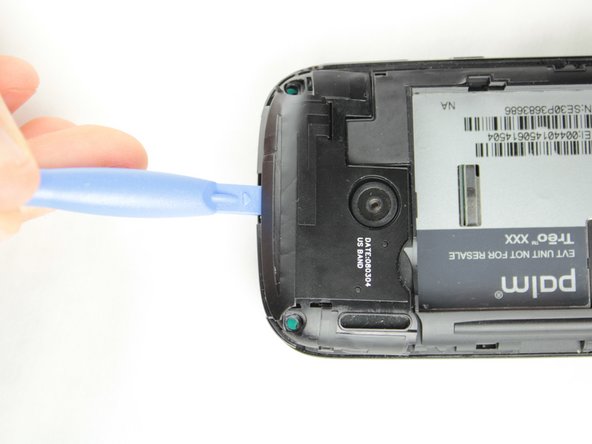
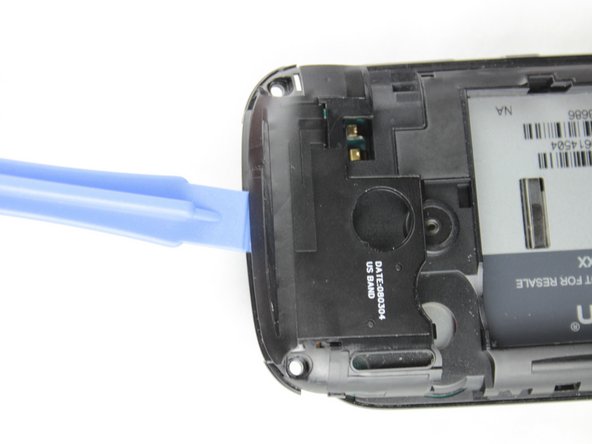
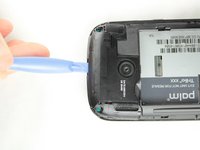
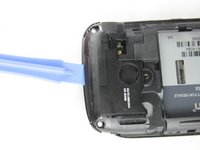
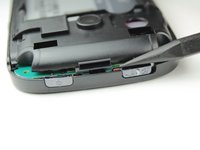
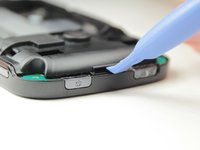
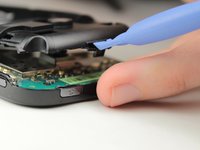
Use a plastic opening tool to remove the small panel on the top of the phone by prying underneath the black plastic around the camera.
-
-
-
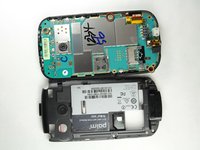
Remove the main plastic body
-
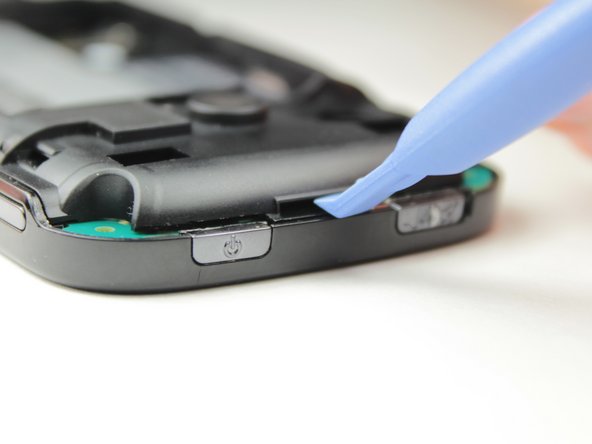
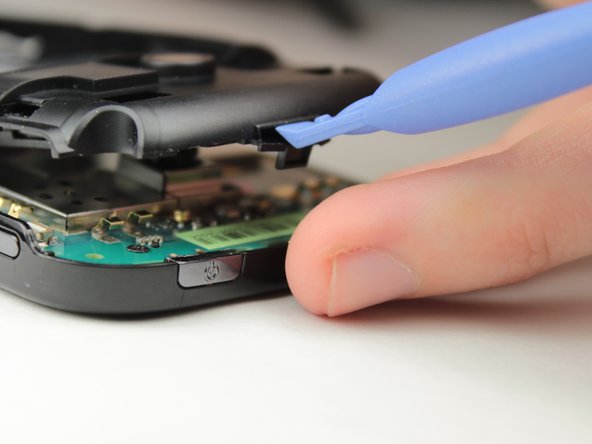
Insert the plastic opening tool into the slot on the top (indicated by the spudger) and pry the black part off phone.
-
-
-
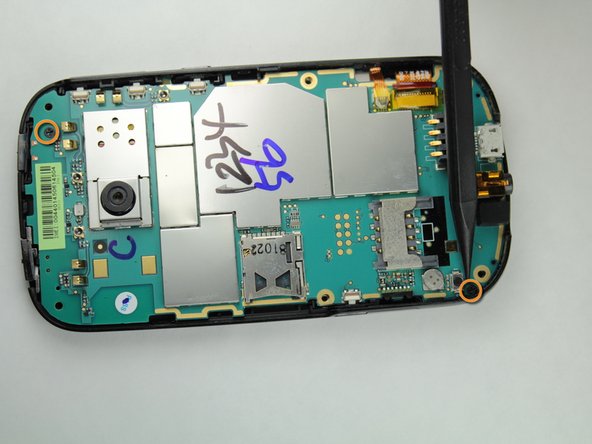
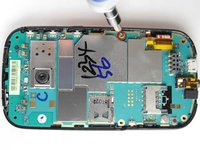
Use the Philips Head 00 screwdriver to unscrew the 3.5mm silver screw on the right hand side of the phone.
-
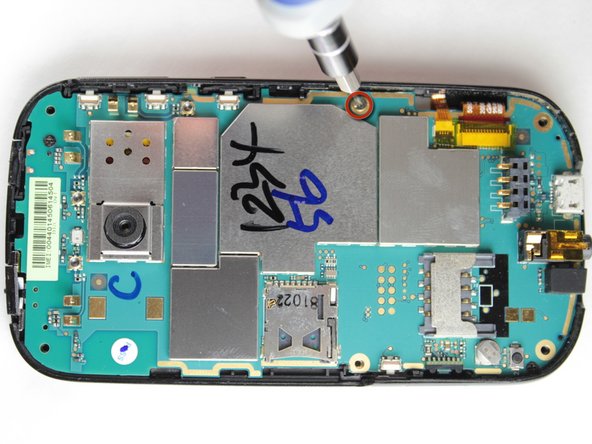
Use the Philips Head 00 screwdriver to unscrew the two 3mm black screws in the upper right and lower left corners of the motherboard.
-
-
Tool used on this step:Tweezers$4.99
-
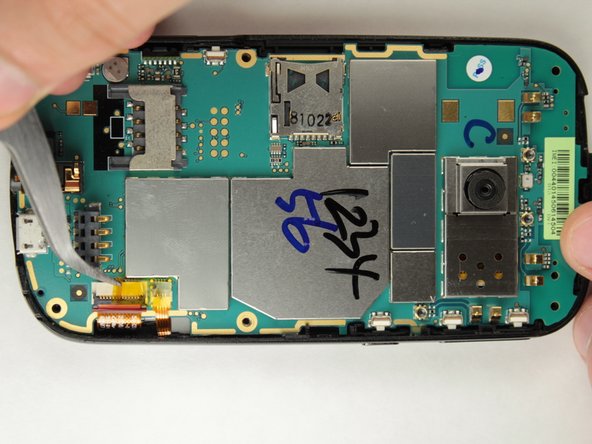
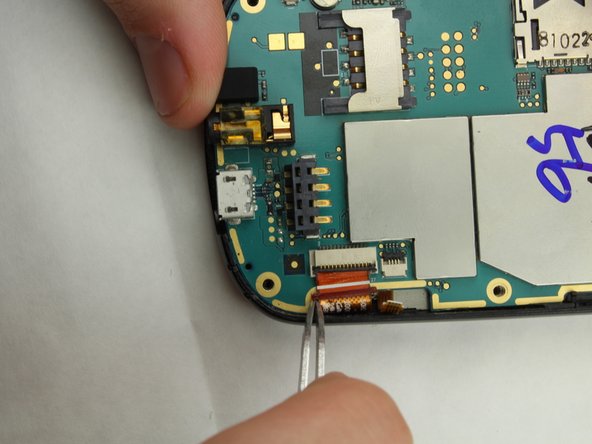
Use tweezers to carefully remove the yellow piece of tape covering the two ribbon cables.
-
-
-
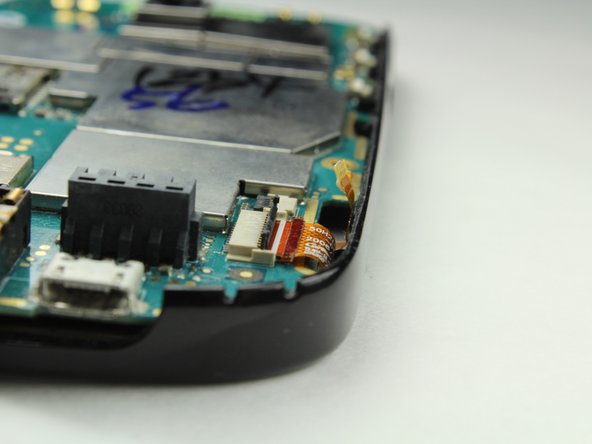
There are two ribbon cables under the yellow tape.
-
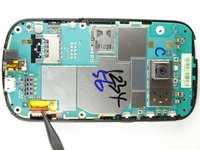
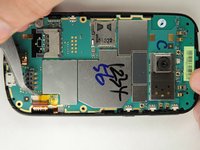
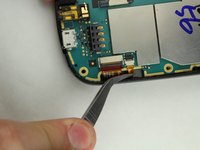
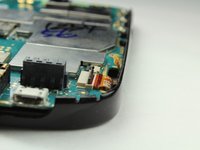
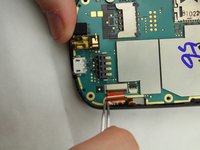
Use tweezers to safely unplug the small ribbon cable first and then the large ribbon cable.
-
-
-
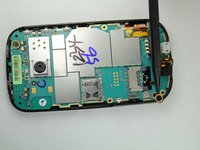
Use a plastic opening tool to lift the motherboard up and out of the phone case
-
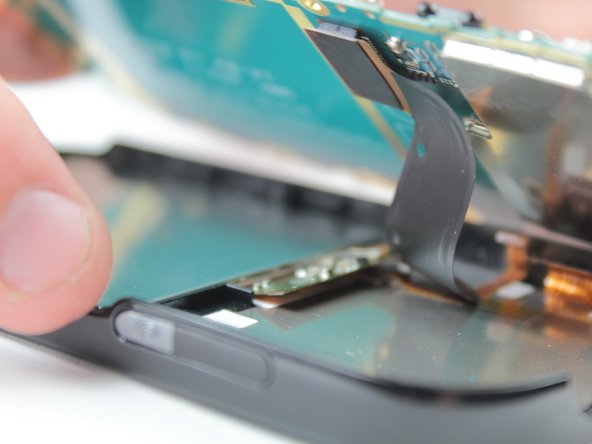
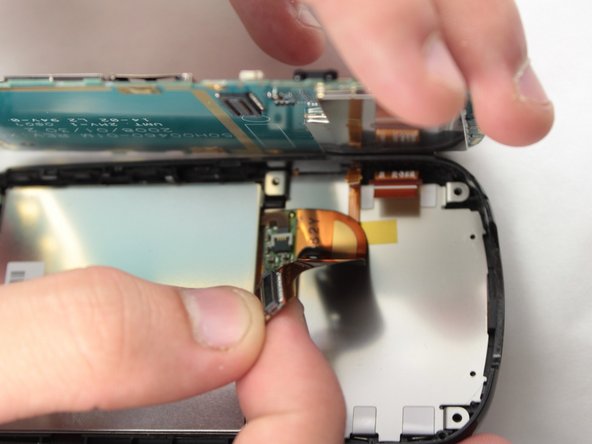
There is a black cable under the motherboard that must be disconnected while the motherboard is still in the phone
-
It can easily be disconnected with your fingers
-
The motherboard has now been completely removed
-
-
-
-
-
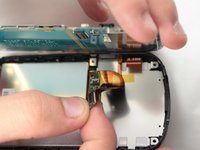
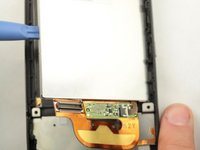
Use the plastic opening tool to pry the side of the display glass up so you can easily remove it with your hand.
-
-
-
-
-
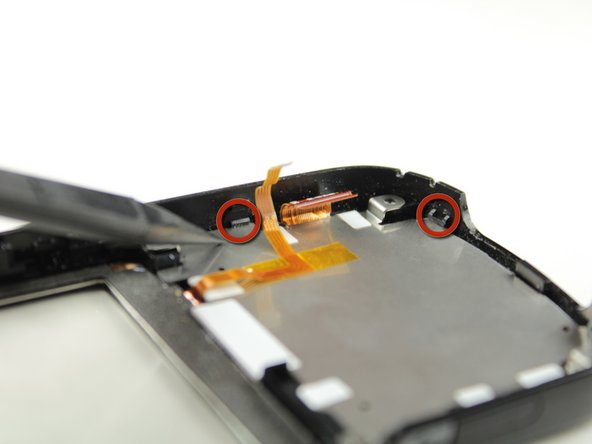
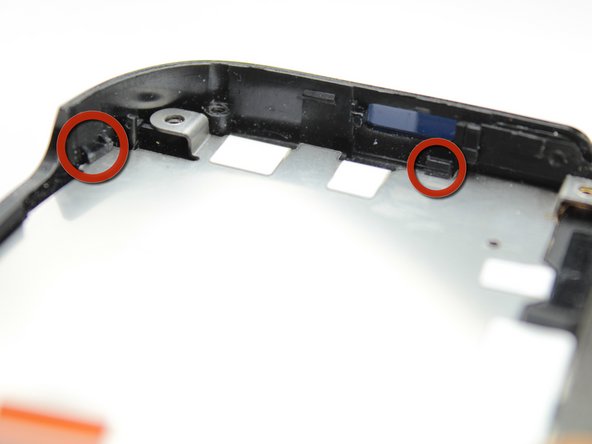
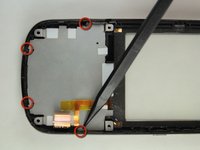
Locate the four tabs above the keyboard. The following steps will demonstrate how to remove the metal plate from the tabs, which will reveal the keyboard.
-
-
-
-
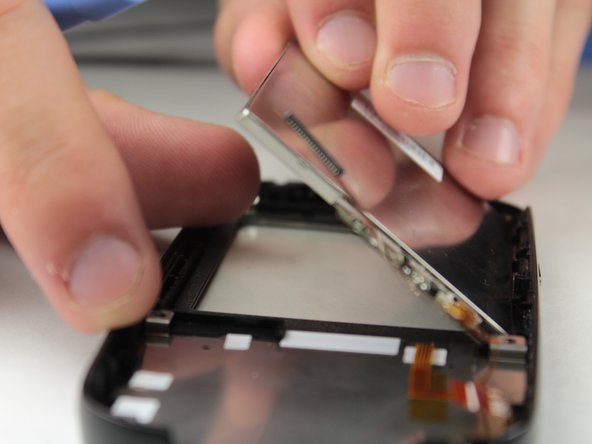
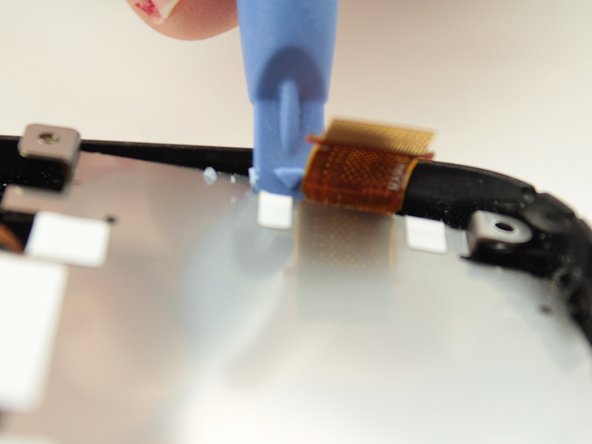
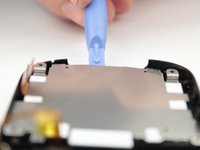
Insert plastic opening tool as shown and lift up to remove from tabs. You should hear a 'pop' and then feel the plate become loose.
-
-
-
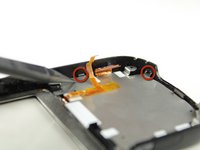
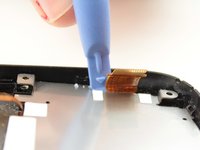
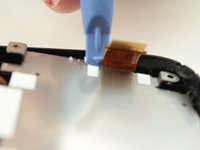
Insert plastic opening tool as shown and lift up to dislodge plate from tab.
-
-
-
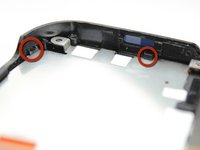
Insert the plastic opening tool between the metal plate and the bottom of the phone as shown. Note that for this step, inserting the plastic opening tool between the two circled tabs as shown will remove the plate from both of the tabs.
-
-
-
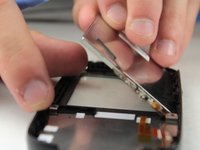
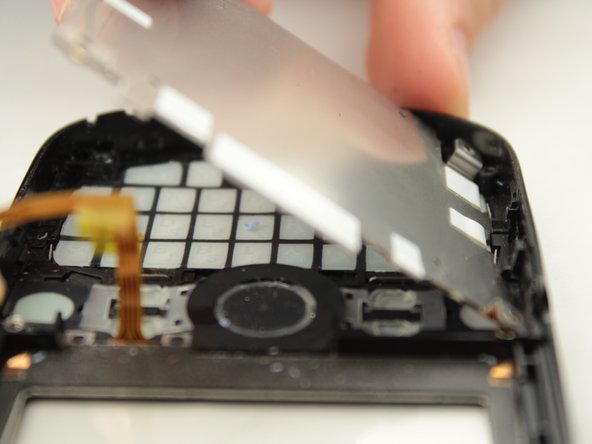
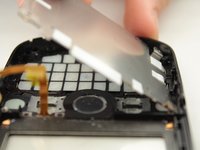
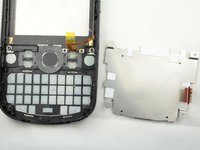
The metal plate should now be loose enough to where one can remove the metal plate with either the plastic opening tool or with one's hands. Remove the metal plate and the keyboard beneath it can be easily removed.
-
-
-
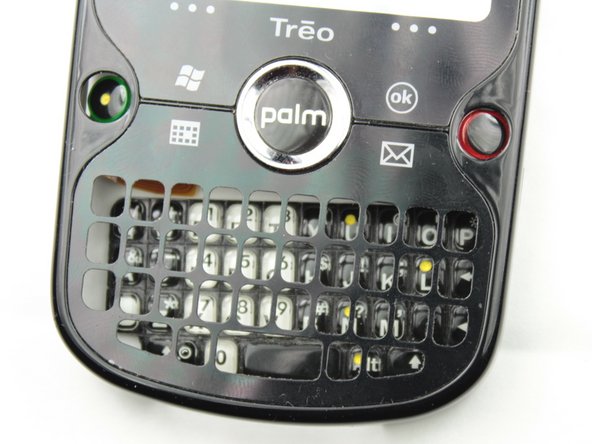
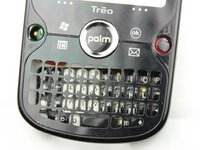
Rotate the phone cover so that the face of the cover is facing up as shown in picture two. The keyboard should fall out from the keyboard holes.
-
-


 Ask FixBot















To reassemble your device, follow these instructions in reverse order.
Cancel: I did not complete this guide.
One other person completed this guide.

Team

Cal Poly, Team 8-59, Johann Spring 2013 Member of Cal Poly, Team 8-59, Johann Spring 2013
CPSU-JOHANN-S13S8G59
4 Members
72 Guides authored
