
Packard Bell 4X4 Desktop Optical Drive Replacement

Brandon S and 3 other contributors
Last updated on Nov 8, 2016
Views: 1.7K
View statistics:
- Past 24 Hours:
- 2
- Past 7 Days:
- 13
- Past 30 Days:
- 83
- All Time:
- 1,705
Comments: 0
No one has left comments on this guide. Will you be first?
Go to guide commentsCompleted: 1 2
1 person has marked this guide "completed." Will you be next?
2 people have marked this guide "completed." Including you — great job!
Favorites: 1 2
1 person has favorited (and subscribed to) this guide. Will you be next?
2 people have favorited (and subscribed to) this guide — including you!
Community-Contributed Guide
An awesome member of our community made this guide. It was not created by iFixit staff.
Introduction
Go to step 1 ↓This guide will walk you through the process of replacing a bad optical drive in a Packard Bell 4x4 desktop.
What you need

-
-
-
Using a Phillips screwdriver, remove the three Phillips head screws (circled in red) from the back of the computer.
 Ask FixBot
-
-
-
With both hands on each side of the case, slide the top cover toward you. Lift it off the computer.
-
-
-
-
-
Remove the two Philips head screws with your Philips screwdriver. You may have to lubricate these screws as they can be very difficult to remove.
-
-
-
Remove the 1 Philips head screw from the left hand side of the case if there is one. Again, you may need to lubricate this screw.
-
-
-
Once the screws are removed, disconnect all cables from the optical drive, hard drive and floppy drive.
-
-
-
Slide the drive cage back. An easy way to do this is the push on the optical drive from the front.
-
-
-
-
-
-
Remove the 1 Philips head screw with your Phillips screwdriver. There should not be a screw in the right hole.
-
-
-
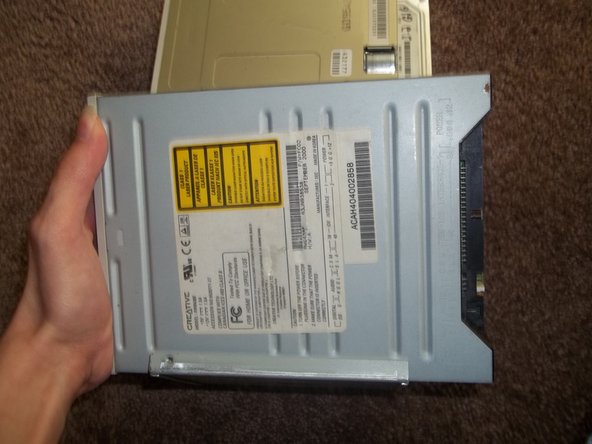
Slide the optical drive forward and lift it up from the right side, the side closest to the floppy drive.
-
-
-
Remove the 2 Philips head screws with your Philips screwdriver. Put these screws onto your new optical drive.
-
-



To reassemble your device, follow these instructions in reverse order.
Cancel: I did not complete this guide.
One other person completed this guide.


