Introduction
Are you having problems with the touchpad on your PSKONTORORA LBER-P4-05, such as it not responding to any input? Well not to worry, this easy-to-follow guide will allow you to check what is going on within the controller.
What you need
-
-
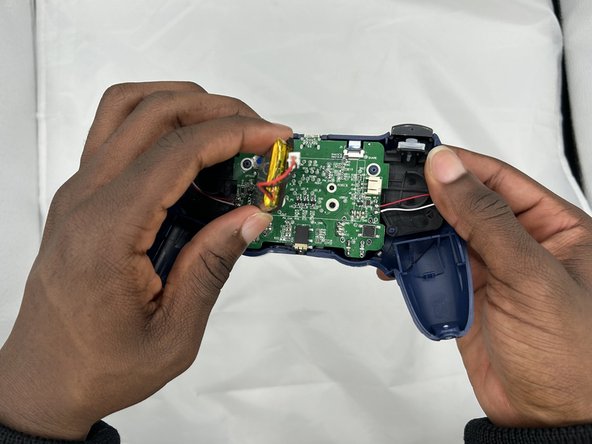
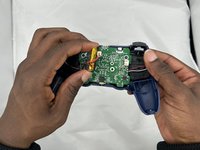
Use blunt tweezers to pull the white battery motherboard connector directly out of its port.
-
Gently peel the battery off of the motherboard.
 Ask FixBot
-
-
-
Remove the two 10 mm Phillips #1 screws that secure the grips.
-
Remove the grips.
-
-
-
-
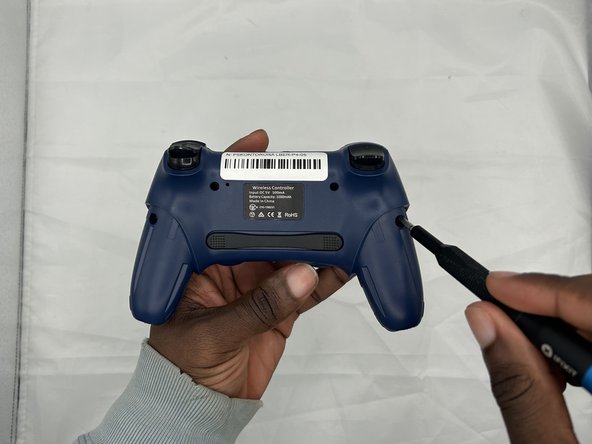
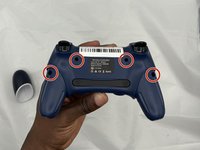
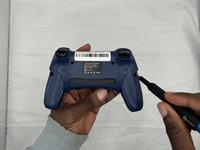
Remove the four 9 mm Phillips #1 screws that secure the rear case.
-
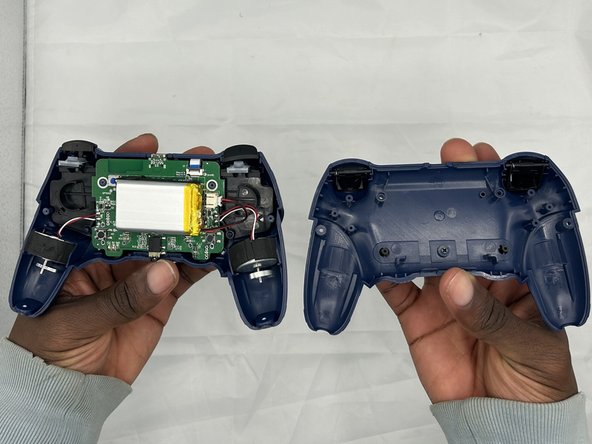
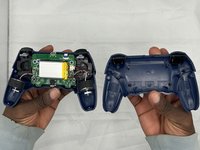
Lift off the rear casing.
-
-
-
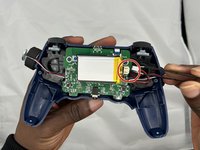
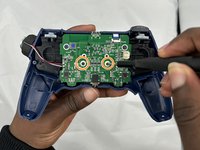
Use tweezers to disconnect the battery from the motherboard.
-
Gently lift the rumble motors out of their housings and set them beside the controller.
-
Gently peel off the battery from the motherboard, with care not to bend or puncture the battery.
-
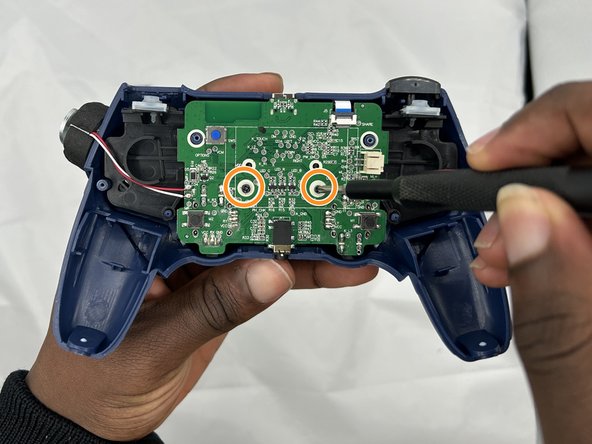
Remove the two 7 mm Phillips #1 screws that secure the motherboard.
-
-
-
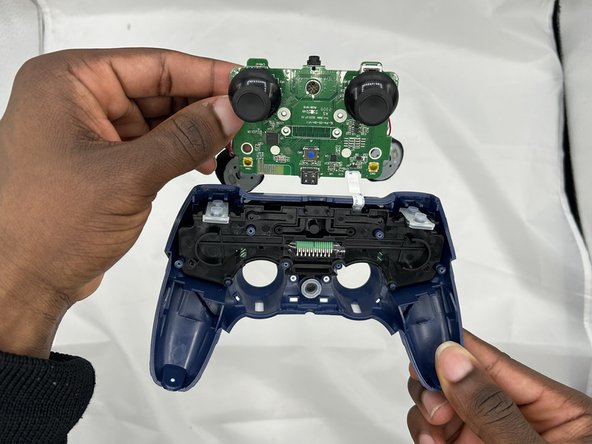
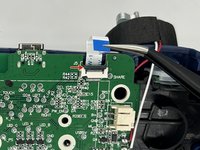
Flip up the black ZIF locking flap that secures the touchpad ribbon cable on the top-right edge of the motherboard.
-
Use tweezers or your fingers to gently disconnect the touchpad ribbon cable.
-
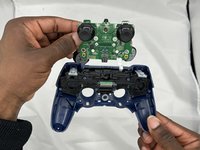
While pulling towards you, remove the motherboard.
-
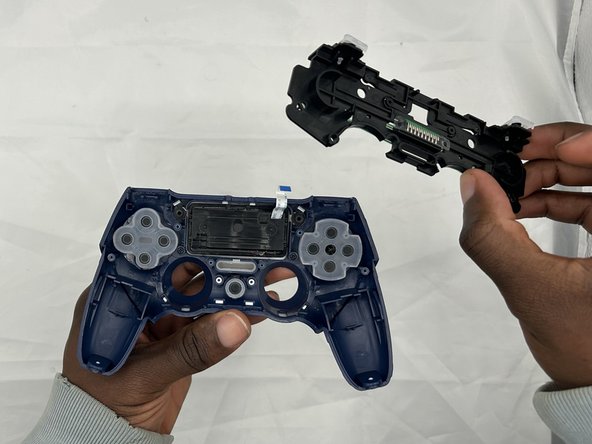
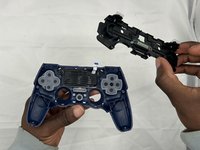
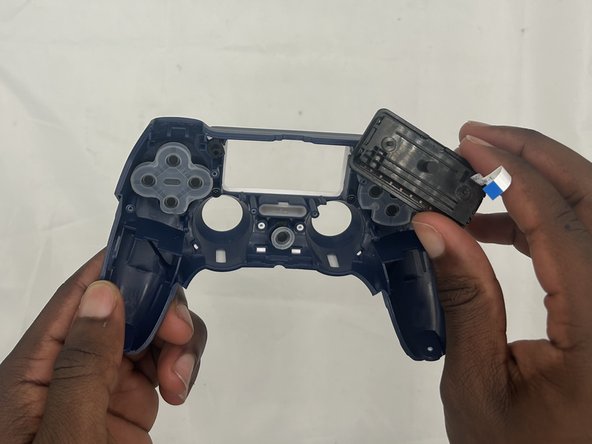
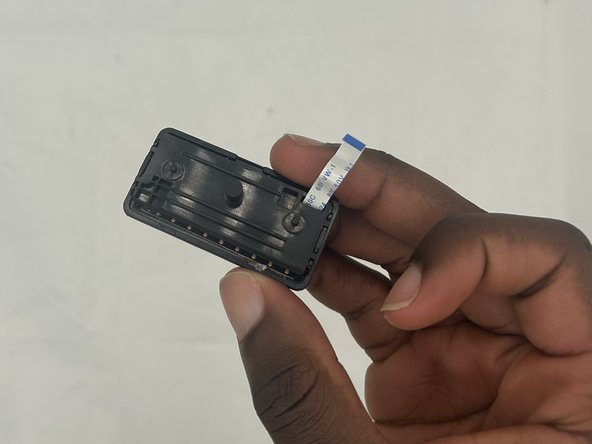
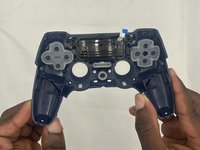
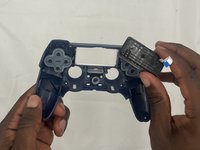
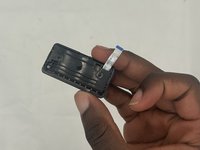
Remove the black plate.
-





To reassemble your device, follow these instructions in reverse order.

Team

University of North Texas, Team 2-4, Kilpatrick Spring 2024 Member of University of North Texas, Team 2-4, Kilpatrick Spring 2024
UNT-KILPATRICK-S24S2G4
4 Members
6 Guides authored
