
Origin EON17-S mSATA SSDs Replacement

Caelan Langdon and 7 other contributors
Last updated on Dec 13, 2018
Views: 4.7K
View statistics:
- Past 24 Hours:
- 1
- Past 7 Days:
- 20
- Past 30 Days:
- 91
- All Time:
- 4,674
Comments: 0
No one has left comments on this guide. Will you be first?
Go to guide commentsCompleted: 1 2
1 person has marked this guide "completed." Will you be next?
2 people have marked this guide "completed." Including you — great job!
Favorites: 0 1
No one has favorited (and subscribed to) this guide. Will you be the first?
1 person has favorited (and subscribed to) this guide — and that's you!
Introduction
Go to step 1 ↓This guide will show you how to access and remove the mSATA SSD from both locations in the Origin EON17-S.
What you need
Tools

-
-
-
Disconnect all peripherals.
-
Disconnect the power cord.
-
Lay the computer upside-down.
 Ask FixBot
-
-
-
Push both locking tabs inward. One is spring loaded and will need to be held while removing the battery.
-
Remove the battery by pulling up on the tab.
-
-
-
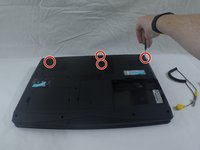
Remove the component cover by removing the six screws with a 3/32" screwdriver.
-
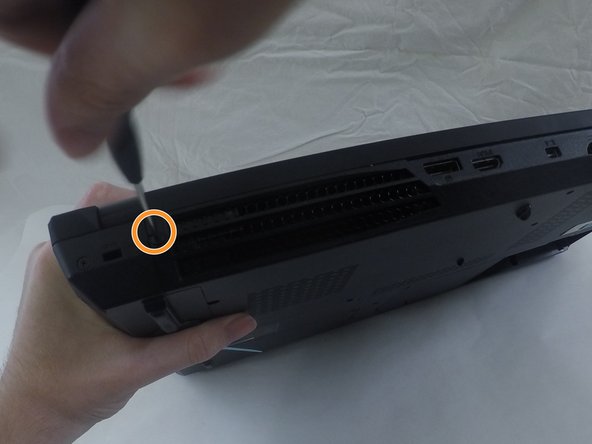
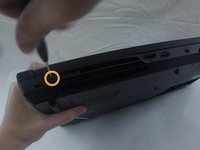
Remove the screws from the bottom of the computer.
-
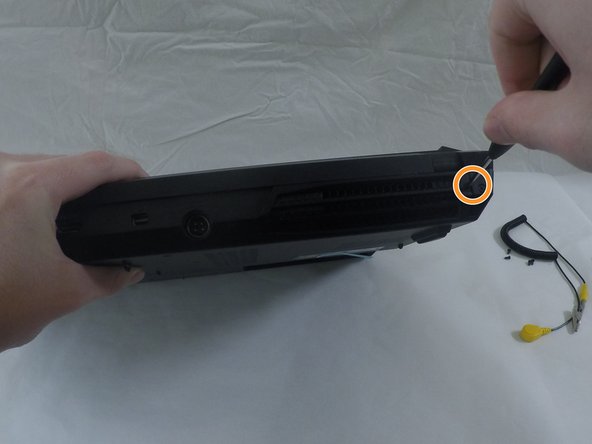
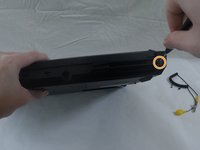
Remove the screws from the back of the computer.
-
-
-
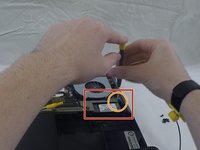
Put on the electrostatic wrist strap and attach the alligator clip to a sturdy piece of metal inside the case.
-
-
-
You will see the mSATA drive in the lower right hand corner of the component area.
-
Remove the screw on the far right side of the drive.
-
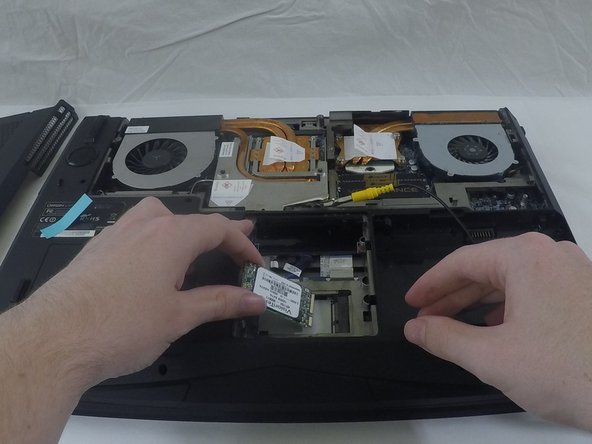
The drive will rise up to an angle.
-
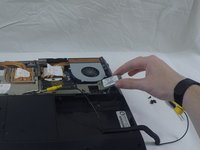
Remove the drive by pulling in the direction the drive is positioned.
-
-
-
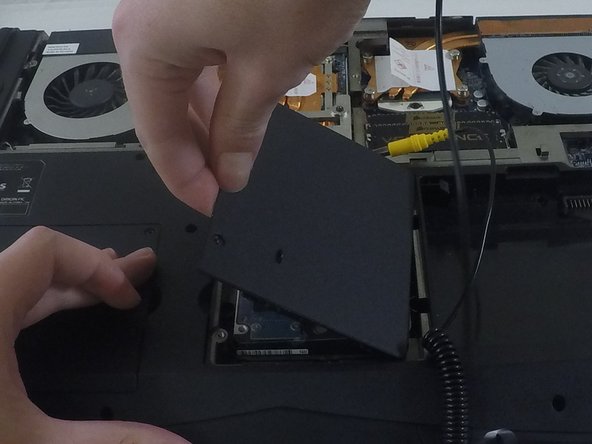
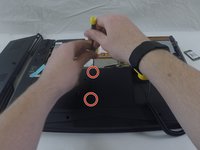
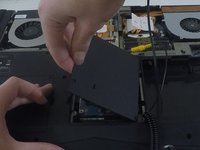
Unscrew the two screws holding the hard drive cover to reveal the second mSATA bay.
-
-
-
-
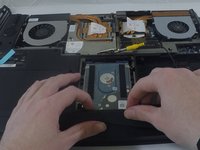
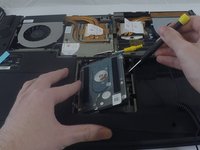
Remove the hard drive by sliding it towards you.
-
Once it is free of the port, use a screwdriver to gently pry it from the bay.
-
-
-
Remove the small, silver, rectangular plate below the hard drive bay.
-
Remove the small screw at the front of the plate.
-
Pull the plate up and out.
-
-
-
Remove the small screw on the upper left of the hard drive.
-
The drive will rise up at an angle.
-
Remove the drive by pulling in the direction the drive is currently positioned.
-
-









To reassemble your device, do anything you did in reverse.
Cancel: I did not complete this guide.
One other person completed this guide.

Team

Cal Poly, Team 15-2, Green Fall 2015 Member of Cal Poly, Team 15-2, Green Fall 2015
CPSU-GREEN-F15S15G2
4 Members
36 Guides authored
