
Opening the Huawei Watch 3

Tobias Isakeit and 2 other contributors
Last updated on May 7, 2024
Views: 5.9K
View statistics:
- Past 24 Hours:
- 13
- Past 7 Days:
- 63
- Past 30 Days:
- 285
- All Time:
- 5,938
Comments: 0
No one has left comments on this guide. Will you be first?
Go to guide commentsCompleted: 1 2
1 person has marked this guide "completed." Will you be next?
2 people have marked this guide "completed." Including you — great job!
Favorites: 0 1
No one has favorited (and subscribed to) this guide. Will you be the first?
1 person has favorited (and subscribed to) this guide — and that's you!
Introduction
Go to step 1 ↓Use this guide to open the Huawei Watch 3 and remove the back cover.
What you need
Tools
-
-
-
Spudger4.9
-


-
-
-
User your fingernail to pull the small metal pin on each wrist band towards the inside. This unlocks the wrist bands from the body of the watch.
-
Remove the wrist bands.
 Ask FixBot
-
-
-
Use a Torx T3 screwdriver to remove the four 4 mm-long screws on the back of the Huawei Watch 3.
-
-
-
Locate the small notch at the top of the back cover.
-
Use a Jimmy to pry open the back cover by twisting it.
-
-
-
Insert the tip of an opening pick between the back cover and the case.
-
Slide the opening pick around the back cover to loosen the gasket from the back cover.
-
-
-
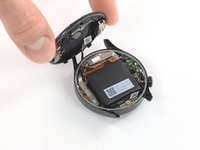
Use an opening pick or your fingers to carefully lift the back cover open.
-
Flip the back cover open away from the crown.
-
-
-
Use a Phillips screwdriver to remove the 2.9 mm-long screw from the battery bracket.
-
-
Tool used on this step:Tweezers$4.99
-
User a pair of tweezers to lift the top of the battery bracket free from its screw socket.
-
Unhook the opposite side of the bracket and remove it.
-
-
-
Use the tip of a spudger to pry up and disconnect the battery connector.
-
-
-
-
Use a Phillips screwdriver to remove the 2.9 mm-long screw from the sensor bracket.
-
-
-
User a pair of tweezers to move the top of the sensor bracket free from a small latch near the case by rotating in inwards.
-
Unhook the opposite side of the bracket and remove it.
-
-
-
Use the tip of a spudger to pry up and disconnect the sensor connector.
-
Remove the back cover.
-
-




To reassemble your device, follow these instructions in reverse order.
Repair didn’t go as planned? Try some basic troubleshooting, or ask our https://www.ifixit.com/Answers/Device/Hu... for help.
Cancel: I did not complete this guide.
One other person completed this guide.

Team

Tobias Isakeit - Repairability Engineer Member of Tobias Isakeit - Repairability Engineer
Business
1 Member
2,268 Guides authored
