Free Shipping on Domestic Orders $75+

One Education Infinity Solid State Drive Replacement

Views: 610

View statistics:

Past 24 Hours:
2
Past 7 Days:
7
Past 30 Days:
48
All Time:
610
Comments: 0

No one has left comments on this guide. Will you be first?

Go to guide comments
Completed: 0

No one has marked this guide "completed." Will you be the first?

Favorites: 0

No one has favorited (and subscribed to) this guide. Will you be the first?

Time Required: 10 - 15 minutes
Difficulty: Easy
Better Introduction

Improve this guide by completing or revising its introduction.

One Education Infinity Solid State Drive Replacement

Introduction

Go to step 1 ↓

This guide will detail how to safely remove the solid state drive (SSD) from the One Education Infinity laptop. The model number for the Infinity is A03. This device can be recognized by its dark grey exterior, light grey interior, purple carrying handle, and rotating camera above the screen.

The Infinity was released in Spring 2019 and is NOT the same as the Infinity: One.

What you need

Tools

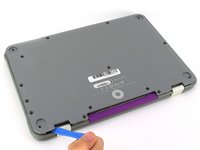
    1. One Education Infinity Solid State Drive Replacement, Back Case: step 1, image 1 of 3 One Education Infinity Solid State Drive Replacement, Back Case: step 1, image 2 of 3 One Education Infinity Solid State Drive Replacement, Back Case: step 1, image 3 of 3
      • Always power off your device before beginning disassembly.

      • Remove the screw covers and rubber feet from the bottom of the laptop with a metal spudger.

      Ask FixBot

      Add Comment

    2. One Education Infinity Solid State Drive Replacement: step 2, image 1 of 2 One Education Infinity Solid State Drive Replacement: step 2, image 2 of 2
      • Using a Phillips #00 screwdriver, remove the sixteen 5.0 mm black screws from the back panel.

      Ask FixBot

      Add Comment

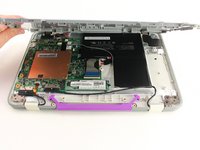
    3. One Education Infinity Solid State Drive Replacement: step 3, image 1 of 3 One Education Infinity Solid State Drive Replacement: step 3, image 2 of 3 One Education Infinity Solid State Drive Replacement: step 3, image 3 of 3
      • Using the iFixit plastic opening tool or spudger, start near the white hinge of the device and lift along the outer edges of the device until all clips are released.

      • Lift the back case off of the device.

      • Removing the back may create a loud snapping noise.

      Ask FixBot

      Add Comment

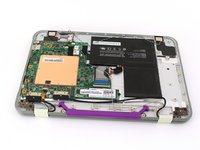
    1. One Education Infinity Solid State Drive Replacement, Battery: step 4, image 1 of 3 One Education Infinity Solid State Drive Replacement, Battery: step 4, image 2 of 3 One Education Infinity Solid State Drive Replacement, Battery: step 4, image 3 of 3
      • There may be black tape inside your device covering components or holding down wires. This tape is unimportant for the function of the device, and can be removed.

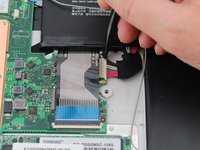
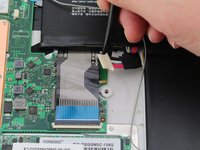
      • Carefully wiggle the battery cable to the right and out of the port with a plastic spudger.

      Ask FixBot

      Add Comment

    2. One Education Infinity Solid State Drive Replacement: step 5, image 1 of 3 One Education Infinity Solid State Drive Replacement: step 5, image 2 of 3 One Education Infinity Solid State Drive Replacement: step 5, image 3 of 3
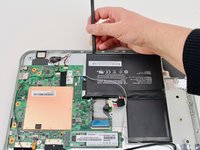
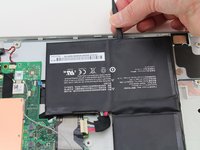
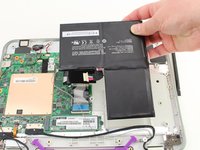
      • Wedge a plastic spudger underneath the battery from the upper edge and slide it carefully along the length of the battery to separate it from the case.

      • There is a mild adhesive holding down the battery. Take care not to puncture or excessively bend the battery while freeing it from the adhesive.

      • Lift the battery out from the internal case.

      Ask FixBot

      Add Comment

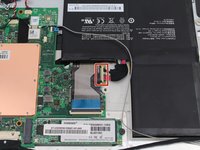
    1. One Education Infinity Solid State Drive Replacement, Solid State Drive: step 6, image 1 of 3 One Education Infinity Solid State Drive Replacement, Solid State Drive: step 6, image 2 of 3 One Education Infinity Solid State Drive Replacement, Solid State Drive: step 6, image 3 of 3
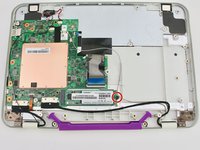
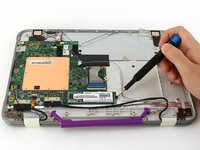
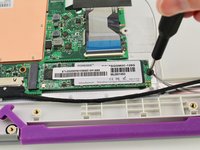
      • Use a Phillips #00 screwdriver to remove the single 2mm black screw from the SSD.

      Ask FixBot

      Add Comment

    2. One Education Infinity Solid State Drive Replacement: step 7, image 1 of 3 One Education Infinity Solid State Drive Replacement: step 7, image 2 of 3 One Education Infinity Solid State Drive Replacement: step 7, image 3 of 3
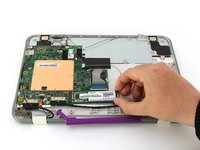
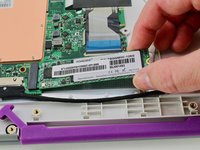
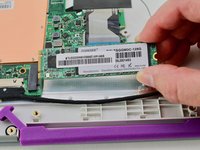
      • Grab the SSD with your fingers and slide it slowly to the right and out of its port.

      Ask FixBot

      Add Comment

Conclusion

To reassemble your device, follow these instructions in reverse order.

Cancel: I did not complete this guide.

Caitlin Feldewerth

Member since: 10/10/19

85 Reputation

1 Guide authored

Team

Cal Poly, Team S11-G4, Regan Fall 2019 Member of Cal Poly, Team S11-G4, Regan Fall 2019

CPSU-REGAN-F19S11G4

3 Members

48 Guides authored

0 Guide Comments

Add Comment

View Statistics:

Past 24 Hours: 2

Past 7 Days: 7

Past 30 Days: 48

All Time: 610