Free Shipping on Domestic Orders $75+

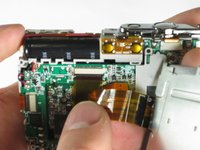
Olympus FE-170 LCD Screen Replacement

Views: 1.5K

View statistics:

Past 24 Hours:
2
Past 7 Days:
23
Past 30 Days:
103
All Time:
1,514
Comments: 0

No one has left comments on this guide. Will you be first?

Go to guide comments
Completed: 0

No one has marked this guide "completed." Will you be the first?

Favorites: 0

No one has favorited (and subscribed to) this guide. Will you be the first?

Time Required: 15 - 20 minutes
Difficulty: Easy
Olympus FE-170 LCD Screen Replacement

Introduction

Go to step 1 ↓

Before removing the LCD screen, you will have to remove the camera casing.

What you need

Tools

    1. Olympus FE-170 LCD Screen Replacement, Casing: step 1, image 1 of 2 Olympus FE-170 LCD Screen Replacement, Casing: step 1, image 2 of 2
      • Remove the 2 exposed screws on opposite sides of the camera. Turn the screws counter-clockwise to remove.

      Ask FixBot

      Add Comment

    2. Olympus FE-170 LCD Screen Replacement: step 2, image 1 of 2 Olympus FE-170 LCD Screen Replacement: step 2, image 2 of 2
      • Open the battery compartment and remove the 2 screws in the top of the opening.

      Ask FixBot

      Add Comment

    3. Olympus FE-170 LCD Screen Replacement: step 3, image 1 of 2 Olympus FE-170 LCD Screen Replacement: step 3, image 2 of 2
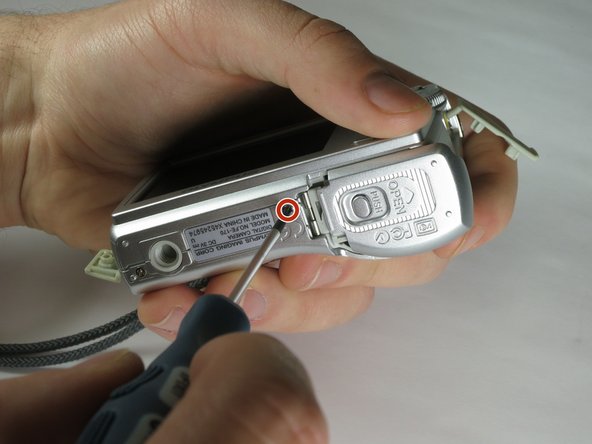
      • Remove the 2 exposed screws on the bottom of the camera.

      Ask FixBot

      Add Comment

    4. Olympus FE-170 LCD Screen Replacement: step 4, image 1 of 1
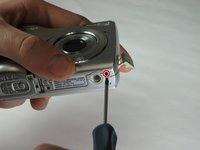
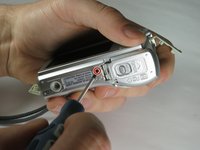
      • Uncover the mini-usb dock on the side of the camera and unscrew the screw next to the flap joint

      Ask FixBot

      Add Comment

    5. Olympus FE-170 LCD Screen Replacement: step 5, image 1 of 1
      • Uncover the video cable port on the side of the camera and remove the screw

      Ask FixBot

      Add Comment

    6. Olympus FE-170 LCD Screen Replacement: step 6, image 1 of 2 Olympus FE-170 LCD Screen Replacement: step 6, image 2 of 2
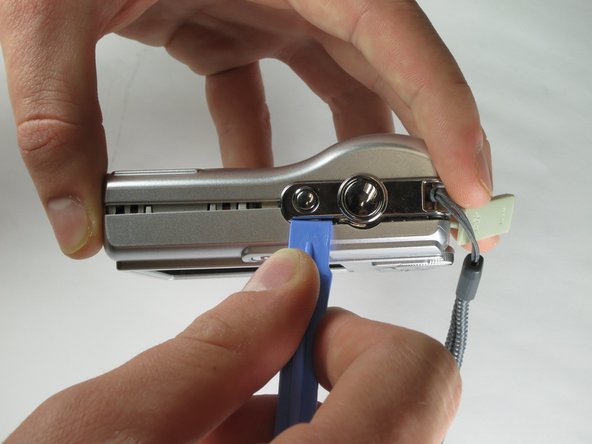
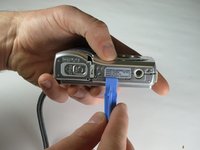
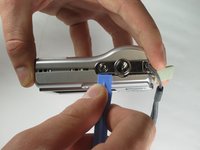
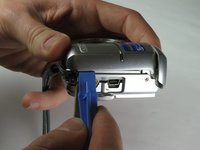
      • Carefully slip the head of the plastic opening tool under the panels by finding the crack between the panels. Lightly apply pressure in the shown places at the top and bottom of the camera.

      Ask FixBot

      Add Comment

    7. Olympus FE-170 LCD Screen Replacement: step 7, image 1 of 2 Olympus FE-170 LCD Screen Replacement: step 7, image 2 of 2
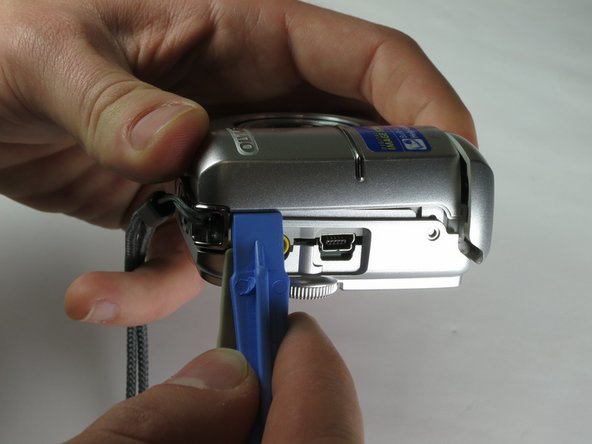
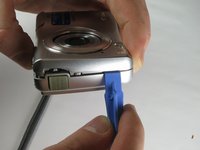
      • Loosen the panels on the sides of the camera in the shown places by slipping the plastic opening tool in the crack between the panels. Lightly apply pressure.

      Ask FixBot

      Add Comment

    8. Olympus FE-170 LCD Screen Replacement: step 8, image 1 of 2 Olympus FE-170 LCD Screen Replacement: step 8, image 2 of 2
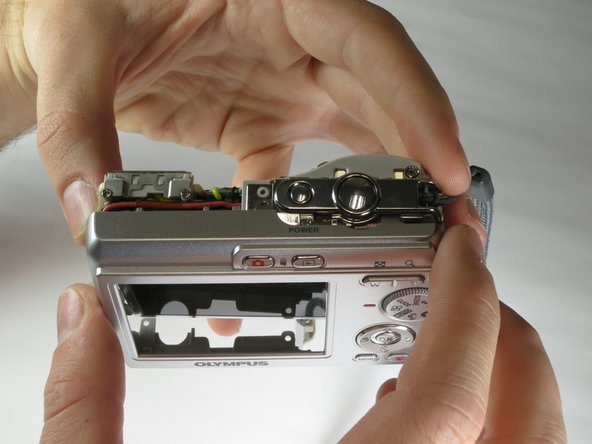
      • Ensure that the panels have been loosened. Carefully use hands to pull back and remove the panels.

      Ask FixBot

      Add Comment

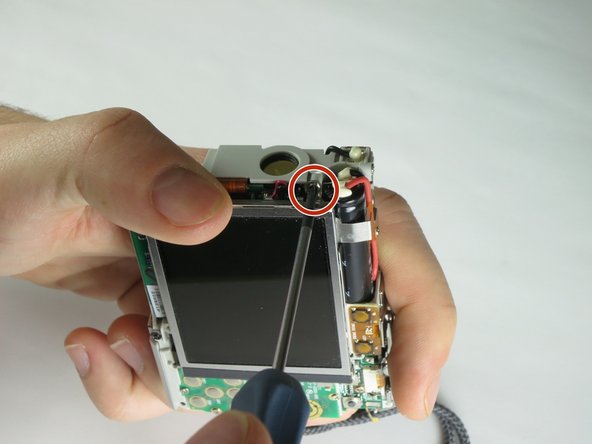
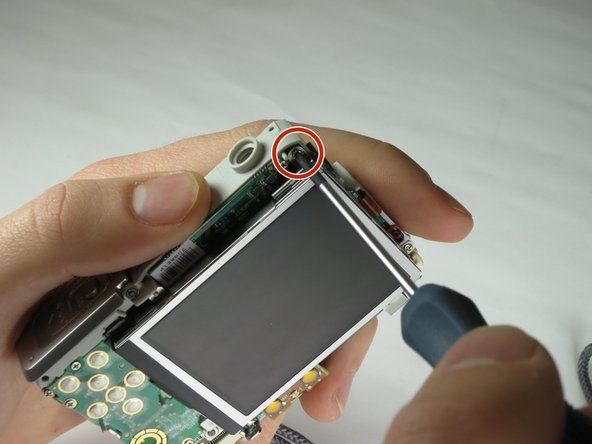
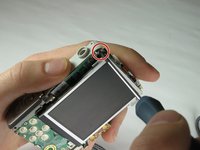
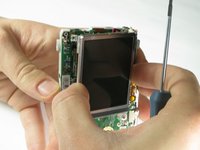
    1. Olympus FE-170 LCD Screen Replacement, LCD Screen: step 9, image 1 of 3 Olympus FE-170 LCD Screen Replacement, LCD Screen: step 9, image 2 of 3 Olympus FE-170 LCD Screen Replacement, LCD Screen: step 9, image 3 of 3
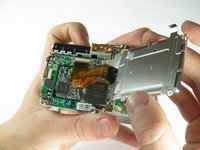
      • Remove the three screws holding the LCD Screen in place.

      • The screws are located at the upper right, upper left, and lower left corners of the screen, as shown in the pictures.

      • After removing the screws, do not let the screen drop away or try to pull it out. It is still connected by a ribbon of wires.

      Ask FixBot

      Add Comment

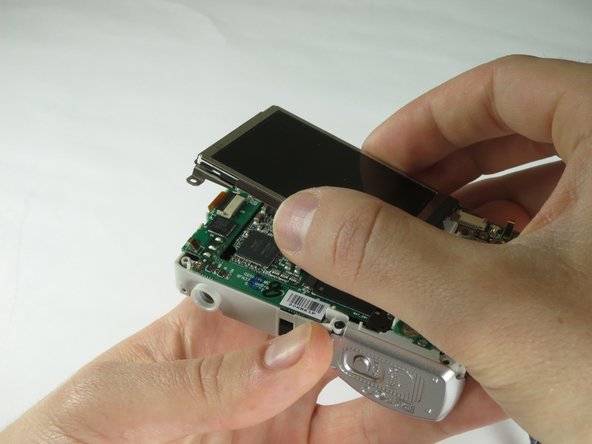
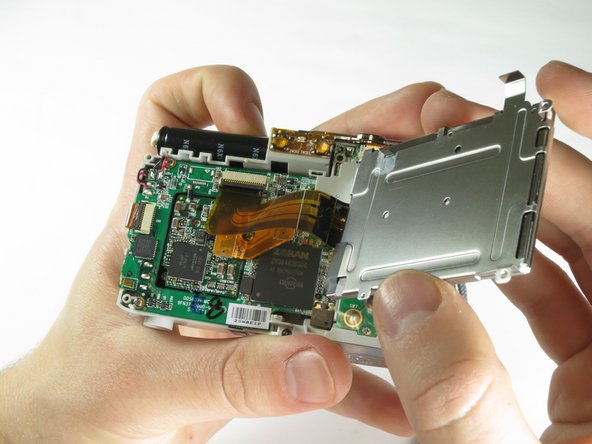
    2. Olympus FE-170 LCD Screen Replacement: step 10, image 1 of 3 Olympus FE-170 LCD Screen Replacement: step 10, image 2 of 3 Olympus FE-170 LCD Screen Replacement: step 10, image 3 of 3
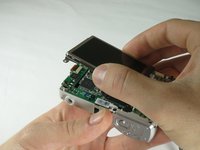
      • Carefully lift the LCD screen away

      • Don't pull away. The ribbon will still be connected to the camera.

      Ask FixBot

      Add Comment

    3. Olympus FE-170 LCD Screen Replacement: step 11, image 1 of 2 Olympus FE-170 LCD Screen Replacement: step 11, image 2 of 2
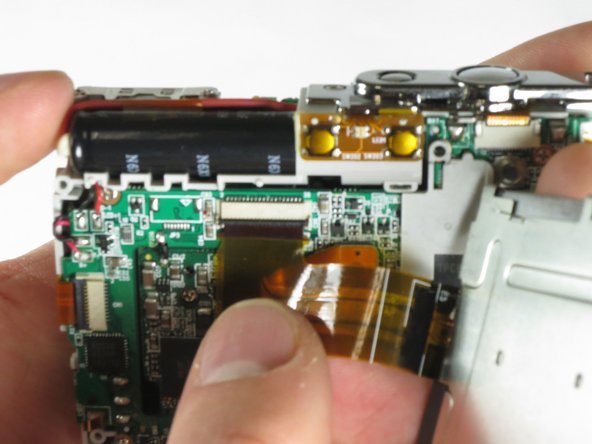
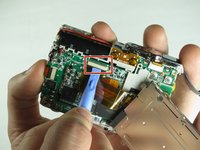
      • Using a plastic opening tool, lift the latch on the ribbon connector.

      • Insert the plastic opening tool beneath the latch, and gently pull up.

      • Carefully pull the ribbon out, and lift the LCD screen out and away.

      Ask FixBot

      Add Comment

Conclusion

To reassemble your device, follow these instructions in reverse order.

Cancel: I did not complete this guide.

Who Knows?

Member since: 03/24/15

104 Reputation

1 Guide authored

Team

Baylor, Team 6-4, Shaver Spring 2015 Member of Baylor, Team 6-4, Shaver Spring 2015

BU-SHAVER-S15S6G4

3 Members

72 Guides authored

0 Guide Comments

Add Comment

View Statistics:

Past 24 Hours: 2

Past 7 Days: 23

Past 30 Days: 103

All Time: 1,514